
Custom dashboard widgets
When the ready-made widgets aren't enough, build your own widget with the data scope, chart type and look you want.
Taskie's widget library covers most common questions, but every team has its own metrics. With a custom widget, you can put exactly the thing you want to measure on your dashboard.
Build a custom widget
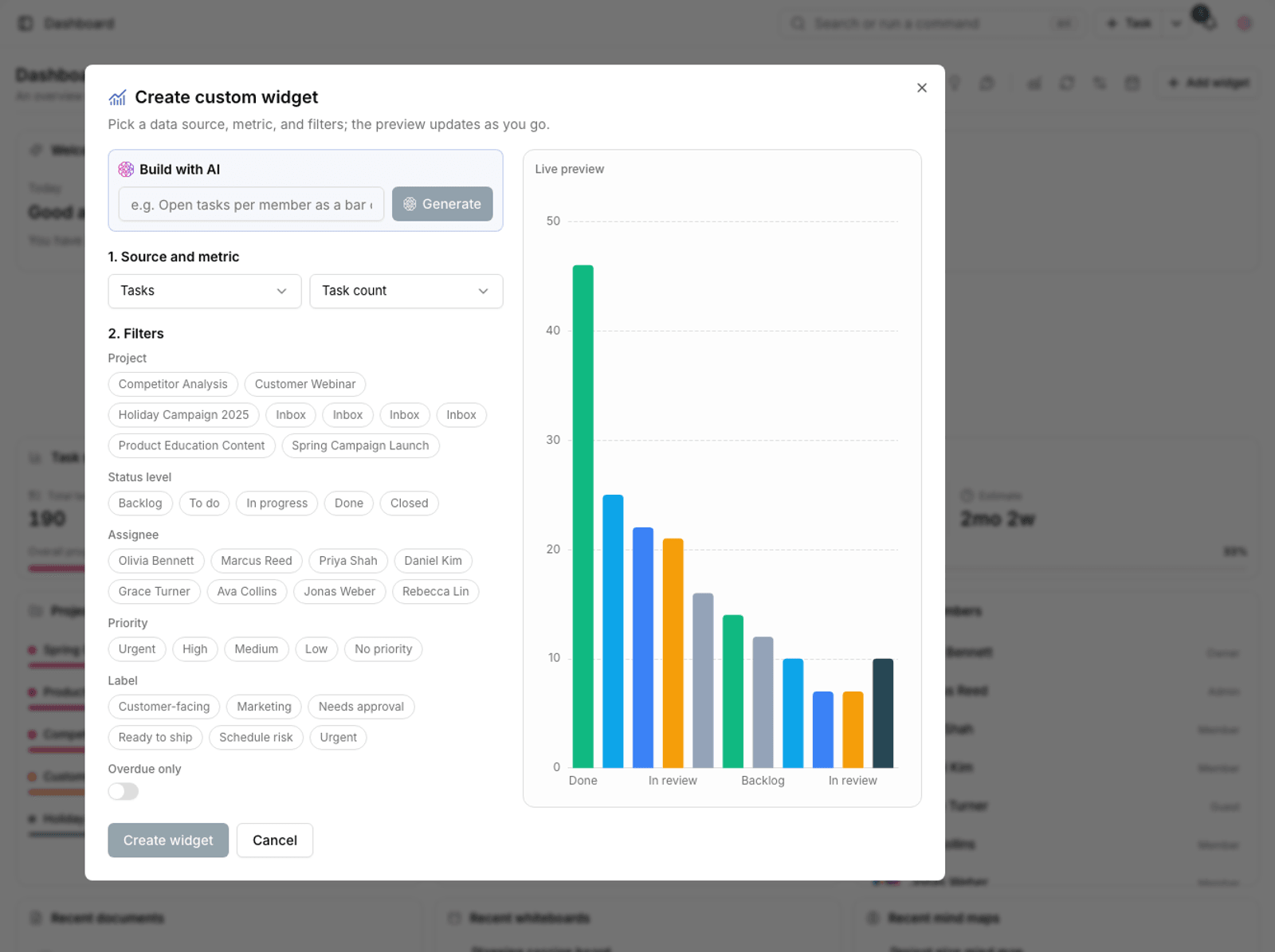
- On the dashboard, go to the custom widgets section.
- Create a new widget and give it a title.
- Set the Data scope: the whole workspace or one specific project.
- Choose the display type (chart or counter).
- Apply the filters you need so only relevant data is counted.
- Save, then place the widget on the dashboard.
Appearance settings
The Customize widget panel gives you the widget's display, data scope and behavior settings in one place, and also shows a preview of how it looks:
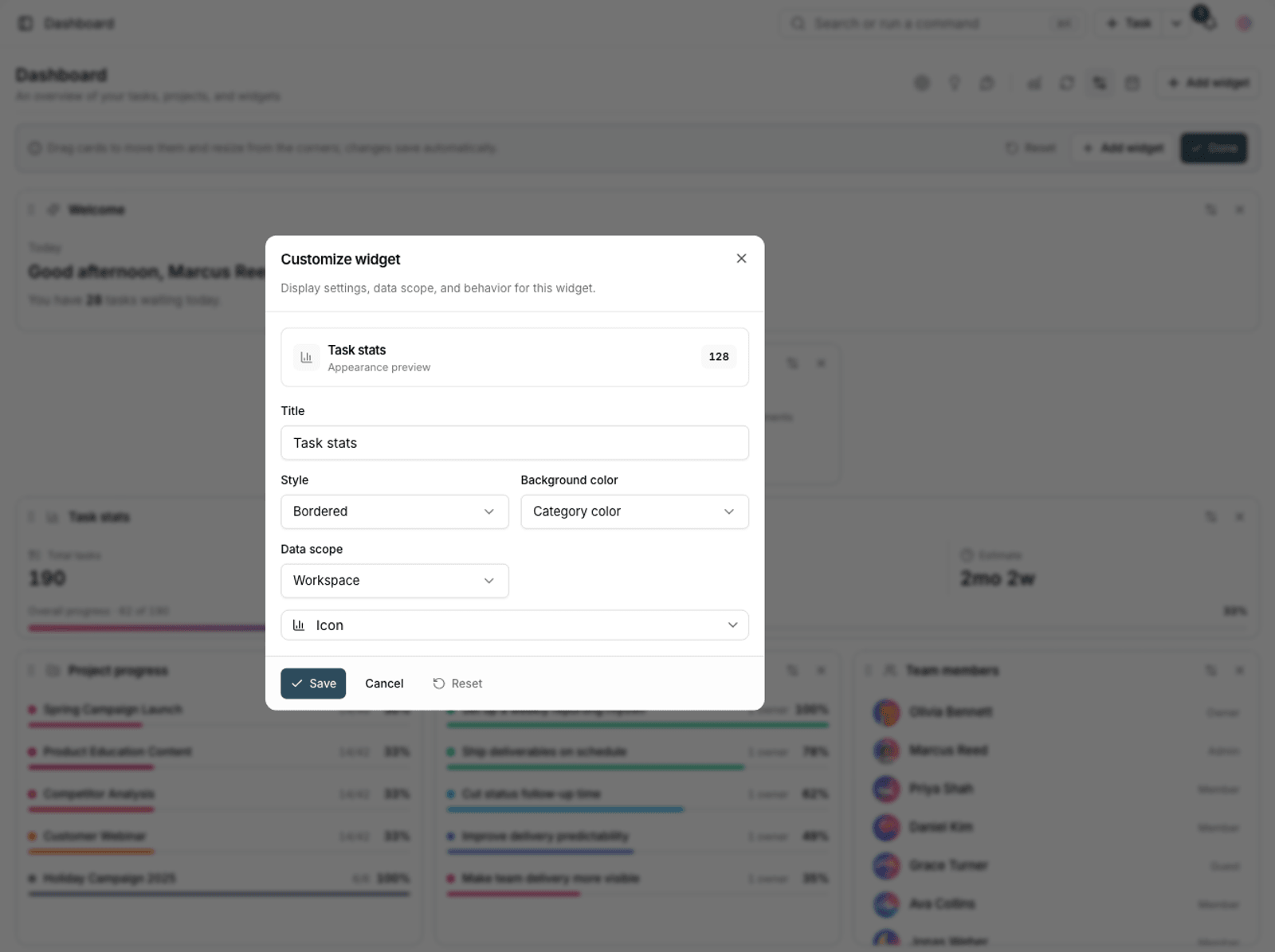
- Style: with or without a border.
- Background color and Category color: to visually separate widgets that belong together.
- Icon: helps you find the widget quickly on a busy dashboard.
- Number of items: how many items list widgets show.
- Reset: return to the default appearance settings.
Tip: For number-based widgets, use color only to carry meaning (for example, red for overdue work). Coloring every widget means none of them stand out.
Access and sharing
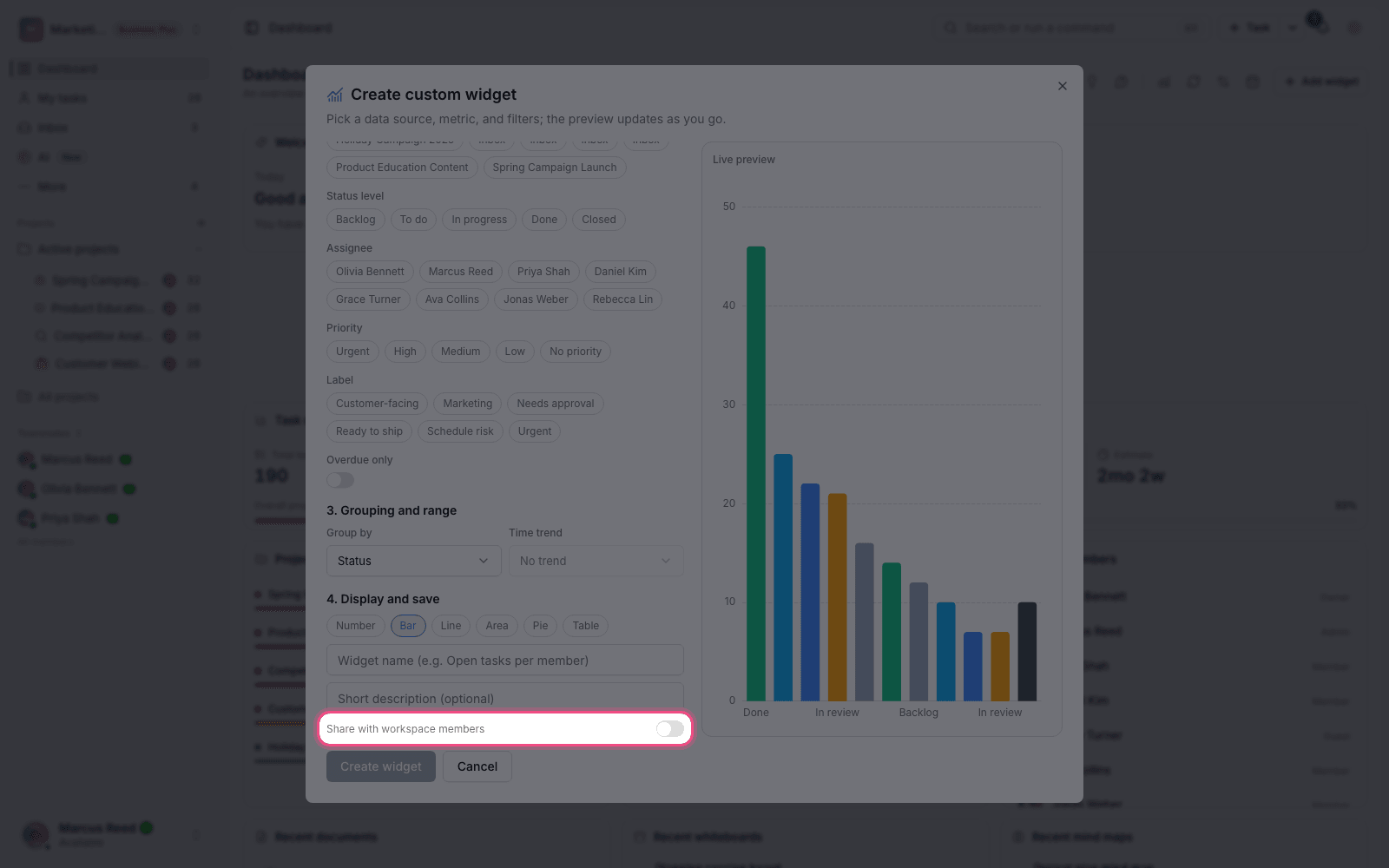
For each custom widget, you can decide whether it's just for you or also available to workspace members. Shared widgets work well for metrics the whole team should see the same way.
Plan required: Custom widgets are available on the Business plan and above. The number of dashboard widgets also depends on the plan: 3 widgets on Free and unlimited on higher plans.
Choose a display type
The display type should match the question you're asking. If the answer is a number, use a counter; if the trend matters, a line chart; and if comparing categories matters, a bar chart.
- Counter: "How many overdue tasks do we have?"
- Line chart: "How has our task completion trended over the past four weeks?"
- Bar chart: "How is the workload distributed across members?"
- List: "Which tasks are due this week?"
Maintaining widgets
Like any report, a custom widget goes stale over time. If the filter a widget is built on no longer makes sense — for example, a label that was deleted — the widget shows the wrong number. Review your widgets every so often and remove unused ones to keep the dashboard readable.
Before you build a new widget
First make sure a ready-made widget doesn't already do the job. A custom widget is worth it when your question is truly specific; otherwise it just clutters the dashboard.
- Write your question in one sentence. If you can't, the widget won't be clear either.
- Browse the library of ready-made widgets. Many common questions are already covered.
- If your question only makes sense for one project, build the widget with that project as its scope.
- Watch the widget for a few days after you build it. If nobody looks at it, remove it.
For ready-made widgets, see Build a dashboard with widgets, and for a dashboard dedicated to one project, see Project dashboard.