
Workspace views and saved filters
Save the filters you use most and build views that show tasks from several projects together.
A project's smart view only sees that project's tasks. But some questions don't stop at project boundaries: "What's all the urgent work across the team this week?" For these, you need workspace-level views and saved filters.
Saved filters
You can save any filter combination you use regularly so you can apply it with one click next time.
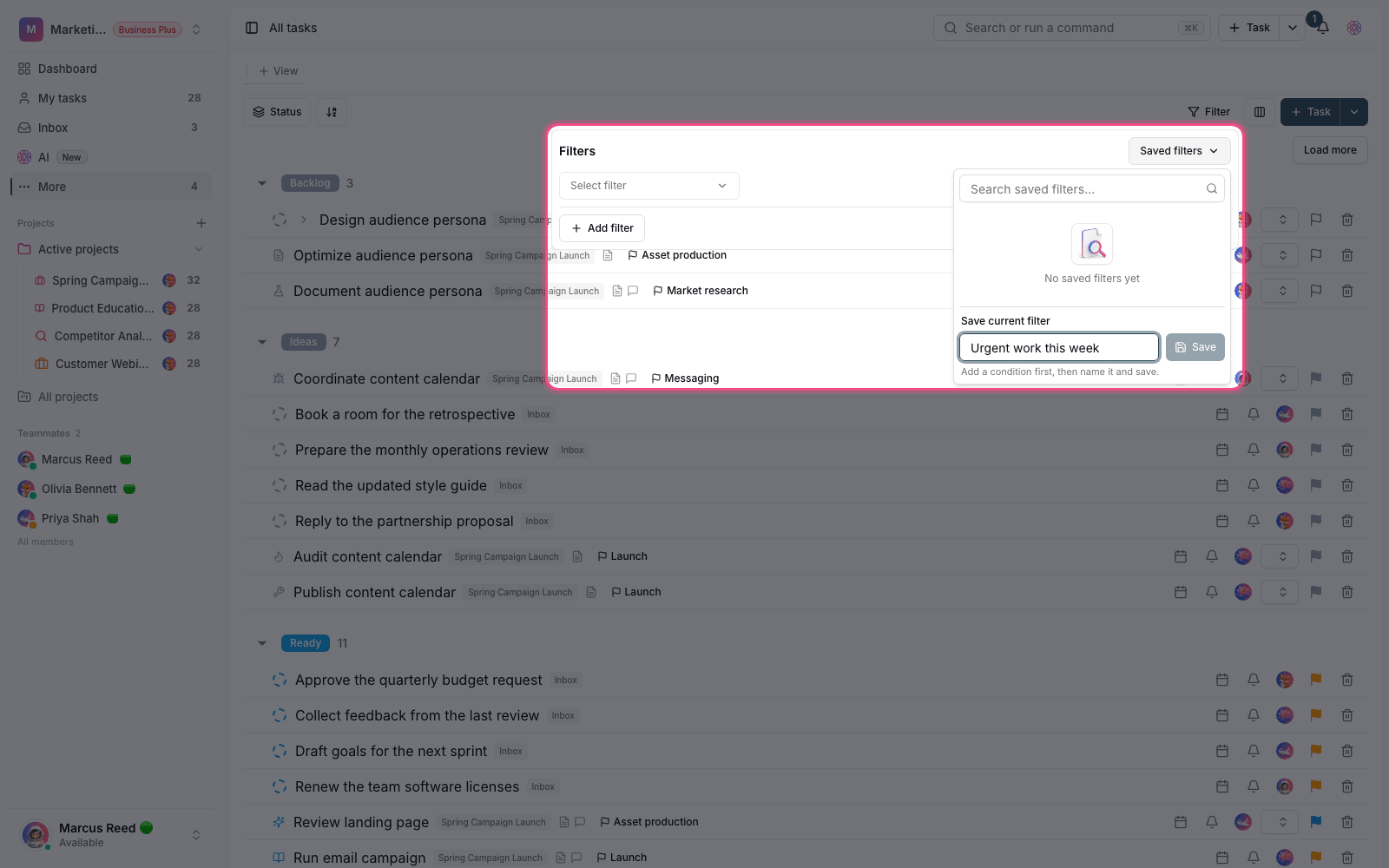
- Apply the filters you want in the view.
- Save the filter combination with a descriptive name.
- Next time, pick it from the Saved filters list.
- Delete unused filters to keep the list short.
Tip: A saved filter is personal and doesn't affect what your teammates see. If you want everyone to have the same view, create a shared view instead of a personal filter.
Workspace views
A workspace view is a filtered view that isn't limited to one project. With it you can have, for example, "all of the team's overdue tasks" on one page.
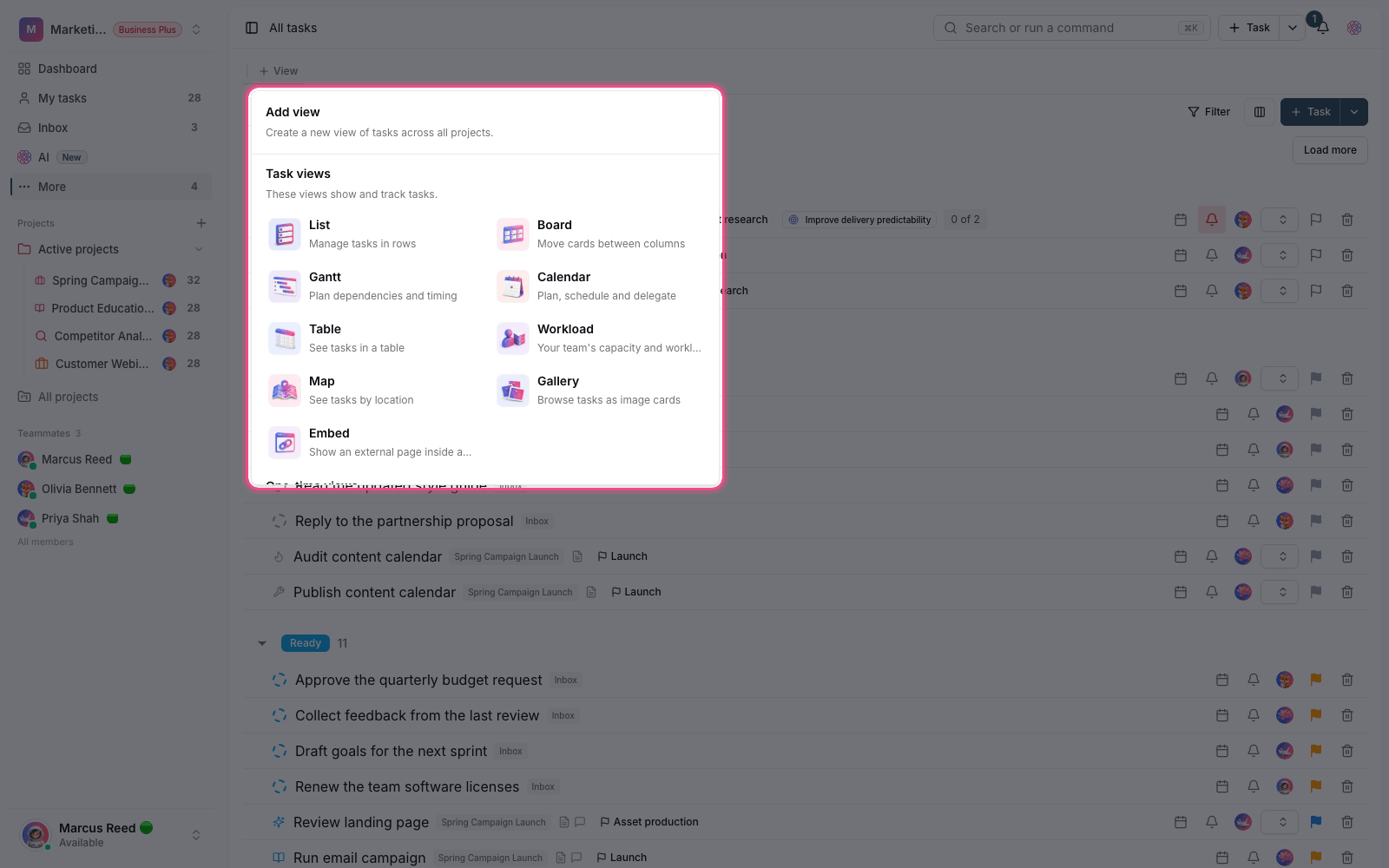
- Go to the workspace views section.
- Create a new view and give it a name.
- Define the filter conditions. You can also limit it to the projects you want.
- Before saving, check the preview count to see how many tasks match.
- Save it to add it to your list of views.
How this differs from the All tasks page
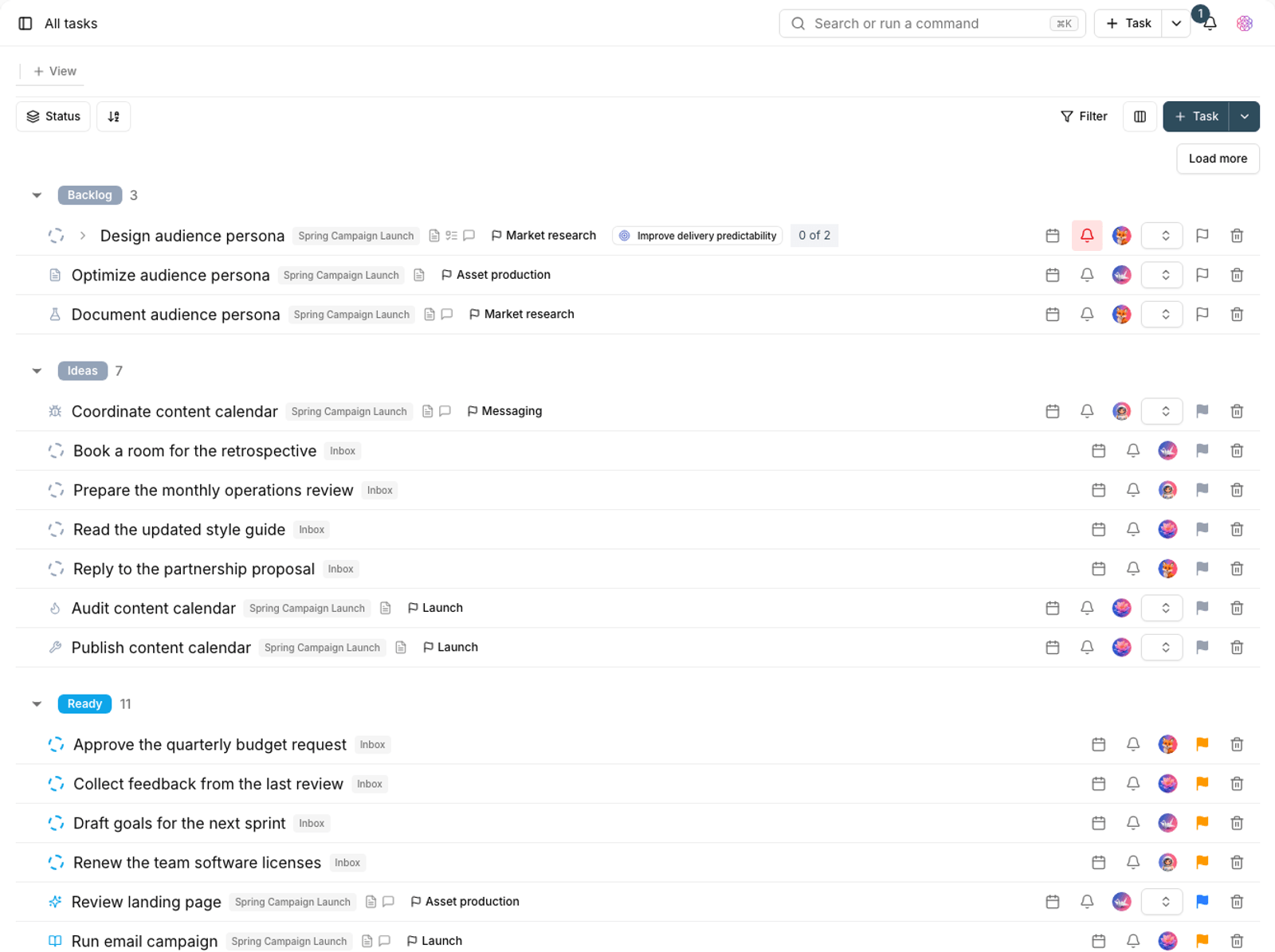
- All tasks page: a place to freely browse every task in the workspace in different layouts.
- Workspace view: a specific, saved question that gives you the same answer every time.
- Project smart view: the same idea, but limited to one project.
- Saved filter: a personal shortcut for quickly applying a filter combination to the current view.
Reminder: The IDs inside filters must be picked from the interface itself. Building a filter by hand with invalid values makes the view show no results.
Maintaining views
Views pile up over time too. A long list of views is just as confusing as having none.
- Give each view a clear name that states its question, not something like "View 2".
- Delete views you haven't opened in more than a month.
- If two views show nearly the same thing, keep one and refine its filter.
- Make your most-used view the default so you don't have to look for it every time.
- Before creating a new view, check whether an existing view can do the job by changing its grouping.
Share a view with your team
A personal view is just for you. If you want every member to see the same thing, create a shared view so there's a single reference point for discussion.
- Shared views work well for team reports and recurring meetings.
- Personal views are for your own work list and individual preferences.
- If you change a shared view, let the team know — everyone sees the same change.
- A shared view's name should make sense to everyone, not just the person who created it.
For nested filters at the project level, see Smart views and filters, and to browse every task, see the All tasks page.