
My day: your daily focus list
With My day, you pick a few important tasks each day so you can focus on that day's work instead of crowded lists.
When your task list gets long, the biggest question every morning is: "Which tasks do I really need to work on today?" The My day page is built to answer exactly that. It's a small, personal list that you put together fresh each day, showing only the tasks you picked for that day.
This list is completely private, and only you can see it — not the project manager and not your teammates. So you can plan your day however you like without worrying. On this page you'll learn how to build today's list, carry over yesterday's unfinished work, and use smart suggestions to choose better.
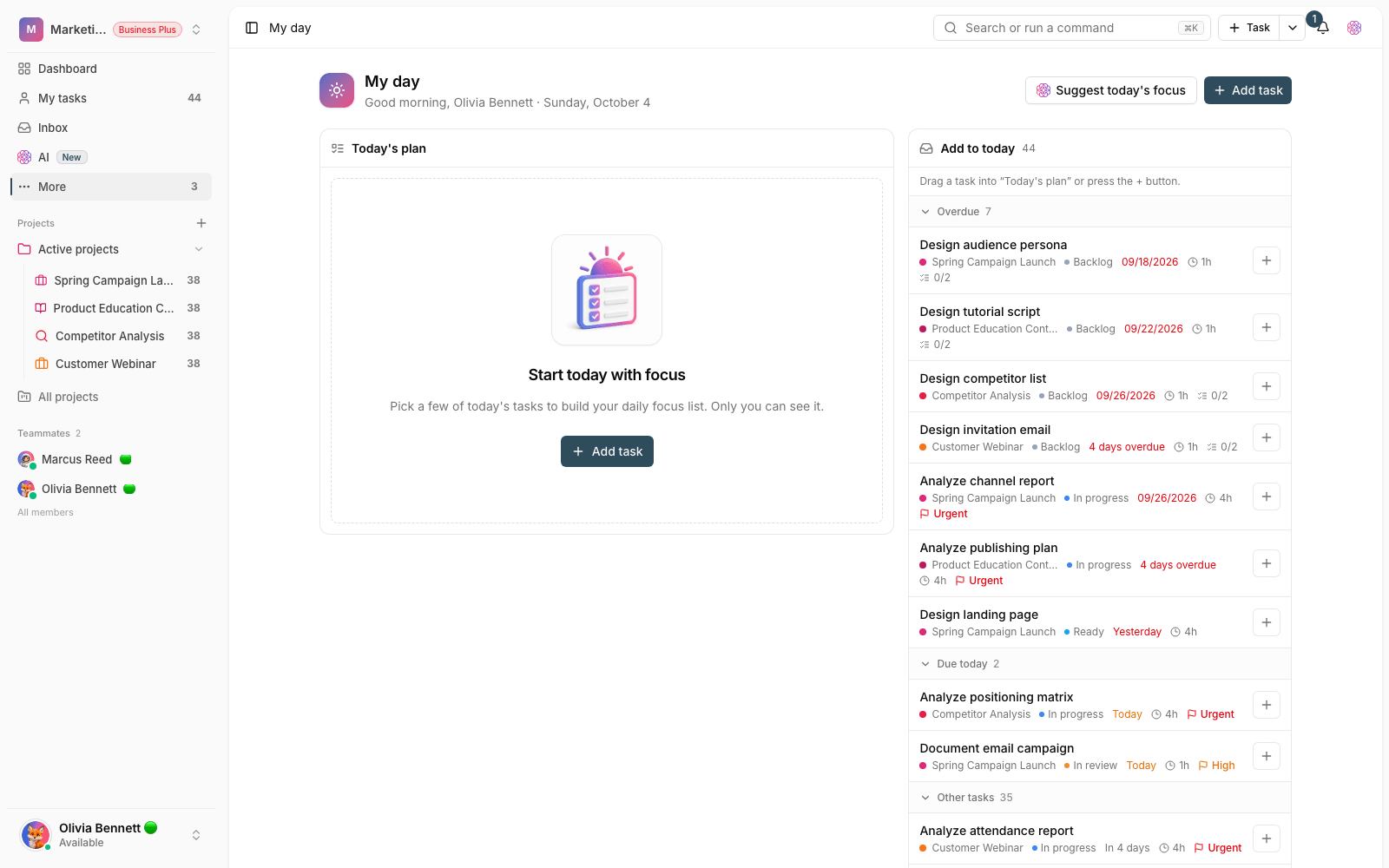
What is My day, and how is it different from My tasks?
The My tasks page shows every task you're the assignee of — a complete, ongoing list. My day, on the other hand, is a small selection of those tasks: the few you've decided to do today. Put simply, My tasks is your stockroom of work, and My day is today's plate.
- Today's list is personal, and nobody but you can see it.
- To protect your focus, the number of tasks per day has a set limit — by default up to 7 tasks a day.
- Only open tasks assigned to you can be added to today's list.
- The list isn't cleared at the end of the day. Tomorrow you can carry unfinished tasks over to the new day.
Go to the My day page
- In the sidebar, click More and choose My day. Use the pin icon to keep it in the sidebar permanently.
- On the My tasks page, click the My day button next to the column settings button.
- On the dashboard, add the My day widget so your day's list is always in front of you.
- If you prefer the keyboard, press G on any page to go straight to My day.
Build today's list
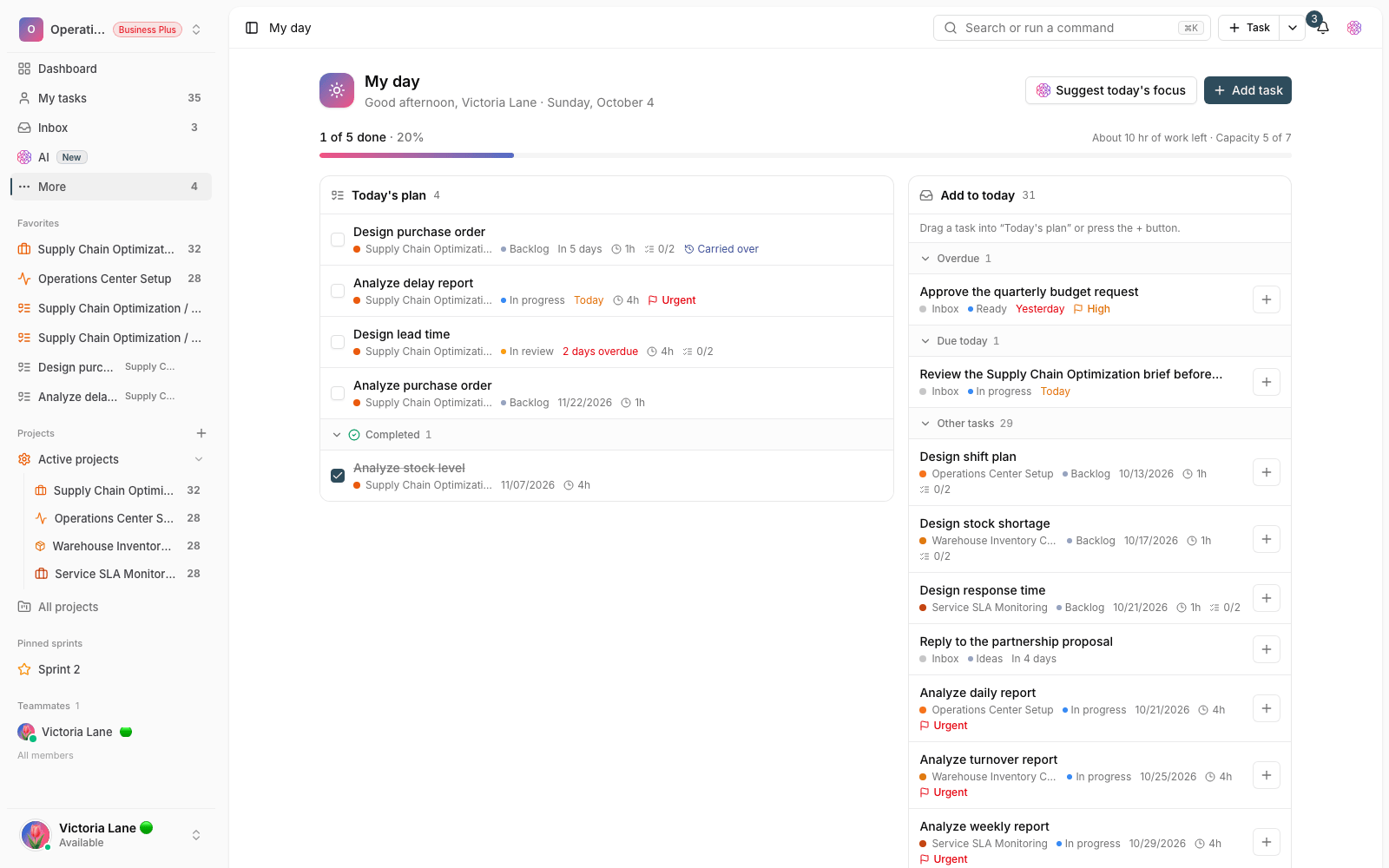
The My day page has two columns: Today's plan, which is your plan for the day, and next to it My tasks, the open tasks you can choose from.
- In the My tasks column, click a task's + button to add it to today's plan.
- Or grab the task with your mouse and drag it into the Today's plan column.
- To change the order, drag cards up and down within the same column. The order is saved automatically.
- If a task isn't in any list, create a new one right there with the Add task button.
- To remove a task from today's plan, click the X on its card. The task itself isn't deleted; it's only taken off today's list.
Tip: The daily limit is there to protect your focus. If you see the message that today's capacity is full, finish or remove one of your current tasks before adding a new one.
Track progress through the day
Click any card to open the task's details and change its status without leaving the page. When a task is done, it's crossed off today's list and the progress bar at the top of the Today's plan column moves forward, giving you a good sense of how your day is going.
Carry over yesterday's unfinished work
You don't have to start from scratch every day. If any task was left unfinished from the last day you planned, a carry-over suggestion appears at the top of the page the next morning.
- In the suggestion box, check the tasks that still matter.
- Click the move button to add those tasks to today's list.
- Carried-over tasks are marked with a Carried over label so you know they came from previous days.
- If you're planning today from scratch, close the box. No tasks are deleted.
Smart suggestions for today's tasks
If your workspace plan supports smart suggestions, you'll see a Suggest today's focus button at the top of the page. When you click it, the smart assistant reviews your open tasks and marks a few of them, each with a short explanation of why it was picked — for example, an upcoming due date or high priority. The final decision is always yours, and using this feature consumes the workspace's AI credits.
Morning reminder
If you still haven't planned your day by morning, Taskie sends a short notification reminding you to build today's list. You can turn this reminder, called Daily plan reminder, on or off in your account's notification settings.
Common mistakes
- Filling the list to its limit. A shorter list usually means a more successful day.
- Expecting to see teammates' tasks on this page. My day shows only tasks assigned to you.
- Thinking that removing a task from today's list deletes the task. The task stays where it is in the project.
- Ignoring the morning carry-over suggestion and forgetting yesterday's unfinished work.
To see the full list of your work and your notifications, read Inbox and My tasks, and if you want today's list to sit next to the team's other stats, see Build a dashboard.