
Inbox and My tasks
My tasks, the notifications inbox and the closed-tasks toggle help you stay focused on your own work.
In a busy workspace, alongside all the projects and the team's work, you need one fixed place that shows only "your own work". Taskie gives you that focus with the My tasks page and the notifications inbox, so you don't have to go project by project looking for your share of the work.
This page explains how to see the work assigned to you in one place, follow important notifications in the inbox, and decide whether closed tasks are shown in lists or stay hidden. The goal is that every time you open Taskie, you quickly know what's on your plate right now.
My tasks: the work that's yours
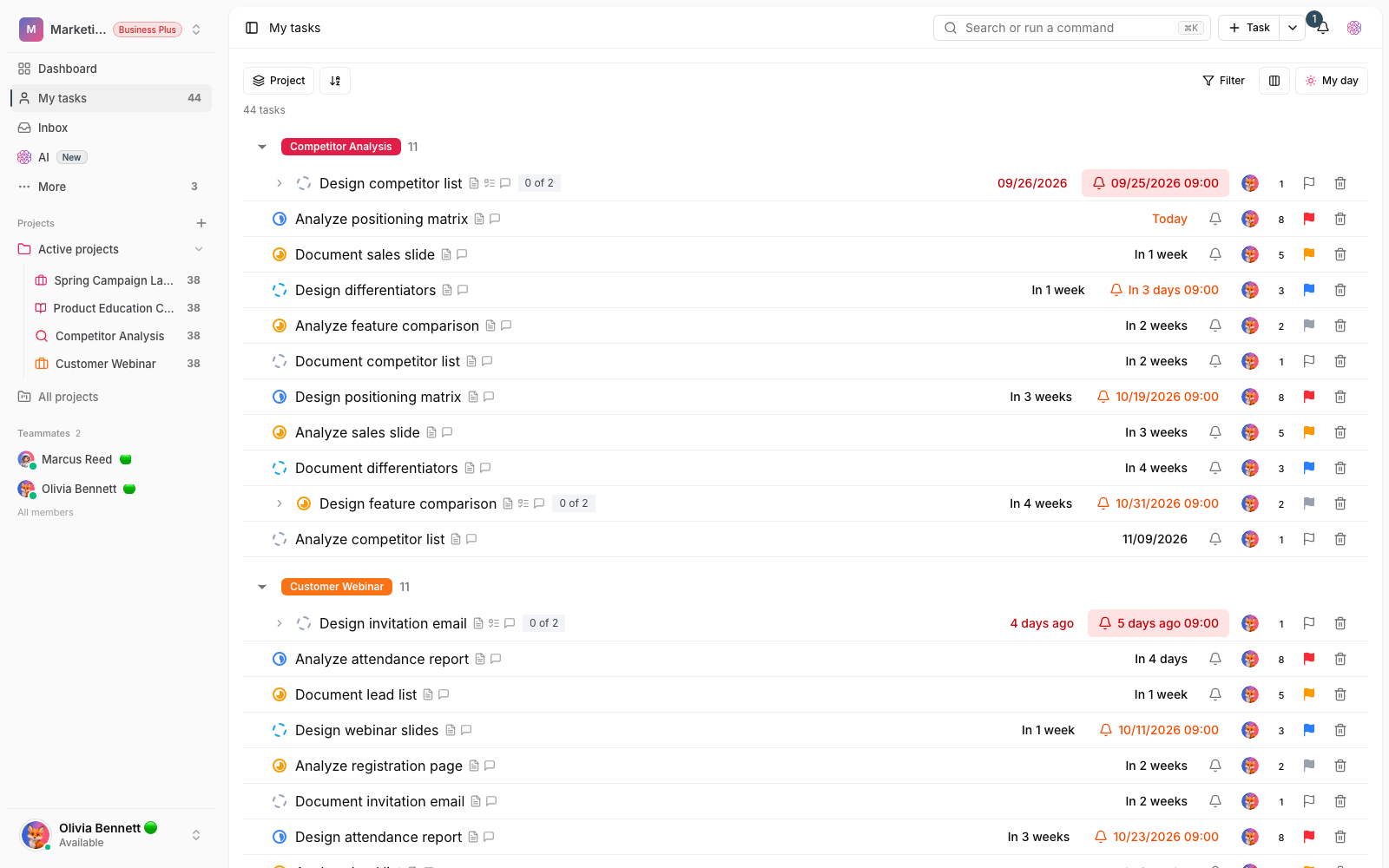
The My tasks page gathers every task you're responsible for from across the current workspace. Instead of searching through separate projects, you get a focused list of your share of the work here.
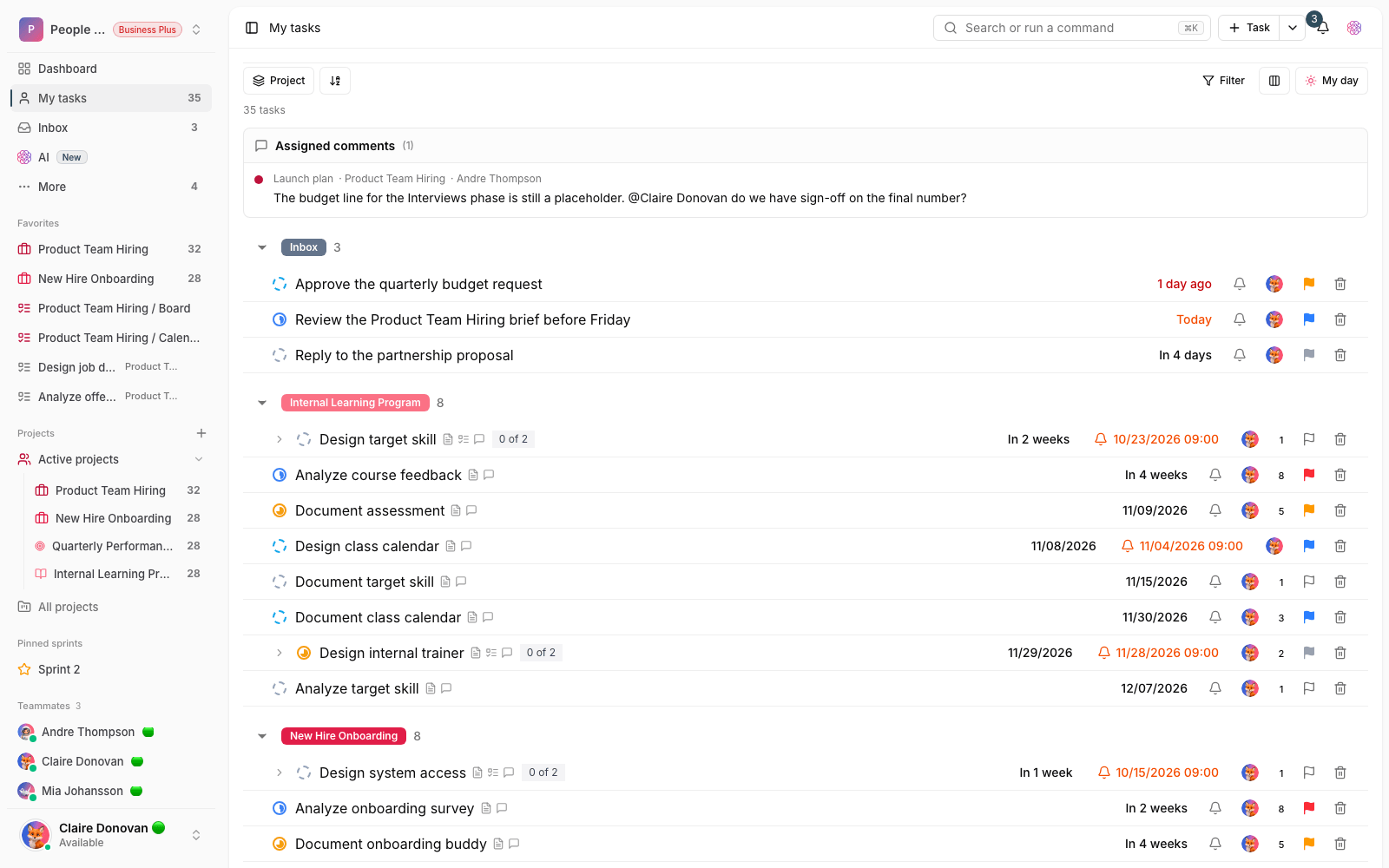
- Tasks you're the assignee of, from every project in the current workspace, are gathered on one page.
- Tasks are grouped by project, so it's clear where each one belongs.
- By default only open, unfinished tasks are shown, so the list doesn't get cluttered.
- Comments assigned to you also appear on this page alongside your tasks.
Working with the My tasks page
This page is more than a simple list. It gives you the same display tools as projects, so you can sort and filter tasks the way you like.
- Open My tasks from the sidebar to see the list of tasks assigned to you.
- Use the display bar at the top of the page to change how tasks are grouped and sorted.
- Show or hide table columns such as status, assignee, priority and due date as you like.
- Click any task to open its details and update it without leaving the page.
Notifications inbox
The notifications inbox is where Taskie tells you about things that affect your work, such as a task being assigned to you, a comment you're mentioned in, or a status change on something you follow.
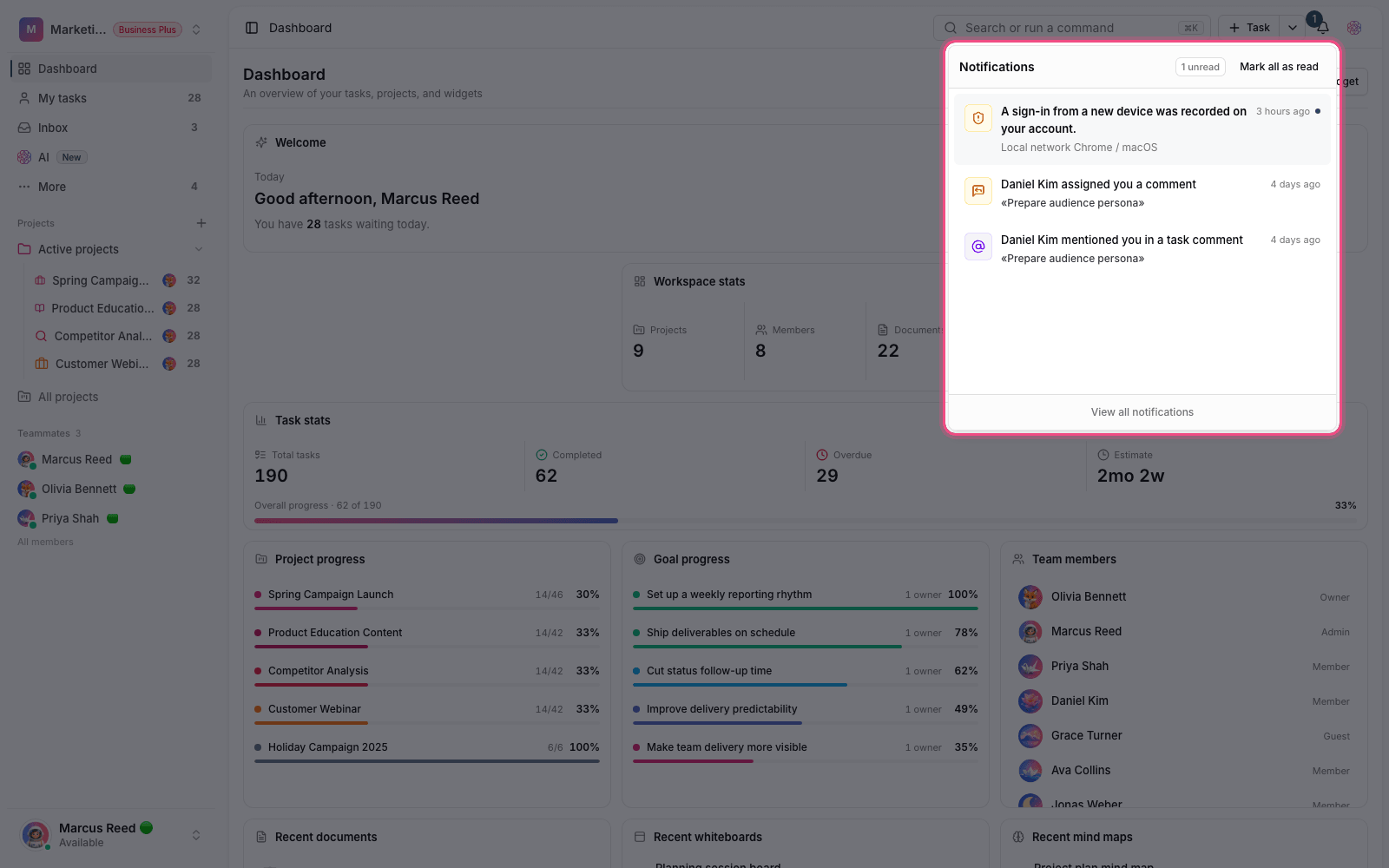
- The bell icon in the top bar shows how many unread notifications you have.
- Open it to see a list of recent notifications, and click any item to go straight to that task or conversation.
- Clicking a notification marks it as read, and you can also mark all notifications as read at once.
- As you scroll down the list, older notifications load gradually.
Tip: If you want fewer notifications, you can choose in your account settings which events you hear about and through which channel (in-app or email).
Show or hide closed tasks
When a task reaches a done or closed status, it's removed from lists by default so you stay focused on open work. But you can show these tasks again whenever you need to.
- In the view toolbar, find the Show closed tasks toggle.
- By default, tasks with a done or closed status are hidden.
- Turn the toggle on to show closed tasks in the same list.
- To go back to a clean, focused view, turn the toggle off again.
Your personal inbox for quick capture
Separate from notifications, Taskie keeps a personal project named Inbox in your sidebar. This inbox is a place to quickly capture tasks when you don't know yet which project they belong to; later you can sort them and move them to the right project. Tasks assigned to you that have reminders are also gathered together here so they don't get forgotten.
Common mistakes
- Expecting to see tasks from another workspace in My tasks. This page shows only tasks from the current workspace.
- Thinking a task was deleted when it's only hidden from the list because it's closed.
- Ignoring unread notifications and missing important assignments and comments.
- Not using the inbox for quick capture, so small tasks get forgotten.
To build a saved view of your own work with the filters you want, see Smart views and filters, and for an overview of your work and your team's, go to Build a dashboard.