
Custom roles and granular permissions
Instead of the four fixed roles, create a custom role with the exact set of permissions you want and assign it to specific members.
The default workspace roles are enough for most teams, but sometimes you need someone to have only part of an admin's powers, for example to build automations without touching billing. That's exactly what custom roles are for.
You'll find these settings in workspace settings, on the Permissions tab.
Create a custom role
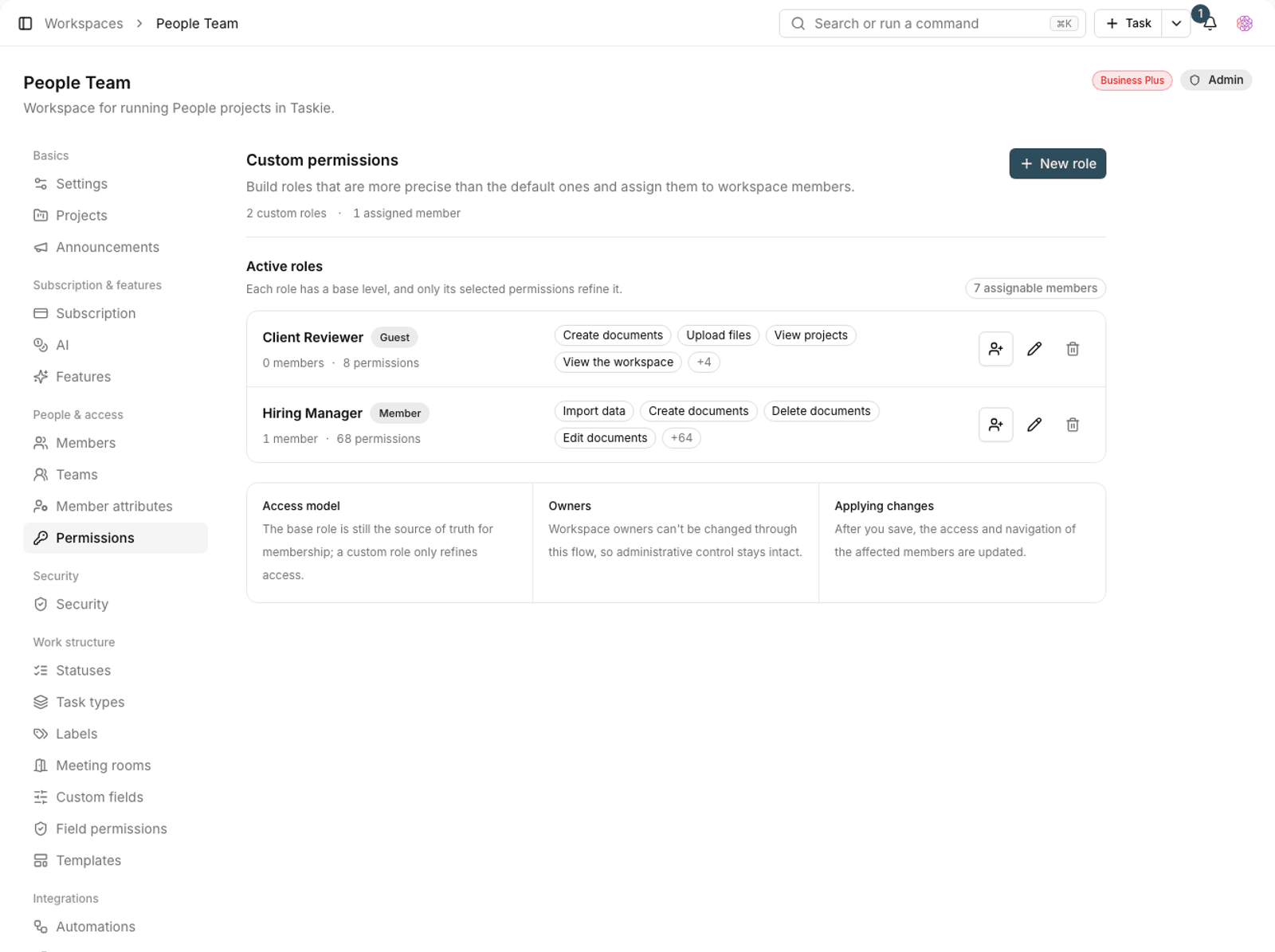
- On the Permissions tab, click Create custom role.
- Give the role a name that describes what it does, such as "Automation manager".
- From the list of permissions, select the ones this role should have.
- Save. Once you save, the access and even the navigation of the affected members are updated.
Permissions are grouped by area: members, data, automations, sharing and so on. The narrower your selection, the more precise the role.
Assign a role to members
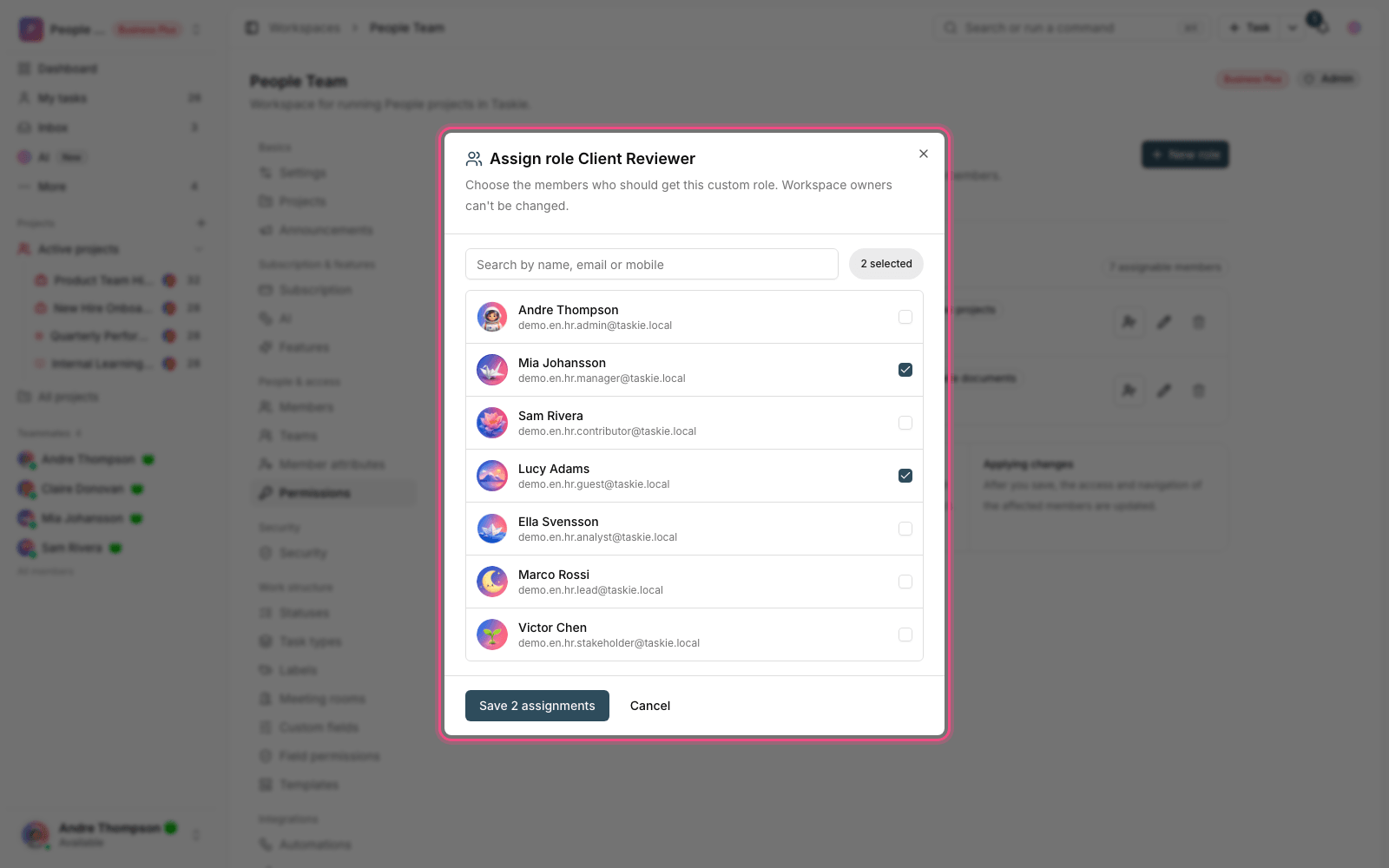
- Open the role you want and go to Assign to users.
- Find the member with the Search by name, email or mobile box.
- Add them to the list of assigned members.
- Save the assignments so the new access applies right away.
Tip: A custom role doesn't replace the member's base role; it sits alongside it. That's why it's best to design custom roles as additions, not as complete, standalone roles.
Custom permissions
If the built-in permissions don't cover what you need, you can define a new permission with Create custom permission and use it in your roles. This makes access more precise, but it also makes the list busier, so only use it when you really need to.
Delete a role
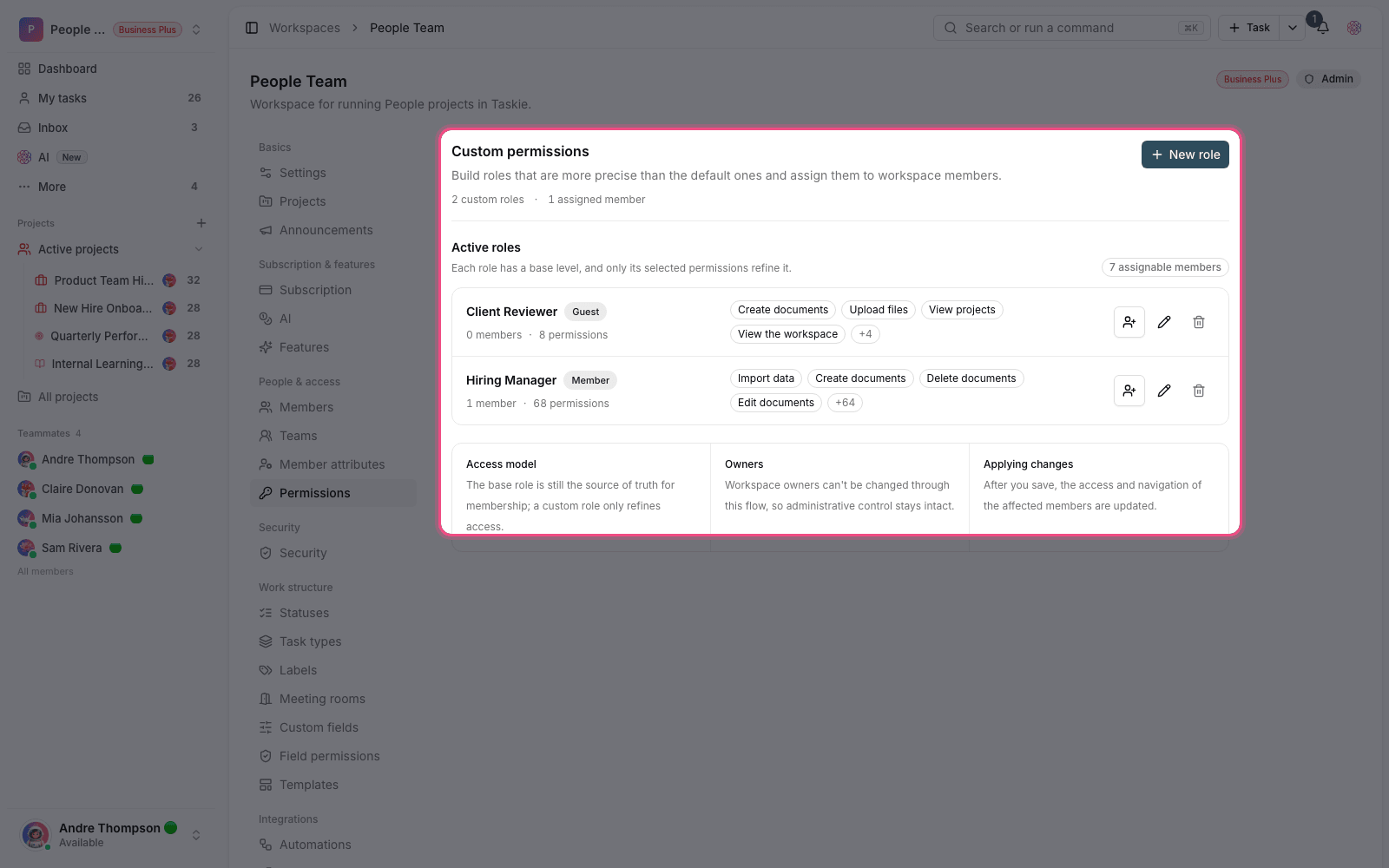
When you use Delete custom role, the role is removed from every member who had it, and they're left with just their base role. Before deleting, check the list of assigned members so nobody loses access by accident.
Plan required: Custom roles with precise access are available on the Business plan and above, and fully custom permissions are available on the Business Plus plan.
Designing your set of roles
Instead of creating a role for each person, design roles around responsibilities. A small number of roles with clear boundaries is easier to manage and quicker to understand during a security review.
- Write one sentence for each role that says what the role is meant to make possible.
- If two roles have almost the same set of permissions, remove one of them.
- Remove temporary roles once their job is done. Forgotten access is the biggest security risk.
- Review each role's member list from time to time and remove people who no longer have that responsibility.
- Track important access changes in the audit log.
To limit task fields, read Task field permissions, and for the base roles, read Roles and access levels.