
Member attributes and the people tree
Define your own member profile fields, choose who can see each one, and build your team's people tree.
Each member's default profile has a name and email, but organizations usually need more: department, work location, hire date, direct manager. Member attributes let you define these fields yourself.
This section lives in workspace settings, and besides fields, it also builds your organization's tree structure.
Define a new attribute
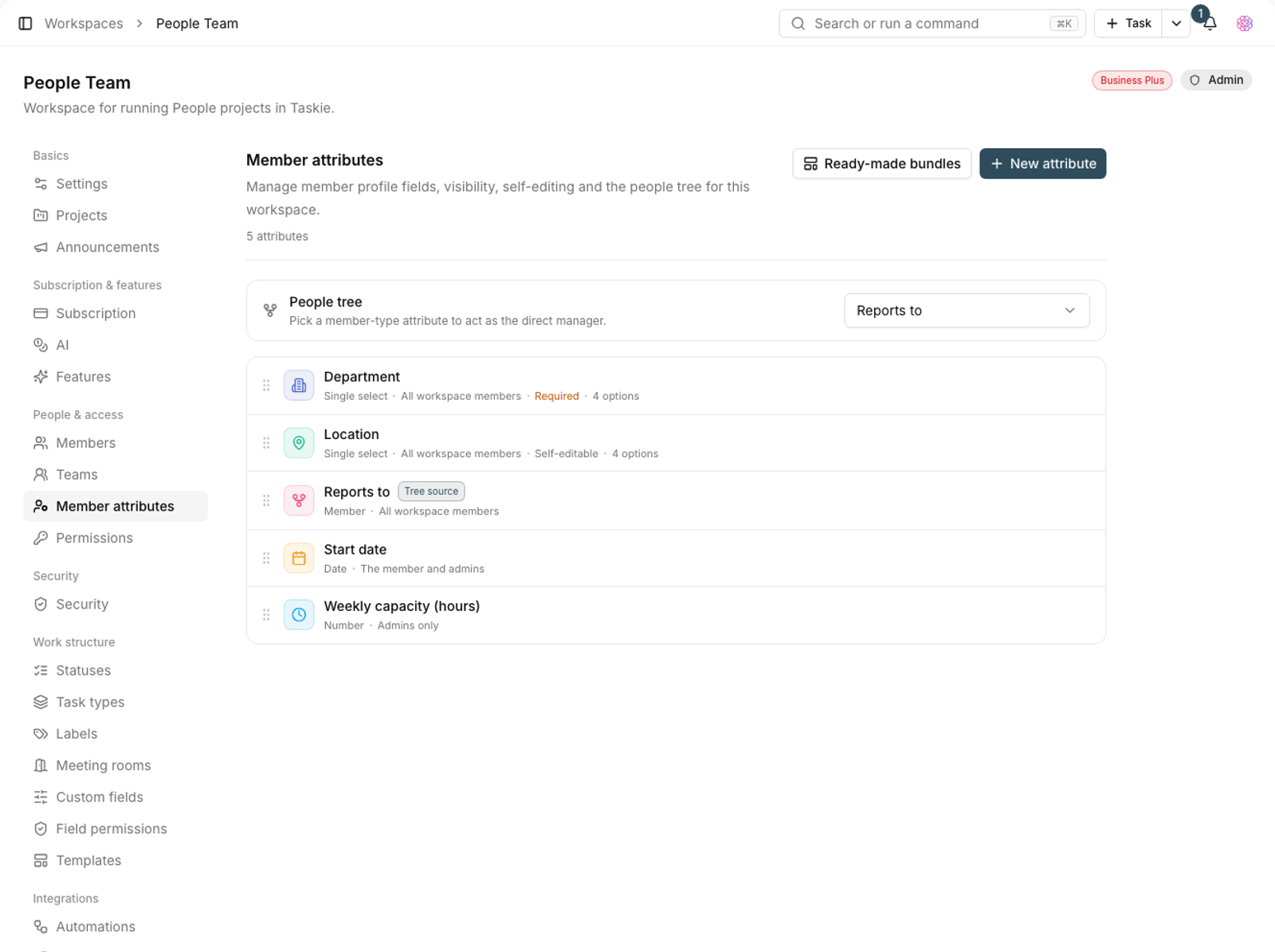
- Click New attribute.
- Enter the attribute name and a short note for workspace admins.
- Choose the attribute type.
- If you like, add an icon and color so it's easy to spot on the profile.
- If the attribute is mandatory, turn on Required.
- Save.
Attribute types
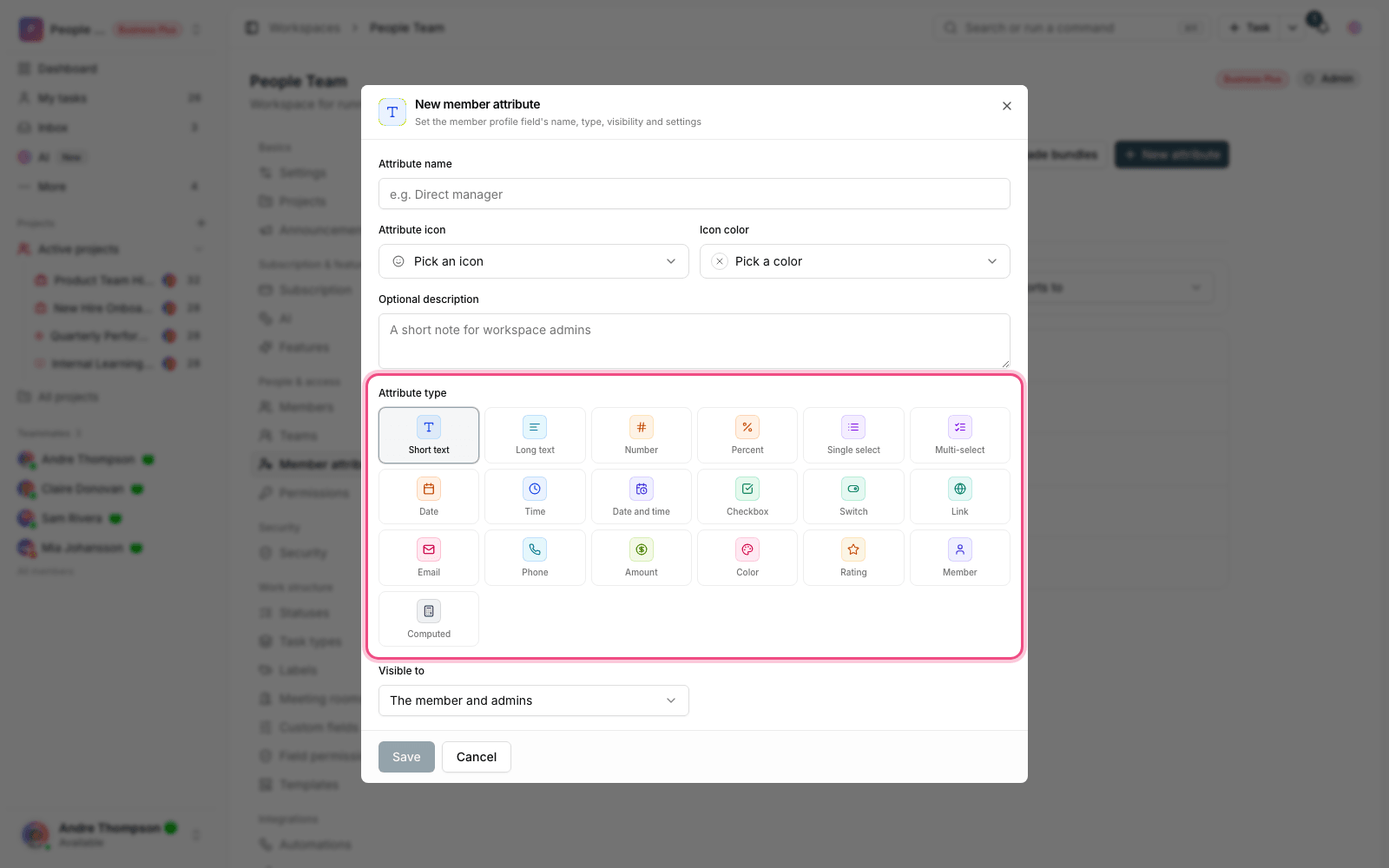
- Text: a free-form text value.
- Number and rating: a numeric value, with optional minimum and maximum and rating settings.
- Amount: a monetary value with its own settings.
- Date and date and time: for things like hire date.
- Email and phone: with format validation.
- Single select and multi-select: a list of options. You need to add at least one option.
Visibility and editing
For each attribute, you decide who can see it and who can change it. For example, you can create an attribute that only The member and admins can see, or turn on Self-editable so each member can update their own value.
Tip: Before you create a sensitive attribute (such as personnel data), set its visibility. Changing it after values have been filled in doesn't take the information back from people who've already seen it.
Ready-made bundles
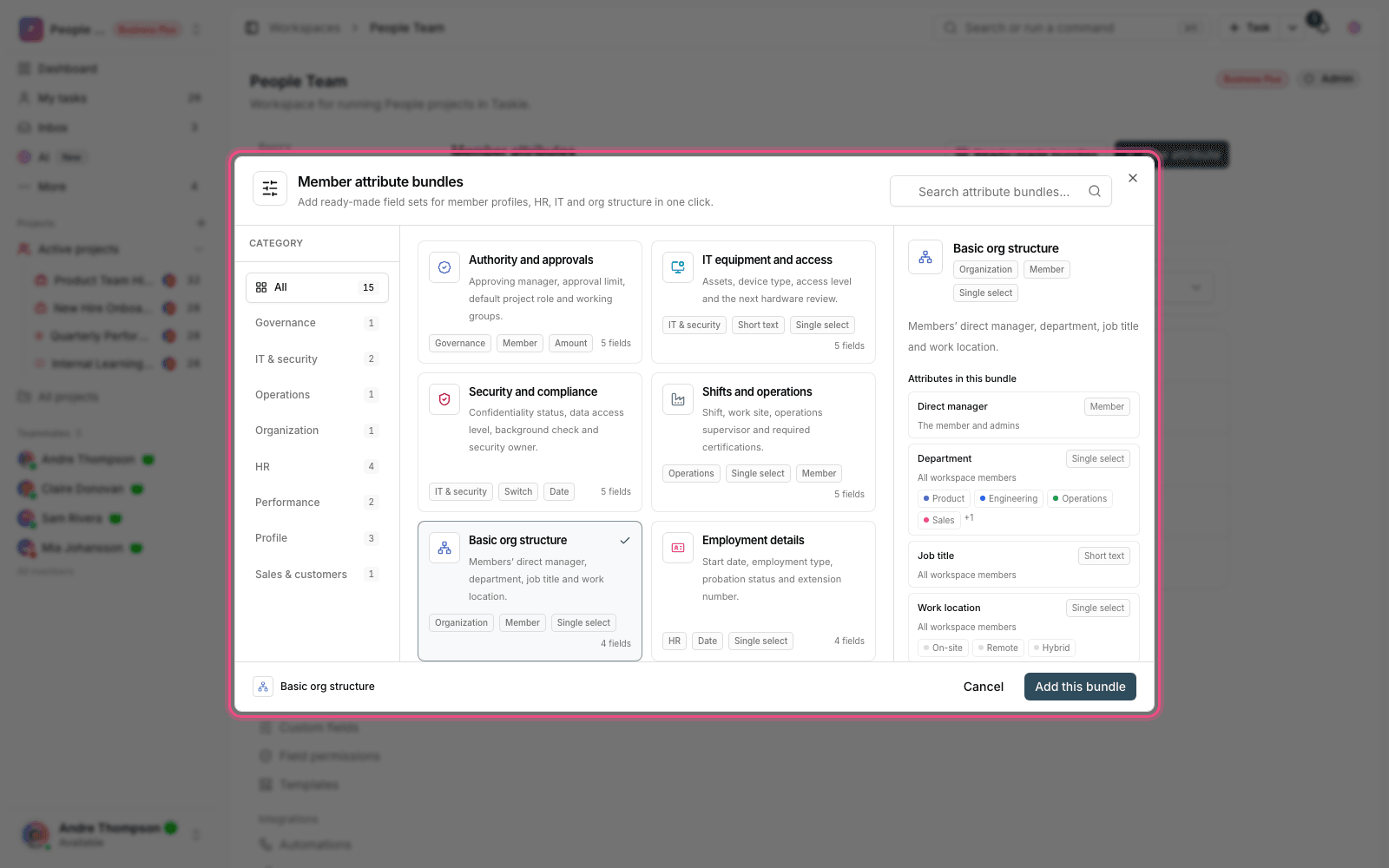
Instead of building fields one by one, use Member attribute bundles. Each bundle is a set of related attributes. Search for one and add it all at once with Add this bundle. The added attributes are fully editable afterward.
The people tree
When you define reporting relationships between members, the workspace's people tree is built and you can browse it on the members page. If you don't have a hierarchical structure, choose No people tree.
Plan required: Defining member profile fields, visibility and the people tree is available on the Business and Business Plus plans.
Maintenance and data quality
Profile fields are only useful when they're filled in and up to date. If half your members leave fields empty, no report based on them can be trusted.
- Make the fields you truly need Required, but keep their number small.
- Turn on Self-editable for fields the member knows best.
- For structured data such as department, use a select list instead of free text so values stay consistent.
- Remove unused fields from time to time. A cluttered profile doesn't get filled in.
To see member profiles and stats, see Member contribution profiles, and to group members, see Teams.