
Restricted access and fine-grained member control
Restricted access limits what a member can see inside a project to specific views and tabs. See how it works and where to set it.
Sometimes you want someone to be part of a project without seeing everything. For example, a client who should only follow a board of the work that concerns them, or a colleague who doesn't need to know about every view and tab in the project. For this, Taskie has a Restrict access option that limits what a project member can see to specific views and sections.
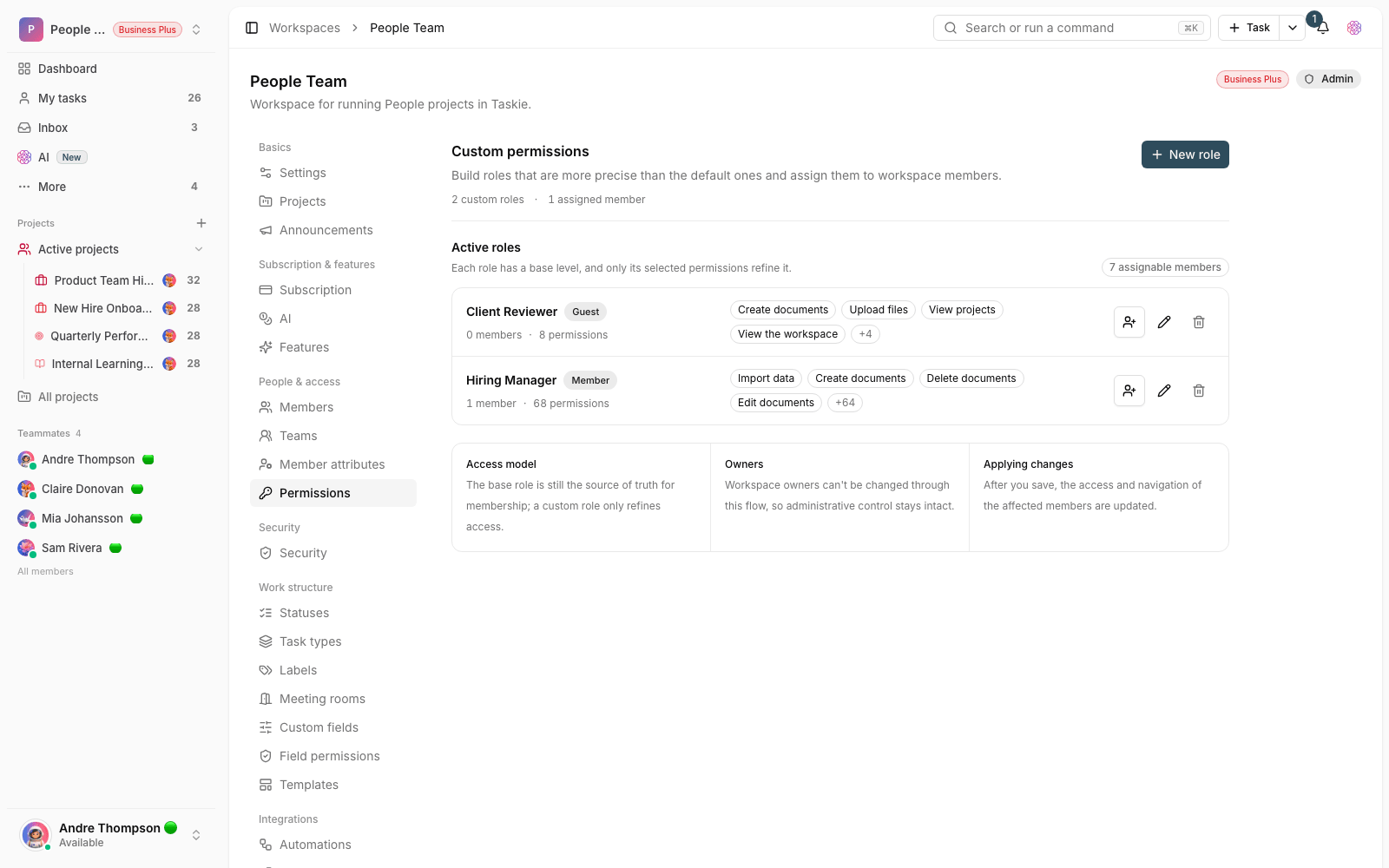
This restriction is an extra layer on top of the member's role, not a separate role. The person keeps their own role (admin, member or guest) but only sees the views and tabs you've chosen for them. You set the restriction per project, when you invite or edit a member.
How is restricted access different from the guest role?
The guest role makes access read-only at the workspace level, but the person can still see every project they're allowed into. Restricted access is different: it draws a visibility boundary inside a project and only gives the member access to the views or tabs you select. You can use the two together, for example a guest who only sees one filtered view of a project.
What can you restrict?
When you restrict access, you pick a set of project views and tabs for the member. Anything you don't select stays hidden from them.
- Project views: saved views such as list, board, calendar or table. You can limit a member to just one or a few specific views.
- Project tabs: sections such as channel, dashboard, documents, files, sprints, whiteboard, mind map, forms and timesheet.
- Permission to change filters: for each view, you can decide whether the member is allowed to change that view's filters.
How to restrict a member's access
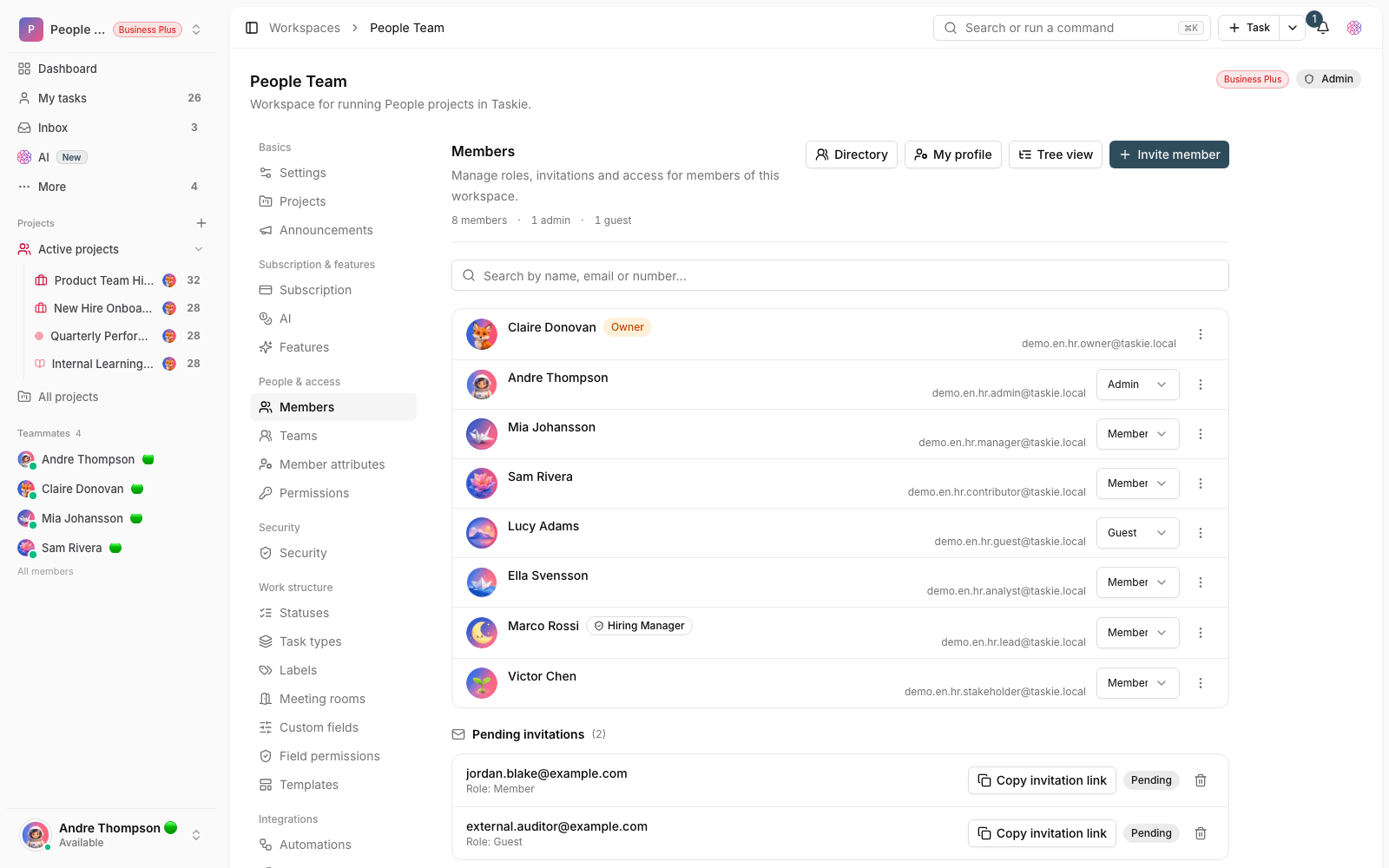
- Open the project and, in member management, select the member you want to invite or edit.
- Set their base role (admin, member or guest) as usual.
- Turn on Restrict access.
- Select the views and tabs you want the member to see.
- If needed, set the filter permission for each view, then save your changes.
What does a restricted member see?
Once the restriction is applied, that member's workspace shrinks to exactly what you selected.
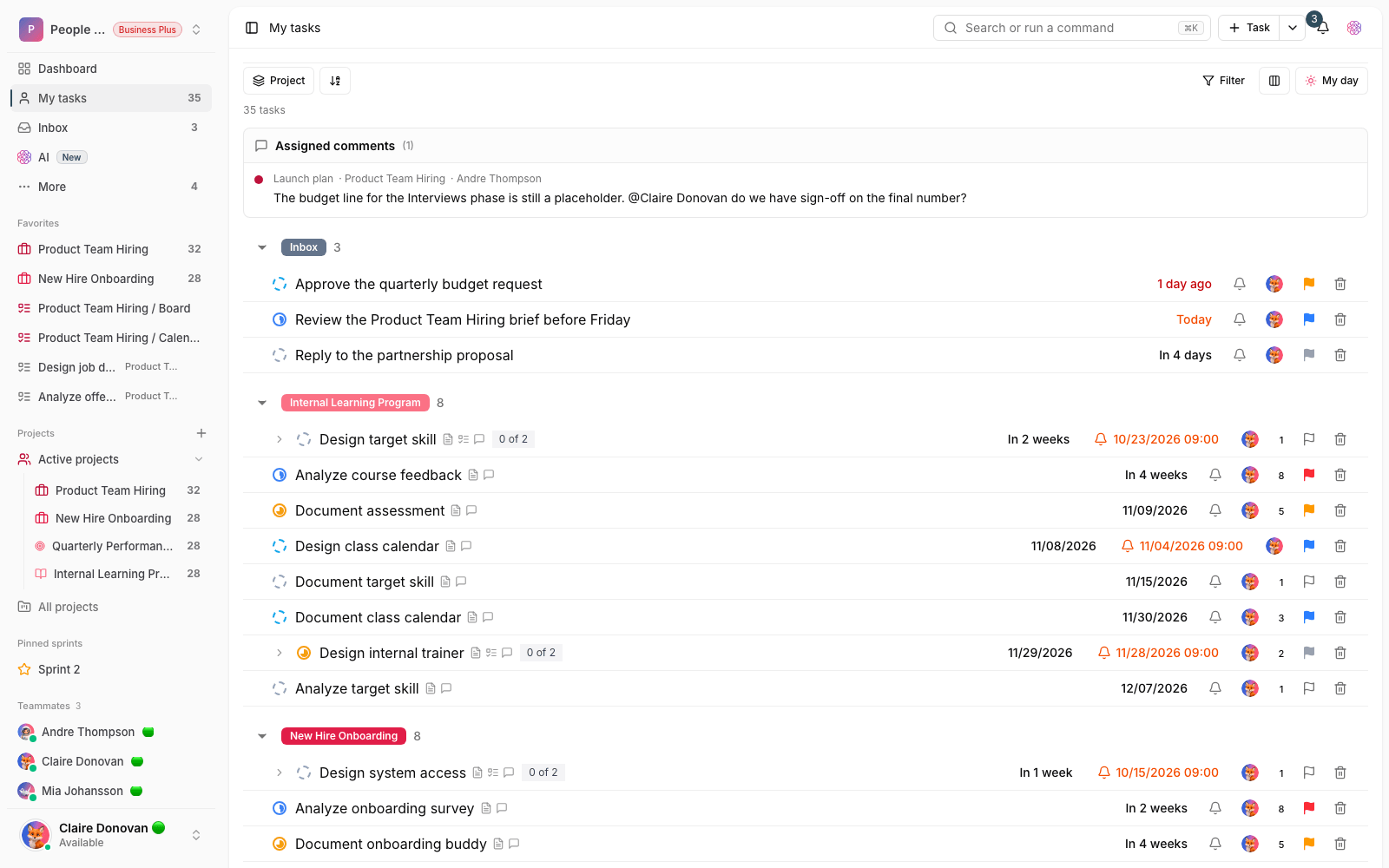
- Only the selected views and tabs are shown to them, and the rest stay hidden.
- Tasks that don't appear in their allowed views aren't visible to them.
- If they try to create or change a task in a way that would take it out of all their allowed views, the change isn't allowed, so no work ends up out of their sight.
- If only one view is assigned to them, that view opens automatically.
Common use cases
- Client or customer: see a filtered board of work status without access to the team's internal details.
- Contractor or outside collaborator: focus on just the part of the project that concerns them.
- Keeping an internal member focused: limit a member to one specific view so other views and sections don't distract them.
Tip: Because tasks are shown to the member based on view filters, build restricting views with clear, precise filters. A view with no filter effectively gives access to every task in the project.
To better understand what access each base role has, read Member roles and access levels. If you haven't added anyone to the project yet, start with Invite members and manage team capacity.