
Member contribution and activity profiles
A contribution profile brings each member's real activity, such as completed tasks, time and comments, into one view for managing your team.
Every team keeps asking the same questions: what exactly is each member focused on, how much work have they finished, and how heavy is their workload right now? Contribution profiles in Taskie answer these questions without manual reporting or separate spreadsheets. Taskie builds one consistent view from each person's real activity (completed tasks, logged time, comments, documents and approvals) so you get an up-to-date, reliable picture of each member's share of the team's work.
This view helps managers who want to see how work and performance are spread across the team, and it helps any member who wants to review their own contribution. Below you'll see what these stats include, where to find them, how the personal view differs from the management view, and which parts depend on the workspace plan.
What does a contribution profile show?
Every number on this page comes from real product events, not manual input, so anything done in Taskie is automatically reflected in the stats. The stats fall into two main groups: core metrics and supporting metrics.
- Completed: the number of tasks assigned to this member that have been closed.
- Created: tasks the member created themselves, broken down into open and done.
- Time tracked: the total time logged on tasks, with billable time shown separately.
- Sprint points: the total points of the member's completed tasks in the selected period.
- Comments, documents and approvals: the number of comments on tasks and documents, documents created, and approvals responded to (with the approval rate).
- Current load and active projects: the number of open and overdue tasks right now, and the projects the member is working on.
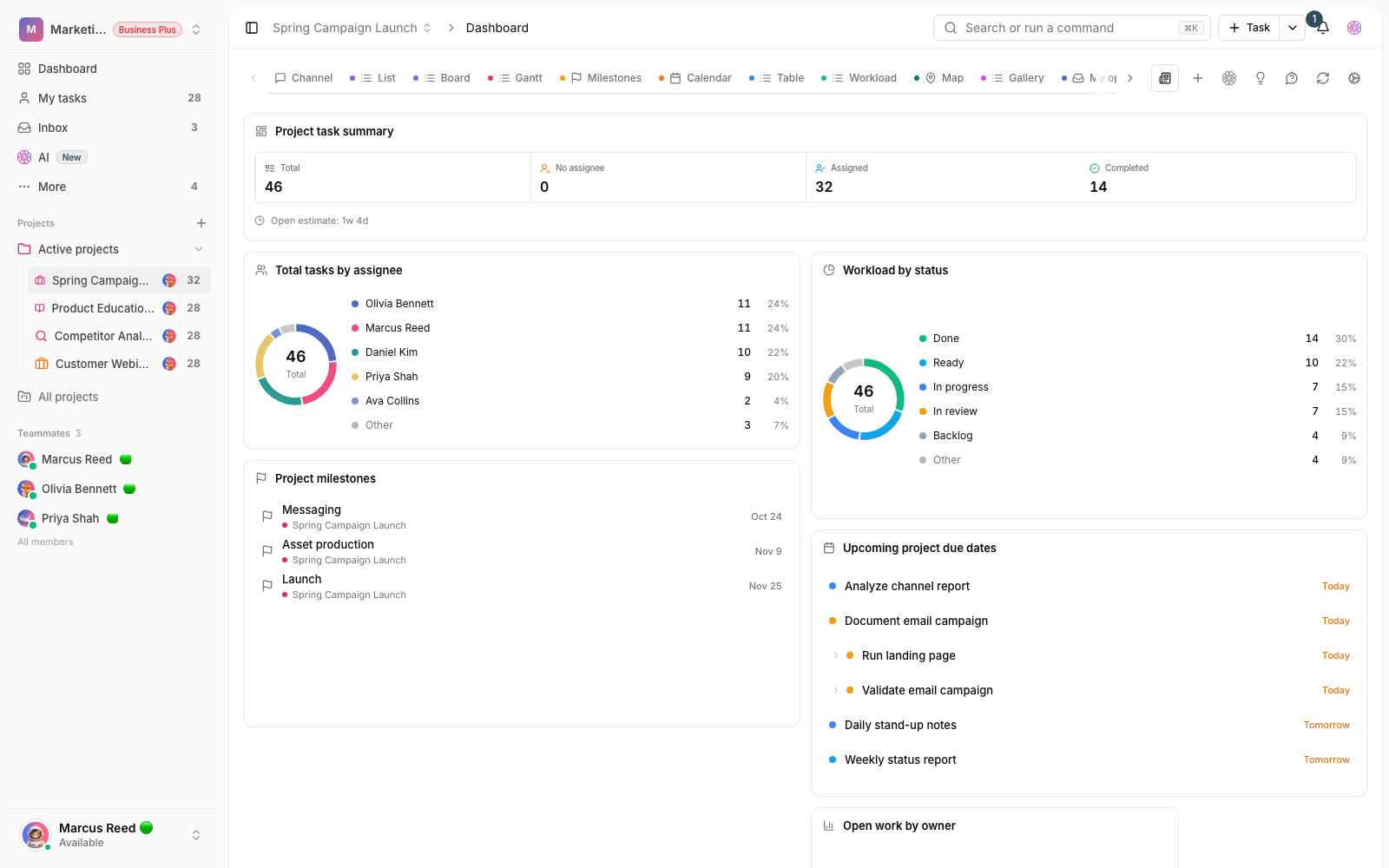
Further down you'll also see Active projects with progress bars, Recent activity and Average completion time, so you're not relying on a single summary number and can see how the work is trending.
The hover card on member avatars
The simplest way to check on a member is to hover over their avatar. After a moment, a hover card opens showing the member's name, role and current status. If you're allowed to see their activity, two key numbers are added: Completed this month and Open tasks. From this card you can open the full profile with the View full profile button. If you don't have access, you'll see the message "The contribution summary isn't available to you." and a View profile button instead of the stats.
Open the full profile and choose a time range
The full profile is where you see all the metrics, projects and recent activity side by side. To open it and set the time range, follow these steps:
- Hover over the member's avatar to open the hover card.
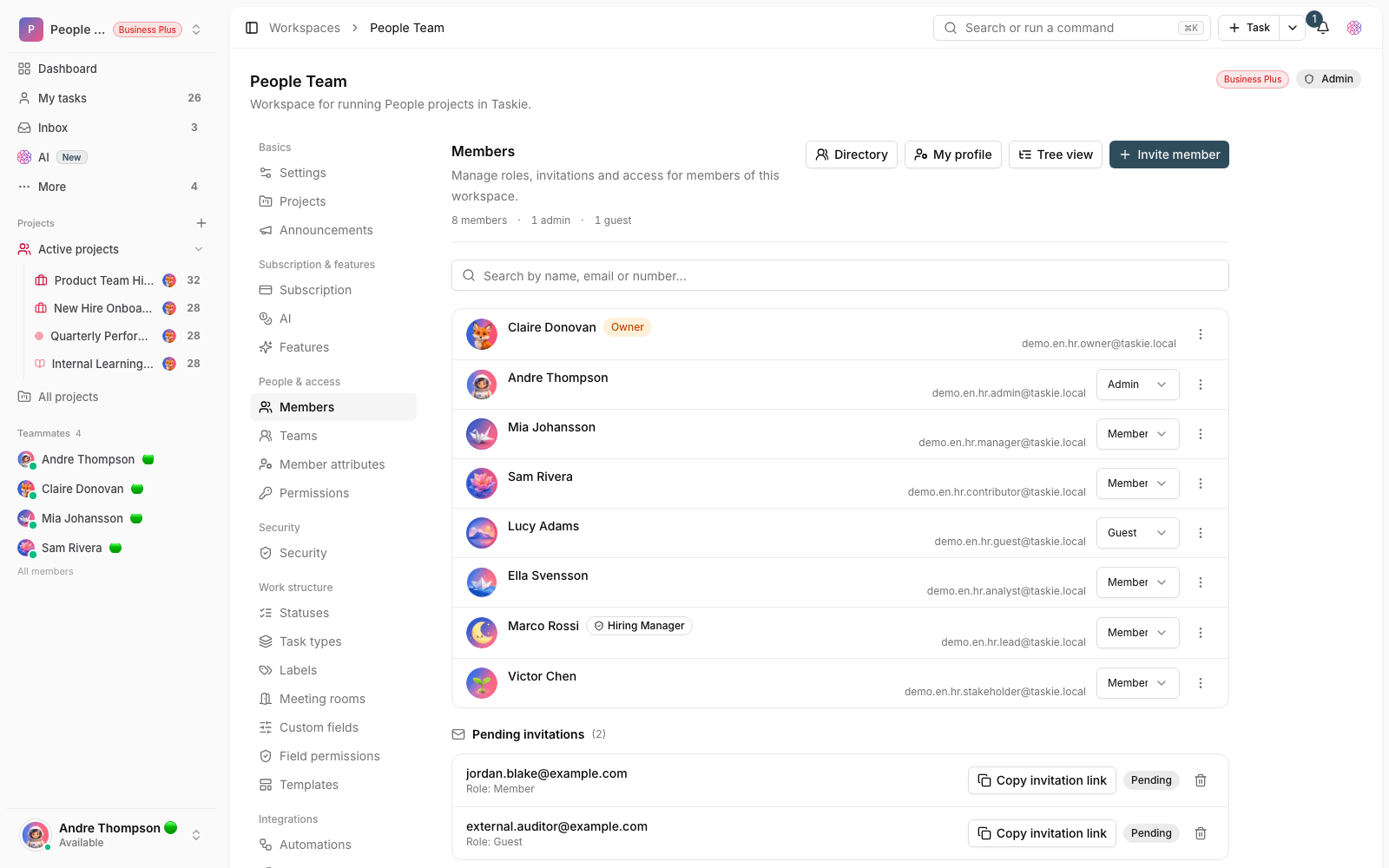
- Click View full profile, or open the member's profile from the workspace member list.
- At the top of the contribution section, choose a time range: This week, This month, This quarter, This year or All time.
- The stats, active projects and recent activity update right away for that range.
This month is selected by default. To look at long-term trends, switch to This quarter or All time, and for day-to-day follow-up, stay on This week.
Compare with the team average
When this feature is on for the workspace, a Team average line is added under the Completed number, showing where the member stands compared with the average across all members. This comparison gives you a fair basis for conversations instead of guesswork.
My contribution: each member's personal view
Every member can always open their own profile and see their share in the My contribution view. This access doesn't depend on role or plan and is on for everyone. The only difference between the personal view and the management view is that My contribution doesn't show the Team average line. This view is very handy for reviewing your own week, preparing for a feedback meeting or gauging your workload.
Privacy and plan-based access
Taskie makes sure these stats don't reveal information about private projects. Projects you don't have access to are shown as Private project with a lock, and activity related to them is left out of the list. Key points about access and plans:
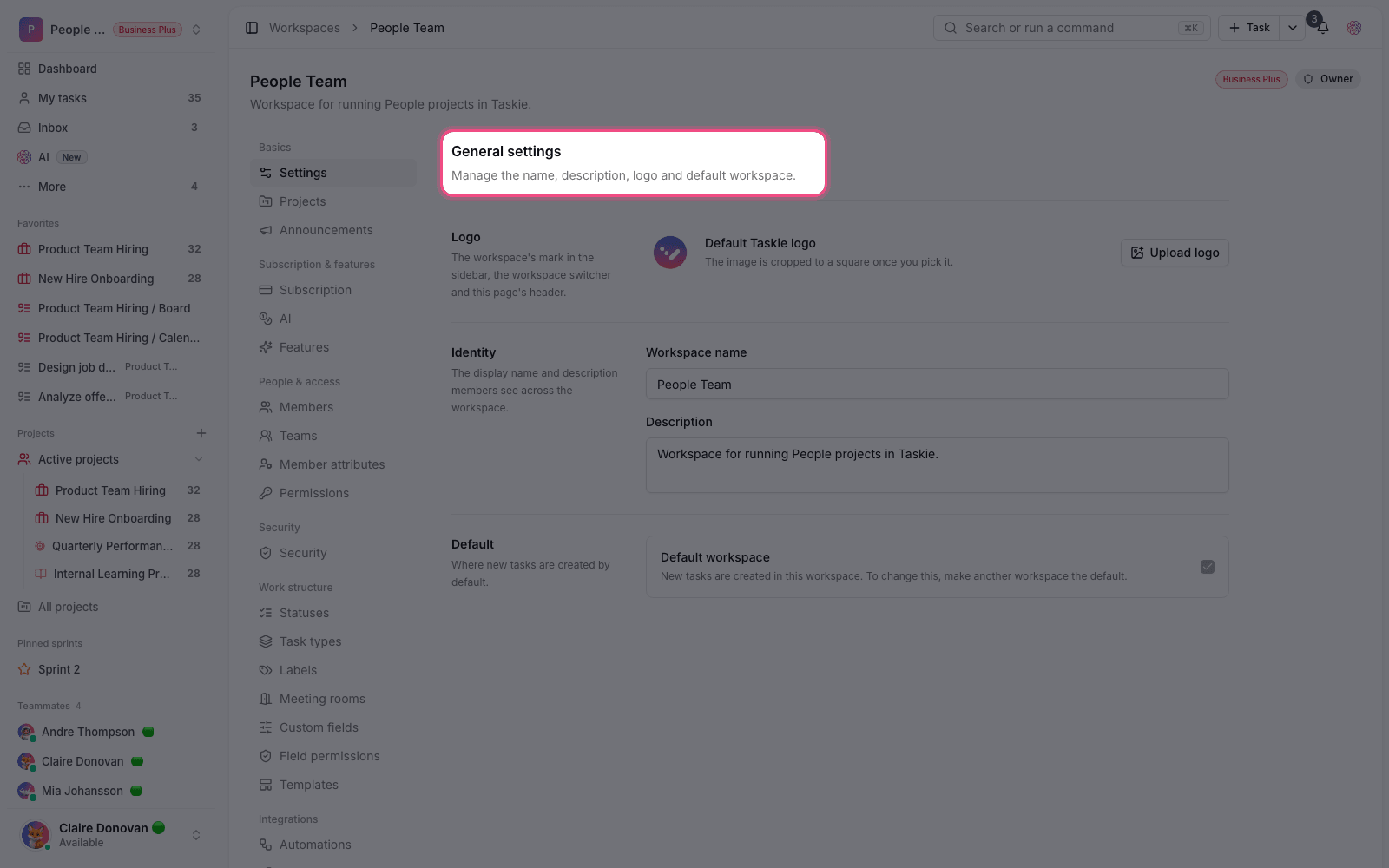
- Viewing other members' contribution is only available to people who can manage members (owner and admins), on the Pro plan and above.
- The Team average line is only available on the Business plan and above.
- Every member always has access to their own contribution, on any plan, even if viewing others isn't available.
- If the plan doesn't allow it, an upgrade message is shown instead of the stats, and no numbers are revealed.
Keep in mind: These stats are built from real activity and stay up to date automatically. Don't use them as a substitute for performance conversations; read them alongside the context of each person's work, such as how complex their tasks are.
Common mistakes
- Don't confuse Completed with Created. The first counts tasks assigned to the member; the second counts tasks they created.
- If a new member's stats are empty, it's usually because no activity has been recorded yet, not because the feature isn't working.
- If you see an upgrade message instead of stats in the full profile, the workspace plan doesn't allow viewing other members' contribution.
- Missing project names (shown as Private project) aren't an error. They're hidden because you don't have access to that project.
Next step: to understand who can see other members' contribution, take a look at Roles and access levels, and if you want to bring more people onto the team, read Invite and manage members.