
Member roles and access levels
Get to know the owner, admin, member and guest roles, see how their access differs, and learn who should get each role.
A member's role decides what they can see in the workspace and what they can do. Choosing roles well improves security and prevents clutter and accidental mistakes. Someone who only needs to see the results doesn't need full access, and someone responsible for doing the work should be able to work freely.
Taskie has four base roles, ordered from least to most access: guest, member, admin and owner. On more advanced plans you can go beyond these four roles and fine-tune permissions with custom settings. This page walks through how these roles differ and how to assign them well.
The four main workspace roles
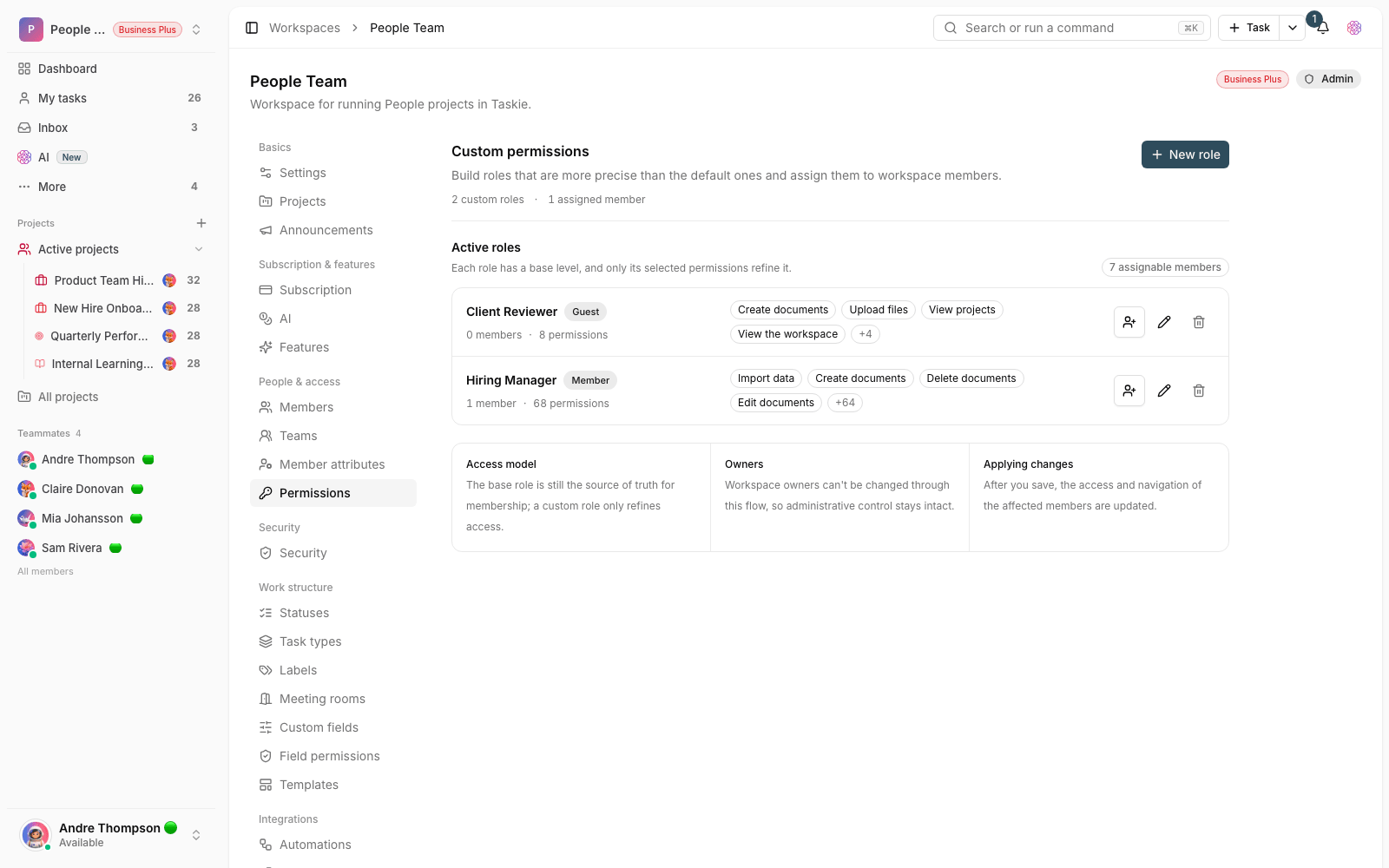
- Owner: the highest access level and the person ultimately responsible for the workspace. They have access to everything, including the subscription and payments, and can't be removed. Usually the person who created the workspace is its owner.
- Admin: handles almost all management work, from managing members, settings and security to the subscription, projects and workspace content. A good fit for team managers and trusted people.
- Member: the backbone of day-to-day work. Members can create projects, edit tasks and content, and collaborate with the team, but they can't access workspace settings, member management or the subscription.
- Guest: read-only access with the ability to comment. A good fit for outside stakeholders or people who just need to stay informed, and guests don't use an editable seat.
Who can do what?
When choosing a role, it helps to know where the access boundaries are. The list below shows the key differences between roles.
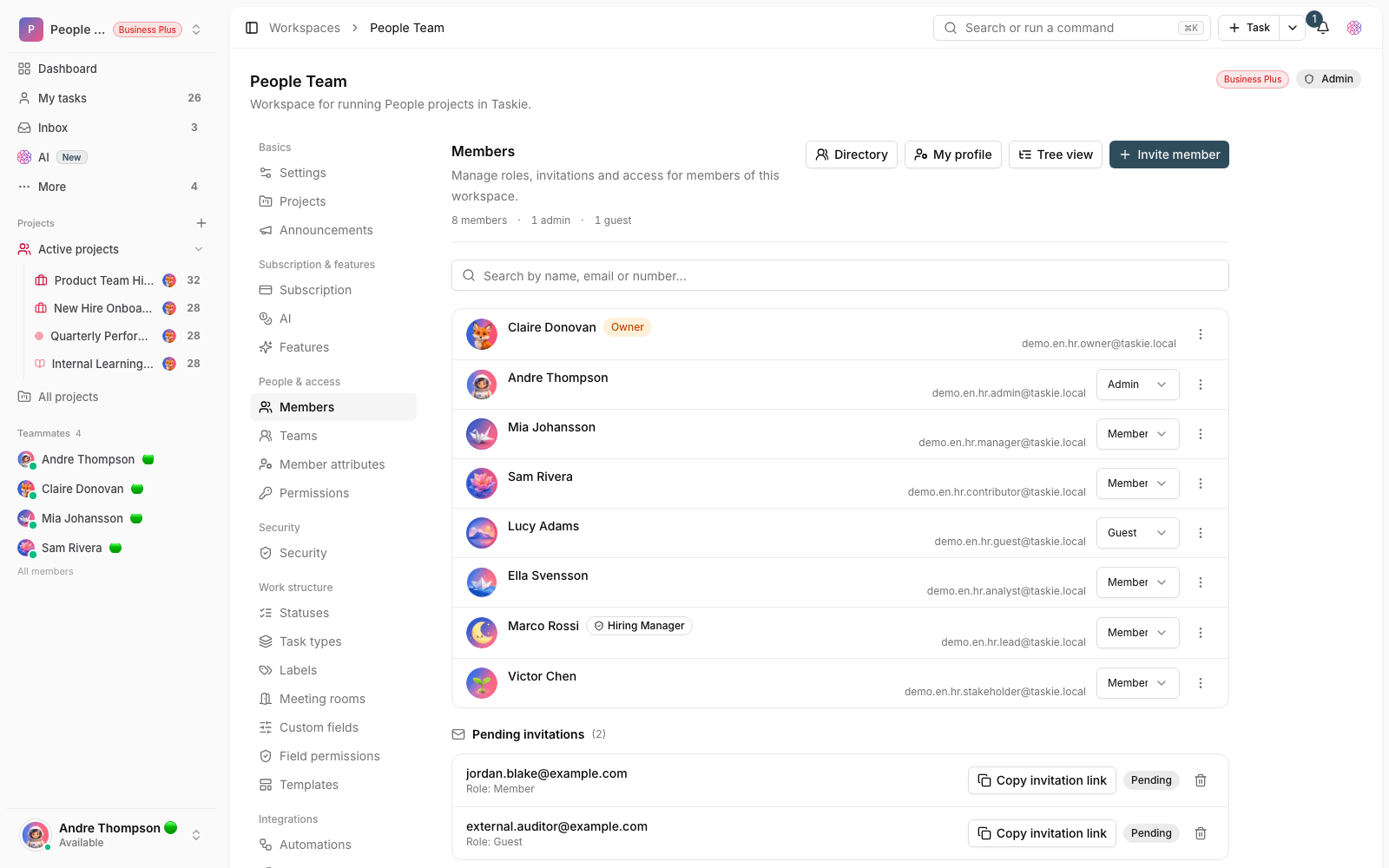
- Manage the workspace (name, logo, security, subscription and members): owner and admins only.
- Create projects and edit content (tasks, documents, files, forms and automations): owner, admins and members.
- Archive and delete projects and manage project members: owner and admins.
- View and comment: every role, including guests.
Custom roles and advanced permissions
The four base roles are enough for most teams, but if you need finer control, Taskie also has an advanced permission system with custom roles. With it, you can define access separately for each area of work (such as managing members, the subscription, automations or exporting data) and create roles that fit your organization's structure. This feature is available on the Business plan and above. Without it, each role's default set of permissions applies.
Best practices for assigning roles
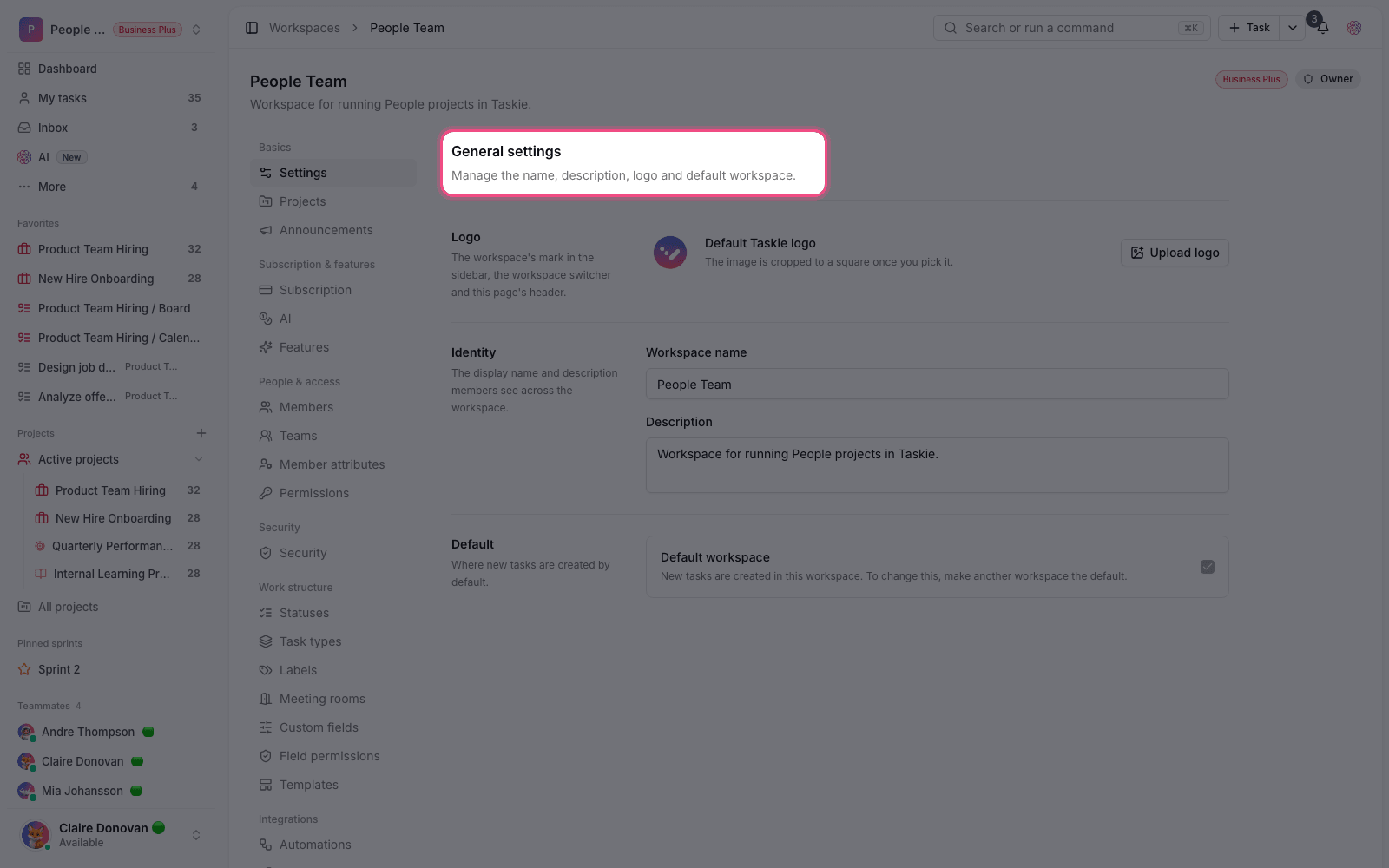
- Start with the least access needed and raise a role only when necessary.
- Keep the owner role with one responsible person, and give the admin role only to people you trust.
- Use the member role for colleagues who do day-to-day work.
- Add outside stakeholders and reviewers as guests to keep things secure and free up editable seats.
- Review the member list and roles from time to time and lower access that isn't being used.
Security tip: The admin role has broad access to settings and the subscription. Before promoting someone to admin, make sure they really need that level.
If you want to limit a member to a specific part of a project, go to Restricted access and fine-grained member control. To review how to add people and manage team capacity, see Invite members and manage team capacity.
For more precise roles, see Custom roles and granular permissions, and to limit who can edit fields, see Task field permissions.