
Backlinks and the knowledge graph
Learn how to link pages together, see automatic backlinks and explore how a folder's documents connect with the knowledge graph.
Team knowledge becomes valuable when its pieces are connected. A decision relates to a brief, that brief references a process guide, and that guide points to last week's meeting minutes. In Taskie, instead of keeping these connections only in your head, you can link pages together with live links and then see the network in two ways: backlinks and the knowledge graph.
Backlinks tell you which pages point to the page you're on, and the knowledge graph shows all the connections between a folder's pages on a visual map. In this guide you'll see how to create links, how backlinks are built automatically and what the knowledge graph shows.
Link pages together
All of these features rest on one simple action: referencing one page from another. To create a link:
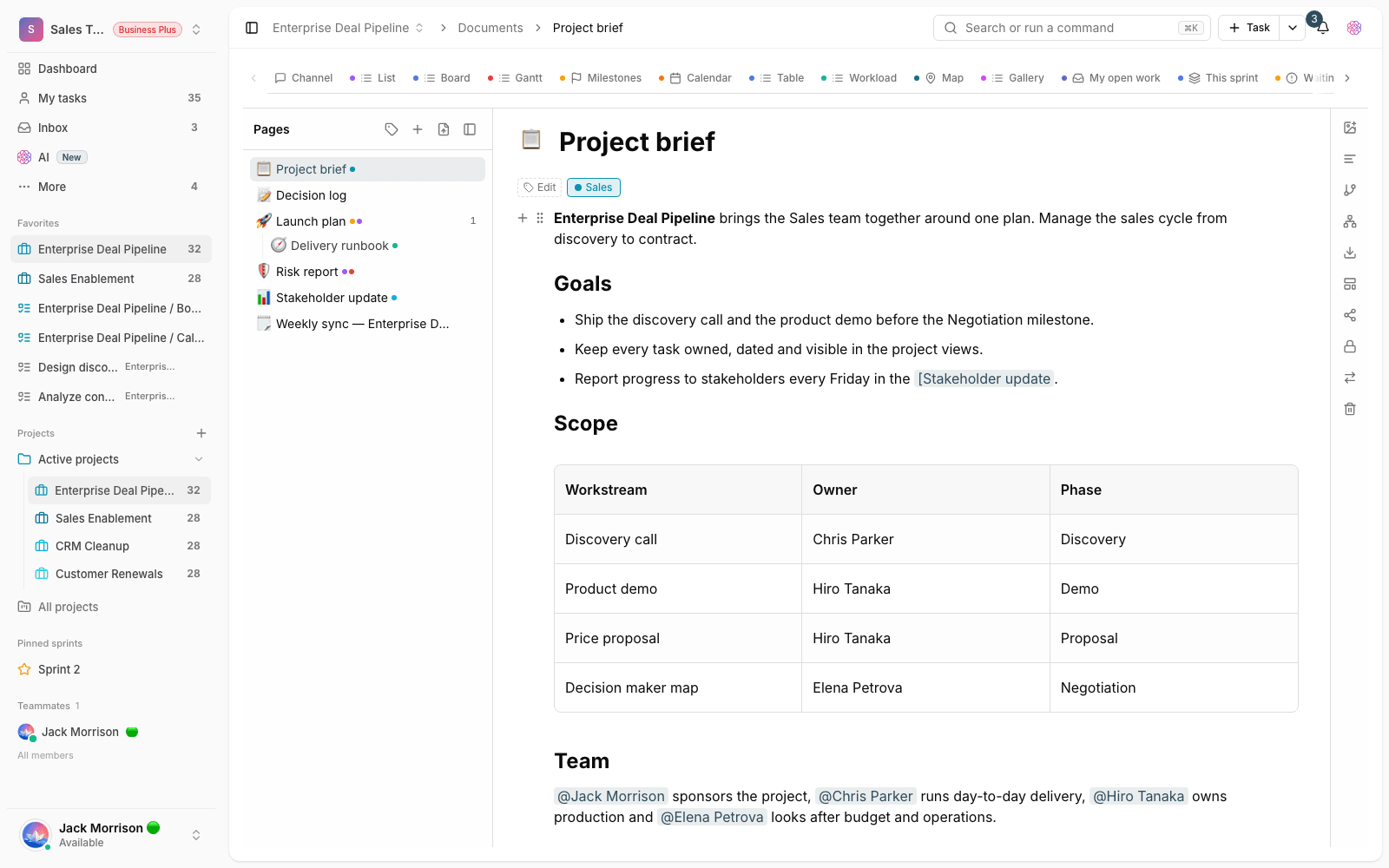
- Open the page you want to reference from in the editor.
- Type [ to open the list of pages.
- Choose the target page from the list to insert a live link to it.
- The change is saved automatically and the link is recorded right away.
Besides the [ menu, pasting the full address of a document page into your text is also recognized as a link. Keep in mind that only real references to a specific page count. Typing a page's name as plain text doesn't create a link and won't show up in backlinks.
How do backlinks work?
When page A links to page B, page B automatically shows in its Backlinks section that A refers to it. You don't need to do anything manually: the list is updated every time content is saved, and if you remove a link, the related backlink disappears on its own. A few points:
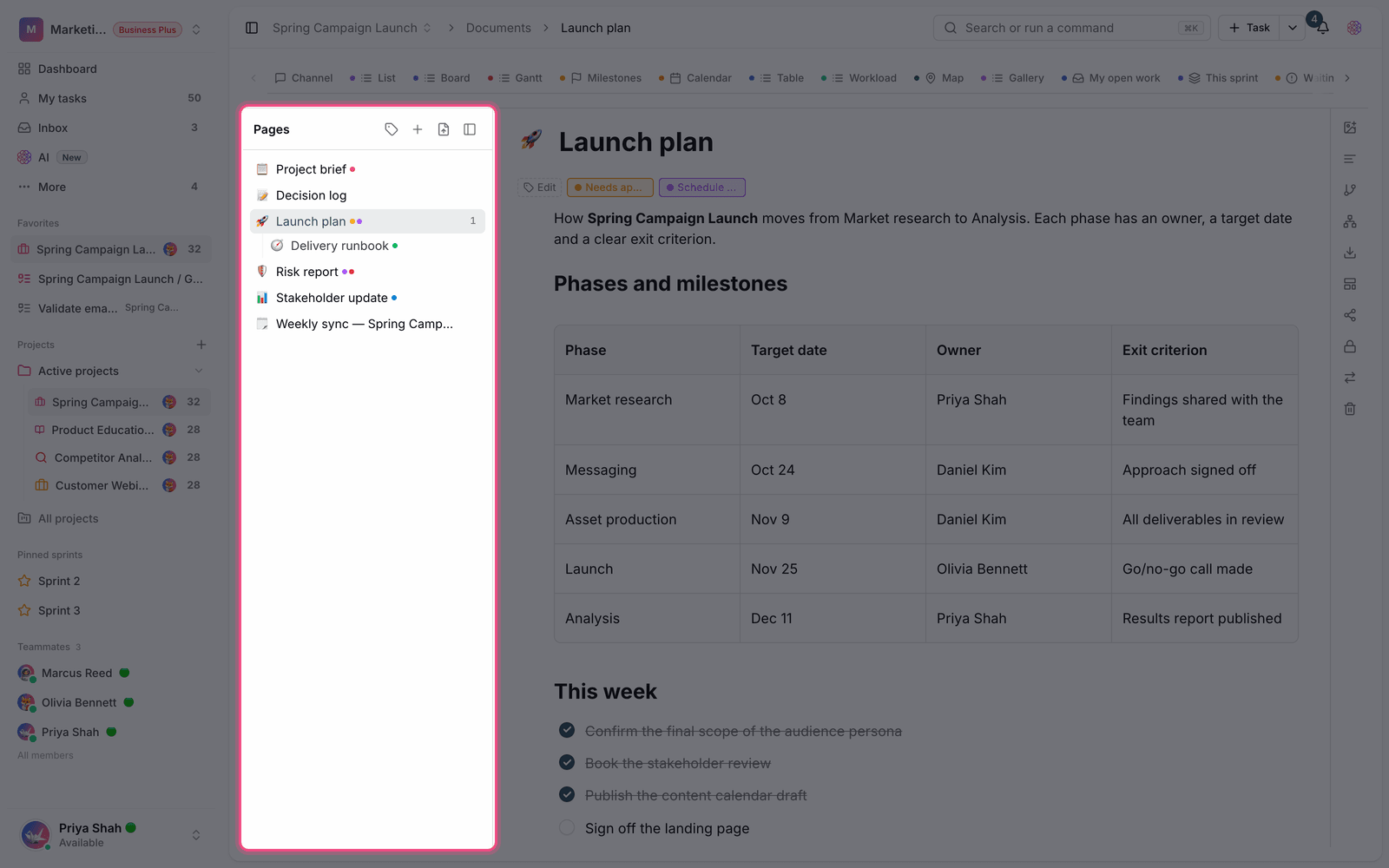
- Backlinks appear on the page itself, so you can see in one place which documents depend on it.
- If no page links to this page yet, a hint tells you to type [ in the editor to create a link.
- If a page that links to this document isn't visible to you, Private page is shown instead of its title, so confidential content isn't revealed.
The knowledge graph: a map of how pages connect
Backlinks show connections from one page's point of view, but sometimes you want to see the whole network of documents on a topic from above. The knowledge graph gives you that big picture: each page is a node and each link between two pages is a line. The map is built per folder and opens with the Knowledge graph option.
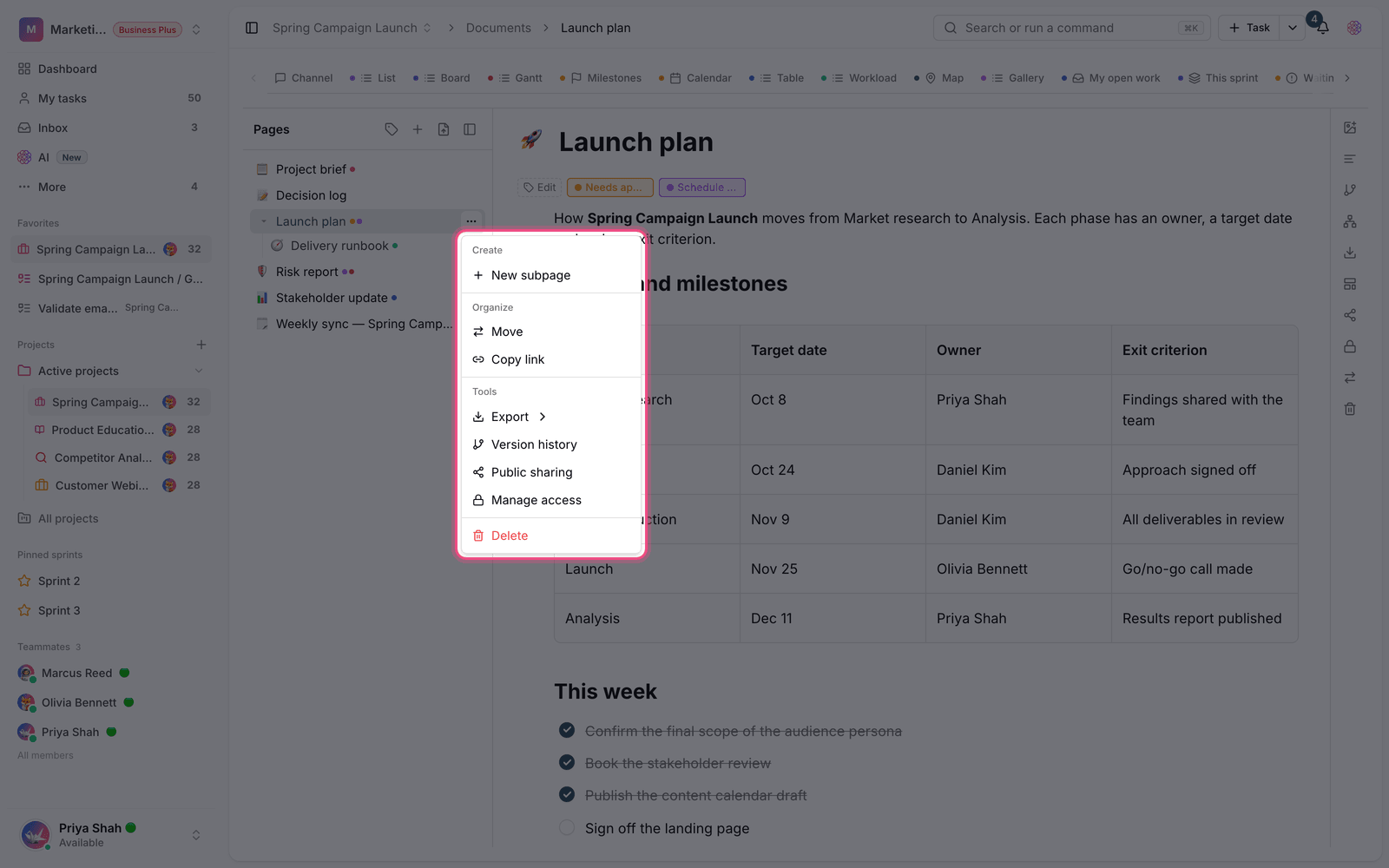
- The nodes are the folder's pages, and the lines show which page links to which.
- If there are no links between the folder's pages yet, a message suggests linking pages together so the knowledge graph can take shape.
- The graph only shows pages you're allowed to see, and a line is drawn only when both of its ends are visible to you.
Plan limits and access
These two features are available depending on the workspace plan, and they always respect your access to each page, so nothing beyond what you're allowed to see is revealed to you.
- Backlinks are available on the Pro plan and above.
- The knowledge graph is available on the Ultimate plan and above.
- In both, pages and links you aren't allowed to see are either left out or shown as private.
Tip: For backlinks and the graph to be truly useful, get into the habit of linking to related documents as you write. Every link you create today becomes a ready-made path through your team's knowledge tomorrow.
Common mistakes
- Typing a page's name as plain text doesn't create a link. Always use the [ menu or paste the page's address.
- If you don't see a backlink, the source page may not be visible to you and is shown as Private page.
- The knowledge graph is per folder. Connections between pages in different folders aren't combined into one map.
- If you don't see these features, your workspace plan probably doesn't include them yet.
Next step: to learn how to create links and use the editor, see Create and edit documents, and to organize pages into folders, read Document pages, moving pages and page access.