
Share a document page publicly
Learn how to create a read-only link to a document page for people outside your team, and how to keep that link secure.
Sometimes you want to show a document to someone who isn't on your team: a client who needs to see the project brief, a contractor who needs the work guide, or someone you want to send your team's official notes to. You don't need to invite them to the workspace. With public sharing, you create a read-only link from the page itself. Anyone who has it can view the content without being able to change anything or reach the rest of your workspace.
This feature gives you full control: you can turn comments and attachments on or off, protect the link with a password, disable it temporarily or create a brand-new link. In this guide you'll see how to create a public link, which settings you have, what an outside reader sees and how to manage the link's security.
Create a public link
Public sharing is done from the document page itself, with the Public sharing option. To create a link:
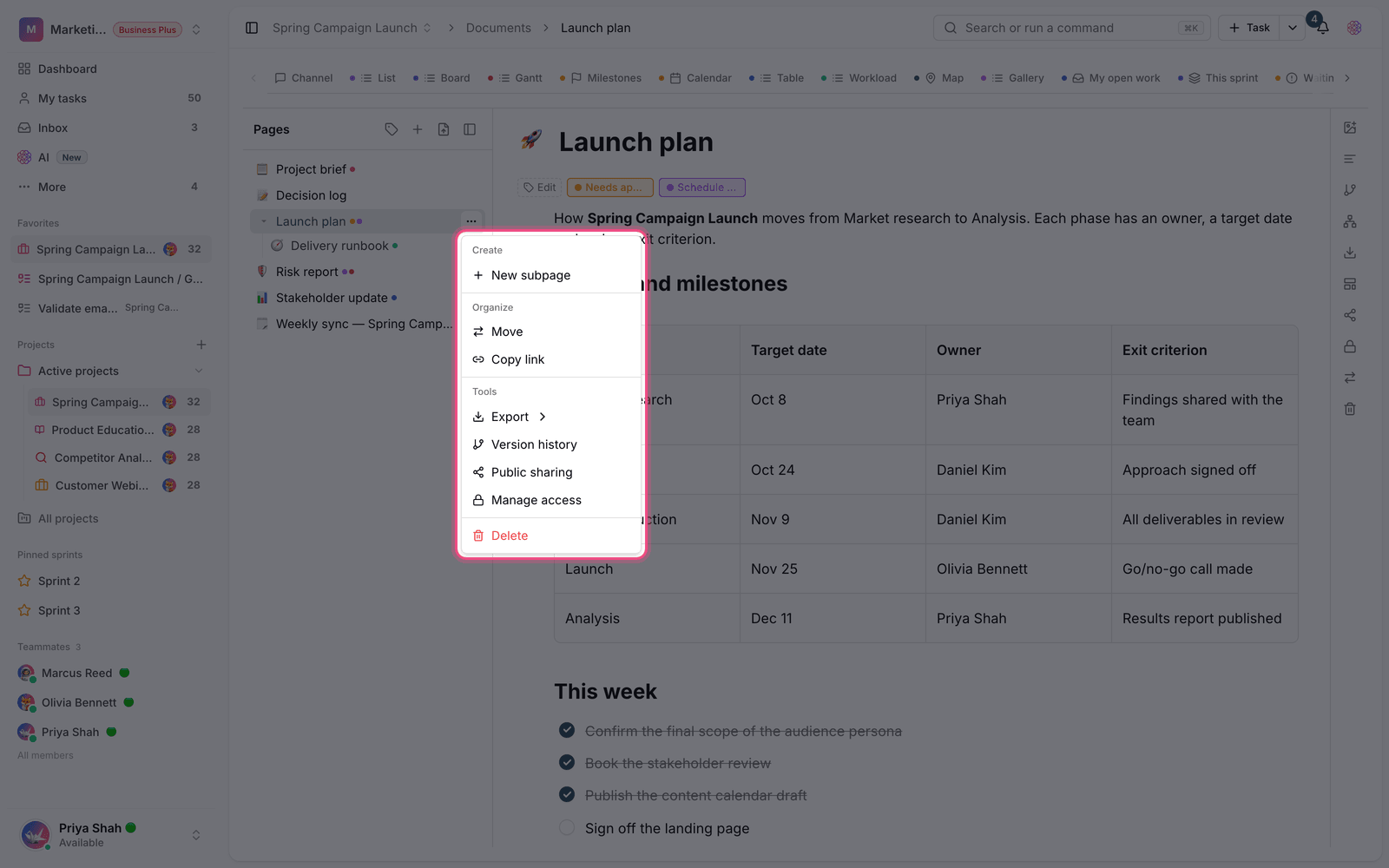
- Open the document page and choose Public sharing.
- If no link exists yet, you'll see "No link has been created for this document yet." Click Create public link.
- The Public URL is created. Copy it with the copy button and send it to the person.
- If needed, change the link's settings before you send it.
Public link settings
Once the link is created, a few options let you decide exactly what the reader sees and can do:
- Link is active: turning this off makes the link temporarily unavailable without deleting it. Turn it back on whenever you like.
- Show comments: decides whether the document's comments are visible to public visitors.
- Show attachments: when on, attached files can be downloaded through this link.
- Allow embedding (iframe): when on, you also get an embed code so you can place the document inside another page.
- Accent color: match the public page's color to your visual identity.
- Password: set a password so only people who have it can view the document. You can remove the password at any time.
The read-only view for people outside your team
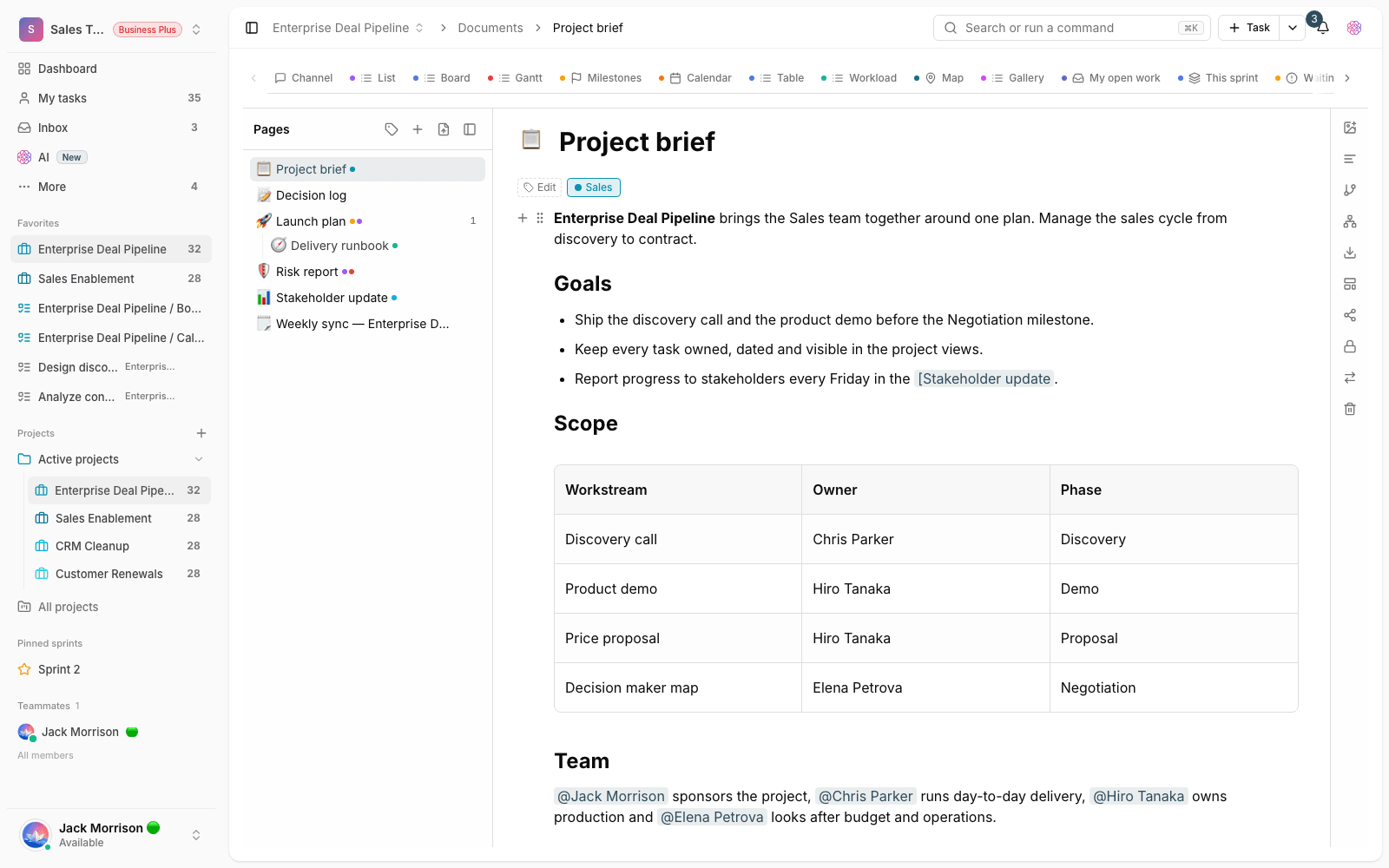
Anyone who opens the link sees a clean, read-only view of the document. They can read the content but can't edit anything, and they can't reach your workspace, other pages or settings. The view also shows your team's identity, such as your team name and the accent color you chose. If you set a password, visitors first land on a password page and only see the content after entering the correct password. The number of views is also shown to you in the same settings window, so you know how much the document has been seen.
Manage the link and keep it secure
You stay in control of the link after it's created. If you're worried the link has reached the wrong people, you can replace it entirely or delete it:
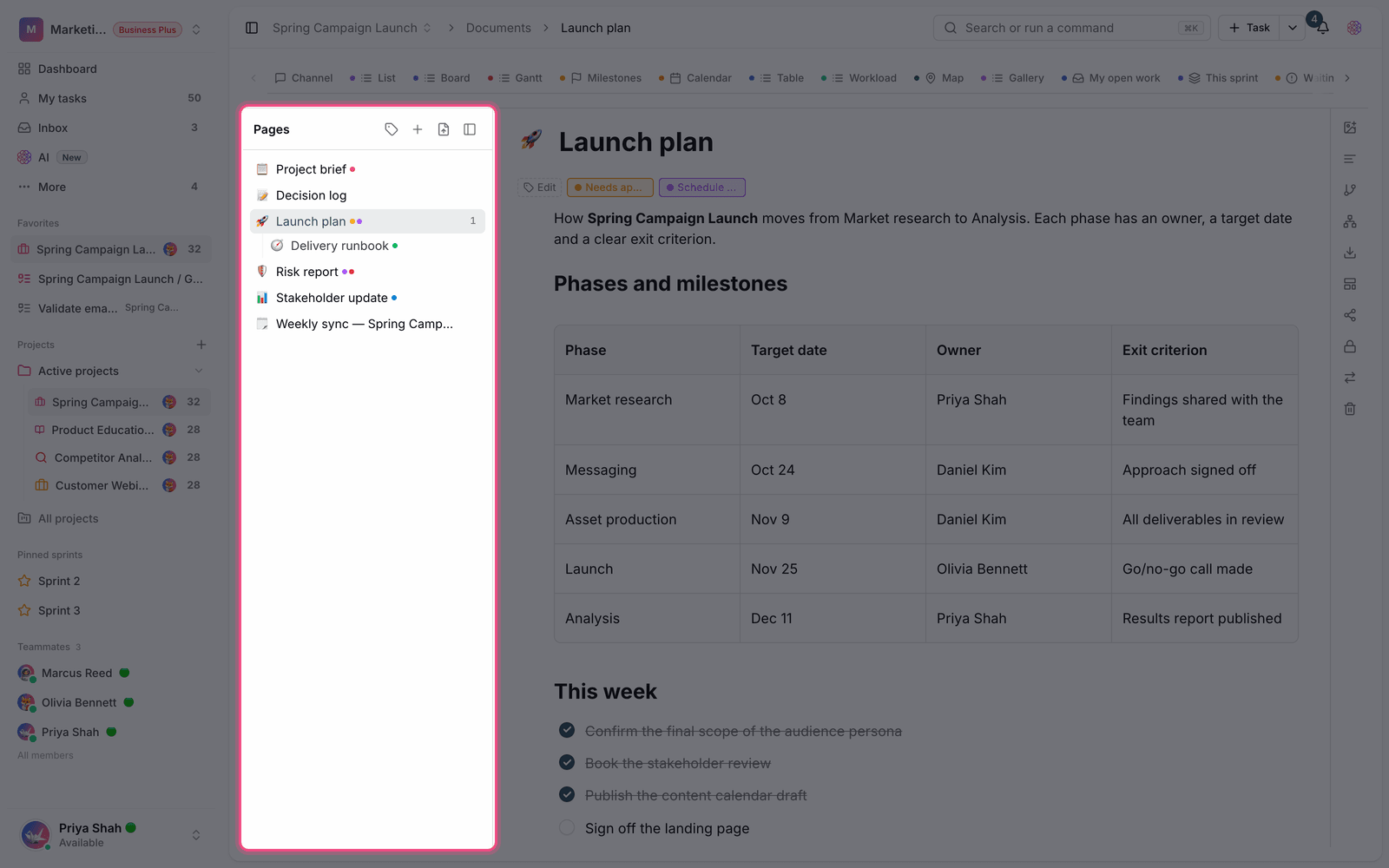
- Regenerate link: the current link stops working and a new one is created. Anyone with the old address loses access.
- Remove public sharing: removes public access to this document completely.
- Disable temporarily: if you only want to close access for a while, turn off Link is active instead of deleting the link.
Managing public sharing requires permission to manage that page's access. That means the page creator, members with full edit access and the workspace admin can create or change the link. The workspace admin can also turn off public sharing when needed.
Plan limits
Public document sharing is available on the Business plan and above. If your workspace plan doesn't include it, you'll see an upgrade message when you try to create a link, and no link is created.
Security warning: A public link is open to anyone who has it. For sensitive documents, always set a password, and if the link leaks, regenerate or delete it right away.
Common mistakes
- Disabling a link isn't the same as deleting it. Disabling is temporary and reversible, while regenerating or deleting permanently breaks the old link.
- Don't confuse setting a password with restricting access inside your team. The password only controls visitors to the public link.
- If Show attachments is off, the reader can't download the document's attached files.
- If you don't see the public sharing option or the link isn't created, your workspace plan probably doesn't include this feature, or you aren't allowed to manage this page's access.
Next step: before publishing, check the page's internal access in Document pages, moving pages and page access, and to prepare the document's content, see Create and edit documents.