
Block tools, collapsible headings and the "/" menu
Use the handle next to each block to move and convert content, collapse headings to skim a document quickly, and use the new "/" menu in the editor.
The editor for documents and task descriptions has new tools for organizing content. Every paragraph, heading, list, table or image is now a block that you can move, change the type of or simply link to. You can do all of this without selecting text and without complicated shortcuts.
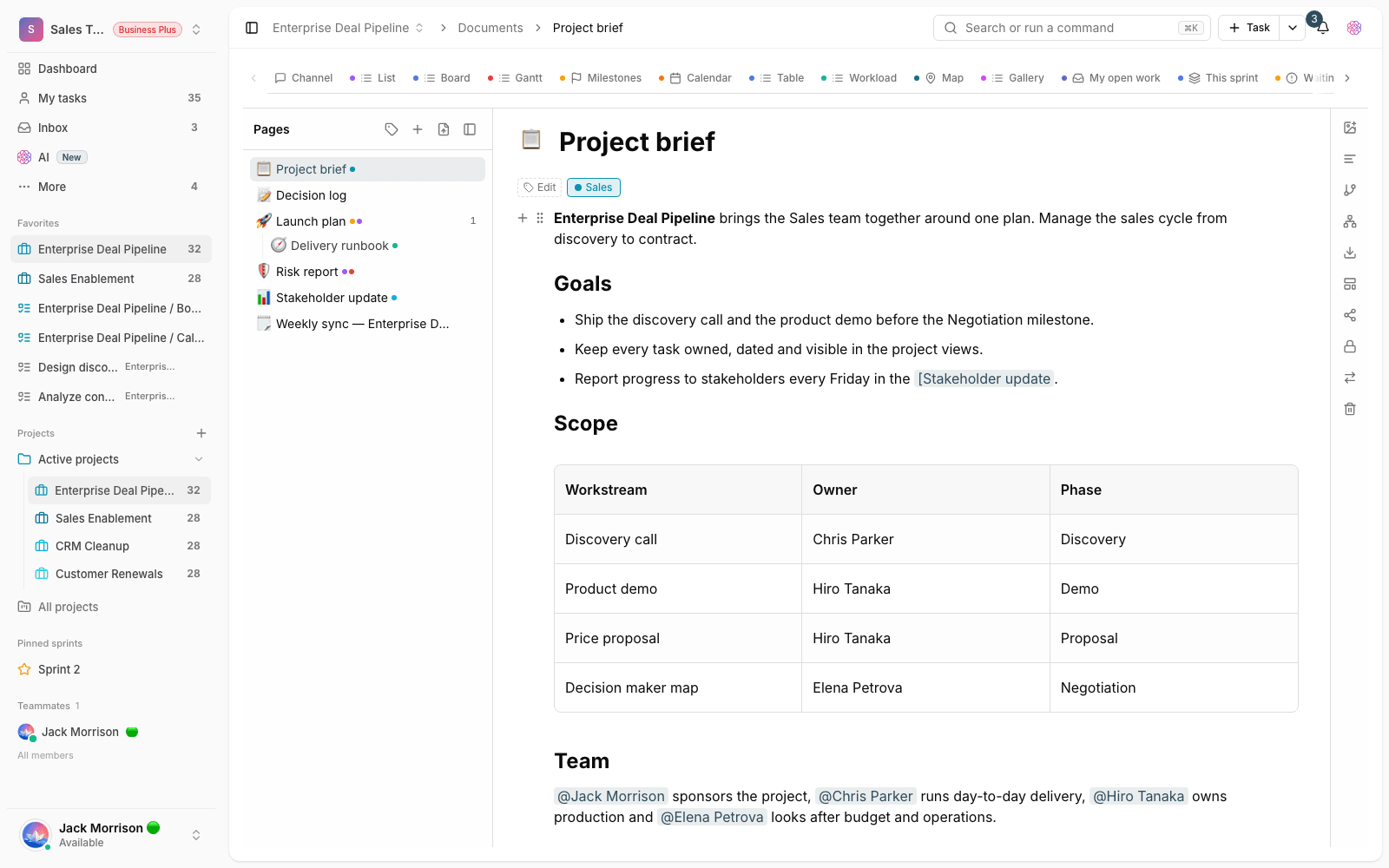
The handle and the add button
When you hover over a block, two tools appear in its margin: an add button to insert a new block at that spot, and a handle to grab and move the block. Drag the handle to reorder the sections of your document without cutting and pasting text.
Click the handle to open that block's actions menu:
- Turn into: change a paragraph into a heading, quote, list, to-do list or code block, and back again.
- Text color and highlight: add color emphasis to the whole block.
- Duplicate: make another copy of the same block.
- Move up or down: reorder without dragging with the mouse.
- Delete: remove the block and its content.
- Copy link to block: get a direct link to that section of the document so you can reference it in a conversation or task.
A block link is only created when you ask for it, so opening an old document doesn't change anything in it.
Collapsible headings
In long documents, each heading has a small arrow next to it. Click it to collapse all the content under that heading, up to the next heading of the same or a higher level. This is very useful for skimming the structure of a long document, quickly finding the section you need or presenting a document in a meeting.
- Whether a heading is expanded or collapsed is saved in the document, so it opens the same way next time.
- Collapsed text isn't deleted; it's just hidden, and it stays in place for search and exports.
- Older documents open unchanged, with all their headings expanded.
The new "/" menu
Type / on an empty line to open the list of blocks you can insert. The list is now shown as a two-column grid with one line per item, so you see more options without scrolling. Type a few letters to filter the list, move between options with the arrow keys (which follow the text direction), and press Enter to insert the selected option.
Inserting a file from this menu now also appears in the list. Previously, this option was mistakenly hidden.
Tips for long documents
- Structure the document with level-two and level-three headings so collapsing sections is meaningful.
- Collapse finished sections so only the active section is in front of you while you edit.
- To reference something precisely in conversations, use a block link instead of copying the text.
- Before a major reorganization, make sure you have document versions so you can go back if needed.
To get to know the editor fully, see Create and edit documents, and to embed boards and diagrams, see Embed boards and diagrams.