
Document versions and restore
Browse a document's version history, compare two versions and safely restore an earlier version, knowing you can always undo it.
A team document's content is always changing: a paragraph is rewritten, a decision changes, and sometimes part of the text is deleted by mistake. That's why Taskie automatically keeps snapshots of every document, so whenever you need to, you can go back, see exactly what changed, when and by whom, and restore an earlier version if necessary.
You have two complementary tools for this: Version history, which lists every version and lets you save versions manually and restore them, and Compare versions, which shows the differences between two versions word by word in color. The key point is that restoring is always reversible, because a backup version of the current state is created before every restore.
What is a version, and when is one created?
Each version is a complete snapshot of the document at a specific moment, keeping its title, icon, text and page settings together. Versions are created in three ways, and each is marked with a source label so you know how it came about:
- Automatic: while you edit, Taskie records a version itself whenever the document's title, icon or text actually changes. To avoid piling up back-to-back versions, no new one is created if an automatic version was recorded in the last five minutes.
- Manual: whenever you like, you can mark a version with a name of your choice, such as "Before rewriting the contract section". This is great for capturing important points before big changes.
- Restore backup: right before you restore a version, Taskie also saves the document's current state as a backup version, so you can go back to it if you change your mind.
Open and read the version history
The history opens from the toolbar next to the document and shows up to the 50 most recent versions, newest first. Each row shows the version name (or the document title), the source label, who created the version and when it was recorded. If the system created a version, you'll see System instead of a user's name.
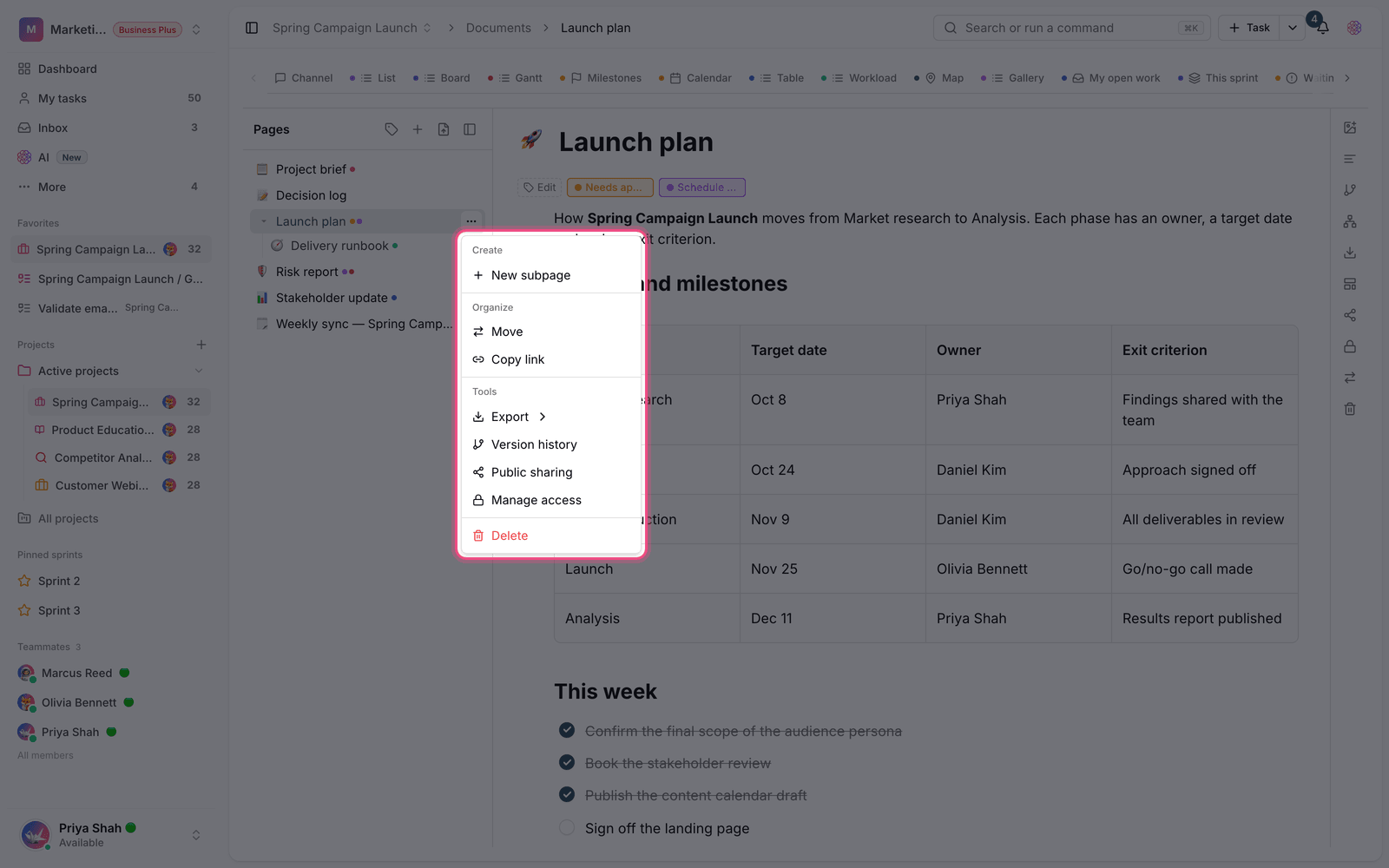
- Click the branch icon labeled Version history in the toolbar next to the document to open the Document version history window.
- To capture an important point, type a name in the Version name box and click Save version.
- Browse the list of versions from the top (newest) down. You can identify each version by its source label, creator and time.
- Use the Close button to close the window.
Compare two versions
When you want to know exactly what changed between two versions, use compare. Taskie shows the differences word by word in different colors, so you can see the changes at a glance without rereading the whole text.
- In the history list, click the Compare button next to a version to compare it with the version before it.
- Or, to compare the last two versions, click Compare versions at the bottom of the window.
- In the compare window, change the From version and To version lists to put any two versions side by side.
- Added: text that was added in the newer version.
- Removed: text that was deleted, shown with a strikethrough.
- Text changed: places where old text was replaced with new text, with both shown side by side.
- Formatting changed: visual changes such as bold, headings or lists, with no change to the text itself.
In very long documents, unchanged sections are shown as Collapsed so you can stay focused on the differences. If two versions have no differences at all, you'll see the message "No differences were found between these two versions."
Restore an earlier version
If you decide the current version isn't right, you can restore any version as the document's current version. Restoring returns the document's title, icon, text and settings to the version you chose. Importantly, this is safe: before restoring, Taskie saves the current state as a Restore backup version, so you can always reverse the change.
- Open the version history window and find the version you want.
- Click the Restore button on that row.
- The document immediately returns to that version's content, and a Restore backup version of the previous state is added to the list.
Access and live collaboration: Anyone who can view the document can see its history and compare versions, but saving a manual version and restoring require edit access. When you restore, the document's live co-editing state is reset. If teammates have the document open at that moment, they should refresh the page to see the restored content.
Tips and common mistakes
- Common mistake: relying only on automatic versions for big changes. Before major rewrites, save a manual version with a clear name so it's easy to find later.
- Common mistake: being afraid to restore because you might lose your current work. Since a backup version is created automatically, restoring is always reversible.
- Common mistake: expecting a version for every small keystroke. An automatic version is only recorded when the title, icon or text actually changes, and not more than once within a few minutes.
- Plan note: Version history comes with documents and needs no separate setup. For documents inside a project, the project documents feature must be included in your plan (Business plan and above), while workspace-level documents don't have this limit.
Now that you know how versions are created and restored, see Create and edit documents to learn how everyday editing creates these versions, and read Document pages and access to control who can edit and restore.