
Document pages, moving pages and page access
See how document pages are arranged in a tree, how to move a page, and how to set separate access for each page.
As your team's documents multiply, good organization and the right access matter as much as the content itself. In Taskie every document is a page, and you can arrange these pages inside folders in a tree with subpages, so a large topic breaks into smaller sections and things stay easy to find.
Along with organization, it should be clear who can view or edit each page. Some documents are for the whole team and some are only for a few specific people. In this guide you'll see how pages are structured, how to move a page to another folder or project, and how to set access separately for each page.
The page tree and subpages
Pages are shown as a tree in the sidebar. Each page can have subpages, and this nesting helps you split a reference document into chapters and sections. A few key points about the structure:
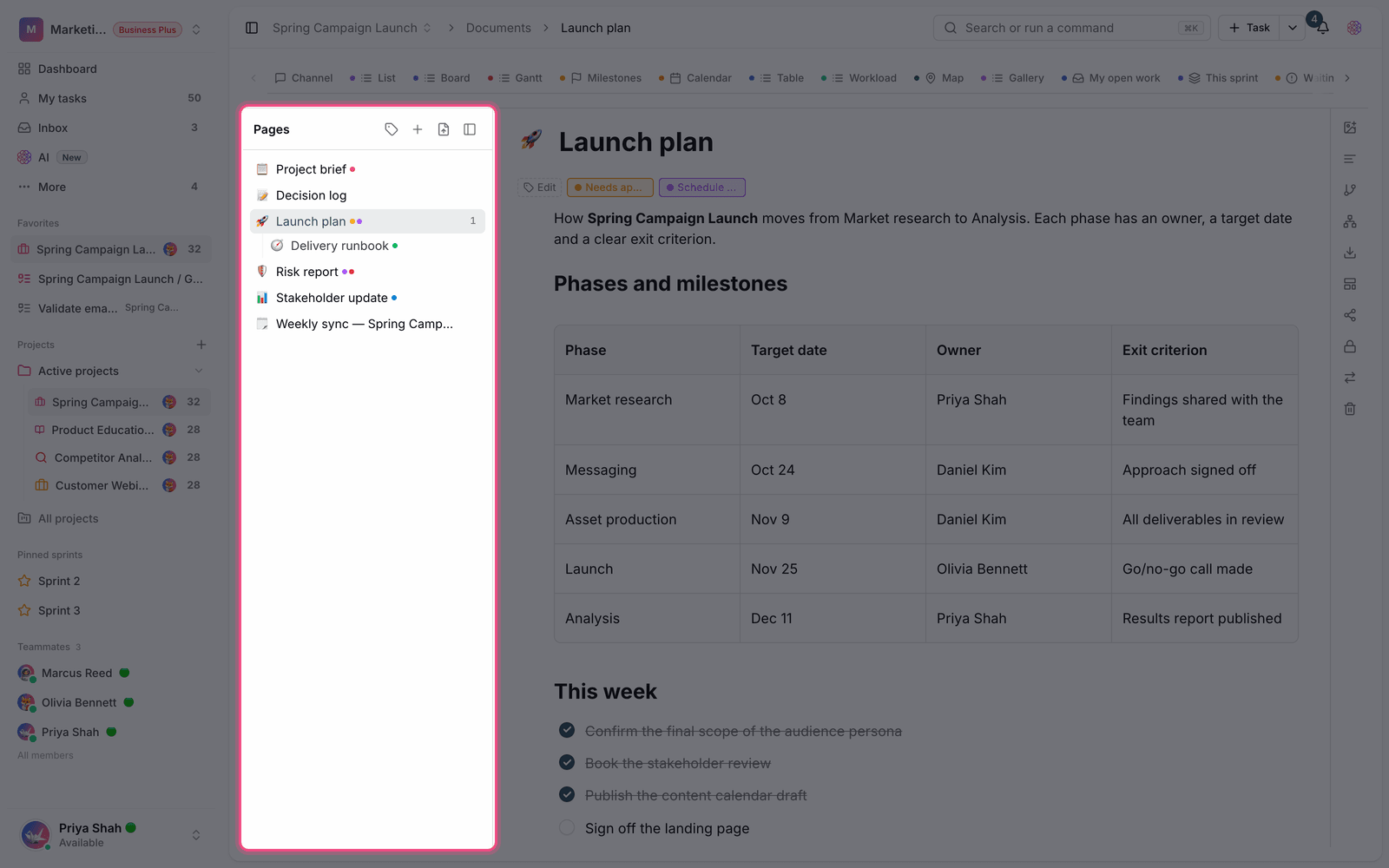
- Folders: keep pages on the same topic together in a folder so the list doesn't get cluttered.
- Subpages: create child pages under any page to build a multi-level tree.
- Collapse the tree: fold a page's branches with Collapse subpages and open them with Expand subpages to stay focused.
- Reorder: change the order of pages by dragging and dropping.
Move a page to another folder or project
If you created a page in the wrong place or want to take it to a different context, you don't need to rebuild the content; just move the page. The important point is that when you move a page, all of its subpages move with it, so nothing gets left behind. To move a page:
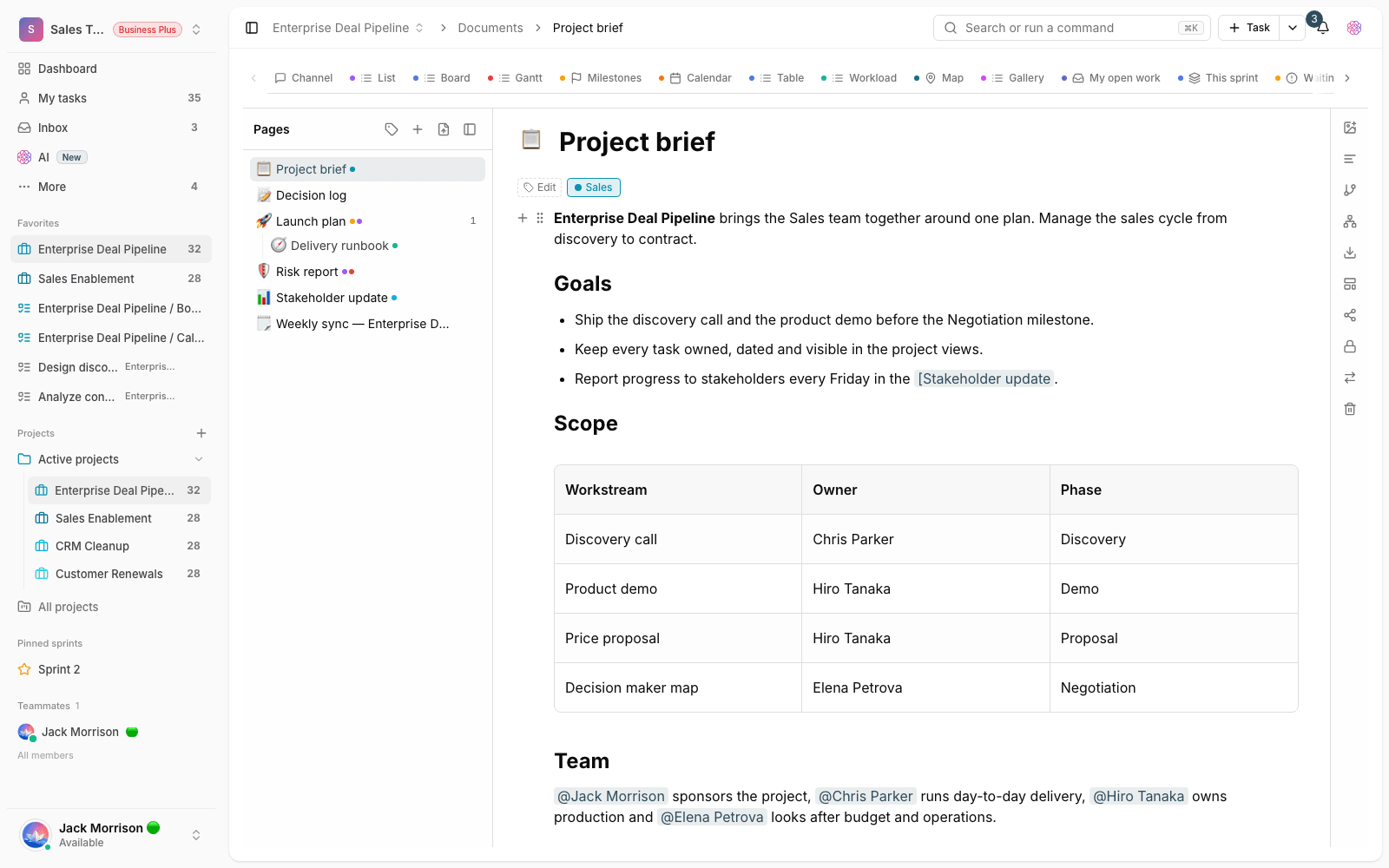
- Open the page and choose Move page.
- Choose the Destination type: a folder in the Documents section or a project's documents.
- If the destination is a project, pick it from the Choose a project list.
- Confirm the move. The message "Page moved." shows the move is done, and the page opens in its new location.
Moving a page into project documents has a few conditions: project documents must be enabled for the workspace, and you must be allowed to manage documents in that project. If either isn't true, that project doesn't appear in the list of destinations. Project documents depend on the workspace plan.
Set access for each page
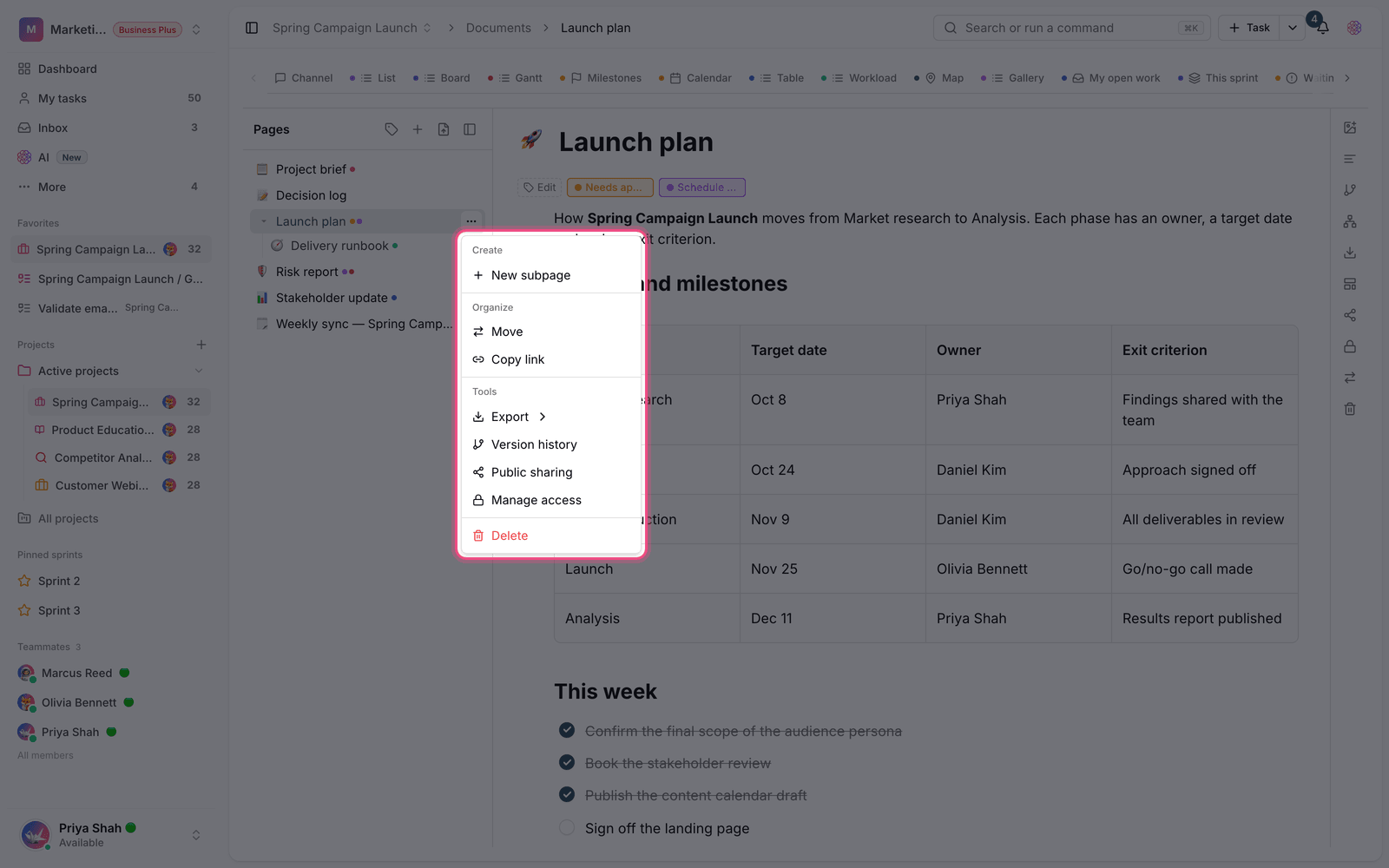
Each page can have its own access settings. From Manage access, choose one of these three modes for the page:
- All members: every workspace member can view and edit the page based on their usual permissions.
- Restricted: everyone can view the page, but only the people you specify can edit it.
- Hidden: only the creator and the people you specify have access, and the page stays hidden from everyone else.
Add specific people and access levels
In Restricted or Hidden mode, you can add specific people with Add member and give each of them View or Edit access. Two extra options are also available: Allow comments and Allow attachment uploads. These let people who only have view access leave comments or attach files without being able to change the text itself.
Who can manage access?
Not everyone can change a page's access. In short, the page creator, members with full edit access to it and the workspace admin can change a page's access. For documents that belong to a project, that project's document manager can do this too. This boundary keeps sensitive access settings from being changed by mistake.
Keep in mind: Each page's access is separate. Hiding a page doesn't hide its whole folder, and vice versa. Before sharing a sensitive document, check that page's access mode.
Common mistakes
- Don't confuse Restricted with Hidden. In Restricted mode everyone can see the page but editing is limited; in Hidden mode the page isn't visible at all.
- If a project isn't in the list of move destinations, it's usually because you don't have access or project documents are turned off, not because of an error.
- When moving, remember that subpages move with the page. Review the page's branch before you move it.
- If you don't see Manage access, you aren't allowed to manage that page's access.
Next step: to create documents and learn the editor, see Create and edit documents, and if you want to publish a document for people outside your team, read Share a document page publicly.