
Embed boards and diagrams in documents
Embed a project's whiteboards and mind maps in a document, and draw Mermaid text diagrams right in the editor.
A good document isn't just text. When you want to explain an architecture, a workflow or a mental model, one picture can replace several paragraphs. Taskie gives you two ways to do this: embedding existing boards and drawing text-based diagrams.
Embed a whiteboard or mind map
Instead of taking a screenshot of a board and pasting it into the document (where it goes out of date right away), embed the board itself. The document shows a live image of the board and updates when the board changes.
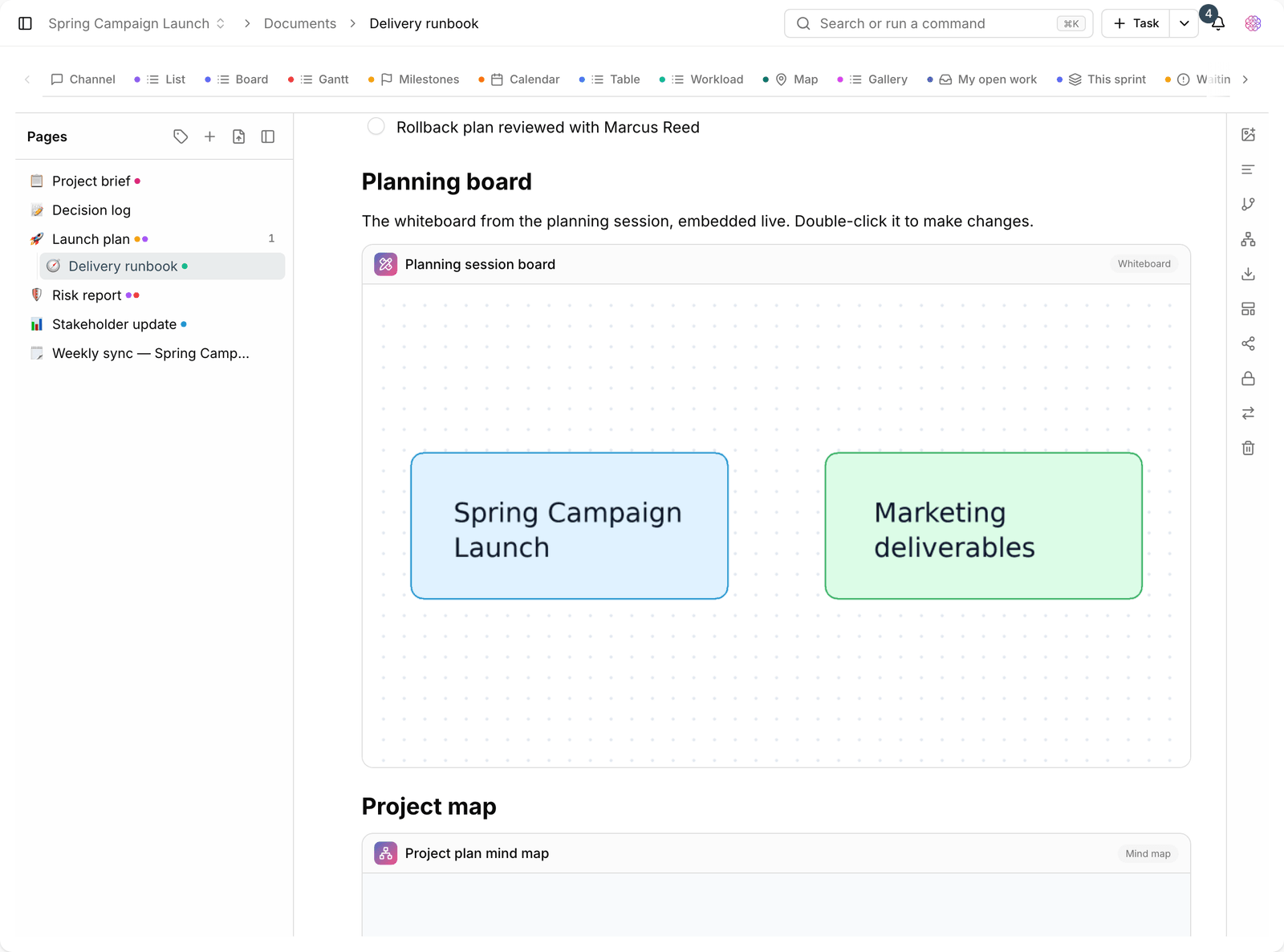
- Open the document and place the cursor where you want the board to go.
- From the insert menu, choose to embed a whiteboard or a mind map.
- Pick the board you want from the project's list of boards.
- The board's image is placed in the document. Click it to open the original board.
Tip: The embedded image is a snapshot of the board and refreshes when the board changes. If you want the image to stay fixed, add an image export of the board as an attachment instead of embedding it.
Text diagrams with Mermaid
For simple diagrams, you don't need to create a board. With Mermaid, you write the diagram as text and the editor draws it. The benefit is that the diagram can be compared in version history and is quick to edit.
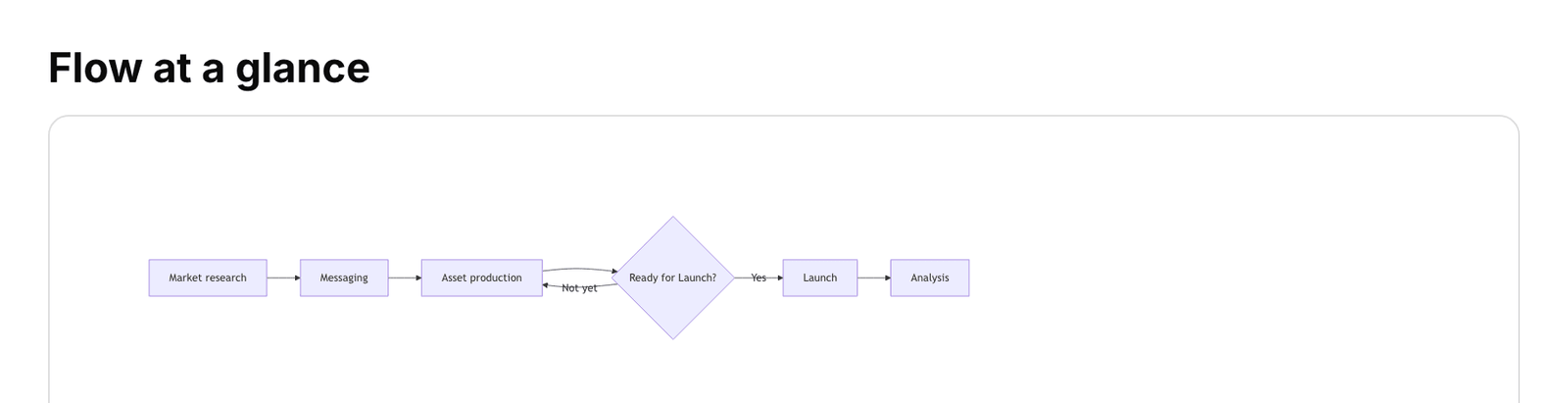
- Flowchart: for decision flows and processes.
- Sequence diagram: for interactions between components or people.
- Class and entity diagram: for data structures and models.
- Simple Gantt: for a brief timeline inside the document itself.
Add a Mermaid diagram block from the insert menu, write the Mermaid code and the output is drawn right away. If the syntax is wrong, an error message appears so you can fix it.
Which one to choose
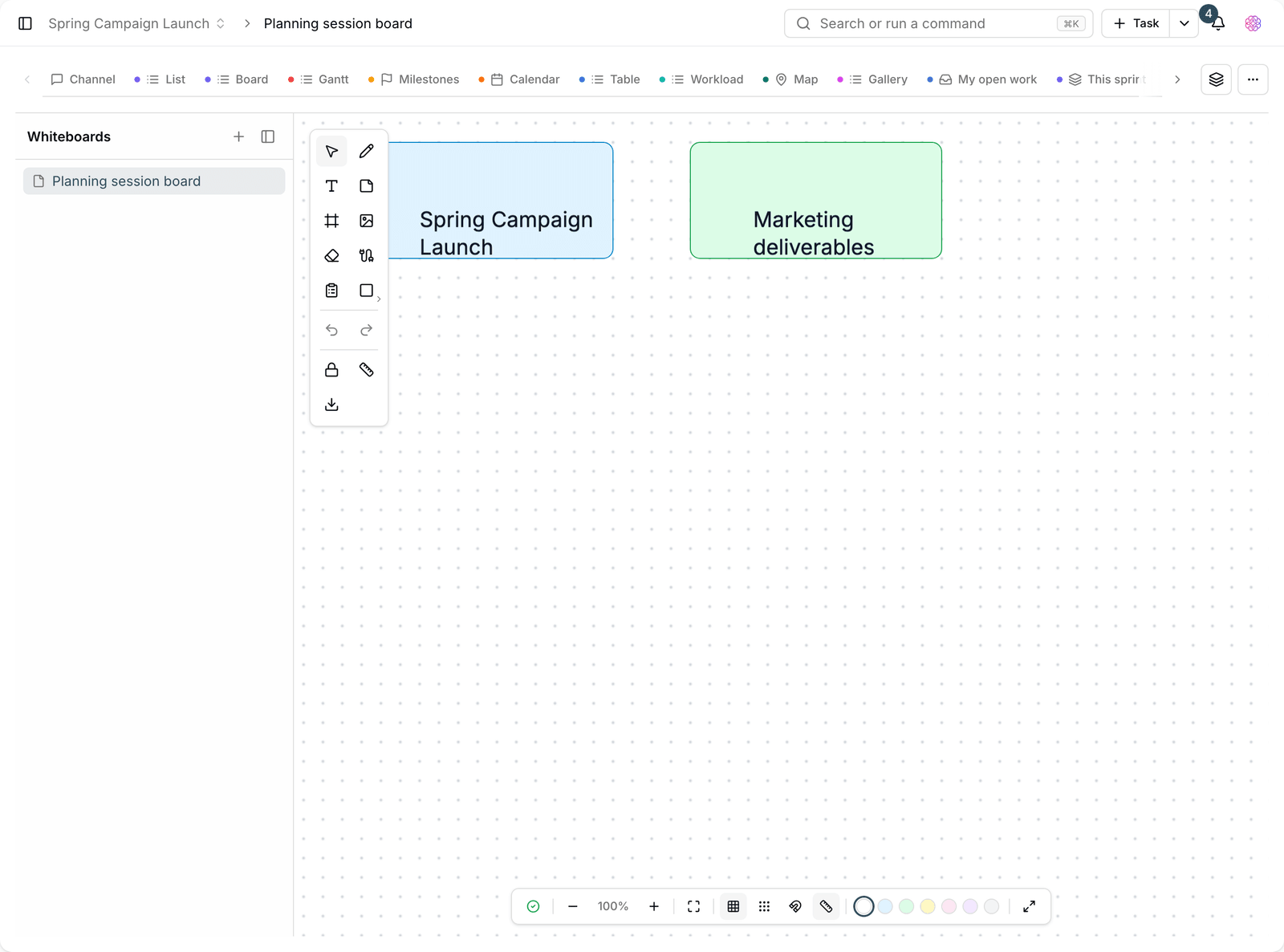
- Whiteboard: free-form design, team brainstorming and any layout you like.
- Mind map: breaking a big topic into smaller parts with a tree structure.
- Mermaid: structured diagrams described in plain text that need to be tracked version by version.
Embeds and access
Embedding a board in a document doesn't bypass access levels. Someone who doesn't have access to the original board won't see the embedded image either. If you share a document with people outside the project, check before publishing that they can see the embedded content.
Practical tips
- Tidy up the board before embedding it. The embedded image is exactly what you see on the board.
- For large boards, build the part you need on a separate board instead of embedding the whole thing.
- Draw simple diagrams with Mermaid so they stay comparable in the document's version history.
- Write a short caption under each image. A diagram without an explanation is often misunderstood.
To create the boards themselves, see Whiteboard and Mind map, and for editor features, see Create and edit documents.