
Label documents
Add labels to document pages, filter the document tree by label, and see a label's tasks and documents side by side.
Until now, labels only worked on tasks. Now you can add the same workspace labels to document pages too. The result is that a shared topic, such as "Release", "Client A" or "Legal", keeps both its work and its documentation together.
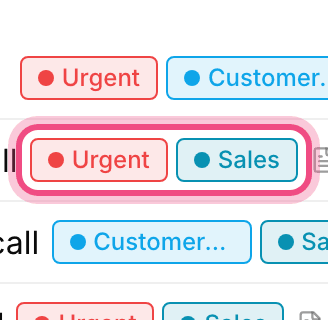
Add a label to a document
- Open the document page.
- Select the labels bar under the document title.
- Choose an existing label from the list or type the name of a new one.
- To remove a label, click the remove icon next to it.
Labels are defined at the workspace level, so a label you created for tasks is available for documents with no extra work, and its color stays the same.
To label a document, you need permission to edit it. Members who can only read the document see its labels but can't change them.
Filter documents by label
In the document center and in the project documents sidebar, colored label dots appear next to each document, and there's a new label filter. When you turn on the filter, a simple list of documents with that label is shown instead of the folder tree, and each document's path appears above its name so you know where it lives.
- Select several labels at once to get a more precise list.
- Clear the filter to return the document tree to its usual view.
- The label filter only shows documents you have access to.
Each label's page
A label's page now has two tabs: Tasks and Documents. This lets you see both the ongoing work on a topic and its documentation from one place, which is very handy for reviewing before a meeting or handing work over to a new colleague.
Merge and delete labels
If two labels with the same meaning were created, you can merge them. When you do, both the tasks and the documents of the old label move to the target label. When you delete a label, it's removed from every task and document, and the documents and tasks themselves stay untouched.
Tips for staying organized
- Create one clear, short label for each topic and avoid creating labels with the same meaning.
- Mark reference documents such as checklists and instructions with the same label as the related work.
- Before starting a new project, review your list of labels once and merge unused ones.
To learn about labels and filters on tasks, see Labels, priorities and filters, and to review how documents are structured, see Document pages and access.