
Import and export documents
Turn Word, OpenDocument, Markdown and plain text files into documents, and export your documents.
Your team's documentation usually already exists somewhere: a few Word files, some Markdown notes. You don't need to retype them. Import the file to turn it into a Taskie document, and from then on edit it inside your project.
Formats you can import
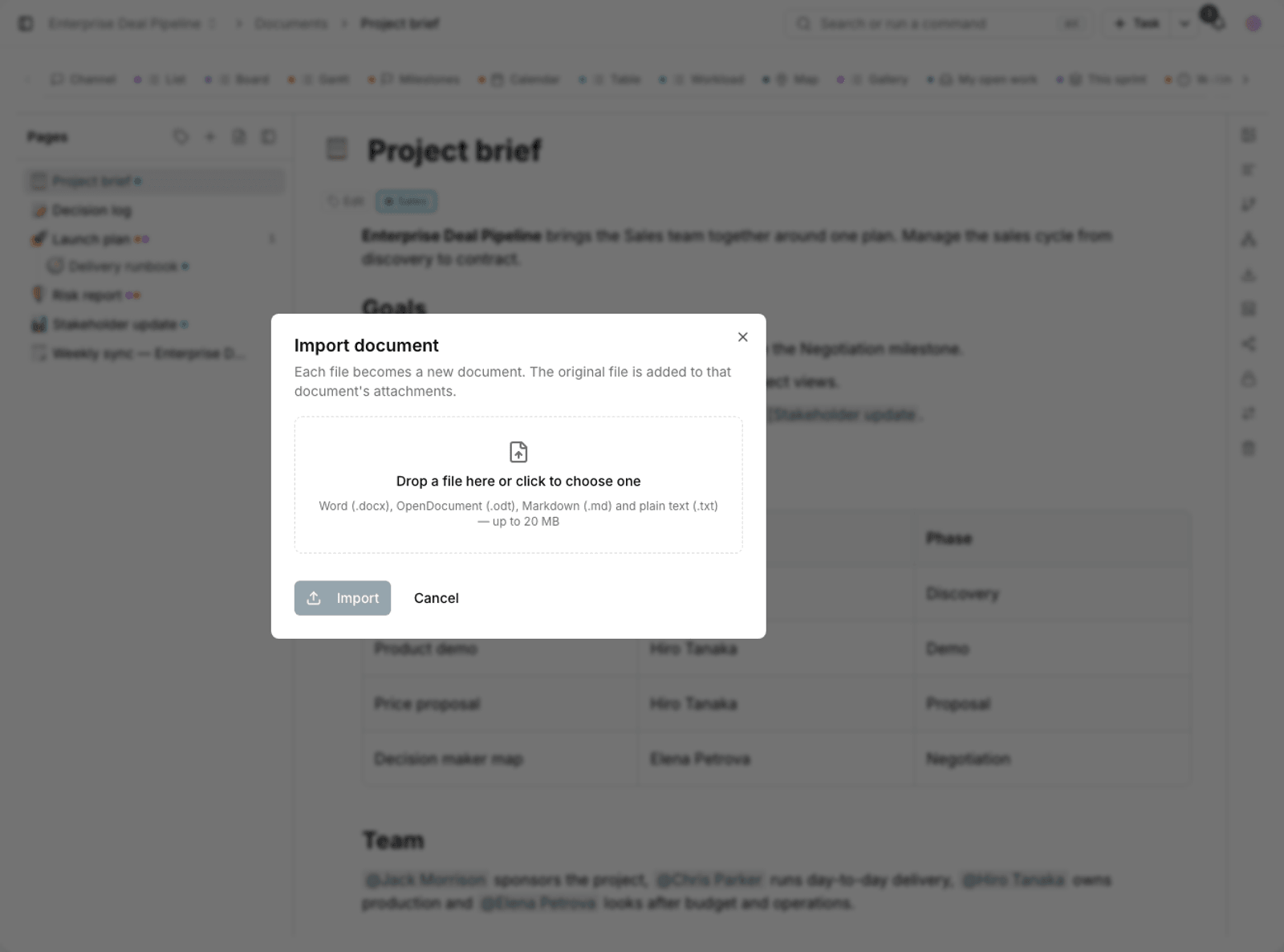
- Word (.docx): headings, lists, tables and images are carried over.
- OpenDocument (.odt): files from LibreOffice and similar tools.
- Markdown (.md): a good fit for technical documentation and output from development tools.
- Plain text (.txt): text without formatting.
Each file becomes a new document, and the original file is also added to that document's attachments, so the original version is always available.
Import a file
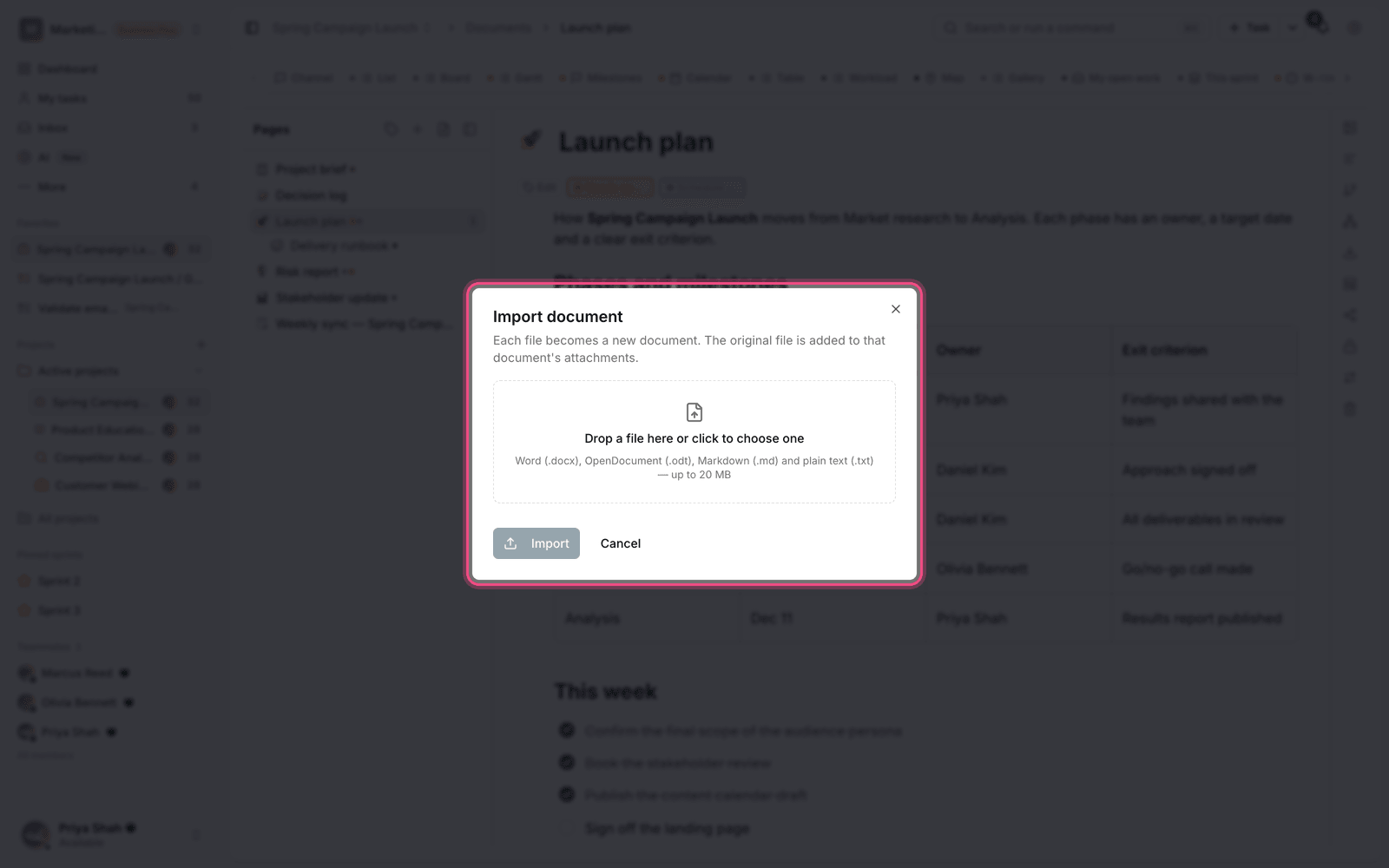
- In the project's documents section, choose Import document.
- Use Choose file to pick one or more files.
- Wait for the files to be processed. A document is created for each file.
- Open the new document and tidy up the heading structure if needed.
Limit: Each file can be up to 20 MB. If a file is larger, you'll get an error message. In that case, split the file into smaller parts.
Export a document
To share outside Taskie, export the document. Choose the export format based on where it's going:
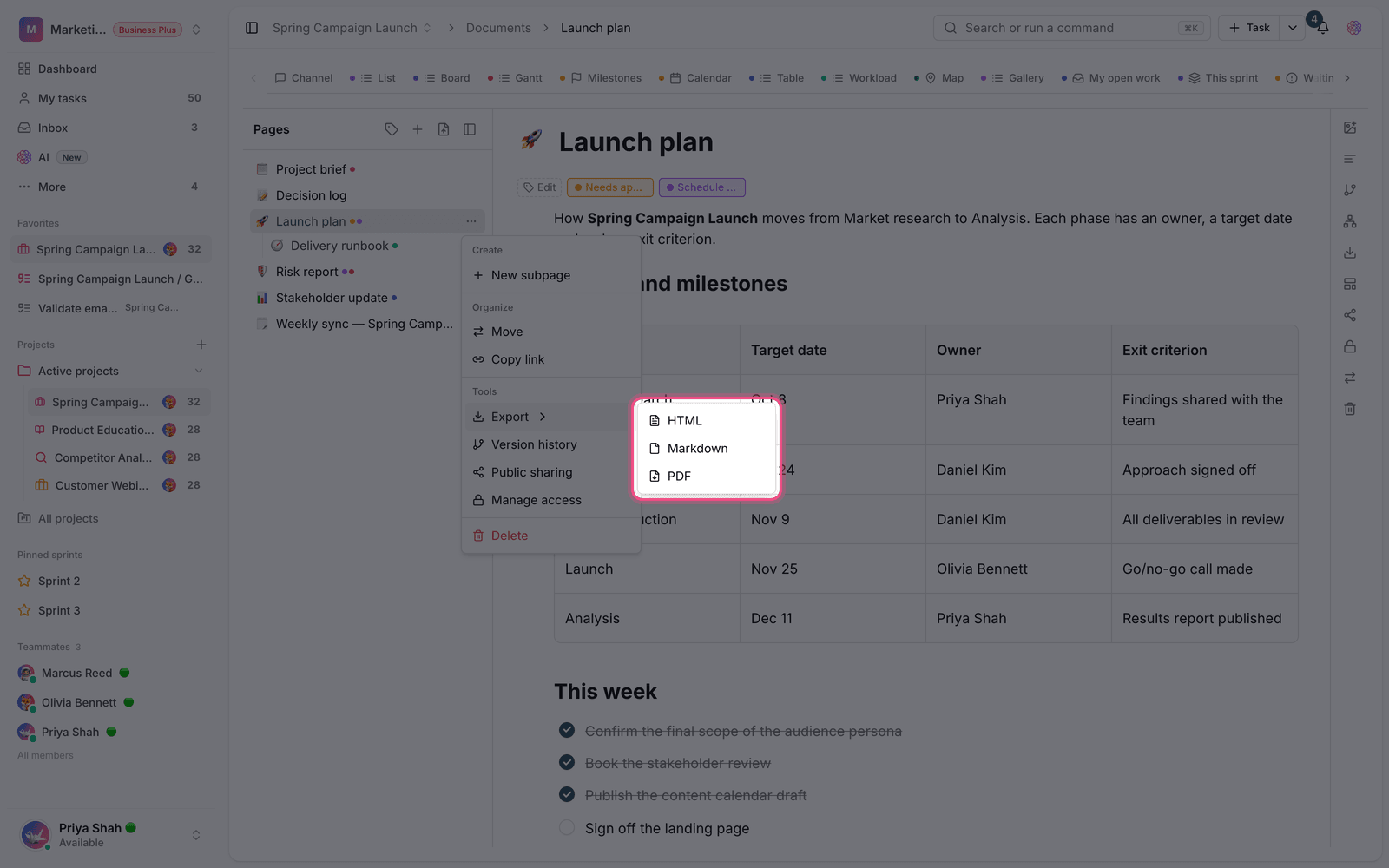
- Word (.docx): when the recipient wants to edit the document.
- OpenDocument (.odt): for open-source tools.
- Markdown (.md) and Plain text (.txt): for moving content into technical tools.
- PDF: when the document is final and shouldn't be changed.
Tip: PDF exports of right-to-left documents are built with the right font and correct text direction, so PDF is a safe choice for sending documents outside your organization.
What might not carry over
Import and export move the content, not the exact formatting. Headings, paragraphs, lists, tables and images carry over, but custom styles, headers and footers, and page numbering may not be kept. After importing, give the document a quick review.
Before importing in bulk
If you have a lot of files, import one first and check the result. If the heading structure comes through correctly, import the rest. If not, fix the structure of the source file so you don't have to tidy up dozens of documents by hand.
- In the source file, set headings with standard styles (Heading 1, Heading 2), not by manually enlarging the text.
- Keep tables simple. Complex merged cells may not carry over correctly.
- Images inside the file carry over, but floating text boxes usually don't.
- After importing, review the document's list of headings once.
To work with the editor itself, see Create and edit documents, and for public sharing, see Share a document page publicly.