
Labels, priorities, and filters
Label tasks, set priority levels, and build filters to quickly find important work among a large number of tasks.
Once you have a lot of tasks, just having a list isn't enough; you need to reach the important work in seconds. Labels, priorities, and filters are three tools that work together to help you categorize work meaningfully and see exactly what you're looking for.
Labels describe the topic and context of the work, priority shows how urgent it is, and filters combine the two with dozens of other criteria to turn your list into a focused view.
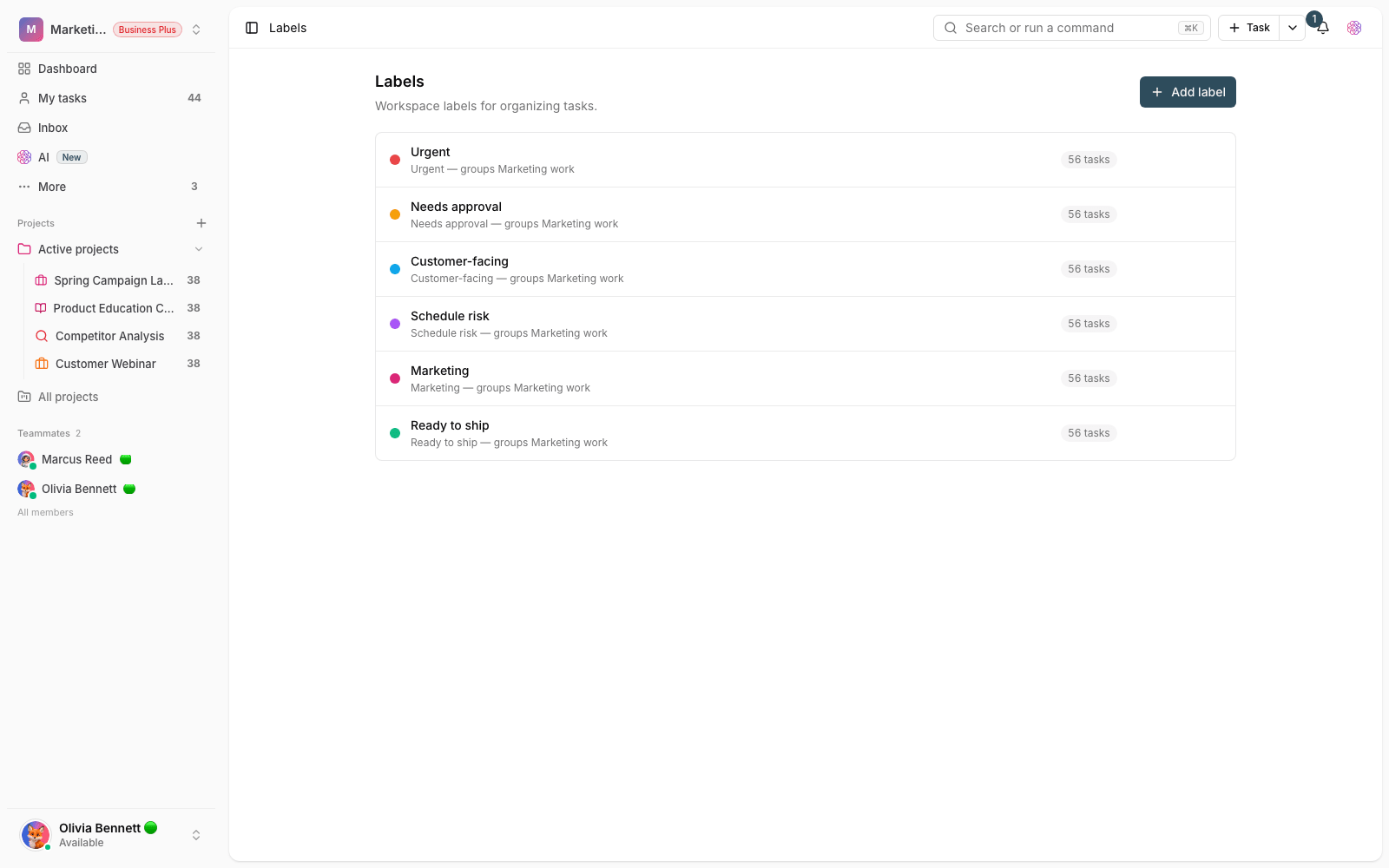
Label tasks
A label is a colored tag with a name of your choice. It's defined at the workspace level, and you can apply it to as many tasks as you like. Unlike a status, a label doesn't show the stage of the work. Instead, it marks a context such as "Marketing", "Customer urgent", or "Tech debt" that may be shared across several projects.
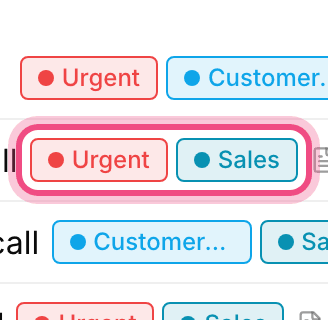
- Give each label a short name and a distinct color so it's quick to recognize in the list.
- Avoid creating labels that are too similar. A few well-used labels are better than dozens of rarely used ones.
- A task can have several labels at once, so use labels for overlapping categories.
Set a priority
Priority shows how urgent a piece of work is and helps the team know what to tackle first. Taskie has four priority levels, and each task can take one of them or stay without a priority.
- Urgent: work that must be done immediately, where delay is costly.
- High: important work that should be done soon but isn't critical.
- Normal: the regular flow of work, done in its turn.
- Low: work you get to when you have spare time.
You can set the priority straight from the flag icon on the list row, or clear it at any time to return the task to no priority. A simple rule of thumb: keep only a few tasks "Urgent" at any one time. If everything is urgent, in practice nothing is.
Build filters to find work fast
Filters let you narrow the task list by one or more conditions. Each condition is made of a field, an operator, and a value, for example "Assignee is Alex" or "Priority is Urgent". A wide range of fields is available to filter on.
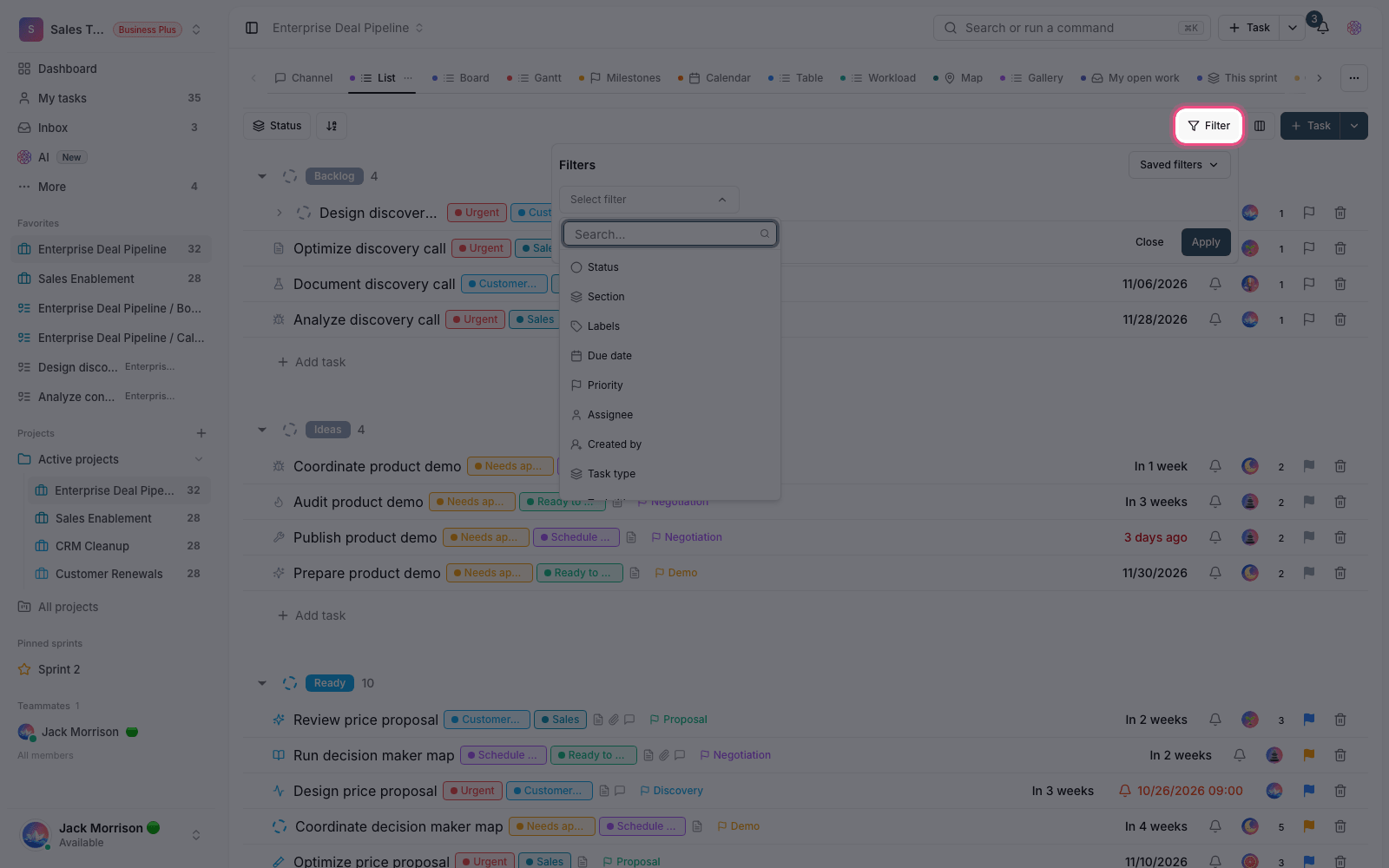
- Status, assignee, creator, task type, and labels.
- Priority, due date, and created date, with ready-made ranges such as today, this week, or overdue.
- Task title and description, with "contains" or "doesn't contain" conditions.
- Dependencies, recurring tasks, time estimate, logged time, and sprint points.
- Open the filter option from the bar at the top of the list.
- Choose a field, pick the right operator, and enter the value you want.
- To narrow the results further, add more conditions and combine them with "and" or "or" logic.
- If you use this combination a lot, save it as a view so you don't have to rebuild it every time.
Tip: To filter on priority, instead of the "greater than" or "less than" operators, use the "is" operator and pick the levels you want directly (for example, Urgent and High) so the results are always accurate and reliable.
Next step: to create your own fields that you can also filter on, go to Custom fields and task types. To review the full structure of a task, see Task details and management.