
Custom fields and task types
Add custom fields to tasks, learn about field types and computed fields, and create task types for different workflows.
Every team needs information for its work that doesn't fit in the default fields, such as an invoice number, customer name, budget, or satisfaction score. In Taskie, custom fields let you add exactly the data that matters for your workflow to tasks, and then filter and report on it.
Alongside fields, task types let you tell different kinds of work apart. A "Bug", a "Customer request", and a "Regular task" can each have their own look, name, and even their own fields. This page shows you how to set up both.
Add a custom field
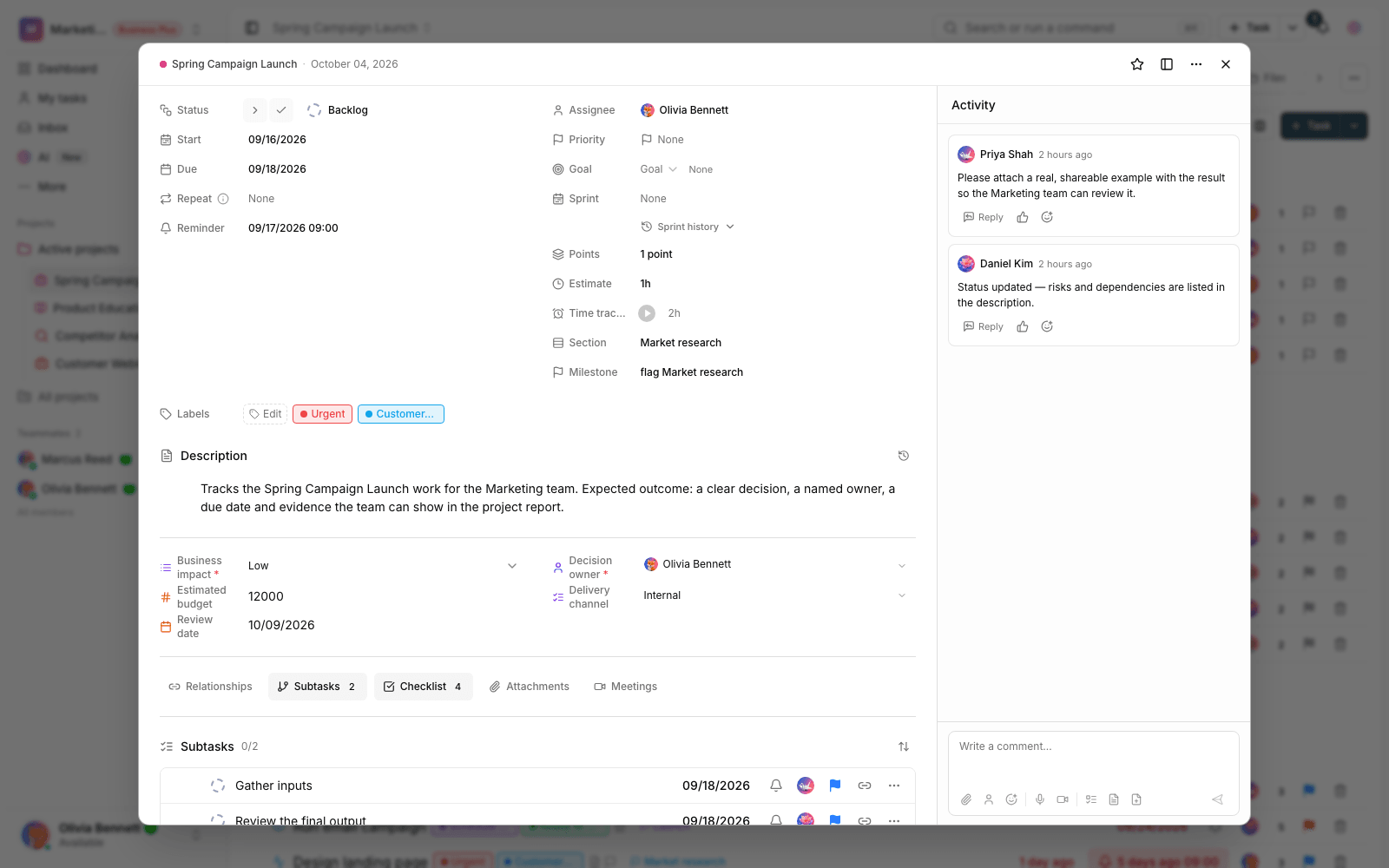
Custom fields are defined per project, and anyone allowed to manage the project's fields can create them. Each field has a name, a type, and optional settings such as an icon, a color, and whether it's required.
- Go to the project's custom field settings and choose to add a new field.
- Pick a clear name and a type that suits the data you want to record.
- If needed, set the options (for select fields), a minimum and maximum, or a currency.
- If the field must always be filled in, make it required, then save so it appears on tasks.
Note: The number of custom fields per project depends on your workspace's subscription plan. Higher plans let you define more fields per project.
Field types
Taskie offers a wide range of field types so there's a good fit for every kind of data. Choosing the right type matters, because the field type determines how data is entered and, later, how it's filtered.
- Short text and Long text: for short or long descriptions such as a customer name or an internal note.
- Number, Percent, and Amount: for quantities such as budget, progress, or a sum of money, with the option to set a currency.
- Date and time: to record a date, a time, or both for an event.
- Single select and Multi-select: for predefined options such as a category or stage.
- Yes/no, Rating, and Color: for simple on/off states, star ratings, and color tagging.
- User, Email, Phone, Link, and Location: for contact and location data.
- File and Signature: to attach a file or collect a signature right on the task.
Computed fields
A computed field is a special type whose value you don't enter yourself. Instead, it's calculated automatically from a formula based on other fields. Whenever the input fields change, the result is recalculated. The output can be a number, a date, or text.
In a formula you can refer to the same project's custom fields and to a few basic properties of the task itself, such as title, priority, and dates, and you can use built-in functions. The supported functions include:
- IF to choose between two values based on a condition.
- ROUND to round a number, and MIN and MAX for the smallest and largest value.
- DAYS_BETWEEN, ADD_DAYS, and TODAY for date calculations.
- CONCAT to join several pieces of text together.
A computed field can't be required, has no manual default value or options, and can't depend on itself in a loop. These limits prevent calculation errors.
Task types for different workflows
Task types are defined at the workspace level and help different kinds of work show up with a suitable look and name. Each workspace has a default type that can't be deleted, and you can add new types either from a ready-made list or fully custom, with a name, a plural name, an icon, and a description.
You can tie custom fields to task types so each type shows its own fields. For example, a "Bug" type can have a "Severity" field that doesn't appear on regular tasks. How many task types you can add beyond the base allowance depends on your subscription plan.
Next step: to categorize and quickly find work based on these fields, go to Labels, priorities, and filters. To review the overall structure of a task, see Task details and management.