
Quick add and bulk actions
Create tasks fast, detect details automatically from the title, change several tasks at once, and merge similar tasks into one.
When work piles up, the speed of capturing and managing tasks starts to matter. Taskie gives you tools to create a task in seconds, change several tasks in one go, and merge duplicate or overlapping tasks so your task list stays clean and reliable.
On this page you'll learn about quick add, automatic detection of details from the title, bulk changes to several tasks, and merging similar tasks.
Quick add a task
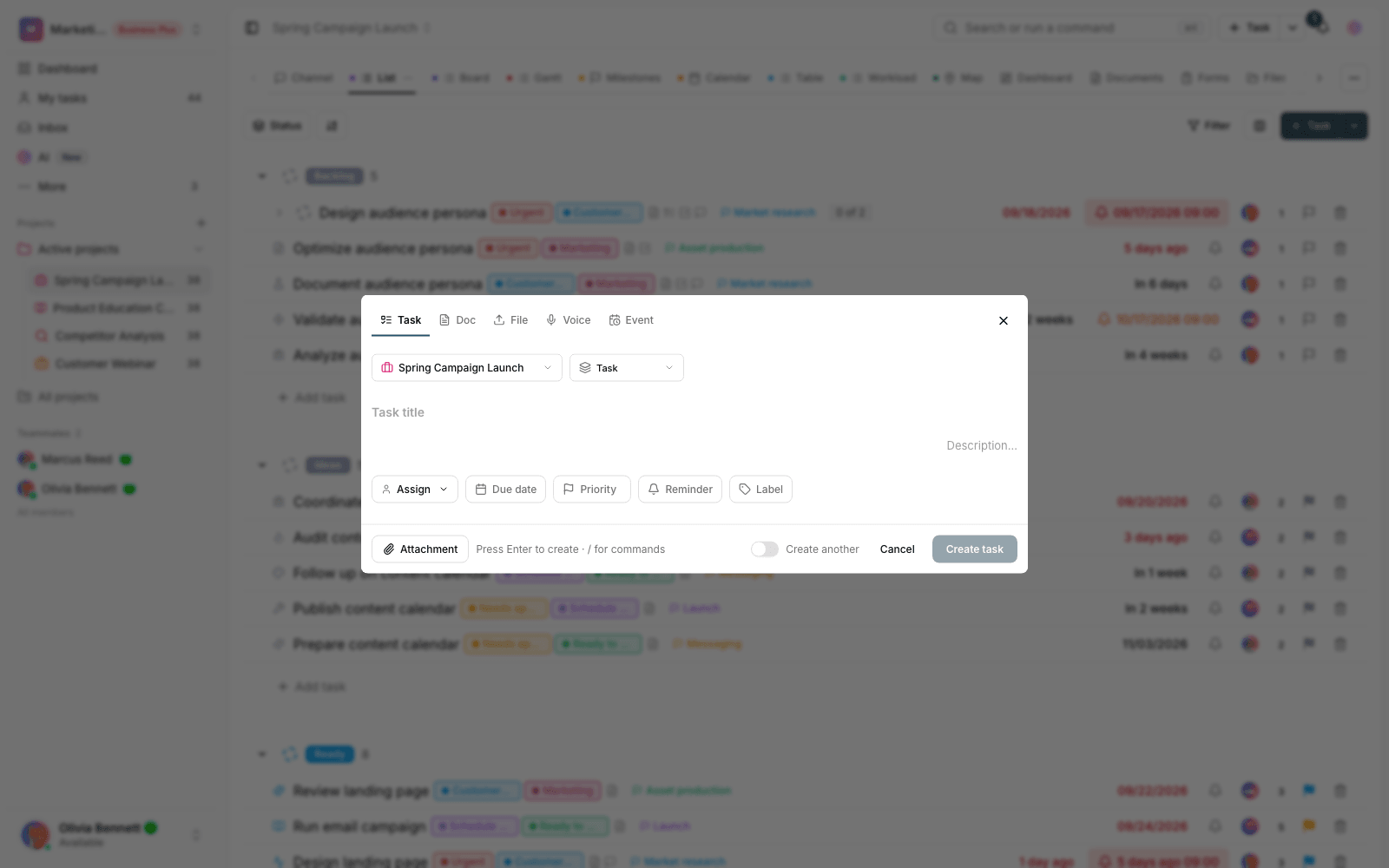
There are two ways to create a task: the global quick add, available from any page, which opens a full box with Task, Doc, File, and Voice tabs; and inline add, which sits right at the top of each project's list or columns.
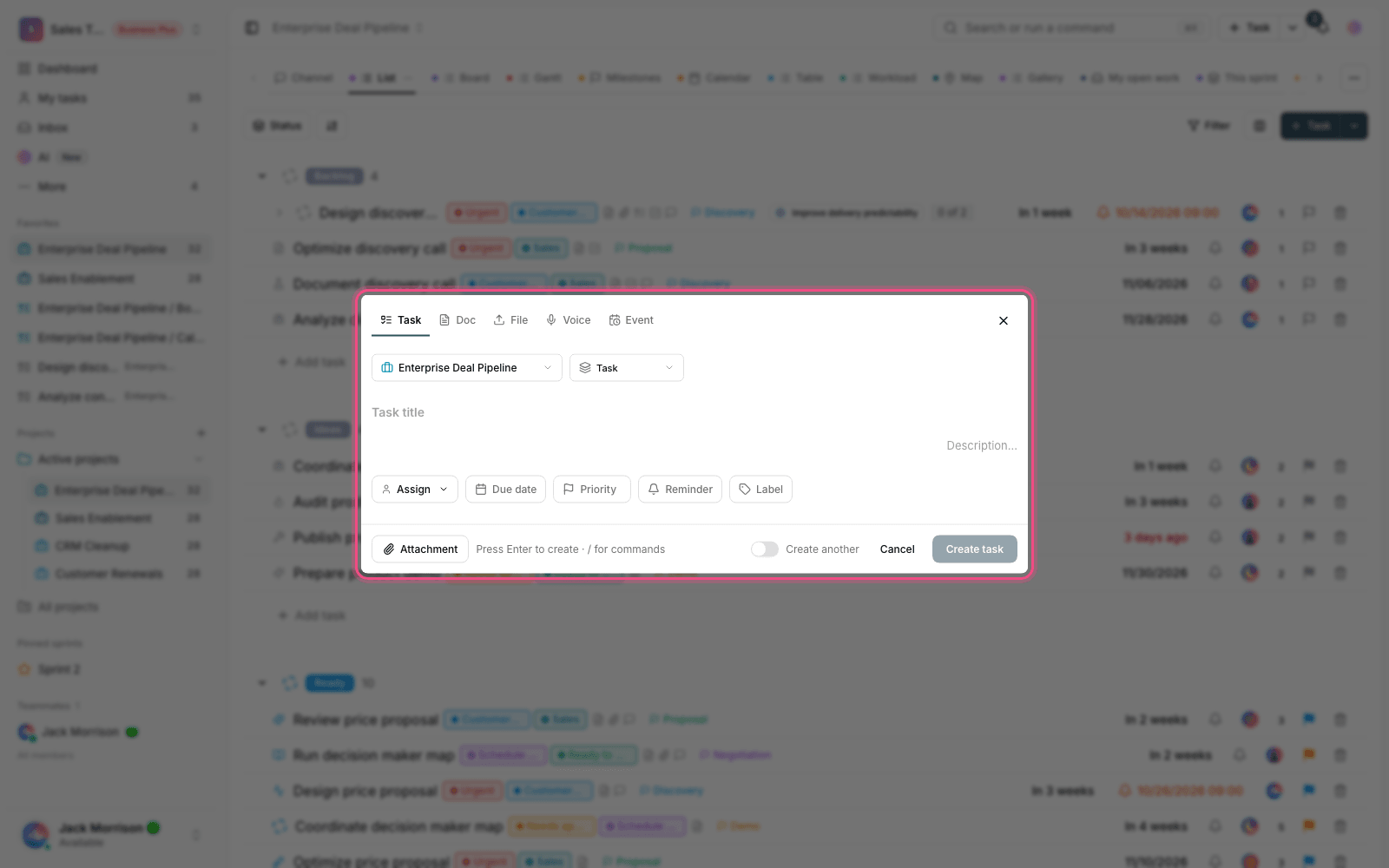
- Click Add task to open the input box, and write a short description of the work in Task title.
- If needed, set the status, type, assignee, due date, reminder, priority, and labels from the same row, or attach a file.
- Press Enter or click Save to create the task. The box stays open, ready for the next one.
In the global quick add box, you can also turn on Create another to create several tasks in a row without the box closing. Besides tasks, you can create a document, a file, or a voice note from the same box.
Detect details from the title
You don't need to fill in every field by hand. As you type the title, Taskie reads the text and automatically applies any details you've marked with the symbols and keywords below. Keywords work in both supported interface languages:
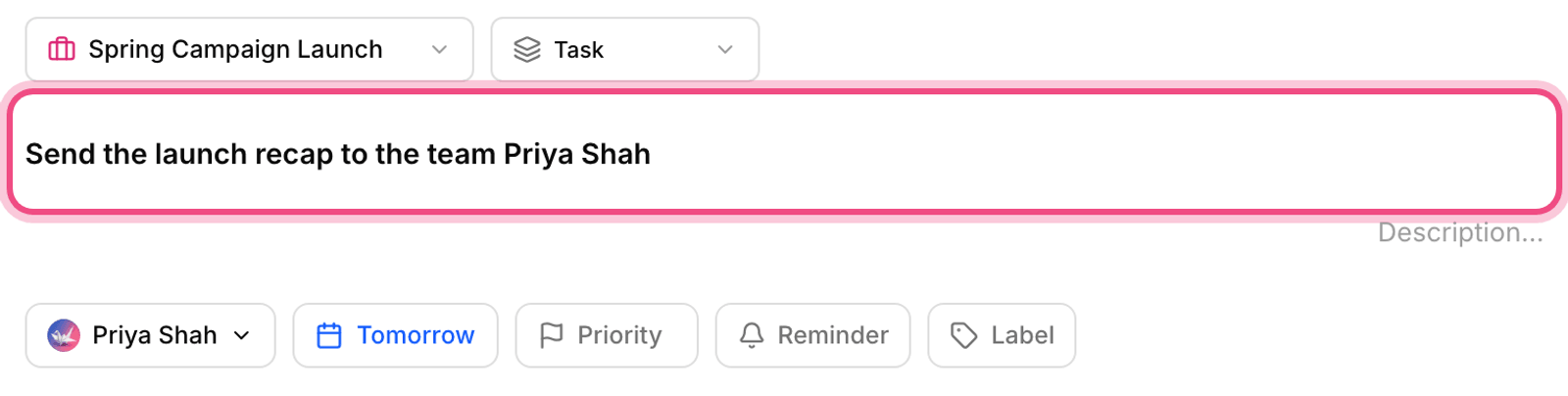
- #label-name to add a label, and @project-name to pick a project.
- !1 to !5, or words such as
!urgent,!high,!normal, and!low, to set the priority. assignee: nameto assign the task,status: namefor the status, andtype: namefor the task type.- Time phrases such as
tomorrowortodayfor the due date, andreminder(orremind me) to set a reminder. points: 5for sprint points andestimate: 2hfor a time estimate.
If you've also set the same field with the pickers next to the box, your manual choice takes priority over what was detected from the title. To create in bulk, paste several lines of text at once into the inline add box. Taskie detects the number of lines and asks whether to create one task per line.
Bulk changes
When you select several tasks together, a bulk actions bar appears showing how many tasks are selected and letting you change them all at once. From this bar you can:
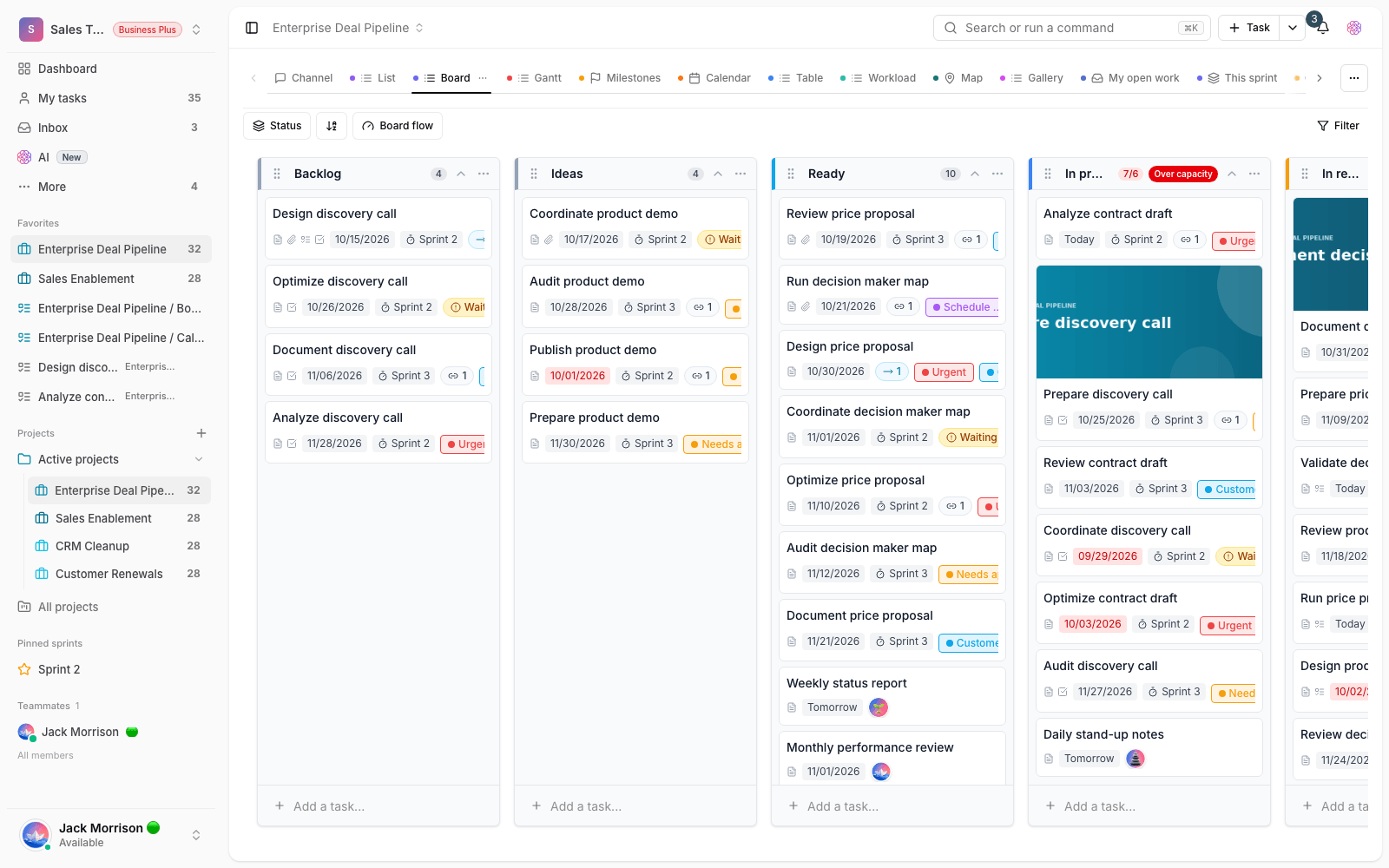
- Change the Status, Priority, Type, and Assign to for all selected tasks.
- Set the Due date, reminders, and labels.
- Move tasks to another project, add them to a sprint or send them back to the backlog, and set points and time estimates.
- Copy, export, archive, or delete in bulk, and turn tasks into subtasks of a single parent.
Only tasks you're allowed to edit are changed. If the project's workflow doesn't allow a status change, those tasks are skipped, and Taskie reports how many changes were applied and how many were rejected.
Merge similar tasks
If two or more tasks are really the same work or overlap, you can merge them into one target task so you keep a single, clean source. When you merge, the content of the source tasks moves to the target, and the source tasks themselves are removed from regular views.
- Select the similar tasks and click Merge in the bulk actions bar.
- Search for and select the target task. All tasks must be in the same workspace.
- Confirm the merge to move the content.
- The source tasks' subtasks, comments, attachments, and checklists move to the target task.
- Labels and custom fields compatible with the target are added, and the source descriptions are appended to the end of the target's description.
- The assignees of the source tasks become followers of the target so they stay informed as the work continues.
Tip: Merging removes the source tasks from regular views, so make sure you've chosen the right target task before you confirm.
Next step: to categorize work better after a quick add, see Labels, priorities, and filters, and to give structure to big pieces of work, see Subtasks and dependencies.