
Import Evernote notes
Turn an Evernote ENEX export into Taskie tasks, with the note's text, images, attachments, tags, and original dates.
If your team's notes have piled up in Evernote, you don't need to copy them over one by one. Import Evernote's standard export, an ENEX file, into Taskie and each note becomes a task, with its full text, inline images, attached files, tags, and original created and edited dates.
Export from Evernote
- In Evernote, select the notebook you want to move.
- From the notebook menu, choose Export.
- Choose the ENEX format and leave the option to include tags turned on.
- Save the export file to your computer.
Import the file into Taskie
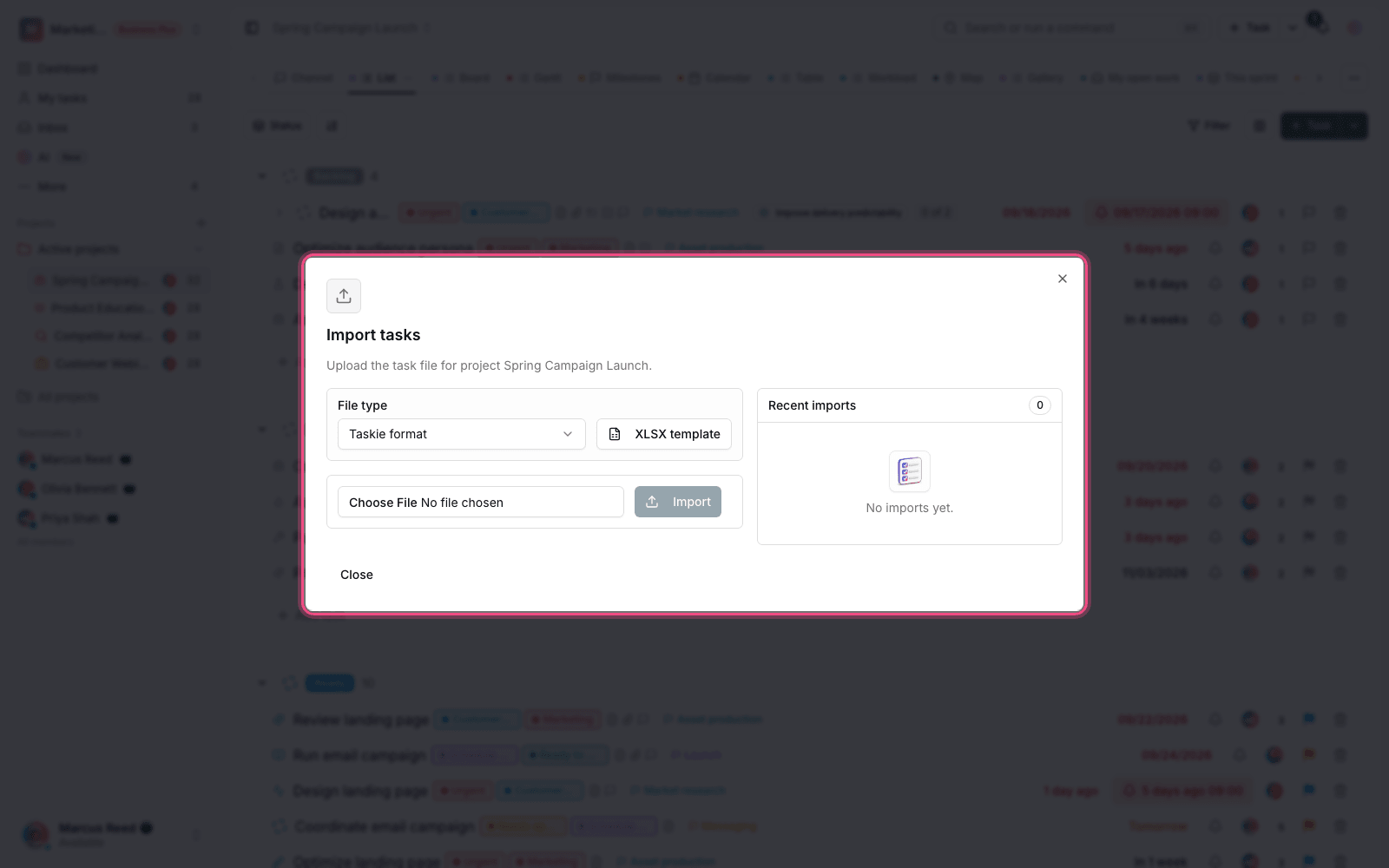
- In Taskie, go to the data import section and choose Evernote.
- Upload the ENEX file.
- Choose the destination: create a new project for that notebook, or send the notes to your own Inbox.
- Start the import. It runs in the background, so you can get on with other work.
Large files are supported too. The import runs in batches, so even an export of several hundred megabytes goes all the way through without being cut off; it just takes a little longer.
What gets imported?
- The note title becomes the task title. It's saved exactly as it is, and no assignee, date, or label is extracted from it.
- The note text moves to the task description with its structure intact: headings, lists, tables, and links.
- Inline images stay in place in the description.
- Attached files become task attachments.
- Note tags become Taskie labels. Duplicate labels aren't created again.
- The note's created and edited dates are kept so the chronological order of your content isn't disturbed.
File security
Every file pulled out of the export is checked just like any other upload to Taskie. If an attachment fails the security check, only that attachment is skipped, and the note is still turned into a task. So one problem file doesn't cost you the whole note.
After the import finishes
- Open a few sample tasks and look over the text, images, and attachments once.
- If you sent the tasks to a new project, set statuses and assignees to fit your team's workflow.
- Review the imported labels and merge any that mean the same thing.
- Notes that are really reference material rather than work can be turned into documents and kept in the Documents section.
To import from CSV and Excel files and map columns, see Import tasks, and to import text files into documents, see Import and export documents.