
Subtasks and dependencies
How to break a big piece of work into subtasks, set the nesting depth, and define dependencies between tasks.
Real work is rarely done in a single step. Much of it is made up of several smaller stages, each with its own assignee and timing. In Taskie you can break a big task into clear subtasks so its progress can be measured and no stage gets forgotten.
Sometimes the order of work matters too: one task can't start until another is finished. For these situations you define a dependency, so Taskie knows what is waiting on what and takes that relationship into account in planning.
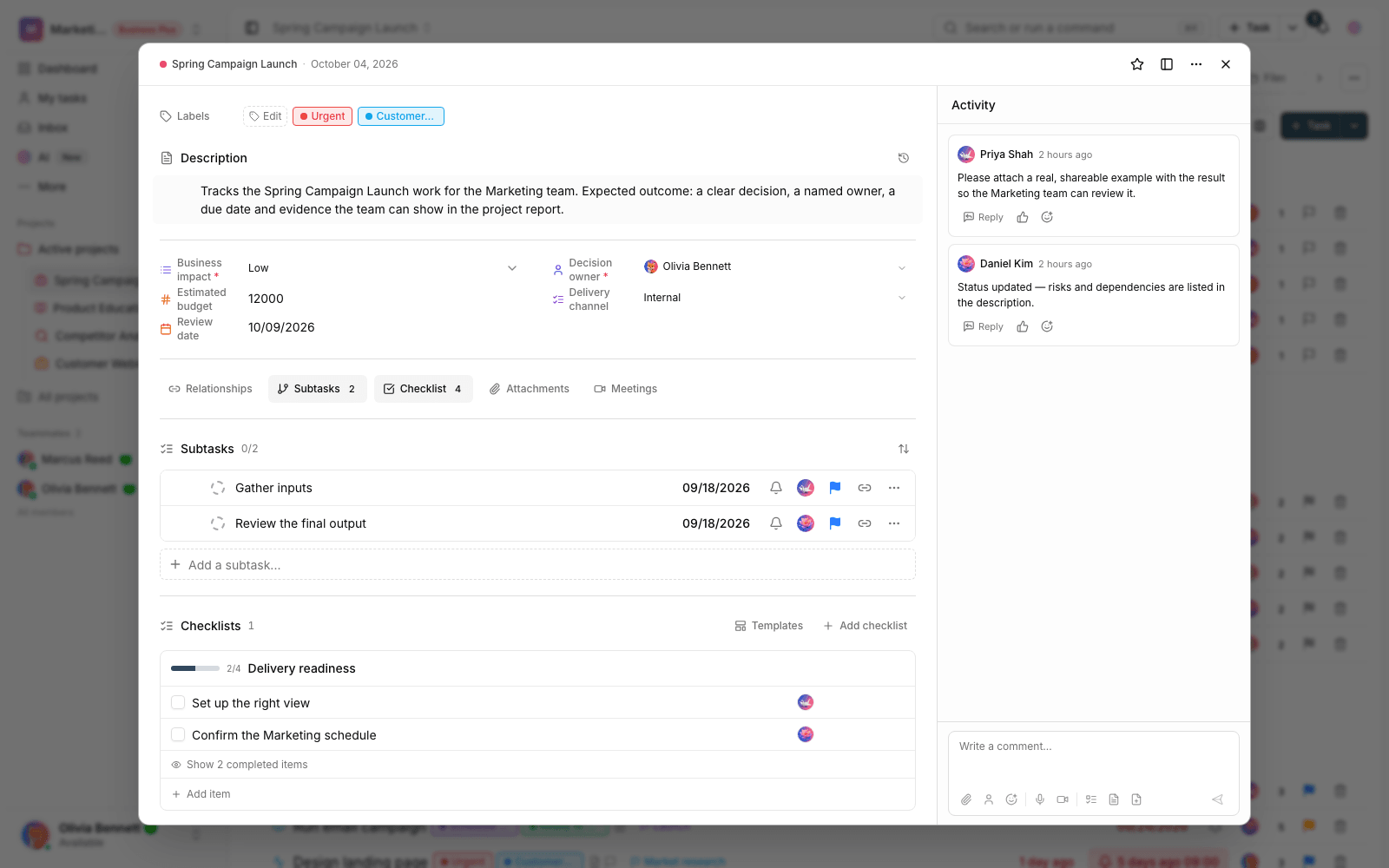
Break work into subtasks
A subtask works just like a regular task. It has its own title, assignee, status, and dates, but it sits under a parent task. As subtasks are completed, the parent task's progress bar fills in automatically, giving you a quick view of the state of the whole piece of work.
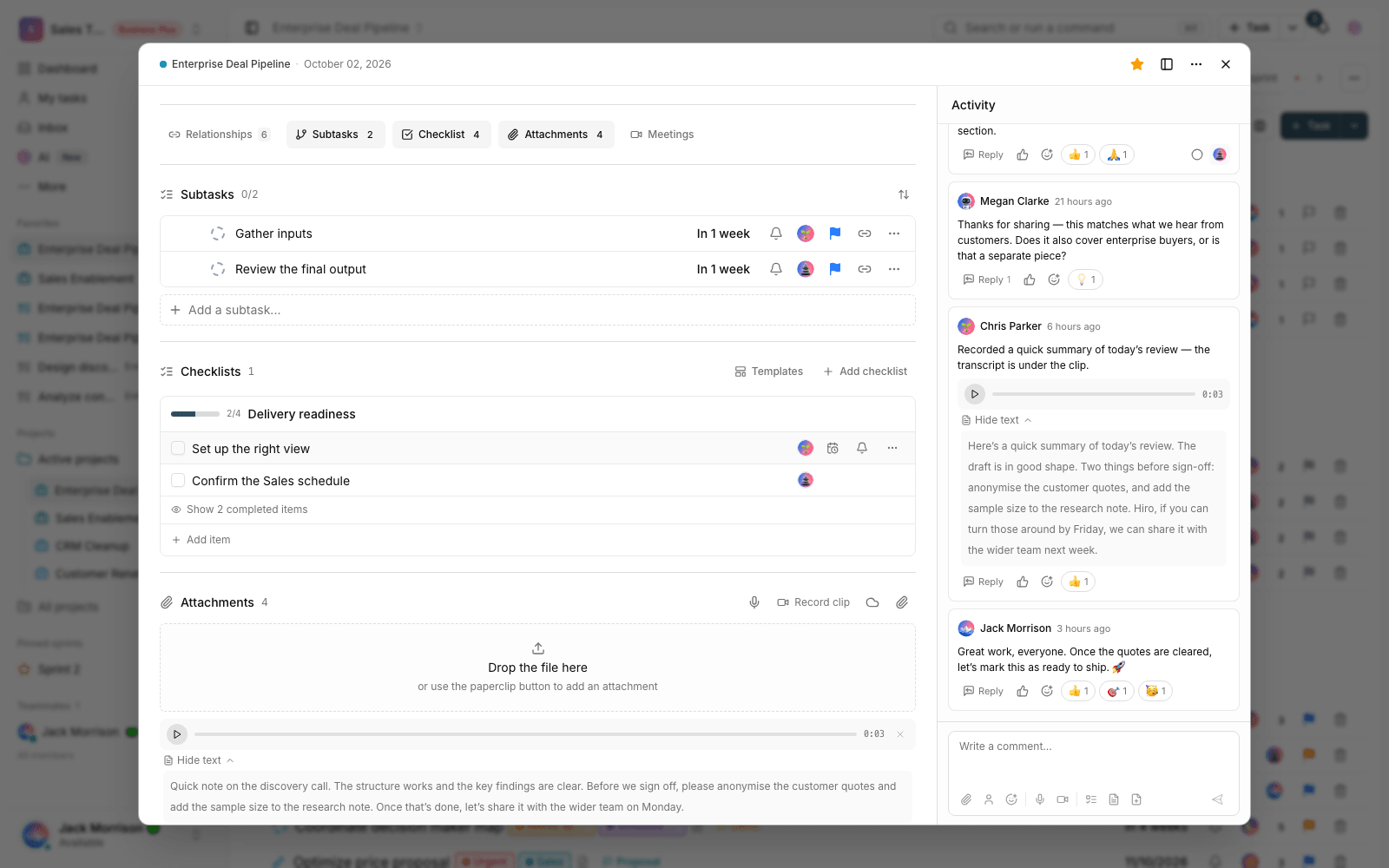
- Open the parent task and go to the subtasks section.
- Type the subtask title and save it. Repeat for every stage.
- Set an assignee and dates for each subtask so responsibilities are clear.
- If needed, turn a subtask into a standalone task, or the other way around, move a task under another piece of work.
Adjustable nesting depth
Subtasks can have subtasks of their own, but to avoid too much complexity, each workspace has a limit on nesting depth. The default is four levels, and a workspace admin can change it to anywhere from one to seven levels in workspace settings. Once you reach the limit, you can't create new subtasks below that level.
Suggestion: If your work structure gets very deep, some subtasks are probably really a project or a standalone task. Instead of nesting heavily, split them out so the list stays readable.
Define dependencies between tasks
A dependency is a relationship between two tasks that sets their order or connection. Taskie has three types of relationship, each with a clear meaning:
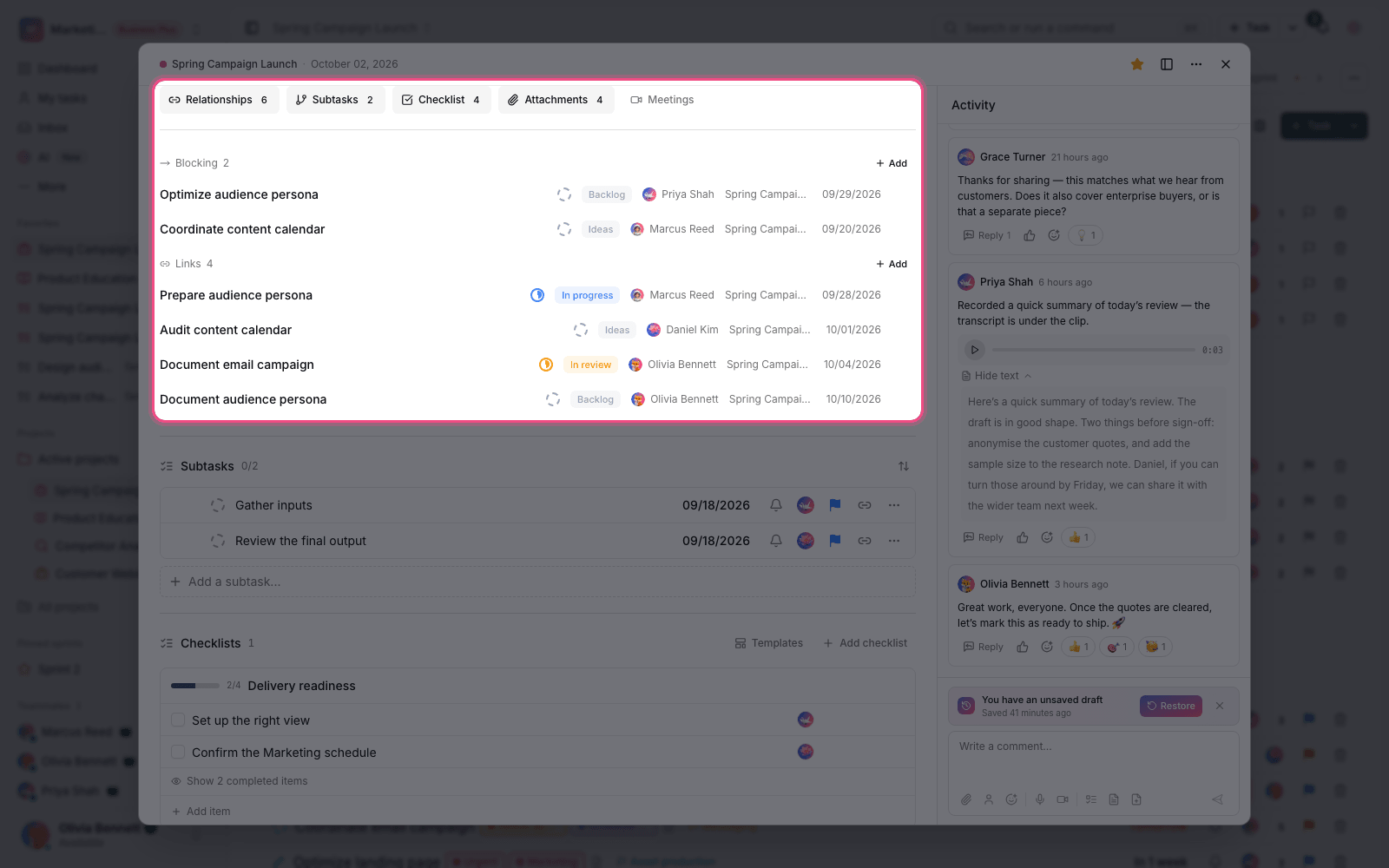
- Blocking: this task prevents another task from starting. Until this work is done, the dependent work shouldn't begin.
- Waiting on: this task is waiting for another task to be completed. It's the same blocking relationship, seen from the side of the work that's held up.
- Link: a simple, non-blocking connection that only shows two tasks are related.
To add a dependency, open the task, choose the dependencies section, pick the relationship type, then search for and select the related task. Each task shows its number of dependencies so you can tell at a glance what is held up by what.
How dependencies affect planning
Dependencies aren't just notes; they shape your planning. In Gantt view, when the dates of a blocking task move, Taskie can shift the schedule of dependent tasks forward or back to match, so the order of work always stays logical and dates never conflict.
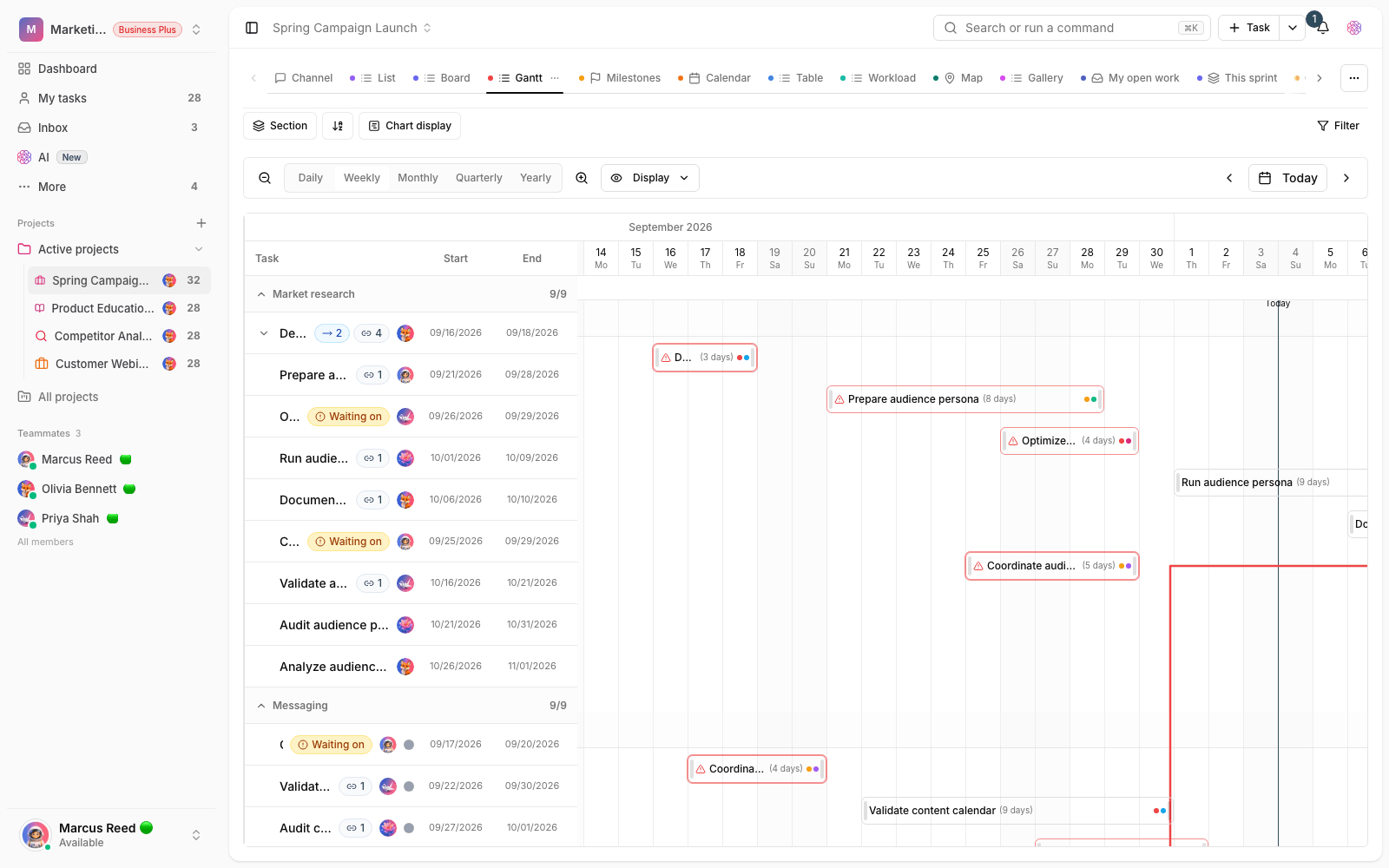
To keep these relationships valid, Taskie follows a few simple rules:
- A task can't depend on itself.
- Both ends of a relationship must be in the same workspace.
- Archived tasks can't be used in dependency relationships.
- Circular dependencies aren't allowed, meaning you can't build a chain where a task ends up waiting on itself.
Next step: to learn the full structure of a task, go to Task details and management. To turn several tasks into subtasks at once, use Quick add and bulk actions.
For relationships that don't affect scheduling (Relates to, Duplicates, Caused by), read Task relationship types and graph view.