
Task relationship types and graph view
Beyond blocking dependencies, define meaningful relationships such as Relates to, Duplicates, and Caused by, and see them all on a graph.
Two tasks don't always have a "this one blocks that one" relationship. Sometimes they're just related, sometimes one duplicates the other, and sometimes one came about because of the other. For these cases Taskie has semantic relationships that, unlike dependencies, don't affect scheduling.
You manage all of them in the Relationships tab of the task details.
Relationship types
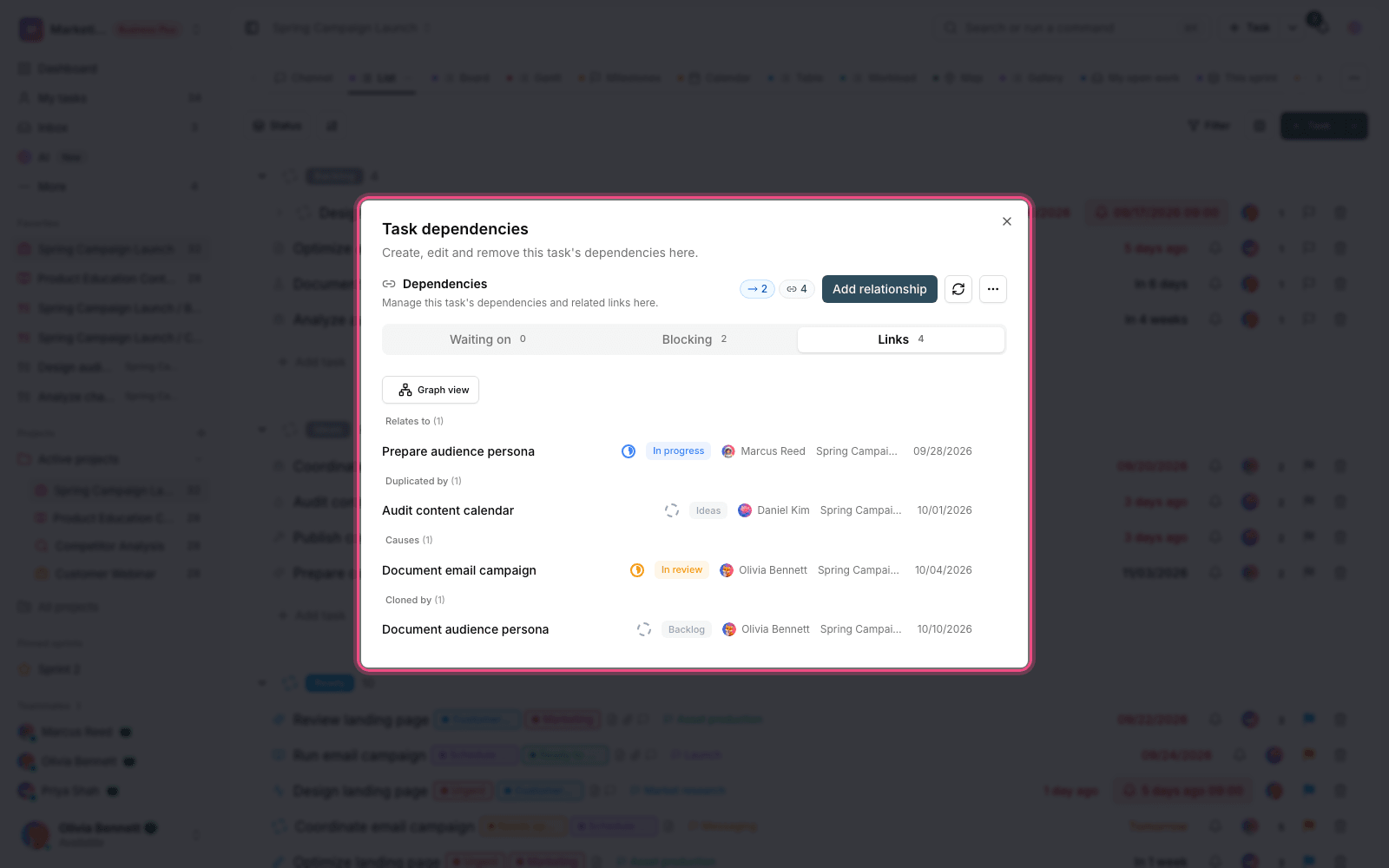
- Blocks / Waiting on: a real dependency. This task isn't ready until the selected task is completed, and it affects scheduling.
- Relates to (link): a two-way reference with no effect on scheduling or status.
- Duplicates: this task repeats the same work as the selected task.
- Caused by: this task came about as a result of the selected task, such as a bug caused by a change.
- Clones: this task was created from the selected task.
Tip: If you only want a reference between two tasks with no effect on the plan, use a link relationship. Save dependencies for cases that really set the order of execution.
Add and edit a relationship
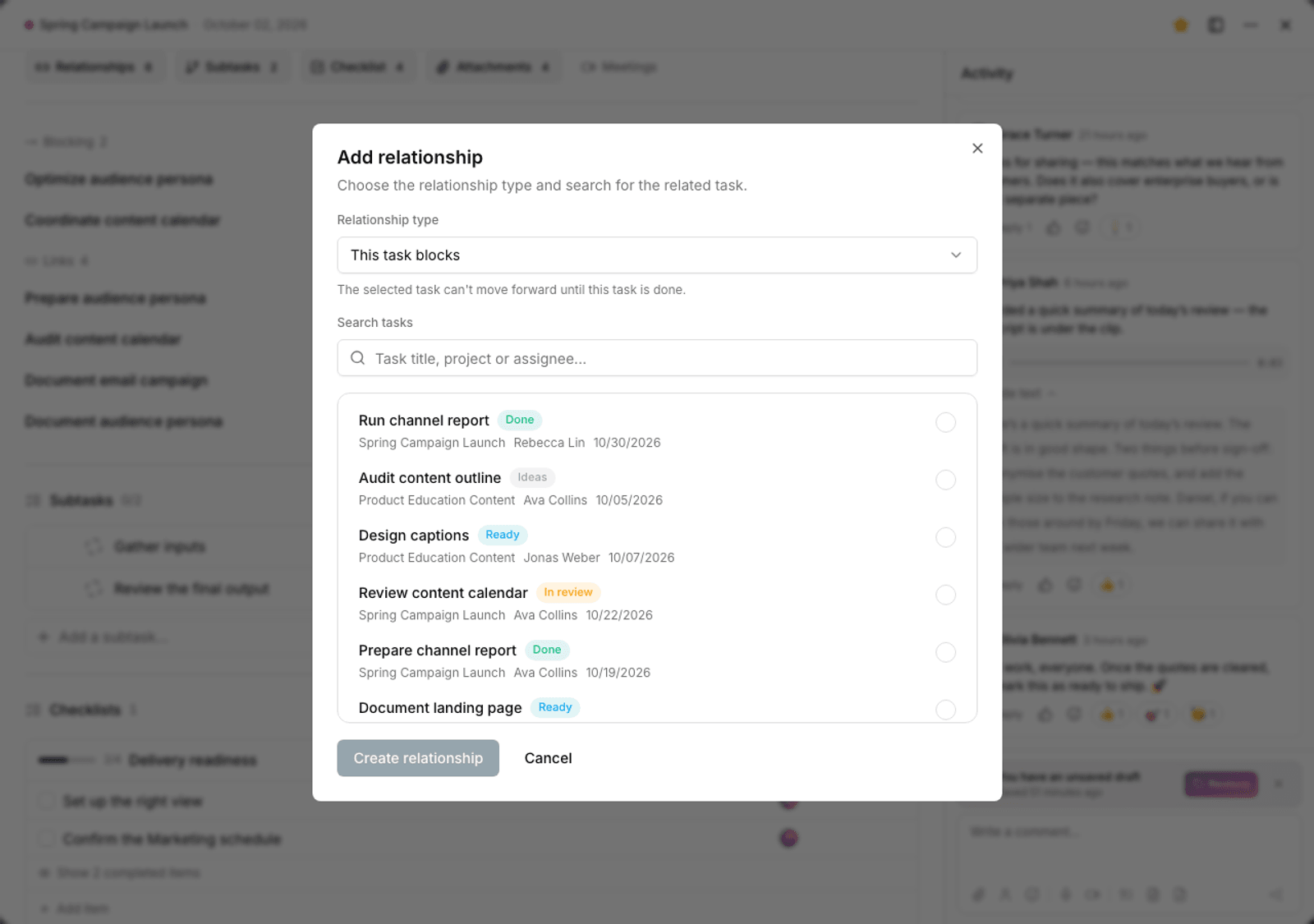
- Open the task and go to the Relationships tab.
- Click Add relationship.
- Choose the Relationship type.
- Use the search box (task title, project, or assignee) to find the related task.
- Create the relationship. The message "Relationship created" confirms it.
- To change it, switch the relationship type or replace it with another task.
If a task doesn't have any relationships yet, you'll see the messages "This task isn't waiting on any other task" and "This task isn't blocking any other task".
Close a task as a duplicate
When you notice a piece of work was recorded twice, use Close as duplicate instead of deleting it. The task is closed, but its history and comments stay, and its relationship to the original task is recorded.
Relationship graph view
Once there are many relationships, a list no longer gives you a clear picture. Graph view shows the network of relationships visually so you can spot clusters of dependencies and long chains.
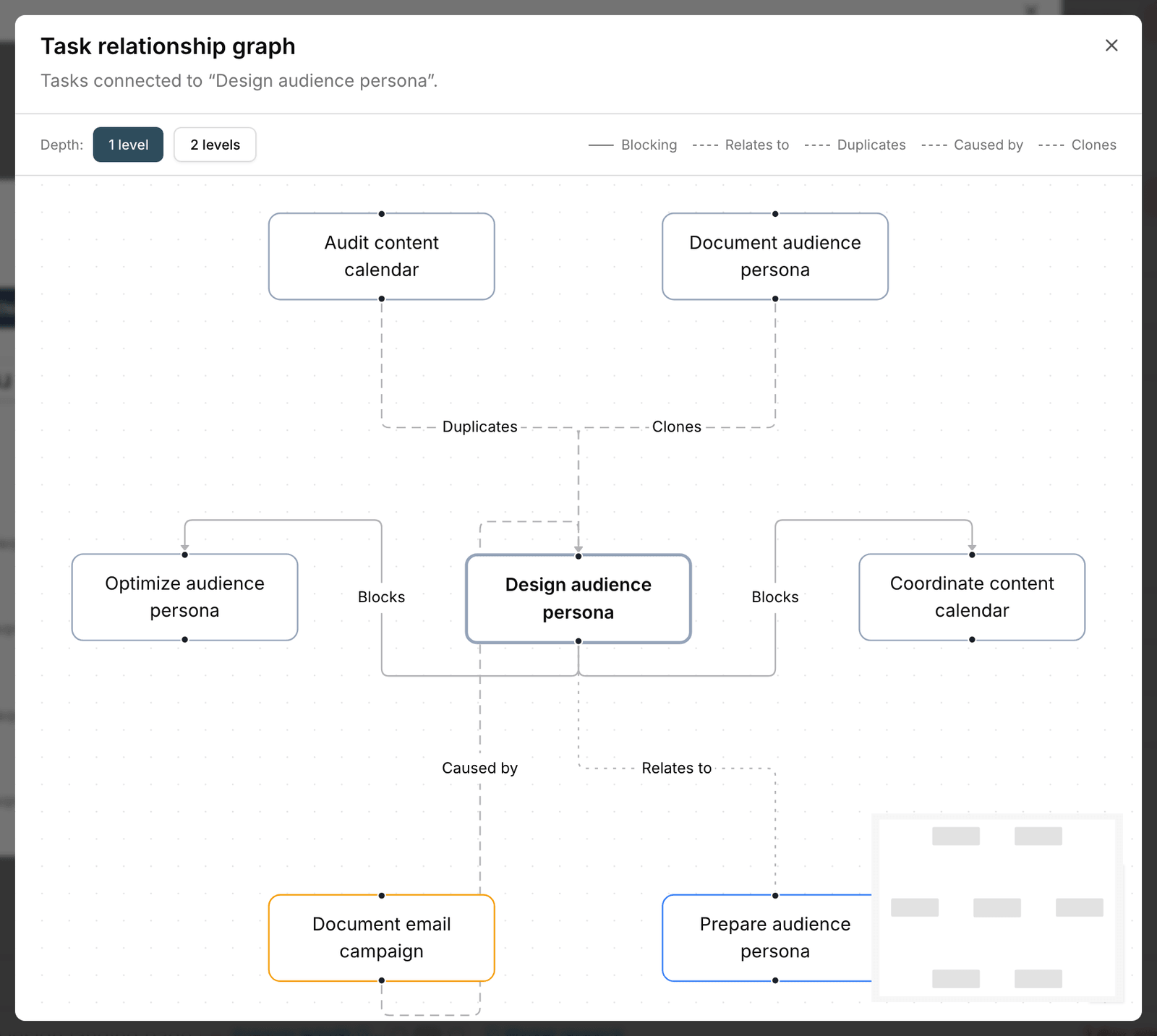
Plan required: The task relationship graph is available on the Pro plan and above. On the Free plan, it shows the notice "The relationship graph is locked".
Relationships across projects
Relationships aren't limited to one project. You can connect a task in one project to a task in another, which is very useful for work that involves several teams.
- When searching for a task, you can search by title, project, or assignee.
- A cross-project relationship shows on both sides.
- A cross-project dependency affects the scheduling of both projects, so use it with care.
- If you don't have access to a task in a project, you see only its title, not its details.
For scheduling dependencies and how they affect the plan, see Subtasks and dependencies, and to see them on a timeline, see Gantt view.