
Archive and drafts
Archive finished work instead of deleting it, and bring back unfinished text from saved drafts.
Two things in Taskie keep your work from getting lost: the archive, for things that are finished but may be needed later, and drafts, for text that hasn't been saved yet.
Archive instead of delete
When a project is finished, deleting it also removes its history, comments, and files. Archiving moves it out of the active list without losing anything.
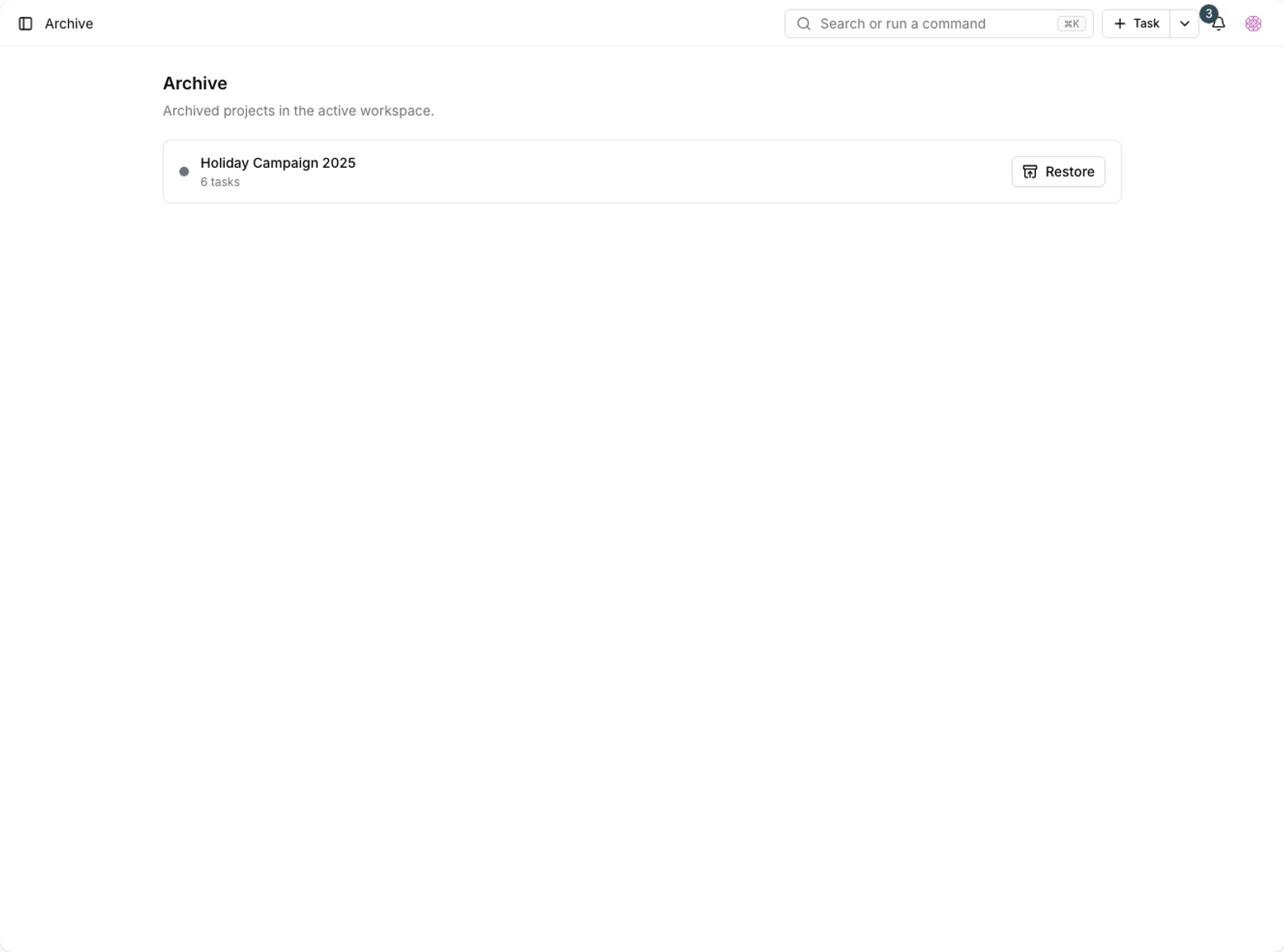
- Choose the archive option from the project menu.
- The project leaves the list of current projects.
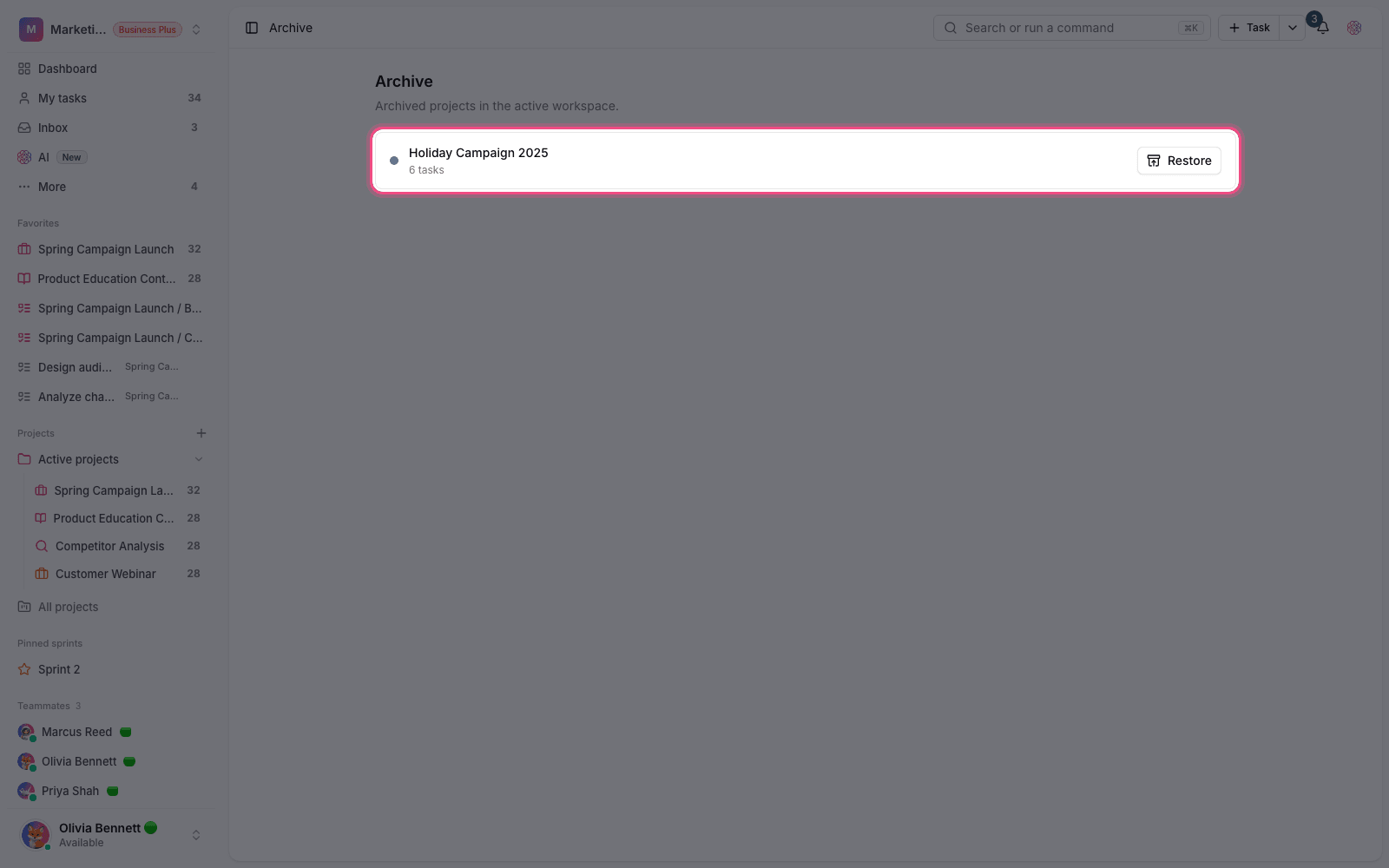
- To see archived items, go to the Archive page.
- Use Restore to bring it back to the active list at any time.
If nothing has been archived, you'll see the messages "The archive is empty" and "There are no archived projects in this workspace."
Suggestion: Before you delete anything, archive it first. If nobody has asked for it after a few months, you can then delete it with peace of mind.
Saved drafts
If the page closes while you're writing a comment, a task description, or a document, your text isn't lost. Taskie keeps it as a draft and reminds you next time with the message "You have an unsaved draft".
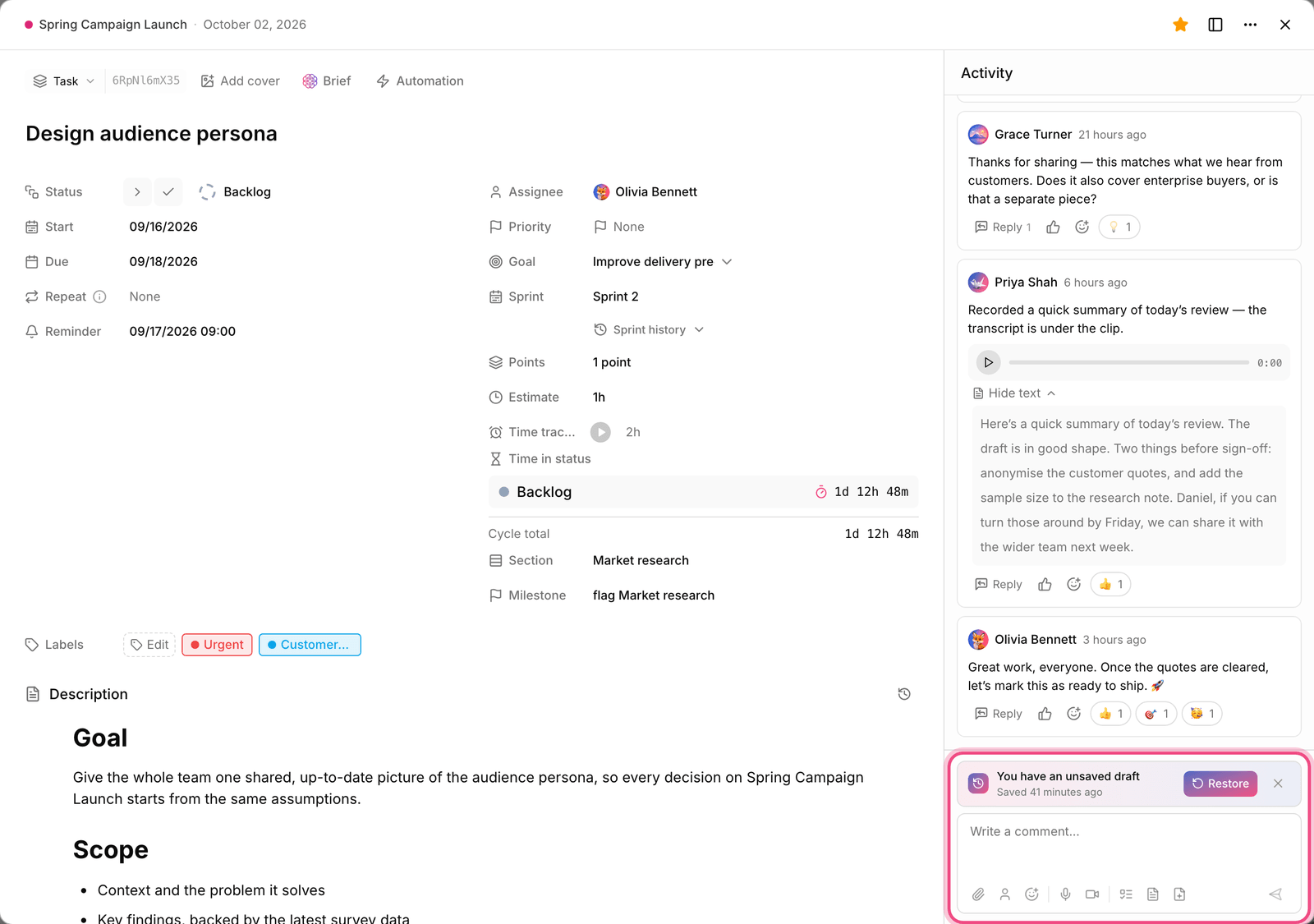
- Restore: brings back the saved text so you can continue.
- Discard draft: delete it if you no longer need it.
- Saved: shows the time of the last automatic save.
Note: If the original item changed after the draft was saved, you'll see the message "this item has changed since then". Before restoring, look at the current version so you don't overwrite someone else's work.
Which one to use when
- Archive: the work is done and no longer part of the daily flow, but its history is valuable.
- Delete: the item was created by mistake and has no value.
- Draft: text that isn't ready to be posted yet. It's kept automatically, and you don't need to do anything.
- Close as duplicate: the task was recorded twice. Neither delete nor archive it.
Archiving at different levels
Archiving isn't just for projects. Closed tasks, unused views, and finished goals can also move out of the active list without being deleted. Each one is archived from its own area and can be browsed on the Archive page.
- Project: the whole project, with its tasks, documents, and files, leaves the current list.
- Goal: a finished goal is archived and drops out of the average active progress.
- Task: a closed task doesn't show in active lists but stays in search and reports.
Restoring and what it does
Restoring an archived item brings back everything: tasks, comments, files, and history. If you restore a project and your plan's capacity is full, you'll first need to free up capacity or upgrade your plan.
To restore earlier versions of a document, see Document versions and restore, and to close duplicate tasks, see Task relationship types.