
AI channels and the AI chat page
Turn on AI for a project channel, see how it replies to members' messages, and work with the dedicated chat page alongside the side panel.
Until now, you could only chat with Taskie's AI from the side panel, and if you wanted the whole team to benefit from an answer, you had to copy it into a channel by hand. Now you have two new options: a dedicated page for long, focused conversations, and AI channels, where AI replies to messages like a member of the team.
The AI chat page
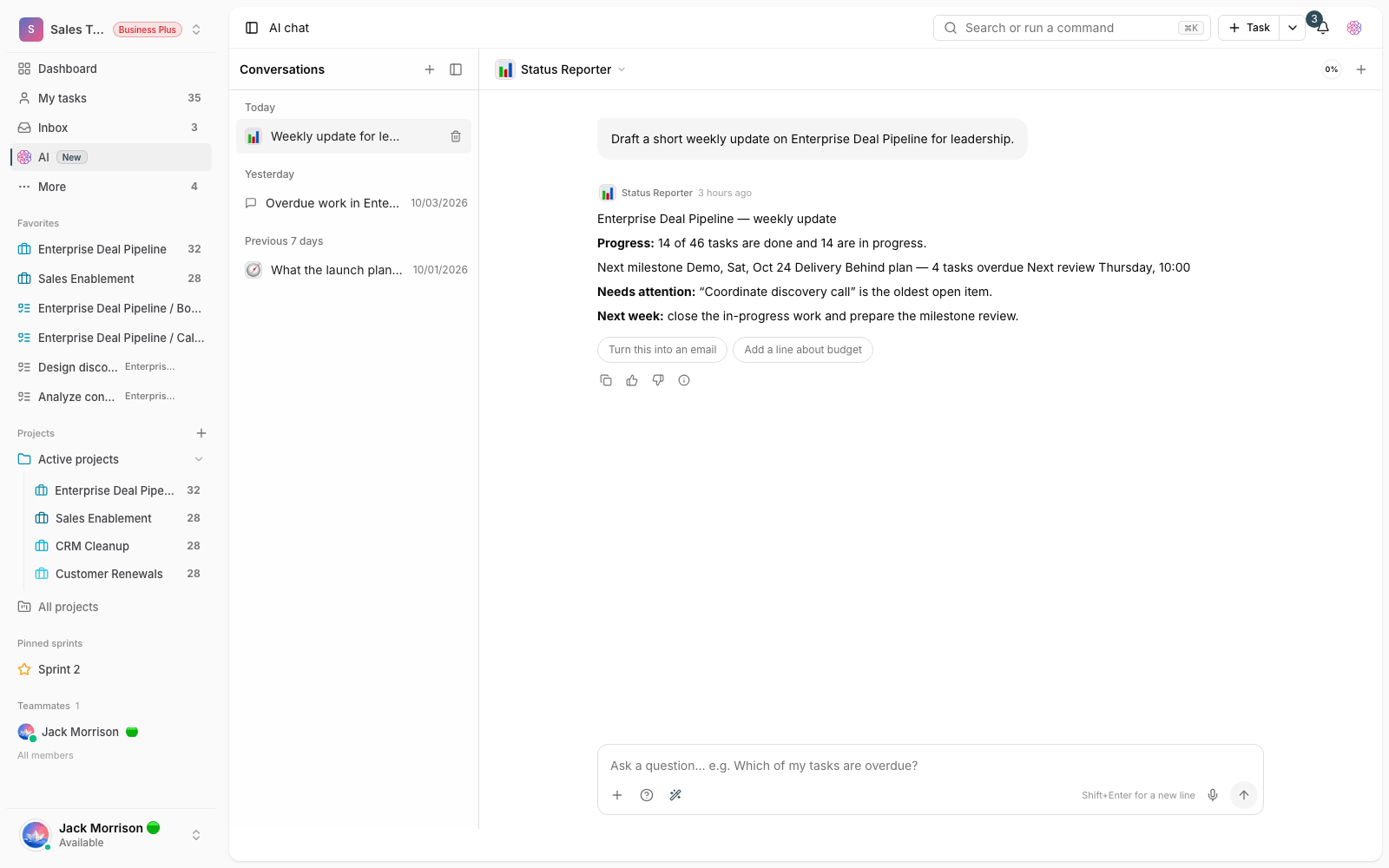
Open the AI chat page from the app's top menu. This page shows the same conversation that was open in the side panel, so you can start a conversation in the panel, move to the full page to read long answers, and go back again. If an answer is being written, it keeps streaming without interruption.
- Conversation list: use the back button next to the assistant's name to return to the list of past conversations and reopen any of them.
- Mode and model: choosing the mode (Ask, Agent, or Plan) and the model tier has moved to the bar below the message box, leaving more room for text.
- Starter suggestions: in an empty conversation, a few ready-made questions appear as short buttons so you can get started quickly.
- Pinned task bar: if you've pinned a task, the message box no longer gets hidden beneath it.
What is an AI channel?
An AI channel is a regular project channel with automatic AI replies turned on. Any team member's message can get a reply, and that reply is visible to everyone in the channel. The channel's project defines the AI's scope of work, meaning the tasks, documents, and information you have access to are the basis of its answers.
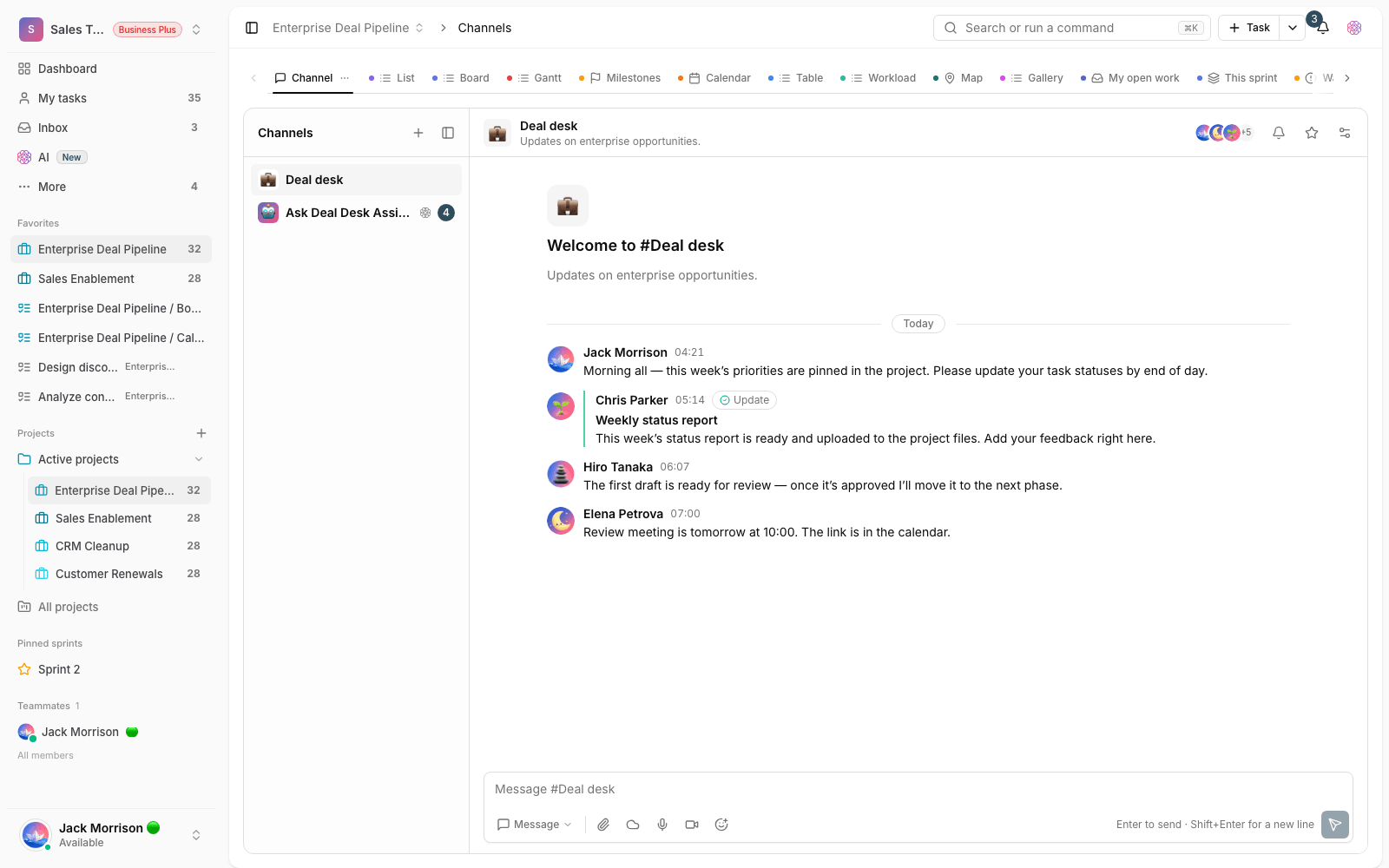
- Open the channel in the project and go to its settings.
- Turn on AI replies.
- If you've built a custom agent, choose it. Otherwise, the built-in Taskie AI assistant replies.
- Save the settings and send a test message to see the result.
Tip: You don't need a custom agent to turn on an AI channel. If you don't choose an agent, the workspace's built-in assistant replies.
How does it reply?
- The reply is written at the same level as your message: a message in the main stream gets a reply in the main stream, and a message in a thread gets a reply in that thread.
- The channel's few most recent messages are taken into account as history so the reply fits the current topic.
- If you name a specific agent in your message, the mention route handles it and no duplicate reply is created.
- Messages that start with "//" are ignored. Use this for internal team chat that doesn't need a reply.
- Each channel has an hourly limit, and back-to-back messages get a short pause so the channel doesn't fill up with consecutive replies.
- AI replies are shown with their own badge and color so they aren't confused with members' messages.
Channel replies use the workspace's AI credits. If credits run out, the channel posts a short message and replies stop until credits are topped up again.
Publish the results of scheduled runs
If you've set up a schedule for your agent (for example, a morning report or a weekly wrap-up), you can publish each run's output to a channel as well as to your own private conversation. Write access is checked again at the moment of sending, so if the schedule creator's access changes later, the message won't be posted in that channel.
Tips for team use
- Turn on AI replies in a specific channel such as "Q&A" or "Internal support", not in high-traffic announcement channels.
- Write specific questions. Including the project name, task, or time range in your message produces a more accurate answer.
- Use the chat page for long, multi-step work, and keep the channel for short team questions.
- If there are more replies than the team needs, turn AI replies off temporarily. The channel history stays intact.
To learn about the assistant's modes and permissions, read the Taskie AI guide, and to build your own agent, read Custom agents. Setting up scheduled runs is explained in Agent schedules.