
AI assistant and safe use of AI
Taskie's AI assistant answers questions, gets work done, and finds information in your workspace. This guide also covers how to use it safely.
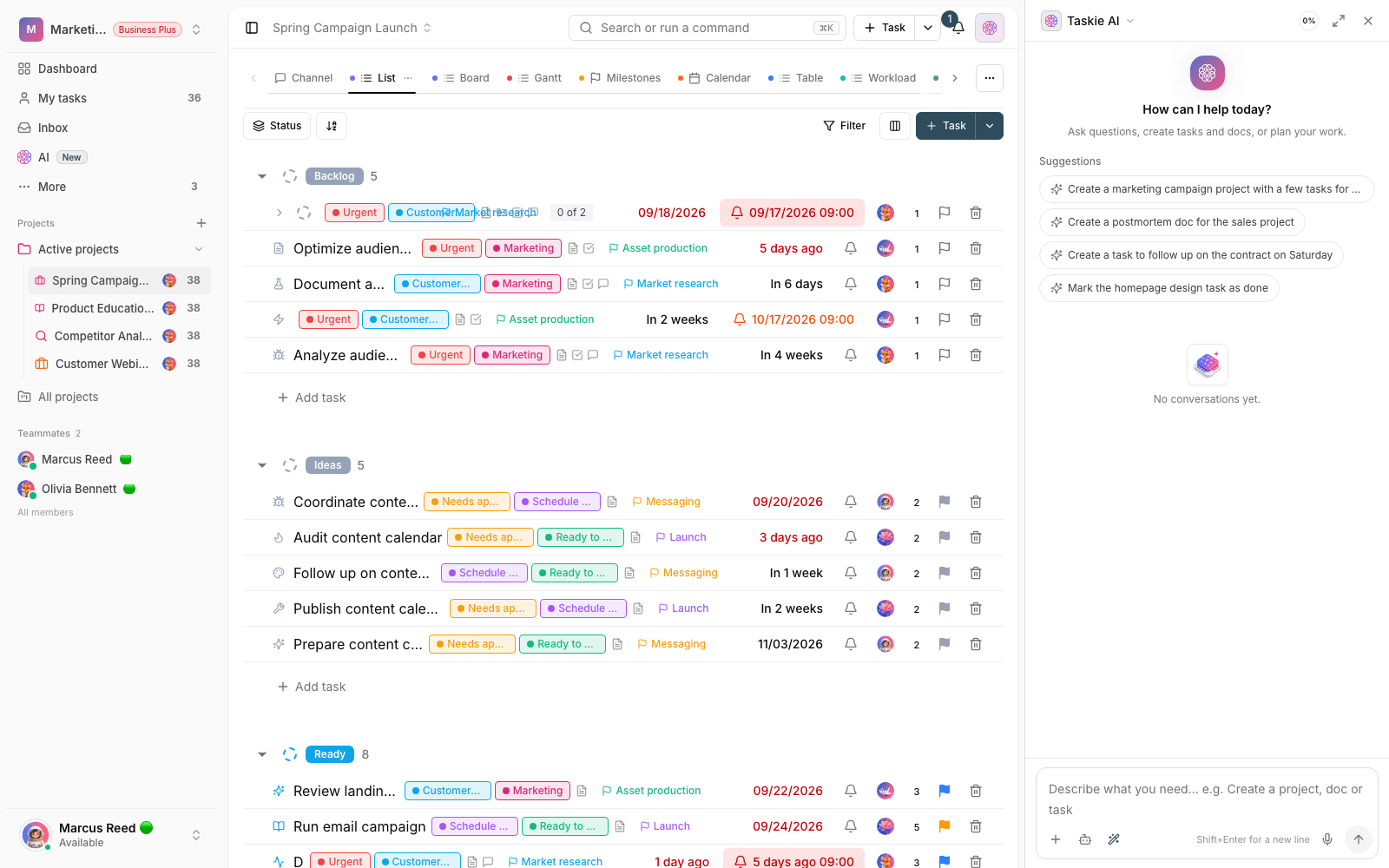
Taskie's AI assistant is an in-app teammate that can answer your questions about work, find information in your workspace, and even do things for you, like creating tasks. Instead of jumping between pages, just write your request in plain language.
The assistant opens as a panel beside the page (and as a bottom drawer on mobile), and your conversations are kept there. Below you'll see the assistant's modes, how to give it context, and how to use it safely and thoughtfully.
The assistant's three modes
Depending on whether you want the assistant to just answer or actually do something, choose one of these three modes:
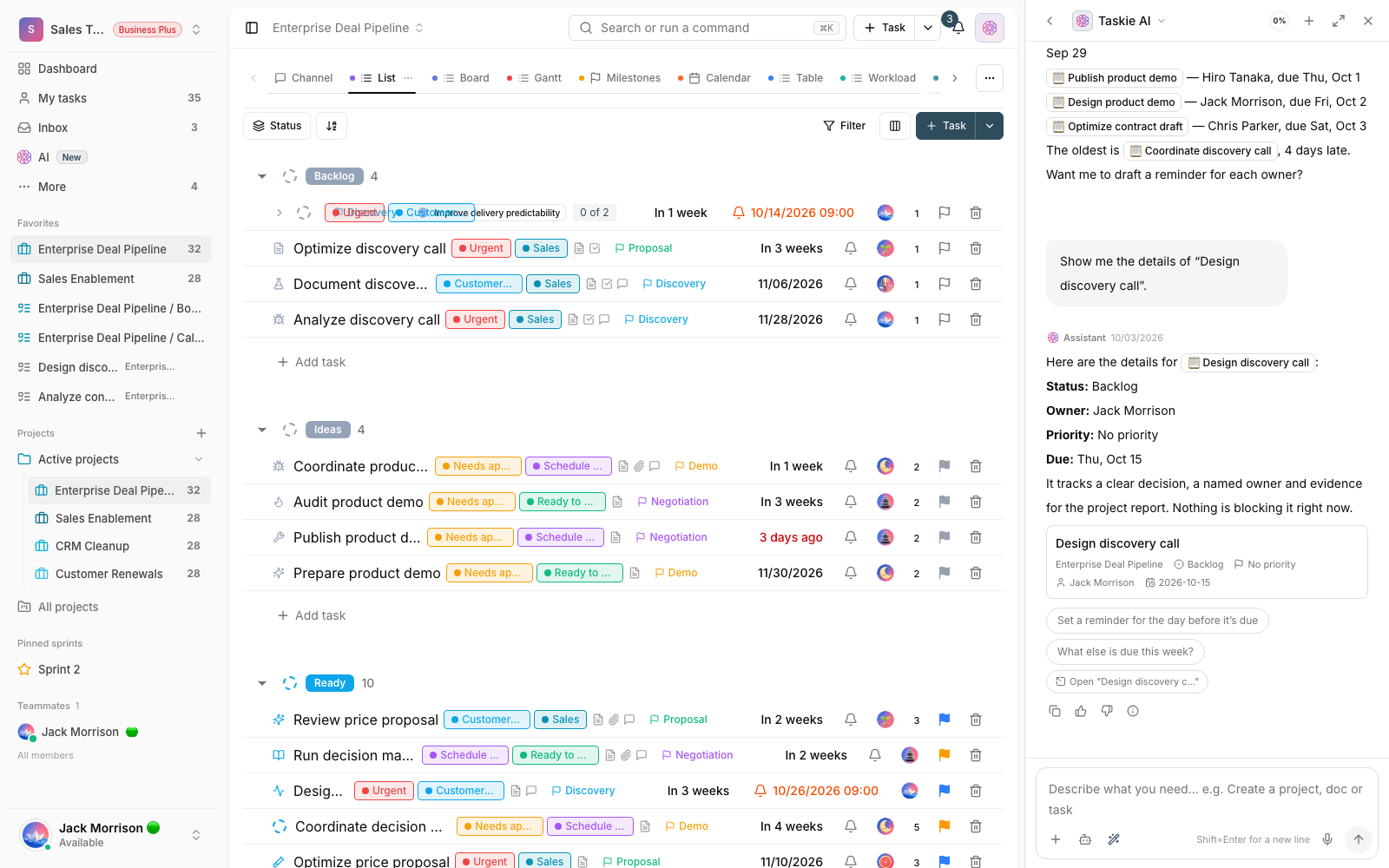
- Ask: a read-only mode for asking questions and getting answers. The assistant doesn't change anything. Good for finding information and getting summaries.
- Agent: the assistant does the work directly, for example creating or updating tasks.
- Plan: the assistant first builds an actionable plan and shows it to you so you can review and, if needed, edit it before it runs. It then runs once you approve it.
Add context to the conversation
For more accurate answers, you can give the assistant "context", meaning you tell it what to base its answer on. You add context to the conversation from the context picker:
- Document: attach a document so the assistant takes its content into account.
- Task: add a specific task as context.
- Workspace: choose the whole workspace as the search scope.
By default, the assistant can see your tasks and projects and answer questions about them. Smart search across documents and the workspace, which brings their content into the conversation, is available on the Ultimate plan and above.
AI credits and model choice
Every interaction with the assistant uses the workspace's AI credits. Credits refresh weekly, and the amount depends on your plan:
- Free plan: 15 credits per week
- Pro plan: 50 credits per week
- Ultimate plan: 200 credits per week
- Business plan: 1,000 credits per week
- Business Plus plan: 5,000 credits per week
When you send a message, you can choose the model tier: Fast, Standard, Smart, or Auto. Stronger tiers use more credits, and Auto picks the right tier for each request on its own. If you run out of credits for the week, the assistant won't respond until the next period starts.
Everyday work with the assistant
A few examples of things the assistant does quickly in your daily work:
- Finding overdue tasks, unassigned tasks, or tasks in a specific project.
- Summarizing the status of a project or a long document.
- Creating several tasks from one request in Agent or Plan mode.
- Logging work hours manually, or starting and stopping a timer on a project task, for your own time.
- Finding a document or scattered information in the workspace.
For details on time-logging commands and the difference between manual entries and a live timer, read Track time on tasks.
Use AI safely and thoughtfully
AI is a powerful tool, but a few simple habits help you use it with more confidence:
- Review before running: in Agent mode, changes are applied directly. If you want to check first, choose Plan mode and review the plan before you approve it.
- Verify important results: check dates, assignees, and numbers yourself before relying on them. The assistant can make mistakes.
- Your access scope is respected: the assistant works within the workspace and your own permissions, and never opens up anything beyond what you can already see.
- Every run has a cap: each run has a set credit budget and stops automatically if it gets stuck in a loop, so your credits aren't wasted.
Tip: For sensitive or large-volume work, start with Plan mode. That way you see exactly what the assistant intends to do, and it runs only after you approve.
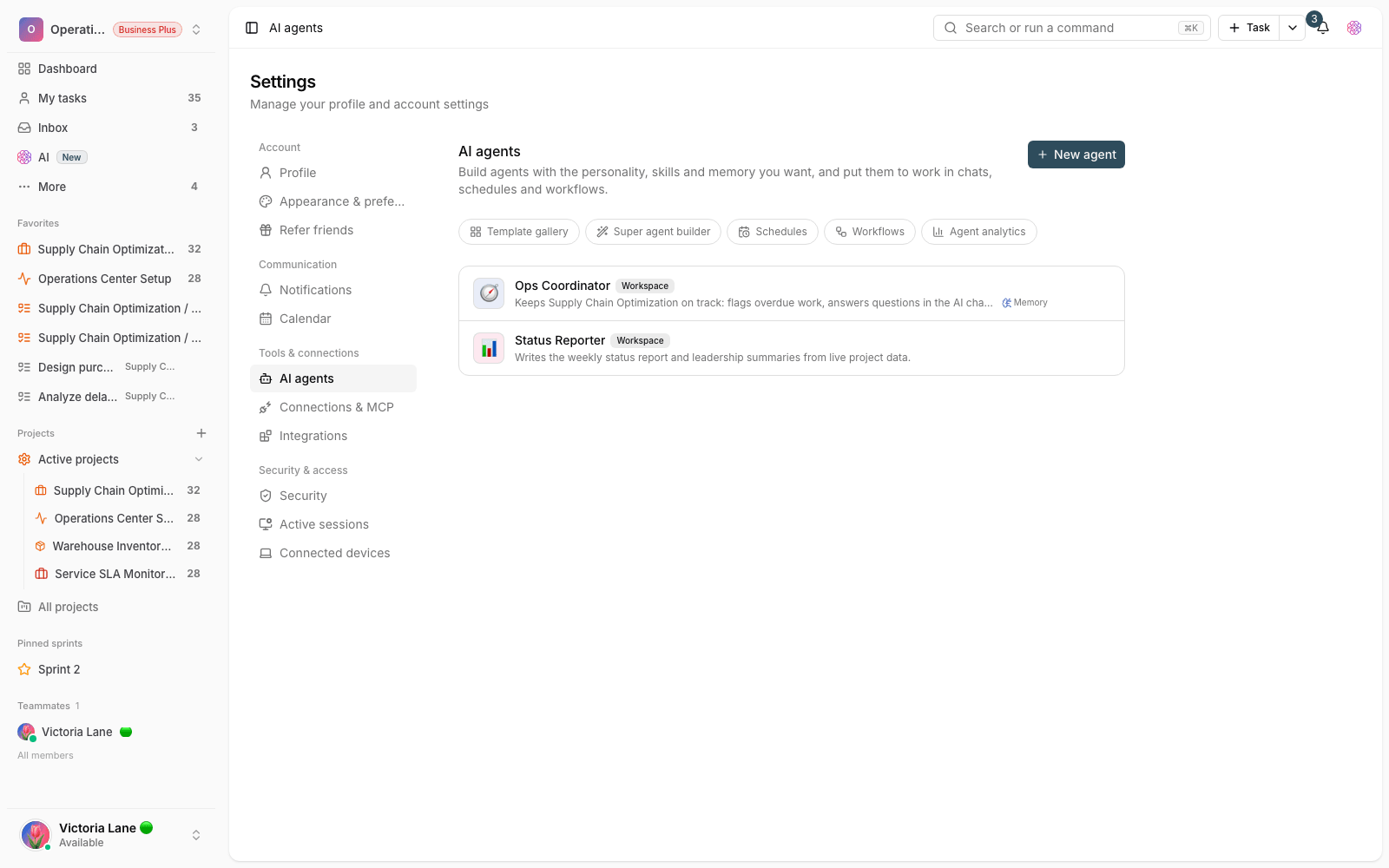
Next step: if you want to create tasks by voice, see Create tasks by voice, and to extract tasks from meeting notes, read Turn meeting notes into tasks.
To build your own assistant, see Custom agents; for automatic runs, see Agent schedules; and for ready-made prompts, see Prompt gallery.