
Connect an external client to Taskie with MCP
Taskie is an MCP server itself. Connect your code editor or AI assistant of choice to it with browser sign-in or a token.
MCP is an open standard that lets AI tools connect to another service's data and tools. Taskie has an MCP server too, which means you can view and change your tasks and projects from inside your code editor or any compatible AI assistant.
This is the exact opposite of the external MCP servers feature: there, Taskie's agent connects to outside tools; here, an outside tool connects to Taskie. The settings for this connection are in Settings → Connections & MCP.
Recommended: connect with browser sign-in
The simplest and safest way is browser sign-in. With this method, your client sends you to Taskie's sign-in page, you choose the workspace and access level and grant permission. There's no need to create and copy a token by hand.
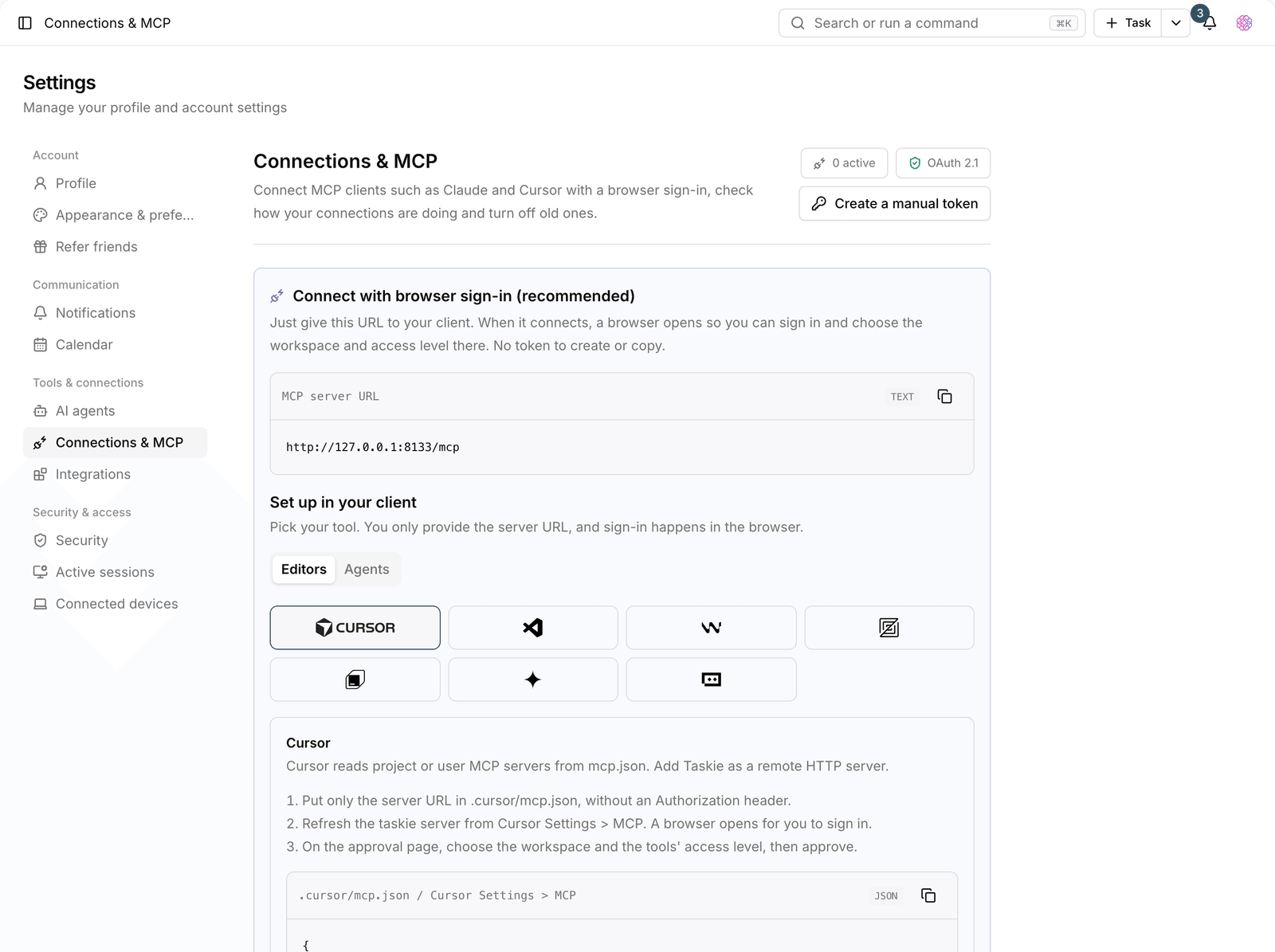
- Copy Taskie's MCP server address from the connections page.
- Add it as an MCP server in your client (editor or AI assistant).
- The client sends you to Taskie's sign-in page.
- Choose the workspace and access level, and grant permission.
- The connection is made and appears in the Current connections list.
Advanced: manual token
Some clients don't support browser sign-in. For curl, the ChatGPT connector, Replit, and similar tools, use a manual token.
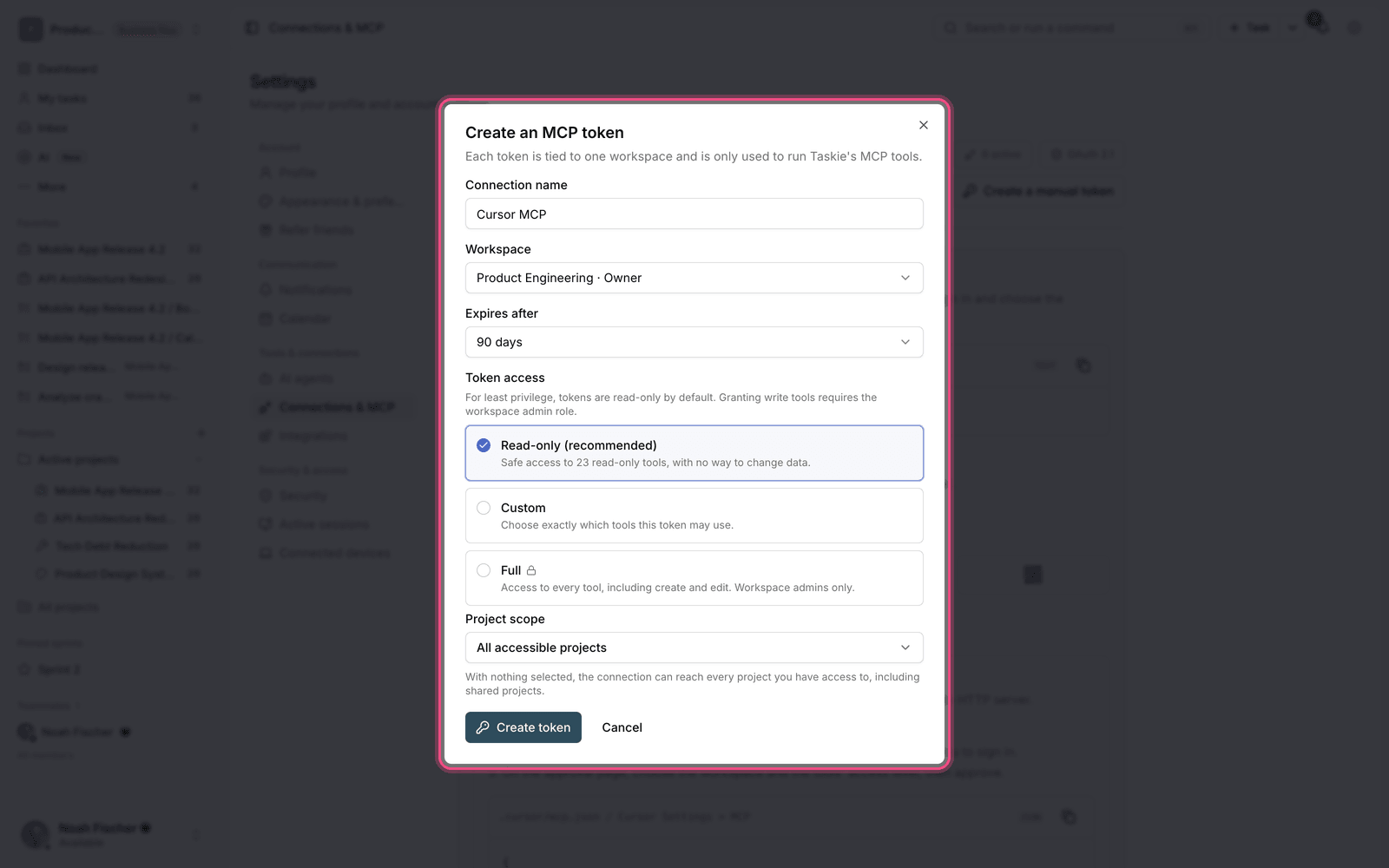
- On the connections page, click Create an MCP token.
- Choose the workspace and the token's access level.
- If needed, specify exactly which tools this token is allowed to use.
- Copy the generated token and add it to your client.
Important: The token value is shown only once. After you close the page, you can't view it again and will need to create a new token.
Token access level
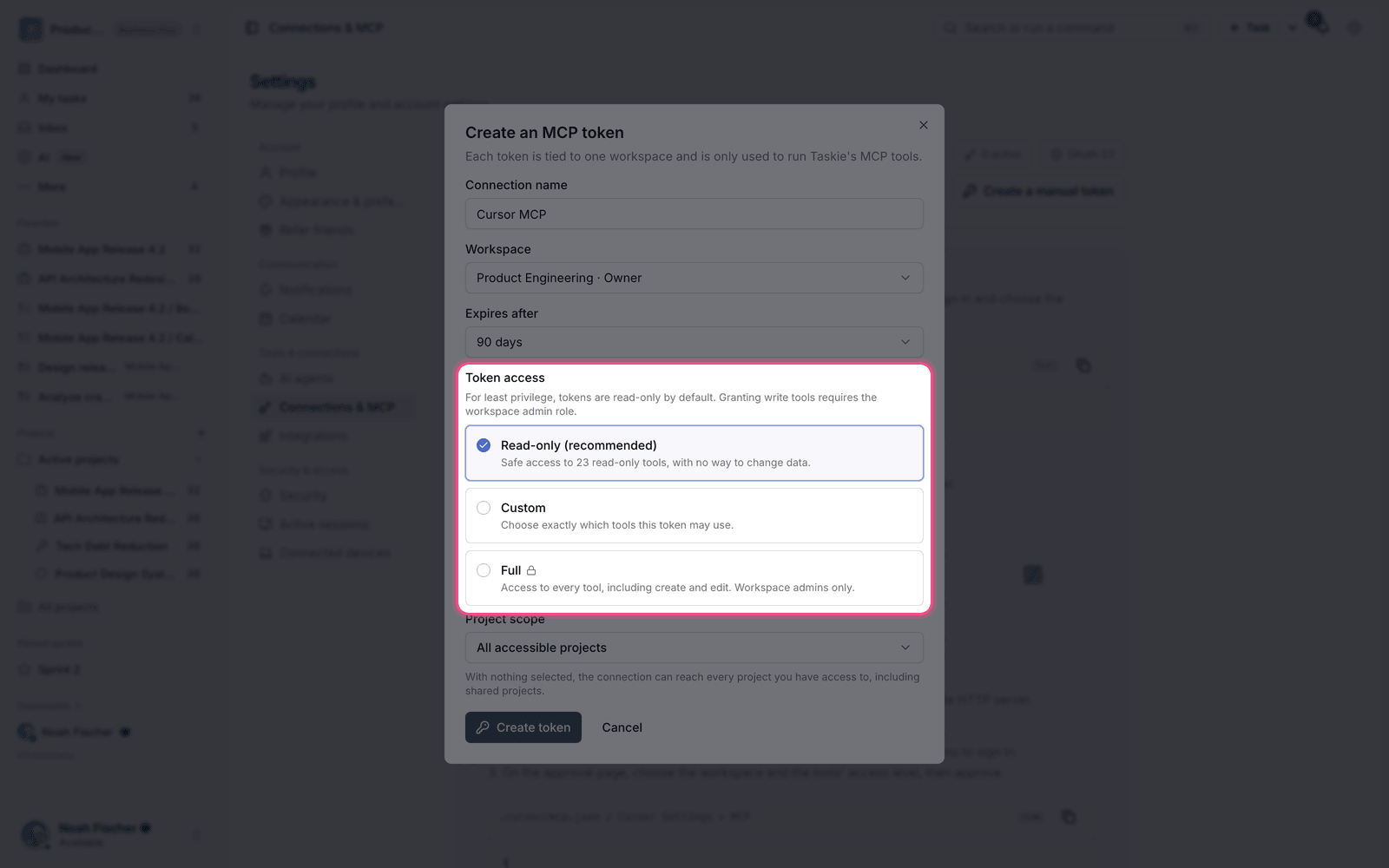
- Read tools: reads information only, with no way to change data. This is the default, following the principle of least privilege.
- Read and write: in addition to reading, it can also create and edit.
- Full: every tool, including create and edit. Workspace admins only.
- Custom: you choose exactly which tools are allowed.
Tools available to the agent
A connected agent can do almost everything you can do yourself in Taskie. Tools are grouped by area of work, and the full, up-to-date list is shown on the token creation page when you choose the access level.
- Tasks: create, edit, change status, assign, move, and search tasks, along with checklists, labels, and dependencies.
- Projects and sprints: create projects, review overall status, list sprints, and view the sprint board.
- Documents: read and create pages, create folders, and also rename, move, and delete folders in the document center.
- Attachments: add attachments to a document page or a task, list a task's attachments, and move an attachment from one page to another.
- Activity: review a project's activity, or the whole workspace's activity filtered by project, user, activity type, and time range.
- Time: log time on a task and read the time logged on a task or a project, with totals.
- Other: global search, the notification list, goals, and work reports such as overdue tasks and member workload.
Note: Read tools never change any data. Write tools take a unique operation key to prevent duplicate entries, and the document folder delete tool also requires explicit confirmation, so nothing is deleted because the agent misunderstood. Each tool's access is also limited to the workspace and projects you've given the connection.
Manage and secure connections
In the Current connections list, each connection shows its creation date, expiry date, access level, and last use. You can manage it from here:
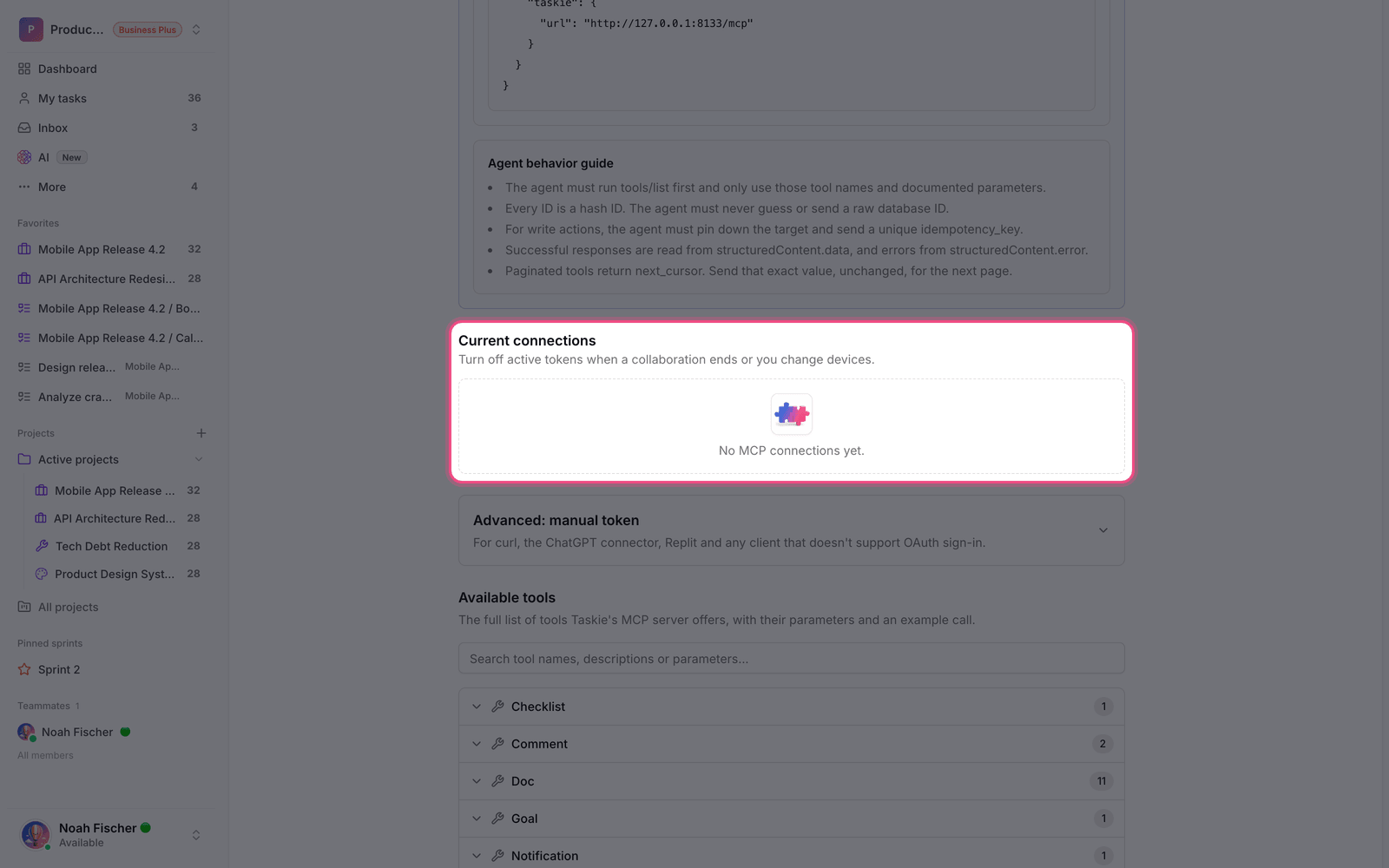
- Regenerate token: the current token is revoked and a new token with the same access is issued. Old connections stop working.
- Deactivate: close the connection. After that, it can no longer be used to connect an editor or AI assistant.
- Periodic review: when a collaboration ends or you change devices, deactivate the active tokens.
Security tip: Create a separate token for each client. If you need to revoke one, the other connections keep working without interruption, and you know exactly which tool had access.
To connect Taskie's agent to external servers, read External MCP servers, and to control tools, read Manage MCP tools and safety.