
Manage MCP tools and safety
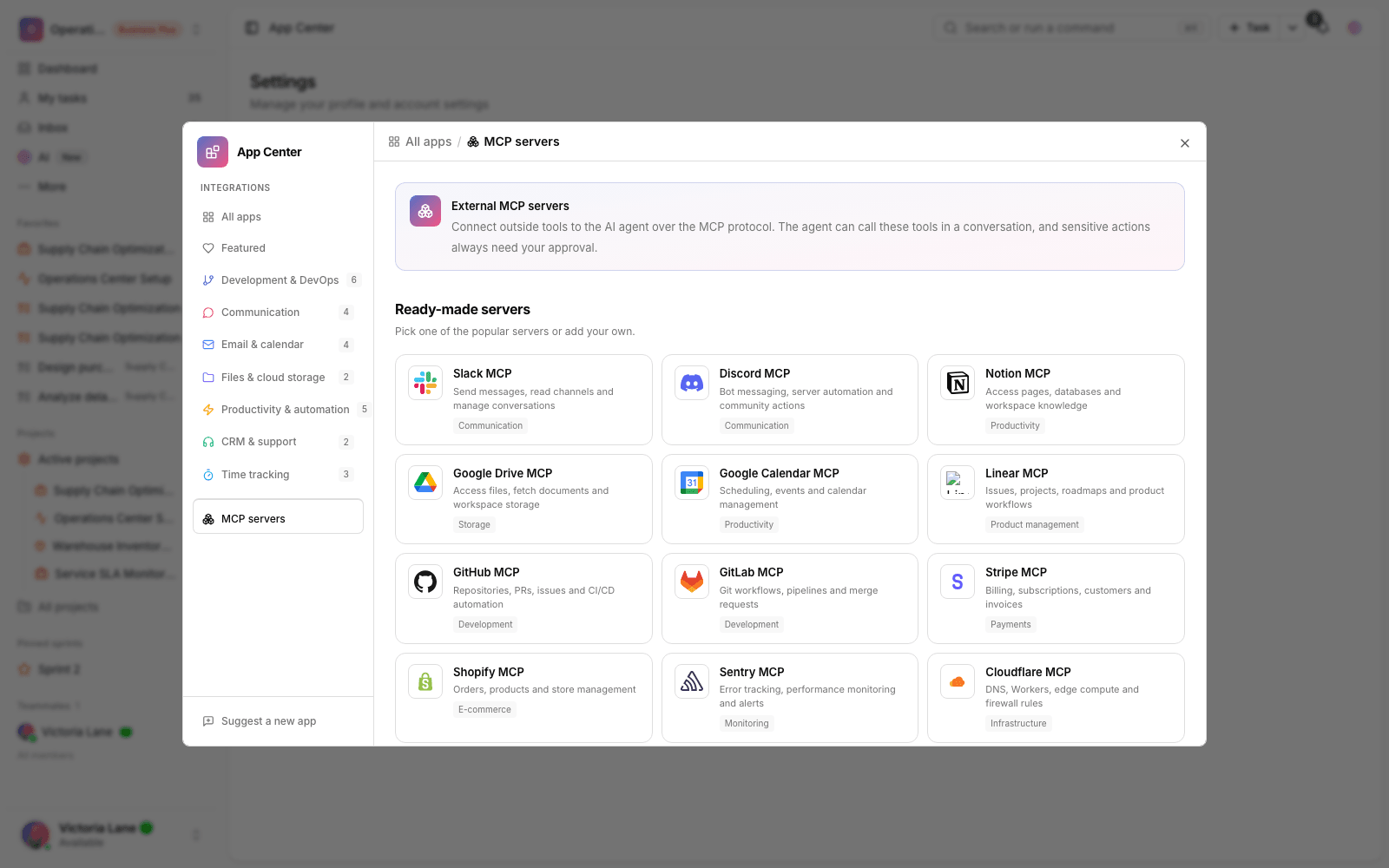
After connecting an external MCP server, learn how to turn discovered tools on or off, review their risk, approve sensitive actions, limit access to a specific project or agent, and finally disconnect.
Connecting an external MCP server is only the beginning. Real control comes when you know which tools should be on, what risk each one carries, and how far the agent's access should reach. This guide walks through the management and safety tools.
If you haven't connected a server yet or aren't familiar with MCP, it's best to read Connect external MCP servers to the agent first and then come back to this page. Like creating a connection, everything in this guide is available only to workspace admins.
Turn discovered tools on and off
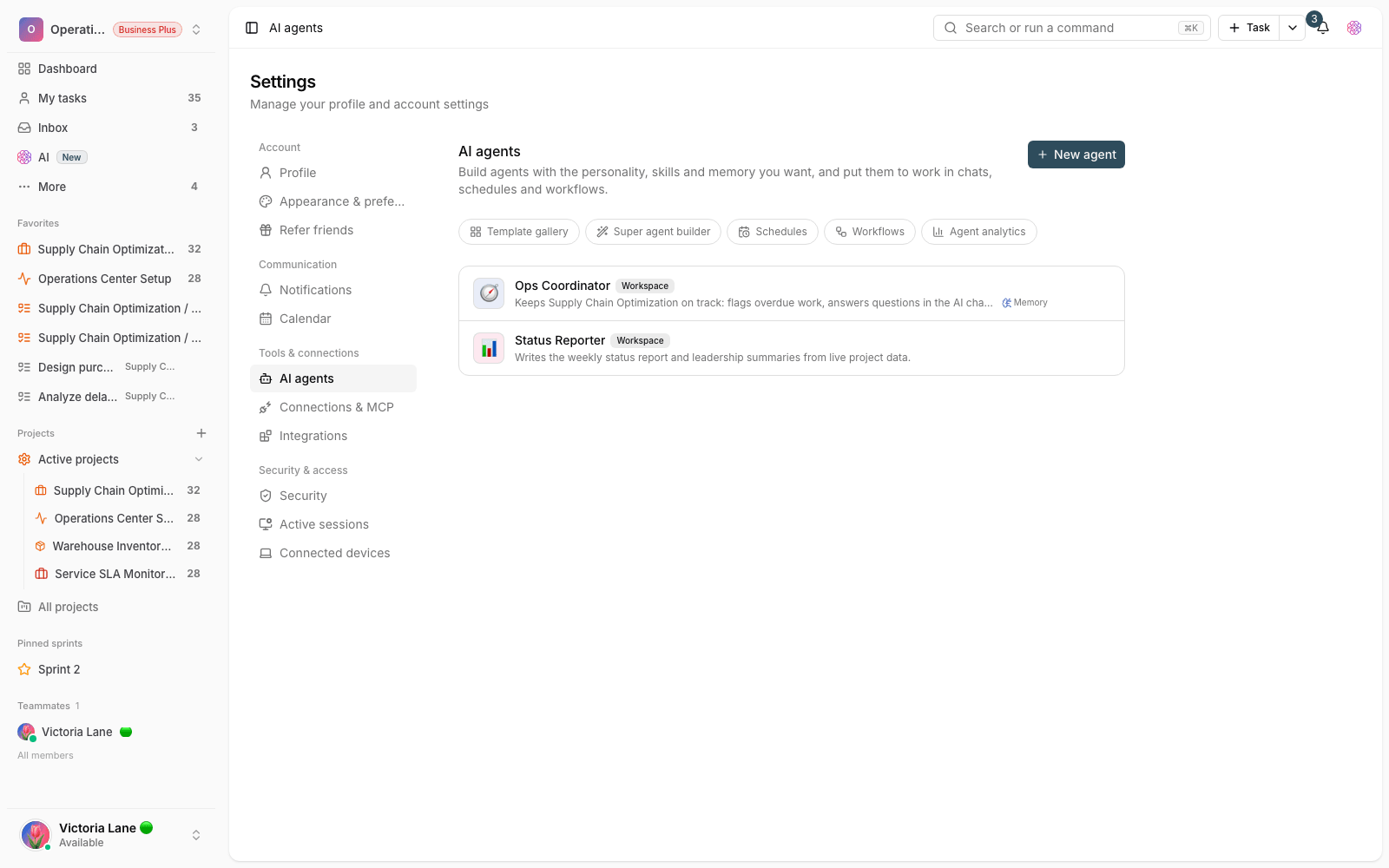
As soon as you connect, Taskie discovers each server's tools and shows them all. They don't all have to be available to the agent; you can turn each tool on or off individually. We recommend keeping only the tools you really need turned on.
- Tools that are turned off are completely hidden from the agent and aren't called in conversations.
- You can keep a server connected but leave only some of its tools on, so the scope of work stays limited.
- Whenever you need to, turn a disabled tool back on. The change takes effect immediately.
Principle of least privilege: The best practice is to start with the smallest set of tools and turn on a new tool only when there's a real need. This keeps the level of risk low.
Risk review by admins
Each tool shows a "risk level" so admins can make an informed decision before turning it on. These levels show how much the tool can change in the external service:
- Read-only: only reads information and doesn't change anything. This is the lowest-risk category.
- Writes: creates or edits data, such as sending a message or updating a record.
- Destructive: can delete data or take irreversible actions, and should be turned on with extra care.
Before turning on any write or destructive tool, admins should read its title and description carefully and make sure its scope matches what the team expects.
Approve sensitive actions
Even when a write or destructive tool is on, the agent can't run it on its own. Before any change-making action, you're shown an approval request that says which tool the agent intends to run and with which inputs. The action runs only after you approve; otherwise it's canceled. Read-only tools don't need this approval and can run immediately.
Limit access to a specific project or agent
Sometimes you want a connection to work only in a specific context, for example the GitHub server should be available in one engineering project and not in others. To do this, you can limit the connection's scope:
- Limited to projects: turn the connection on for one or more specific projects only, so it isn't available to the agent in other projects.
- Limited to agents: allow only specific agents to use this server's tools.
- If you don't set any limits, the connection is available across the whole workspace.
Recheck connection health
Each connection has a health status, and the time of the last check and any last error are shown. If a token has expired, the server is unreachable, or the sign-in details have changed, the status turns unhealthy.
- Untested: the connection was just created and hasn't been checked yet.
- Healthy: the last check succeeded and the connection is ready to use.
- Unhealthy: an error occurred during the last check. The error text helps you find the cause.
- Inactive: the connection was turned off manually, and its tools aren't available.
You can recheck a connection's health whenever you want to update its status. If an error persists, refreshing the sign-in details or checking the server address is usually enough.
Disconnect
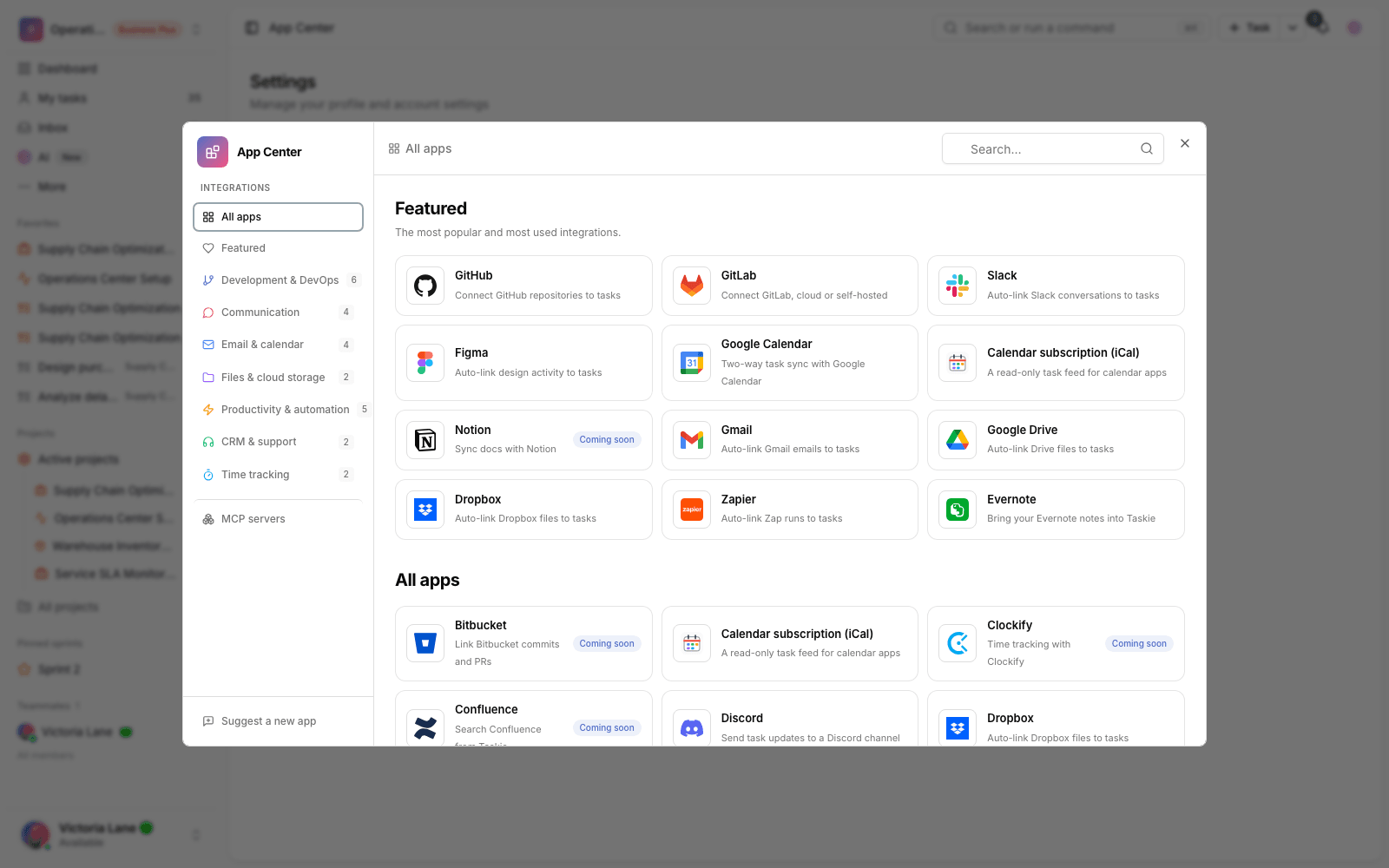
If you no longer need a server, or want to free up a slot for a new connection, disconnect it. When you remove a connection, all of its discovered tools are taken away from the agent and the encrypted sign-in details are deleted too. If you need the same service again later, you can reconnect it from the App Center.
Before you remove it: If conversations or automations rely on this server's tools, they won't find those tools after you disconnect. So first make sure removing it won't affect work in progress.
For a full review of connection methods, authentication, and ready-made servers, go back to Connect external MCP servers to the agent.