
Prompt gallery and saved prompts
Save the prompts you use most and use Taskie's ready-made gallery to start agent conversations quickly.
If you type the same request to the assistant every week, like "Write a summary of this week's progress" or "List the unassigned tasks", you don't have to anymore. The prompt library lets you write these once and then insert them into a conversation with one click.
The library has two parts: My prompts, which you create yourself, and the Prompt gallery, a ready-made collection of popular prompts.
Save a personal prompt
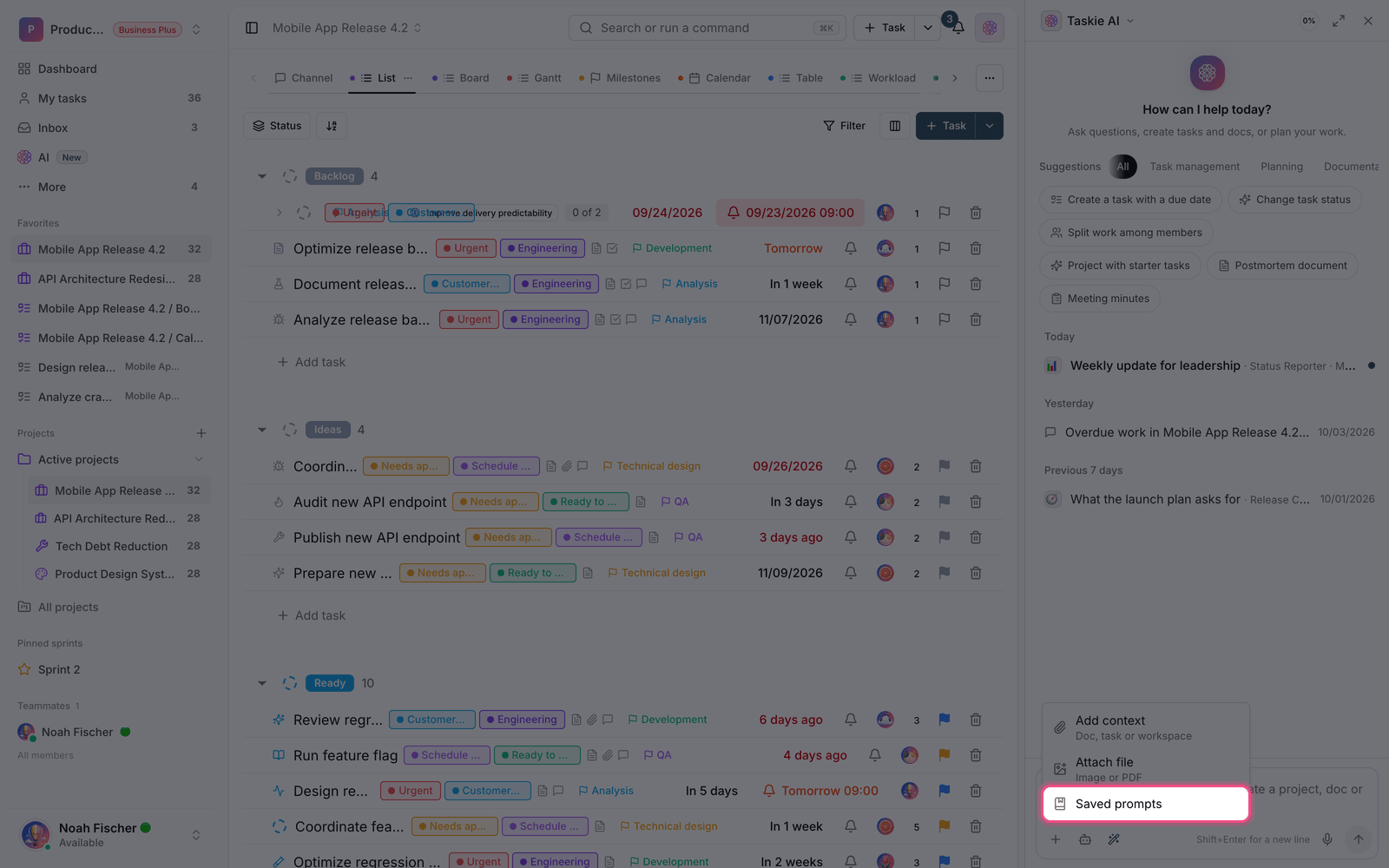
- In the chat window, open the Prompt library.
- Go to the My prompts tab and click New prompt.
- Write a short title so you can find it quickly later.
- Enter the prompt text: the same thing you'd usually write to the assistant.
- If you like, add a category. This field is optional, but it helps a lot in long lists.
- Save.
You can Edit or delete any saved prompt later. If you haven't saved anything yet, you'll see the message "You haven't saved any prompts yet".
Use the ready-made gallery
The Prompt gallery tab is a list of ready-made, categorized prompts. For each one you can do two things:
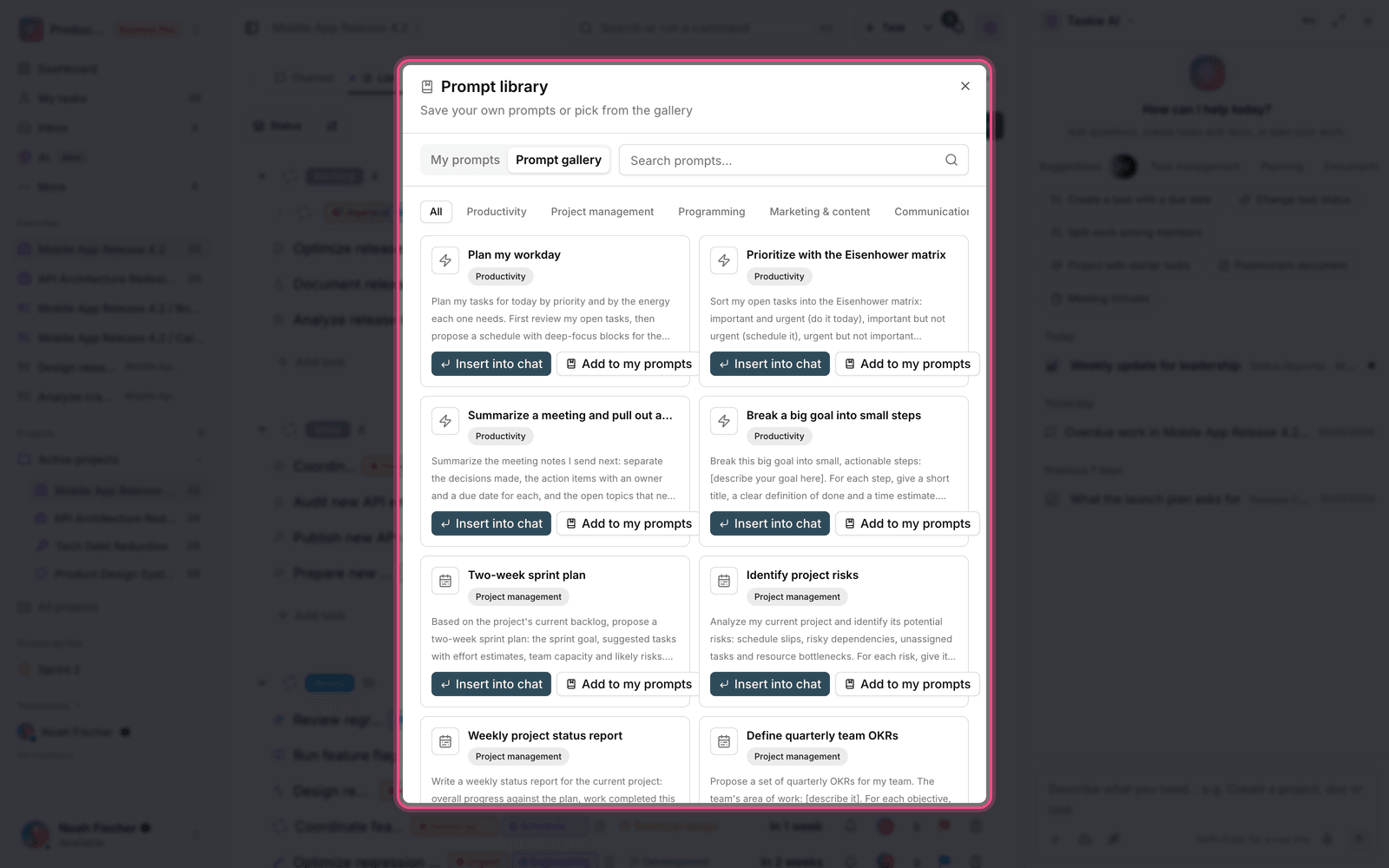
- Insert into chat: the prompt text goes straight into the message box so you can edit it before sending.
- Add to my prompts: a copy is saved to your personal library so you can change it later.
You can also use the prompt search box to look for a phrase in both sections.
Tip: A good prompt is like a good system prompt: state the role, the input, and the output format. For example, instead of "Tell me the status", write "Summarize the status of this project's open tasks as a list, grouped by assignee, with due dates".
Prompts versus agents
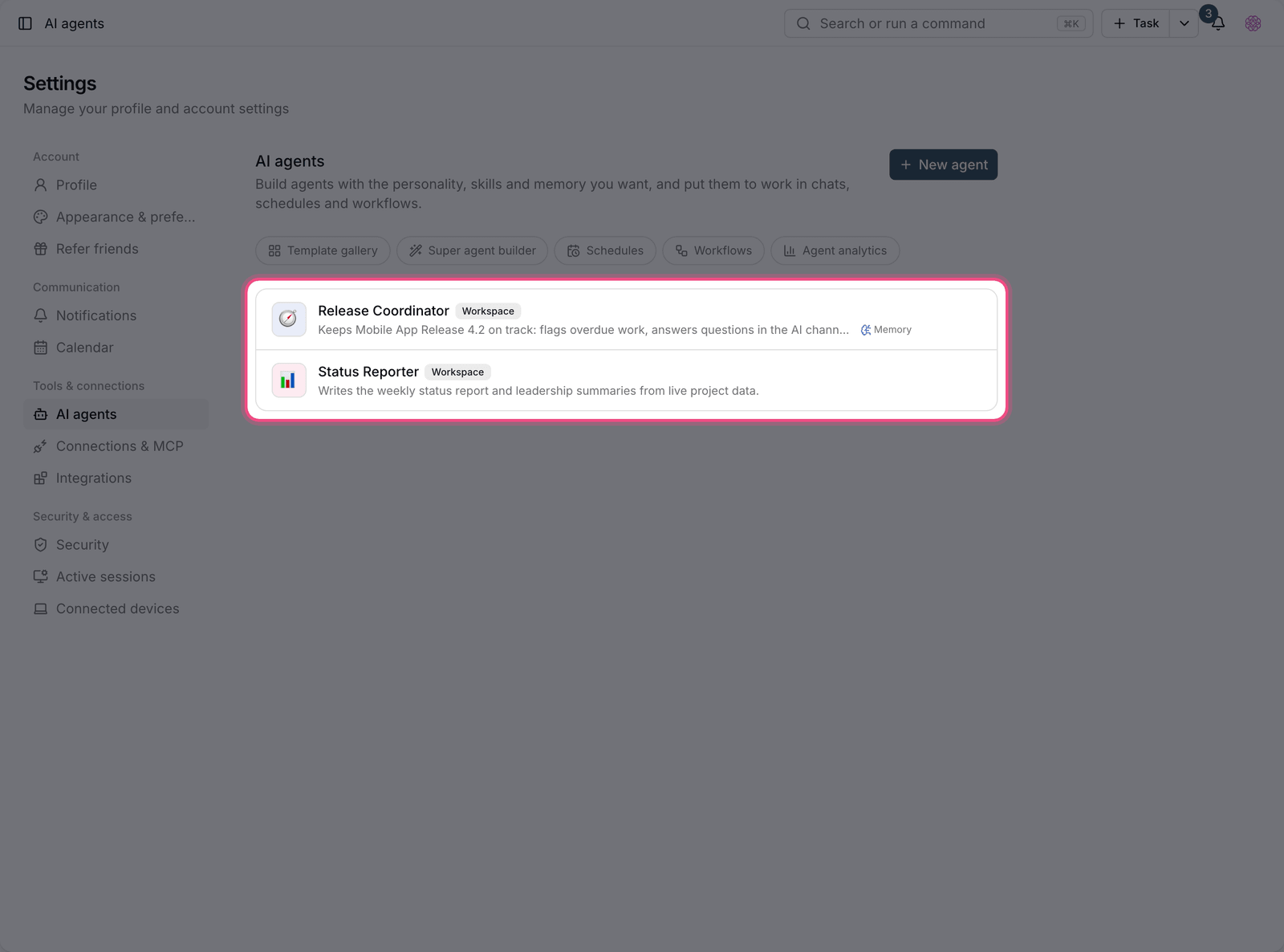
A prompt is just ready-made text that you send yourself each time. An agent, on the other hand, has a personality, skills, and memory, and can also run automatically. If you repeat a request often but want different output each time, a prompt is enough. If you want it to always behave the same way or run automatically, build an agent for it.
Write better prompts
A good prompt makes three things clear: the role, the input, and the output format. The more precise these are, the less you have to explain again after each answer.
- Role: "As a project manager…" or "As a content editor…".
- Input: say where the data should come from, for example "based on this project's open tasks".
- Format: a list, a table, a short paragraph, or a three-point summary.
- Limits: things it shouldn't do, such as "Don't create anything, just report".
- Example: if you want a specific output, include a short sample in the prompt.
To build your own agent, see Build a custom agent, and to get to know the assistant itself, see AI assistant.