
Connect AI clients to Taskie
Step-by-step setup for connecting Claude, ChatGPT, Cursor, VS Code, Codex and other editors and agents to Taskie's MCP server, with browser sign-in or a token.
This guide shows where and how to register Taskie in each AI editor and agent. Every client's steps were checked against that tool's official documentation in November 2026; if a vendor moves its menus, follow the official docs link under each section.
Before you start
In Taskie, go to Settings → Connections & MCP and click Connect a client (or Connect another client). In the window that opens, pick your client to see the server URL, the steps and a ready-made configuration for that client only. On a phone the same window opens as a bottom sheet.
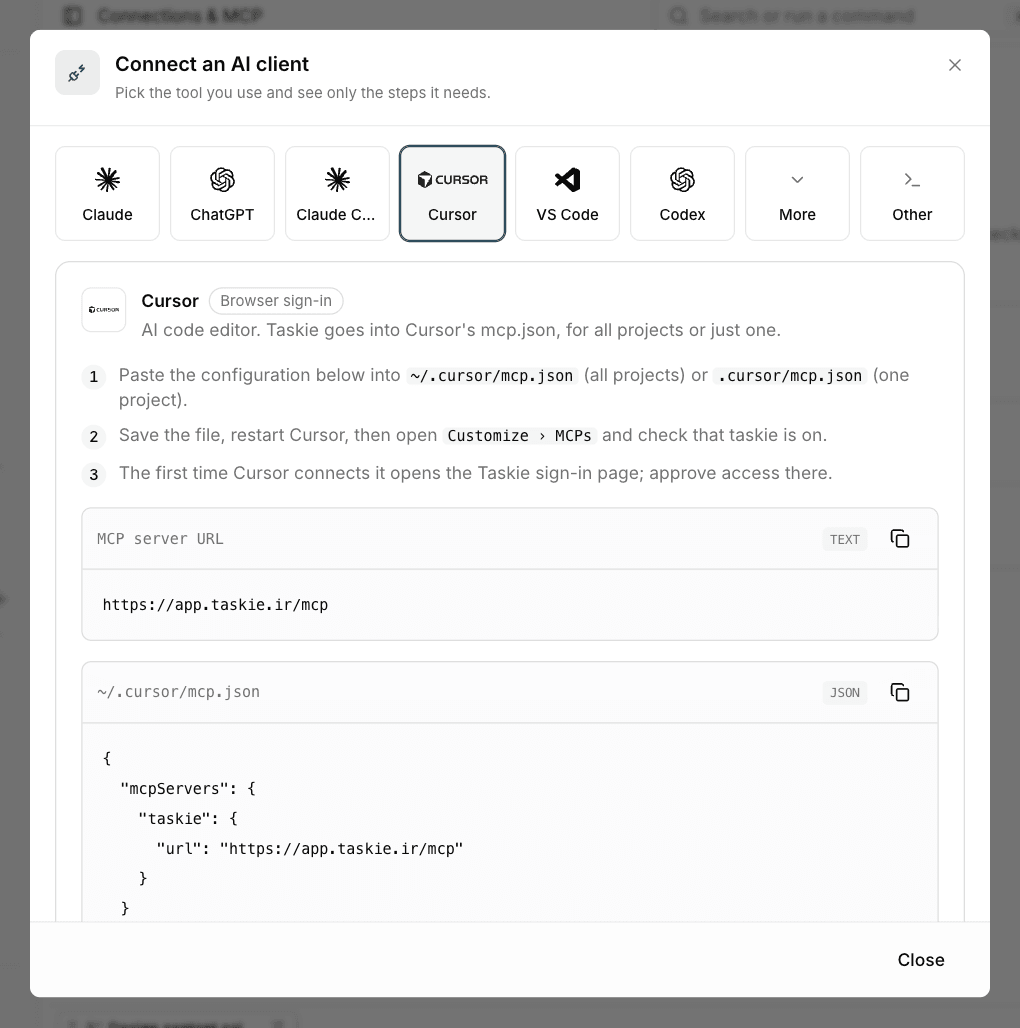
- Browser sign-in (recommended): you only give the client the server URL. When it connects, a Taskie page opens where you choose the workspace and access level. Nothing to create or copy.
- Manual token: for clients without browser sign-in, or places with no browser such as SSH and cloud agents. Click Create token in the connect window; the token is shown once and filled into the configuration for you.
- Other: for any MCP client, script or curl call that is not listed. You get the generic mcpServers configuration and a curl command to test the connection.
Claude
Claude on the web, desktop and mobile. Add Taskie once as a custom connector and it works in every Claude app.
Connect with browser sign-in
- In Claude, open
Customize › Connectors(newer accounts call itPlugins), click+ Add, thenAdd custom connector. - Enter Taskie as the name, paste the server URL and click
Continue. - For the OAuth client choose
Register automatically, then clickAdd. - Click
Connectand approve access in the Taskie window that opens. In a chat, turn Taskie on from+ › Connectors. - On Team and Enterprise plans an owner adds the connector first under
Organization settings › Connectors; members then only clickConnect.
Anthropic documentation: support.claude.com/en/articles/11175166-get-started-with-custom-connectors-using-remote-mcp
ChatGPT
ChatGPT on the web. Taskie is added as a custom MCP plugin; availability depends on your plan, and on Business workspaces only admins can add it.
Connect with browser sign-in
- Open
chatgpt.com/pluginson the web, click+, thenAdd custom MCP server. - Enter Taskie as the name and paste the server URL under
Connection. - Set authentication to
OAuth, confirm the warning and clickCreate as a plugin. - Install the plugin and approve access in the Taskie window. In a chat, type
@and pick Taskie; ChatGPT asks before every change.
OpenAI documentation: help.openai.com/en/articles/12584461-connecting-custom-mcp-servers-in-chatgpt
Claude Code
Anthropic's coding agent in the terminal and IDEs. One command adds Taskie.
Connect with browser sign-in
- Run the command below in your terminal. Add
--scope userto use Taskie in every project. - Start Claude Code, run
/mcp, select taskie and chooseAuthenticate(or runclaude mcp login taskie). - Approve access in the browser window that opens.
Connect with a token
- Run the command below in your terminal; it already carries your token.
- Run
/mcpin Claude Code and check that taskie is connected. - While a token header is set, Claude Code skips browser sign-in. Remove the server and add it again without the header to switch.
Anthropic documentation: code.claude.com/docs/en/mcp
Cursor
AI code editor. Taskie goes into Cursor's mcp.json, for all projects or just one.
Connect with browser sign-in
- Paste the configuration below into
~/.cursor/mcp.json(all projects) or.cursor/mcp.json(one project). - Save the file, restart Cursor, then open
Customize › MCPsand check that taskie is on. - The first time Cursor connects it opens the Taskie sign-in page; approve access there.
Connect with a token
- Paste the configuration below into
~/.cursor/mcp.json(all projects) or.cursor/mcp.json(one project). - Save the file, restart Cursor, then open
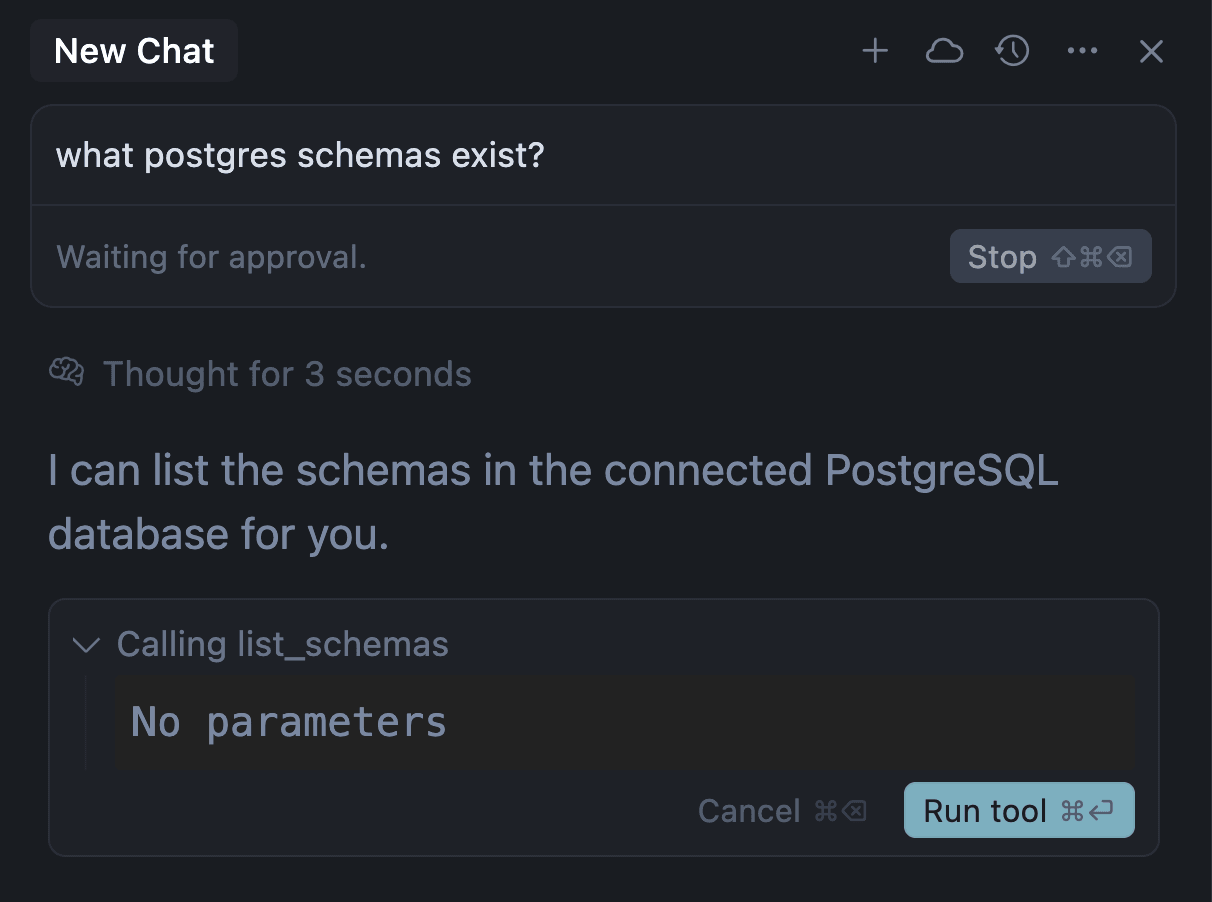
Customize › MCPsand check that taskie is on. - If the tools don't show up, open the
Outputpanel and pickMCP Logs.
Cursor documentation: cursor.com/docs/mcp
VS Code
VS Code's built-in agent chat. The default Copilot agent reads servers from ~/.copilot/mcp-config.json.
Connect with browser sign-in
- Run
MCP: Add Serverfrom the Command Palette, chooseHTTP, paste the server URL, name it taskie and pickCopilot Global. Or paste the configuration below into~/.copilot/mcp-config.json. - When VS Code asks to sign in, allow it and approve access in the Taskie window.
- In chat, open the tools menu and check that the Taskie tools are on.
Connect with a token
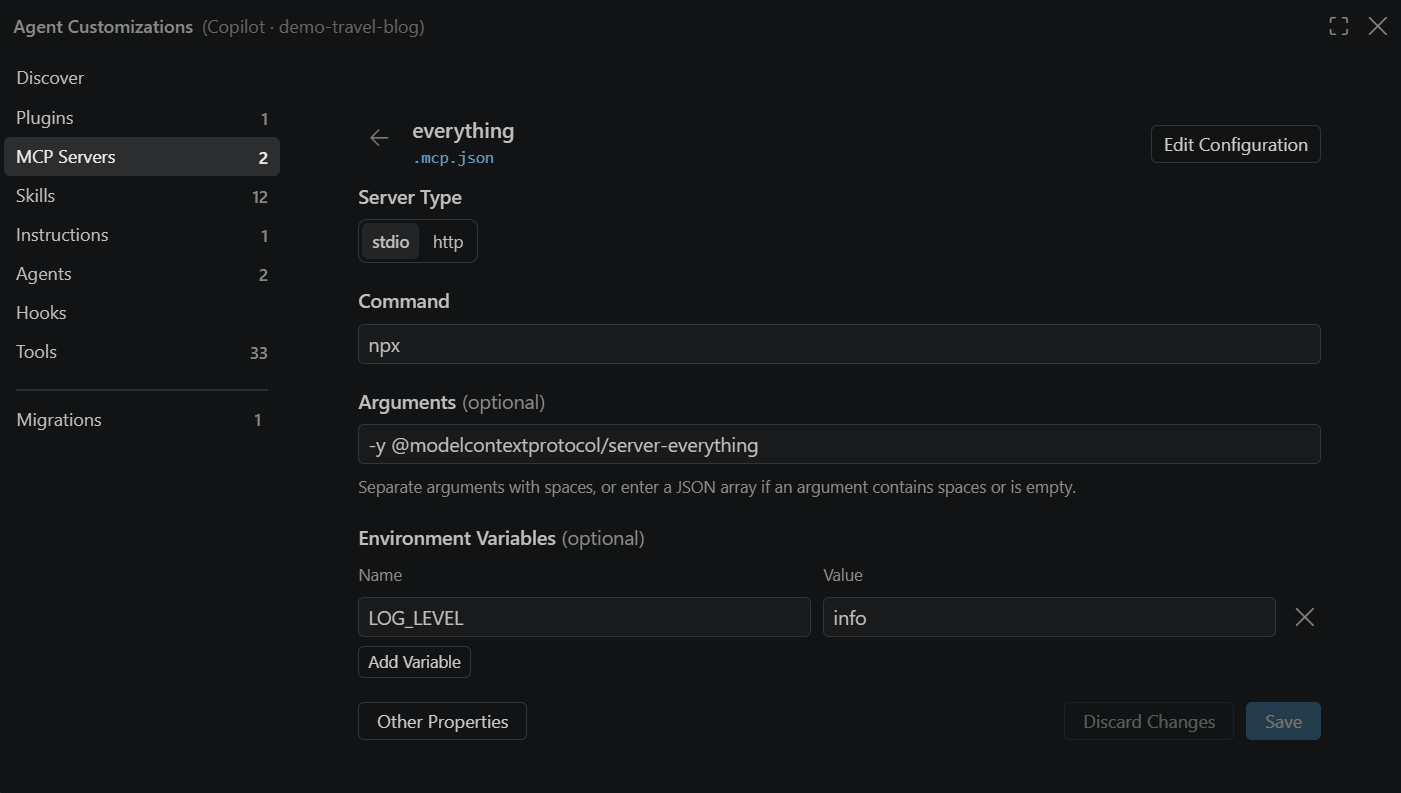
- Paste the configuration below into
~/.copilot/mcp-config.json(or.mcp.jsonin the workspace root). - Reload VS Code, run
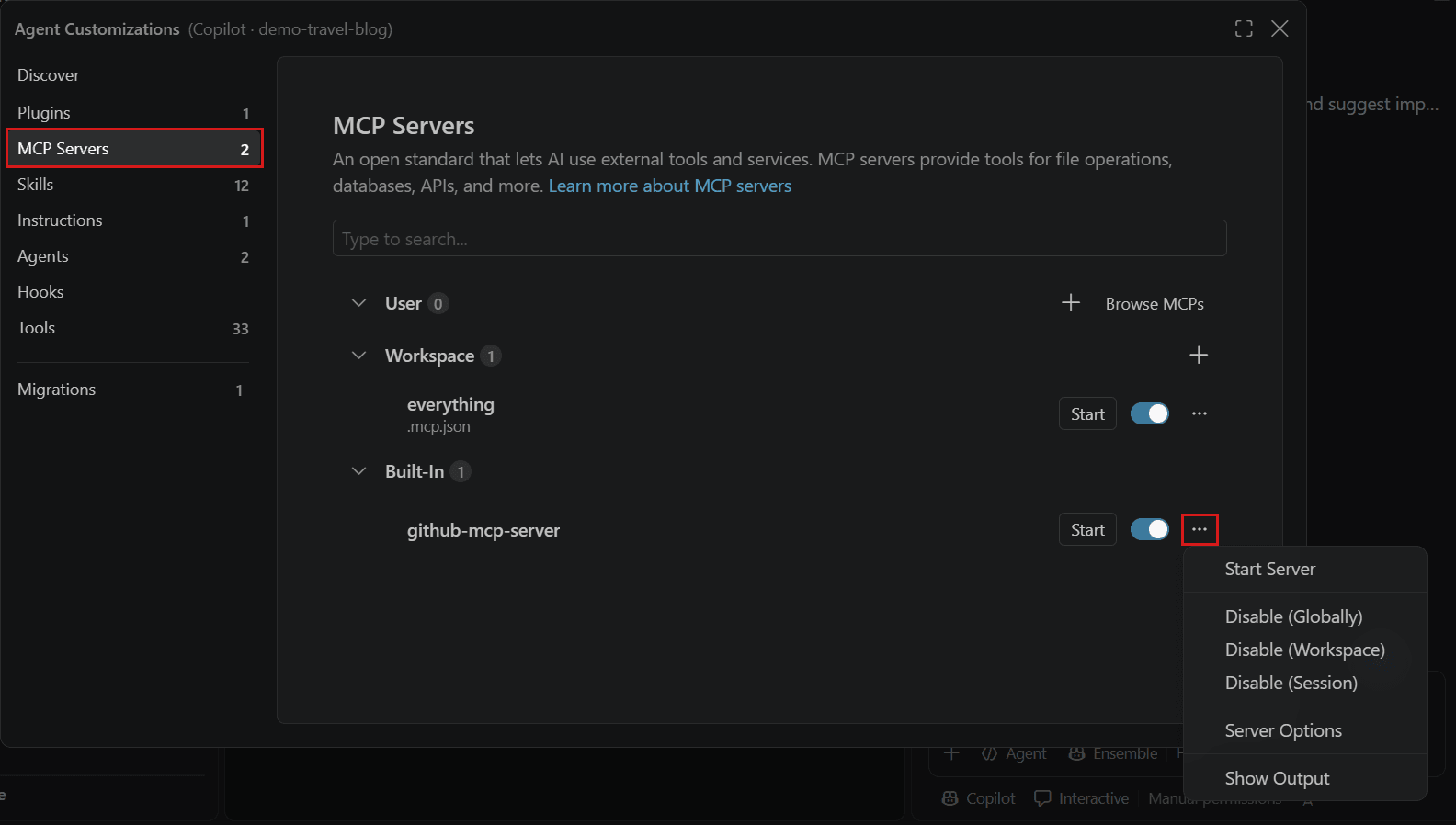
MCP: List Serversand check that taskie is running. - Don't put the token in an input variable: the default Copilot agent skips servers that need one.
Microsoft documentation: code.visualstudio.com/docs/agent-customization/mcp-servers
Codex
OpenAI Codex. The CLI, the IDE extension and the ChatGPT desktop app share one config file.
Connect with browser sign-in
- Run
codex mcp add taskie --urlfollowed by the server URL, or paste the configuration below into~/.codex/config.toml. - Run
codex mcp login taskie. In the desktop app or IDE extension, clickAuthenticatenext to taskie instead. - Approve access in the browser, then run
/mcpto see the Taskie tools.
Connect with a token
- Paste the configuration below into
~/.codex/config.toml. - Restart Codex (or the IDE extension) and run
/mcpto check the connection.
OpenAI documentation: learn.chatgpt.com/docs/extend/mcp
Gemini CLI
Google's Gemini CLI. Browser sign-in needs a browser on the same machine, so use a token over SSH.
Connect with browser sign-in
- Run
gemini mcp add --transport http -s user taskiefollowed by the server URL, or paste the configuration below into~/.gemini/settings.json. - Start gemini. The browser opens for sign-in; if it doesn't, run
/mcp auth taskie. - Approve access, then run
/mcpto list the Taskie tools.
Connect with a token
- Paste the configuration below into
~/.gemini/settings.json(or.gemini/settings.jsonin a project). - Restart gemini and run
/mcpto check that taskie is connected.
Google documentation: geminicli.com/docs/tools/mcp-server/
Copilot CLI
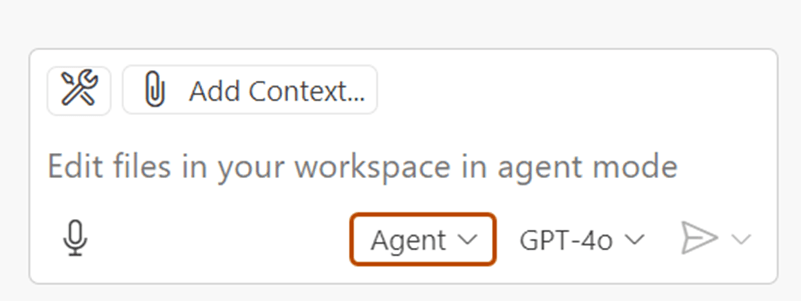
GitHub Copilot CLI. For Copilot inside VS Code pick VS Code; in JetBrains, Eclipse and Xcode, put the token under requestInit.headers in mcp.json.
Connect with browser sign-in
- Run the command below in your terminal.
- Start
copilot. If taskie shows as needing sign-in, run/mcp auth taskie. - Approve access in the browser window that opens.
Connect with a token
- Run the command below in your terminal; it already carries your token.
- Start
copilotand run/mcpto check that taskie is connected. - On Business and Enterprise plans an admin must first turn on the
MCP servers in Copilotpolicy.
GitHub documentation: docs.github.com/en/copilot/how-tos/copilot-cli/customize-copilot/add-mcp-servers
Devin Desktop
Devin Desktop is the new name of Windsurf. Its Devin Local agent reads MCP servers from mcp_config.json.
Connect with browser sign-in
- Run
devin mcp add -s user taskiefollowed by the server URL, or paste the configuration below into~/.config/devin/mcp_config.json. - Open
Customize › MCPsand check that taskie is listed. - The first time taskie is used, approve access in the browser (or run
devin mcp login taskie).
Connect with a token
- Paste the configuration below into
~/.config/devin/mcp_config.json. - Open
Customize › MCPsand check that taskie is connected.
Cognition documentation: docs.devin.ai/cli/extensibility/mcp/configuration
Zed
Zed editor. Browser sign-in needs Zed 0.230 or later.
Connect with browser sign-in
- Open
Settings › AI › MCP Servers, clickAdd Server › Add Remote Serverand enter the server URL, or paste the configuration below into settings.json. - Click
Authenticatewhen Zed asks and approve access in the browser. - A green dot next to taskie means it is active; use it from the Agent Panel.
Connect with a token
- Paste the configuration below into Zed's settings.json (
zed: open settings file). - Check
Settings › AI › MCP Servers: a green dot next to taskie means it is active.
Zed Industries documentation: zed.dev/docs/ai/mcp
JetBrains AI Assistant
AI Assistant in IntelliJ IDEA, PyCharm and the other JetBrains IDEs. JetBrains doesn't document browser sign-in for MCP, so connect with a token.
Connect with a token
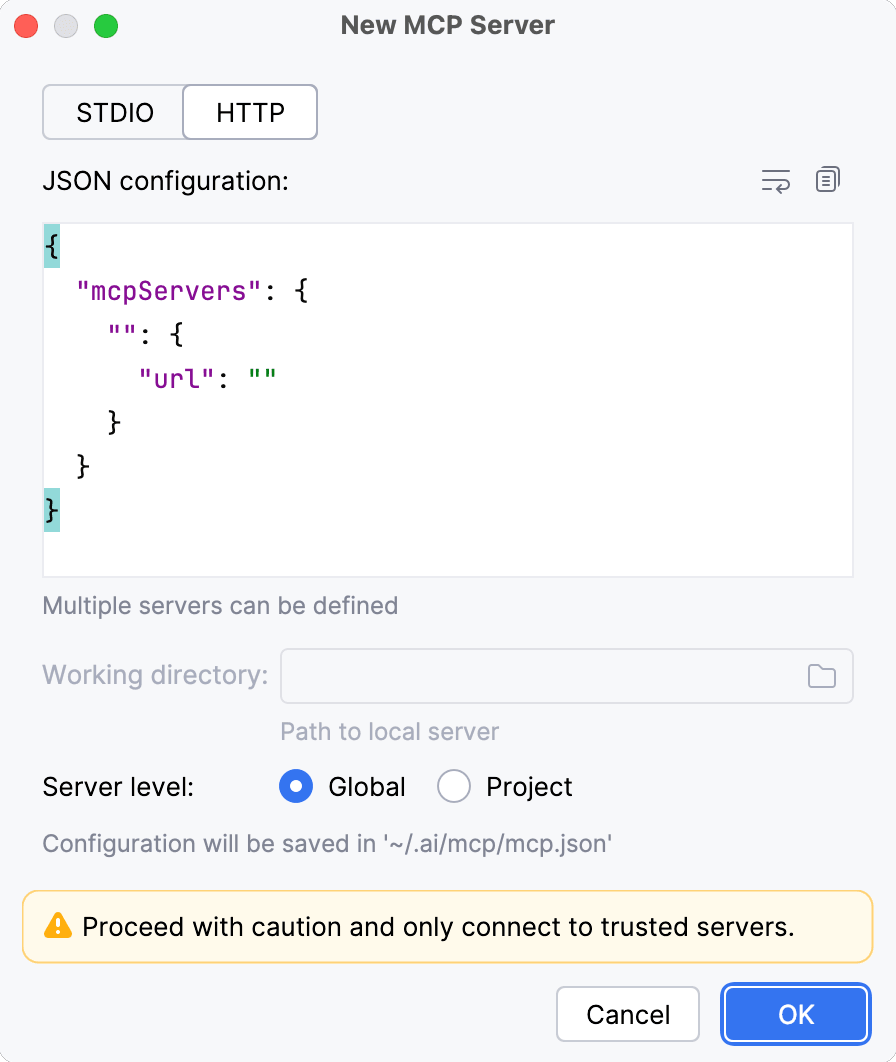
- Open
Settings › Tools › AI Assistant › Model Context Protocol (MCP)and click+ Add. - Choose HTTP, paste the configuration below and pick Global or the current project.
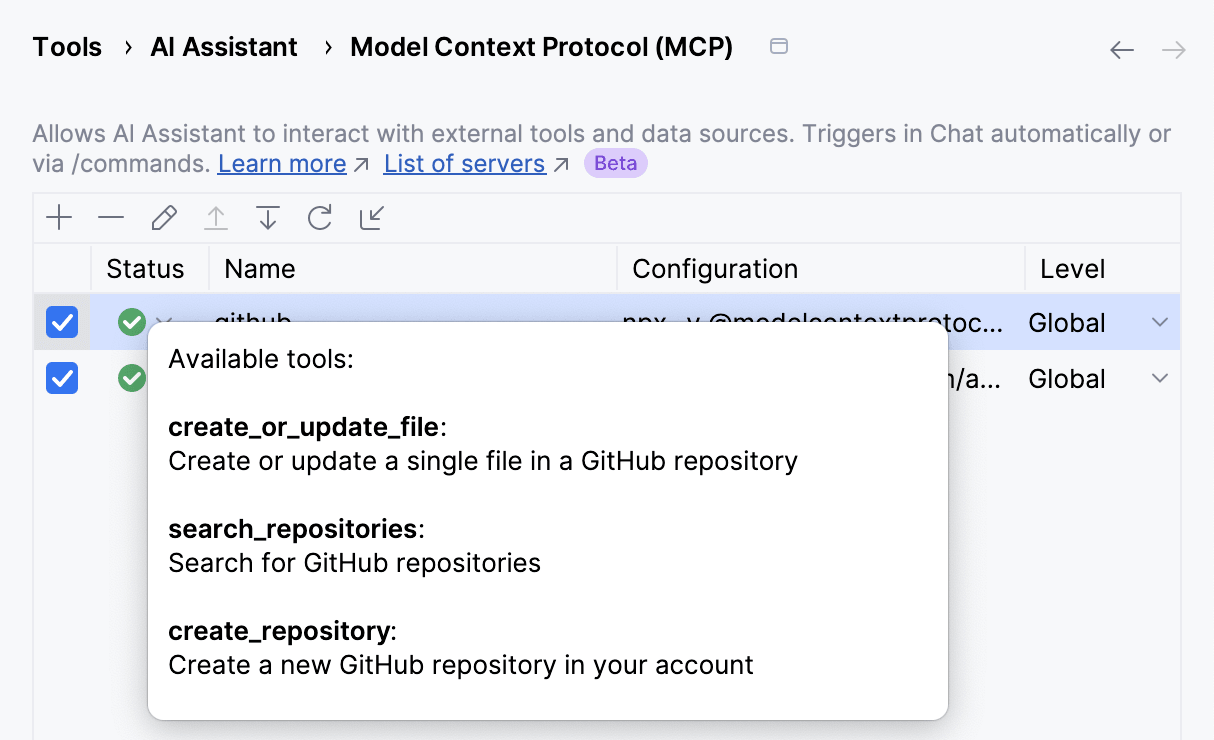
- Click
OK, thenApply, and check the Status column for taskie.
JetBrains documentation: www.jetbrains.com/help/ai-assistant/mcp.html
Junie
JetBrains' coding agent, as an IDE plugin and as Junie CLI.
Connect with browser sign-in
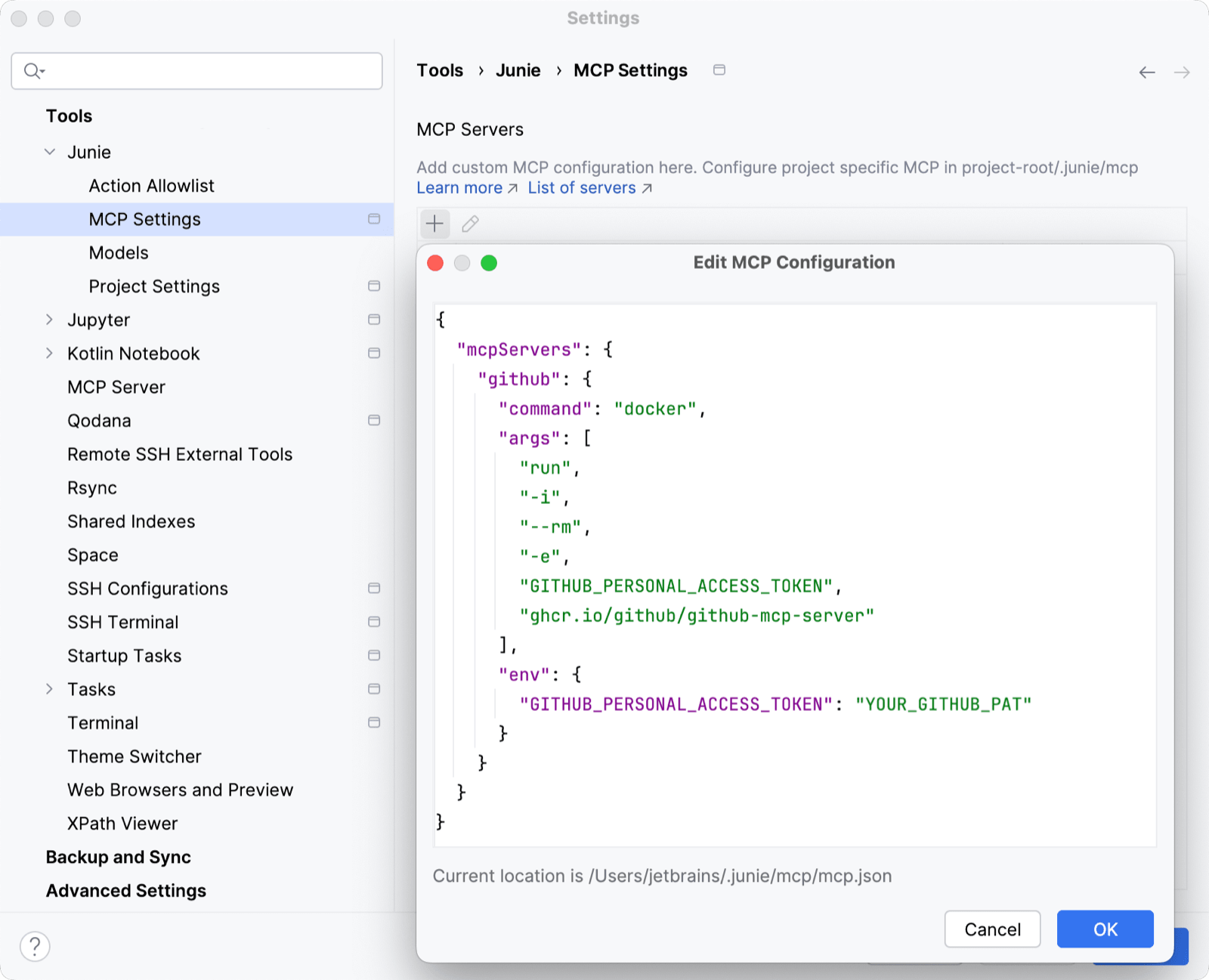
- Open
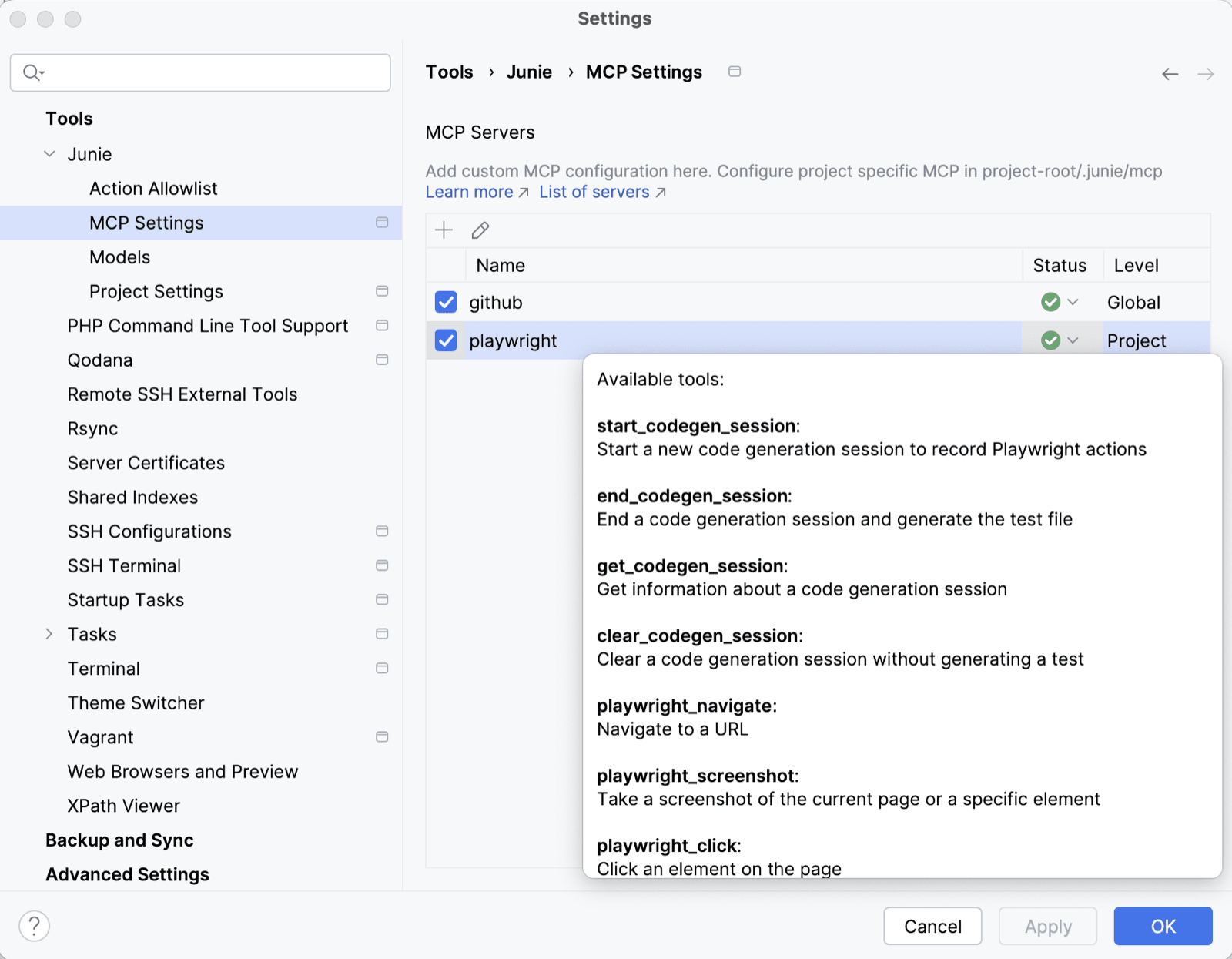
Settings › Tools › Junie › MCP Settings, click+and paste the configuration below (or edit~/.junie/mcp/mcp.json). - taskie shows
Authorization required: in Junie CLI run/mcp, select taskie and chooseAuthorize. - Approve access in the browser; the status changes to Active.
Connect with a token
- Open
Settings › Tools › Junie › MCP Settings, click+and paste the configuration below (or edit~/.junie/mcp/mcp.json). - Check that taskie is Active and its tools are listed.
JetBrains documentation: junie.jetbrains.com/docs/junie-cli-mcp-configuration.html
Antigravity
Google Antigravity (app, IDE and CLI). Sign-in ends with a code you copy back into Antigravity.
Connect with browser sign-in
- In the agent panel open
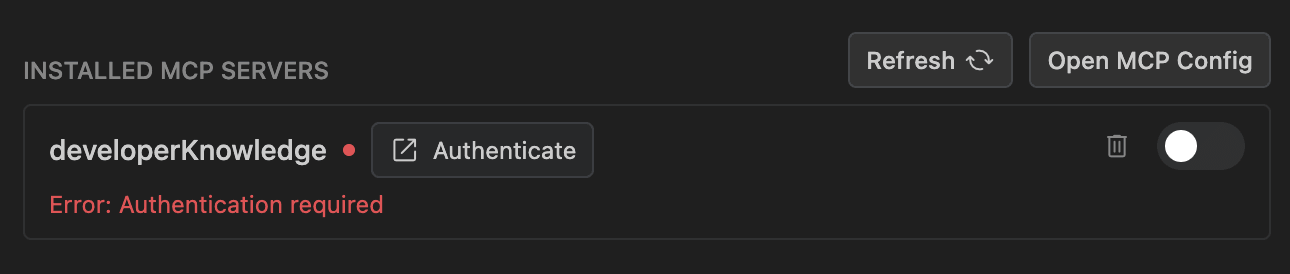
… › MCP Servers › Manage MCP Servers › View raw configand paste the configuration below. - Open Agent settings (
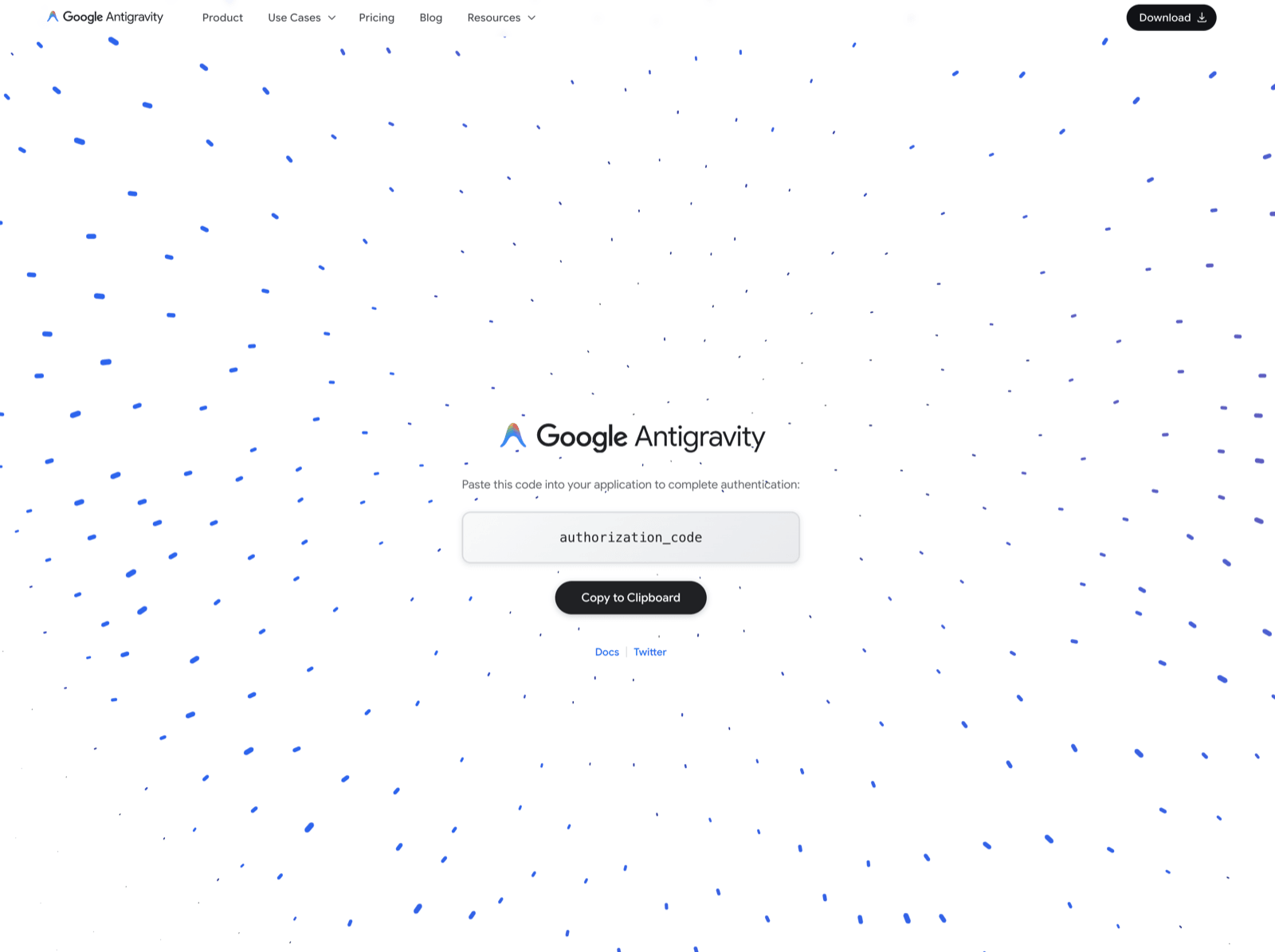
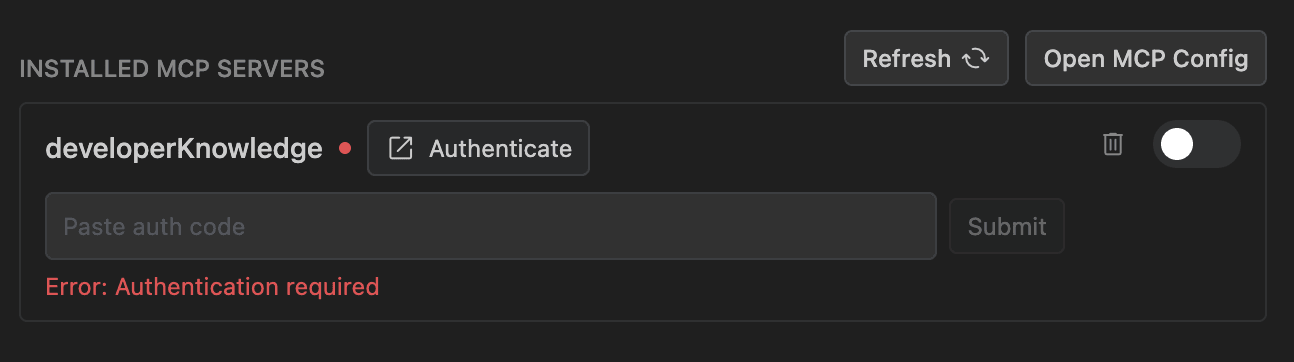
Cmd/Ctrl + ,), go toCustomizationsand clickAuthenticatenext to taskie. - Approve access in the browser, copy the code it shows, paste it back into Antigravity and click
Submit.
Connect with a token
- In the agent panel open
… › MCP Servers › Manage MCP Servers › View raw configand paste the configuration below. - Refresh the MCP servers and check that taskie is connected.
Google documentation: antigravity.google/docs/mcp
TRAE
TRAE IDE and Agent. Browser sign-in for MCP needs TRAE 3.5.51 or later.
Connect with browser sign-in
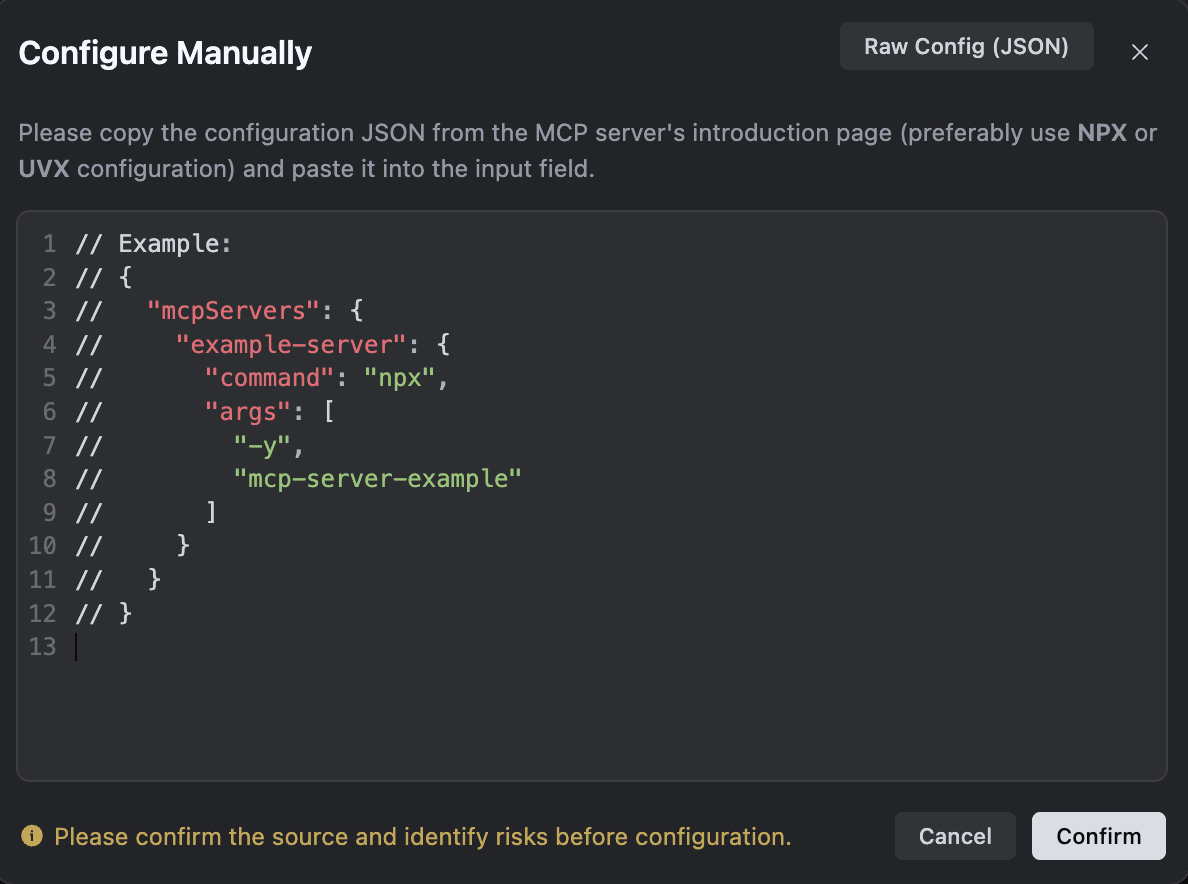
- Open
Settings › MCP, clickAdd › Create Manually, paste the configuration below and clickConfirm. - In the Agent window, pick
LocalorCloudto match where your tasks run. - When TRAE asks to authorize taskie, approve access in the browser.
Connect with a token
- Open
Settings › MCP, clickAdd › Create Manually, paste the configuration below and clickConfirm. - In the Agent window, pick
LocalorCloudto match where your tasks run.
ByteDance documentation: docs.trae.ai/ide/add-mcp-servers
OpenCode
OpenCode terminal agent. Versions 1 and 2 both read this configuration.
Connect with browser sign-in
- Paste the configuration below into
~/.config/opencode/opencode.jsonor your project's opencode.json. - Run
opencode mcp auth taskie(in OpenCode 2 you can also open/mcpsand sign in). - Approve access in the browser.
Connect with a token
- Paste the configuration below into
~/.config/opencode/opencode.jsonor your project's opencode.json. - Run
opencode mcp listand check that taskie is connected.
OpenCode documentation: opencode.ai/docs/mcp-servers/
Cline
Cline extension for VS Code, plus the Cline CLI.
Connect with browser sign-in
- Click the MCP Servers icon in the Cline panel and open
Remote Servers. - Enter taskie as the name, paste the server URL, pick
Streamable HTTPand clickAdd Server. - On the
Configuretab, clickAuthenticatenext to taskie and approve access in the browser.
Connect with a token
- Click the MCP Servers icon in the Cline panel, open
Configureand clickConfigure MCP Servers. - Paste the configuration below and save.
- Check that taskie turns green on the
Configuretab.
Cline documentation: docs.cline.bot/mcp/mcp-overview
Kilo Code
Kilo Code extension and CLI. Current versions keep MCP servers in kilo.jsonc.
Connect with browser sign-in
- Open
Settings › Agent Behaviour › MCP Serversand clickAdd Server, or paste the configuration below into~/.config/kilo/kilo.jsonc. - When the needs-auth notice appears, click it (or run
kilo mcp auth). - Approve access in the browser.
Connect with a token
- Paste the configuration below into
~/.config/kilo/kilo.jsonc(orkilo.jsoncin your project). - Check under
Settings › Agent Behaviour › MCP Serversthat taskie is connected.
Kilo documentation: kilo.ai/docs/features/mcp/using-mcp-in-kilo-code
goose
goose, the open-source agent for desktop and terminal. It reads YAML, not the usual mcpServers JSON.
Connect with browser sign-in
- In goose Desktop open
Extensions › Add custom extension, chooseStreamable HTTP, name it taskie and paste the server URL as theEndpoint. Or paste the YAML below into~/.config/goose/config.yaml. - Click
Add; a browser opens for you to approve access.
Connect with a token
- In goose Desktop open
Extensions › Add custom extension, chooseStreamable HTTP, paste the server URL as theEndpointand add the Authorization header underRequest Headers. Or paste the YAML below into~/.config/goose/config.yaml. - Click
Addand start a new session.
Agentic AI Foundation documentation: goose-docs.ai/docs/getting-started/using-extensions
Amp
Amp coding agent. Its settings use the amp.mcpServers key.
Connect with browser sign-in
- Run
amp mcp add taskiefollowed by the server URL, or paste the configuration below into~/.config/amp/settings.json. - Start Amp; the Taskie sign-in page opens in your browser. Approve access there.
Connect with a token
- Paste the configuration below into
~/.config/amp/settings.json. - Start Amp and check that the Taskie tools are available.
Amp documentation: ampcode.com/docs/customize/mcp
Warp
Warp's terminal agents. Cloud agents can't finish a browser sign-in, so use a token for them.
Connect with browser sign-in
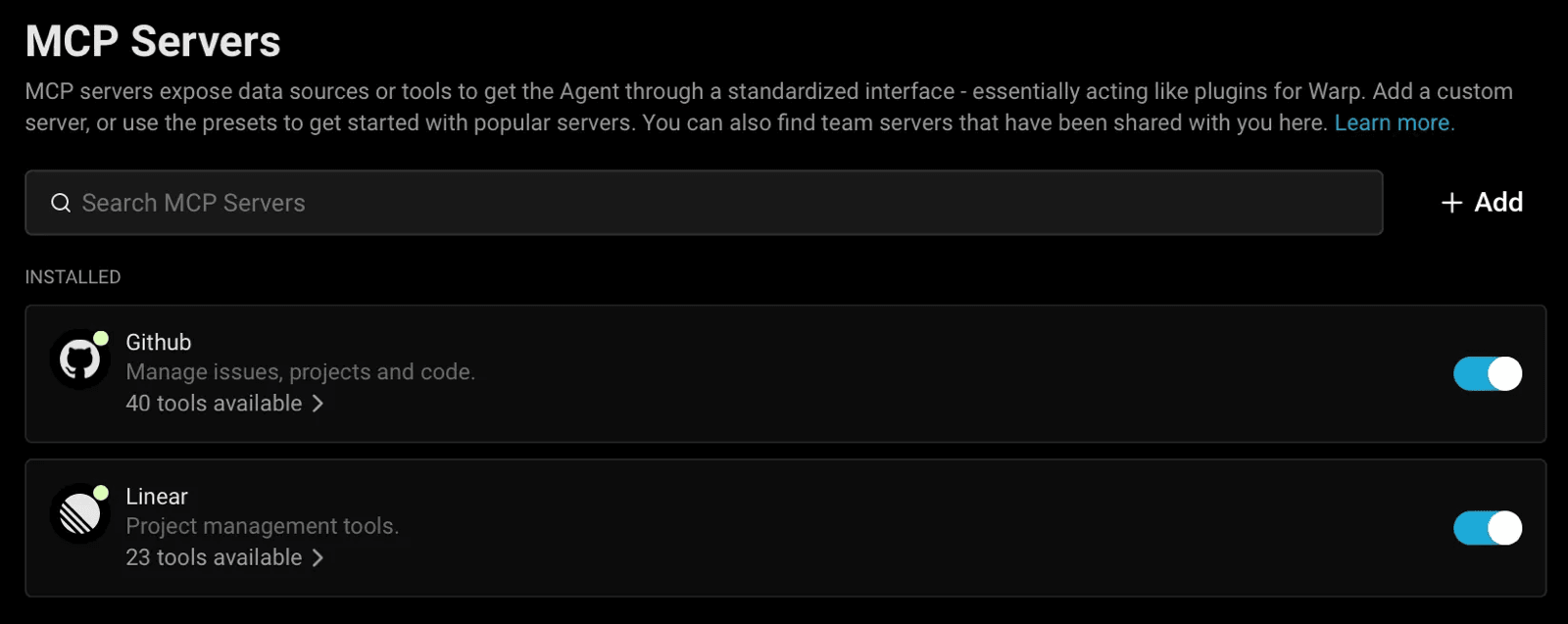
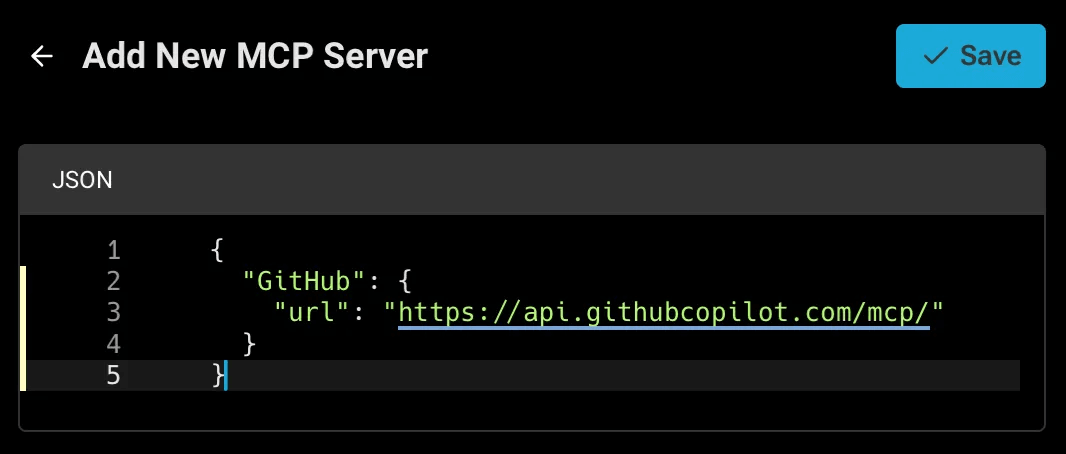
- Open
Settings › Agents › MCP serversand click+ Add. - Paste the configuration below and save.
- Start taskie; a browser opens for you to approve access.
Connect with a token
- Open
Settings › Agents › MCP serversand click+ Add. - Paste the configuration below and save.
- Start taskie and check that it is running.
Warp documentation: docs.warp.dev/agents/capabilities/mcp/
Conductor
Conductor runs Claude Code and Codex agents and uses their MCP settings; it has no server list of its own.
Connect with browser sign-in
- Add Taskie to Claude Code with the command below (for Codex sessions, follow the Codex steps instead).
- In a Conductor workspace, open MCP status from the plug icon (or run
/mcp-status) and clickRefresh status. - Use the sign-in action on the taskie row, approve access, then start a new session.
Connect with a token
- Add Taskie to Claude Code with the command below (for Codex sessions, follow the Codex steps instead).
- In a Conductor workspace, open MCP status from the plug icon (or run
/mcp-status) and clickRefresh status. - Start a new session so the Taskie tools load.
Conductor documentation: www.conductor.build/docs/guides/configure-mcp-servers
ZCode
ZCode, Z.ai's desktop agent for the GLM models. Using the GLM Coding Plan inside another agent? Pick that agent instead.
Connect with browser sign-in
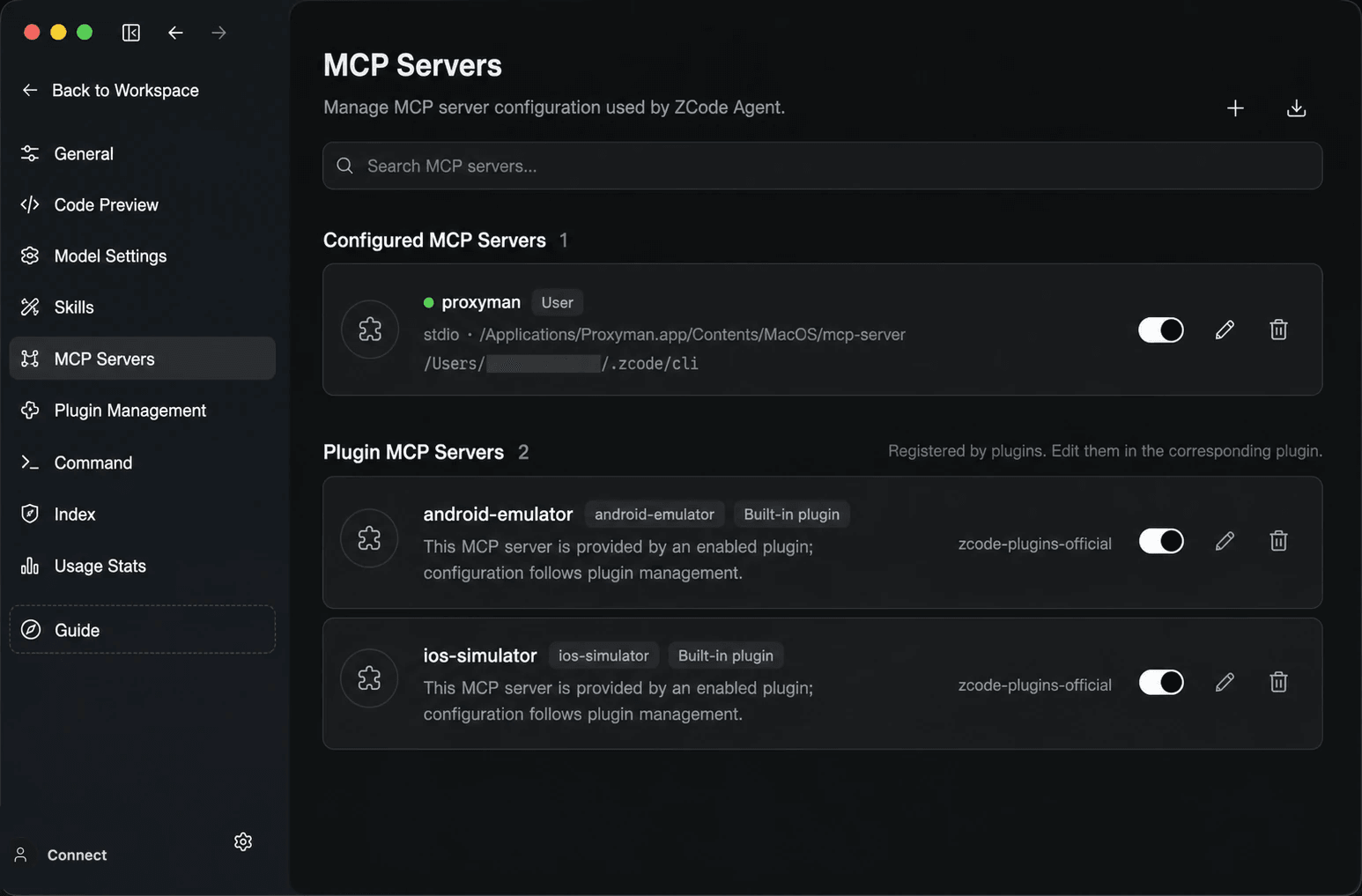
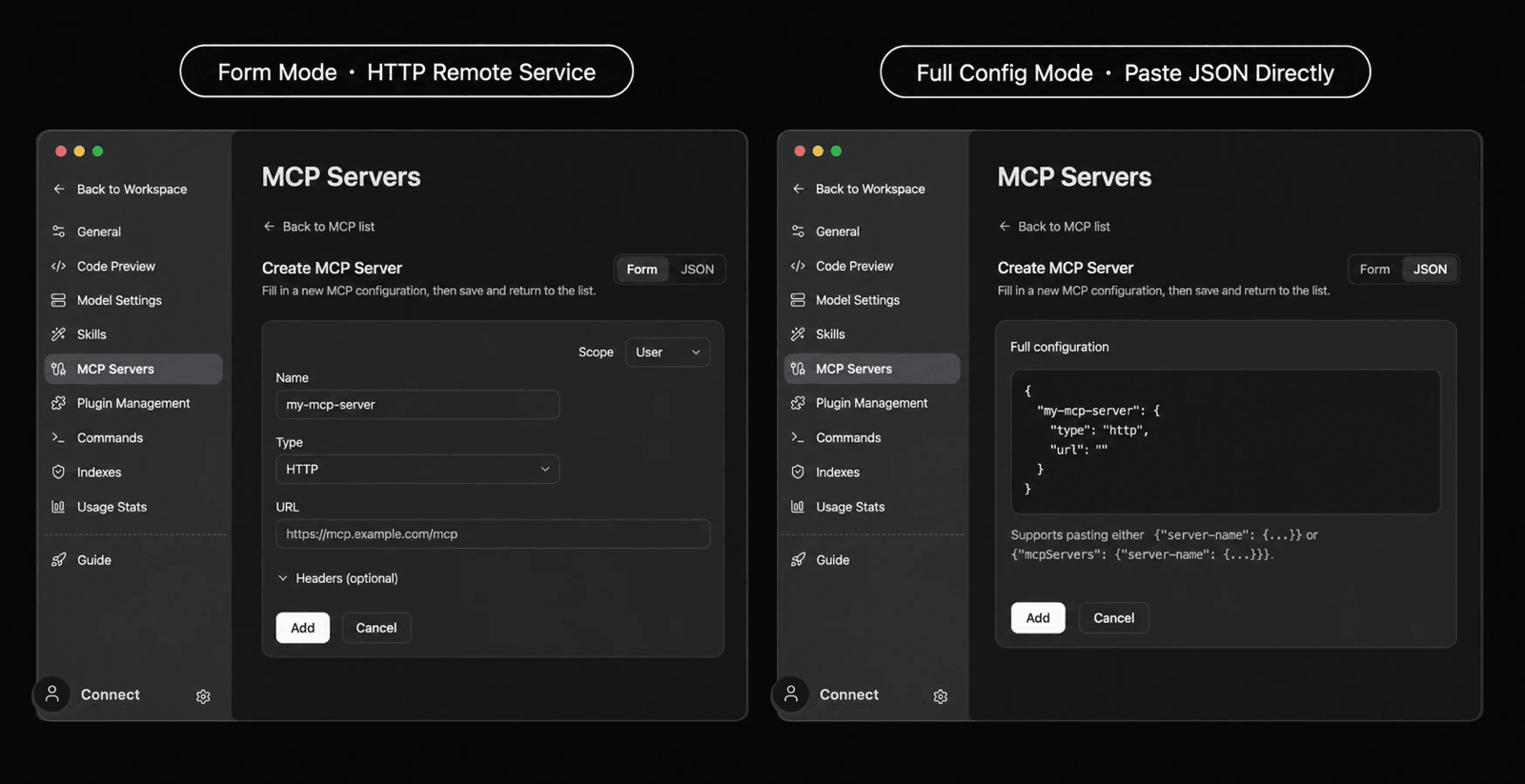
- Open
Settings › MCP Serversand clickNew MCP Server. - Pick a scope, set the type to
HTTP, name it taskie and paste the server URL (or switch toFull configurationand paste the JSON below). - Click
Add, then clickOpen authorizationon the taskie row and approve access in the browser.
Connect with a token
- Open
Settings › MCP Serversand clickNew MCP Server. - Pick a scope, set the type to
HTTP, name it taskie, paste the server URL and add the Authorization header underHeaders(or paste the JSON below inFull configuration). - Click
Addand check that taskie connects.
Z.ai documentation: zcode.z.ai/en/docs/mcp-services
Kimi Code
Kimi Code CLI from Moonshot AI, which replaced the archived Kimi CLI.
Connect with browser sign-in
- Run
/mcp-configin Kimi Code to add taskie, or paste the configuration below into~/.kimi-code/mcp.json. - Run
/mcp-config login taskieand approve access in the browser. - Run
/mcpto check the connection.
Connect with a token
- Paste the configuration below into
~/.kimi-code/mcp.json. - Run
/mcpin Kimi Code to check the connection.
Moonshot AI documentation: moonshotai.github.io/kimi-code/en/customization/mcp.html
Qwen Code
Qwen Code CLI. Qwen's docs don't cover automatic browser sign-in yet, so connect with a token.
Connect with a token
- Paste the configuration below into
~/.qwen/settings.json(or.qwen/settings.jsonin a project). - Restart qwen and run
/mcpto check that taskie is connected.
Qwen documentation: qwenlm.github.io/qwen-code-docs/en/users/features/mcp/
Replit
Replit Agent. Servers added here are available in all your Replit projects.
Connect with browser sign-in
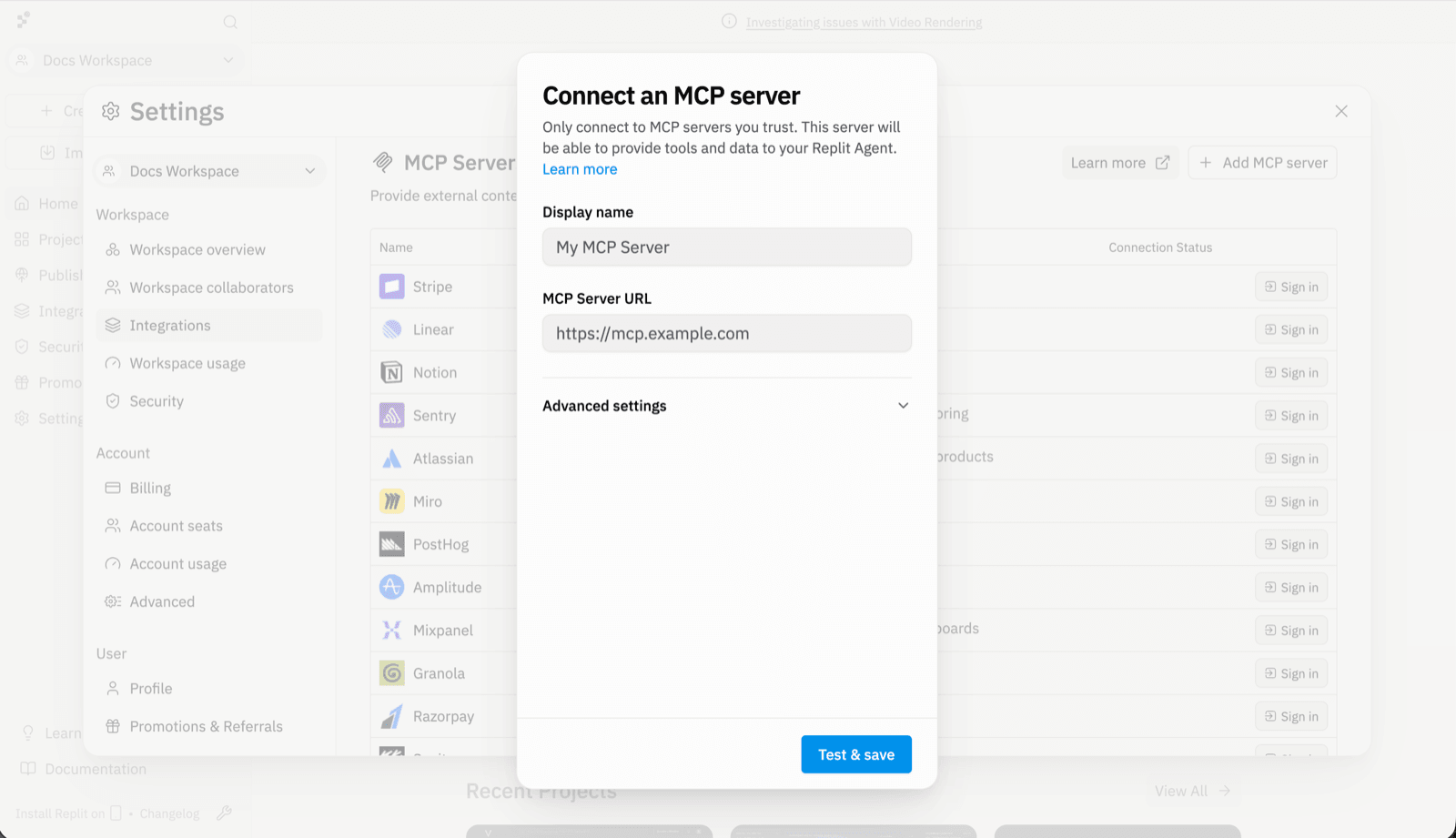
- Open
replit.com/integrationsand, underMCP Servers, click+ Add MCP server(or open the one-click install link below). - Enter Taskie as the display name and paste the server URL.
- Click
Test & saveand approve access in the Taskie window.
Connect with a token
- Open
replit.com/integrationsand, underMCP Servers, click+ Add MCP server. - Enter Taskie as the display name, paste the server URL, then open
Advanced settingsand add the Authorization header below. - Click
Test & save.
Replit documentation: docs.replit.com/build/connect-via-mcp
If the connection doesn't work
- The tools don't show up: quit and reopen the client, or refresh the taskie server in that client's MCP settings. Most clients only read their configuration at start-up.
- No browser opened for sign-in: many clients start sign-in from a button or command such as Authenticate or login; see that client's steps. Over SSH or in a cloud agent, use a token.
- 401 error: the token expired or was deactivated. Open the connection under Connections & MCP and regenerate the token, or sign in through the browser again.
- The client tries both methods: when an Authorization header is set, some clients skip browser sign-in. Keep one method per connection.
To manage connections, access levels and security, see Connect an external client to Taskie with MCP, and for tool controls see MCP tools and safety.