
Mobile app and offline sync
Sign in on your phone, get notifications, and learn how changes you make offline sync later.
Some work always happens away from your desk: approving a task in a taxi, jotting down an idea in a meeting, seeing a mention notification. The Taskie mobile app is built for exactly those moments and works with the account you already have.
Sign in on mobile
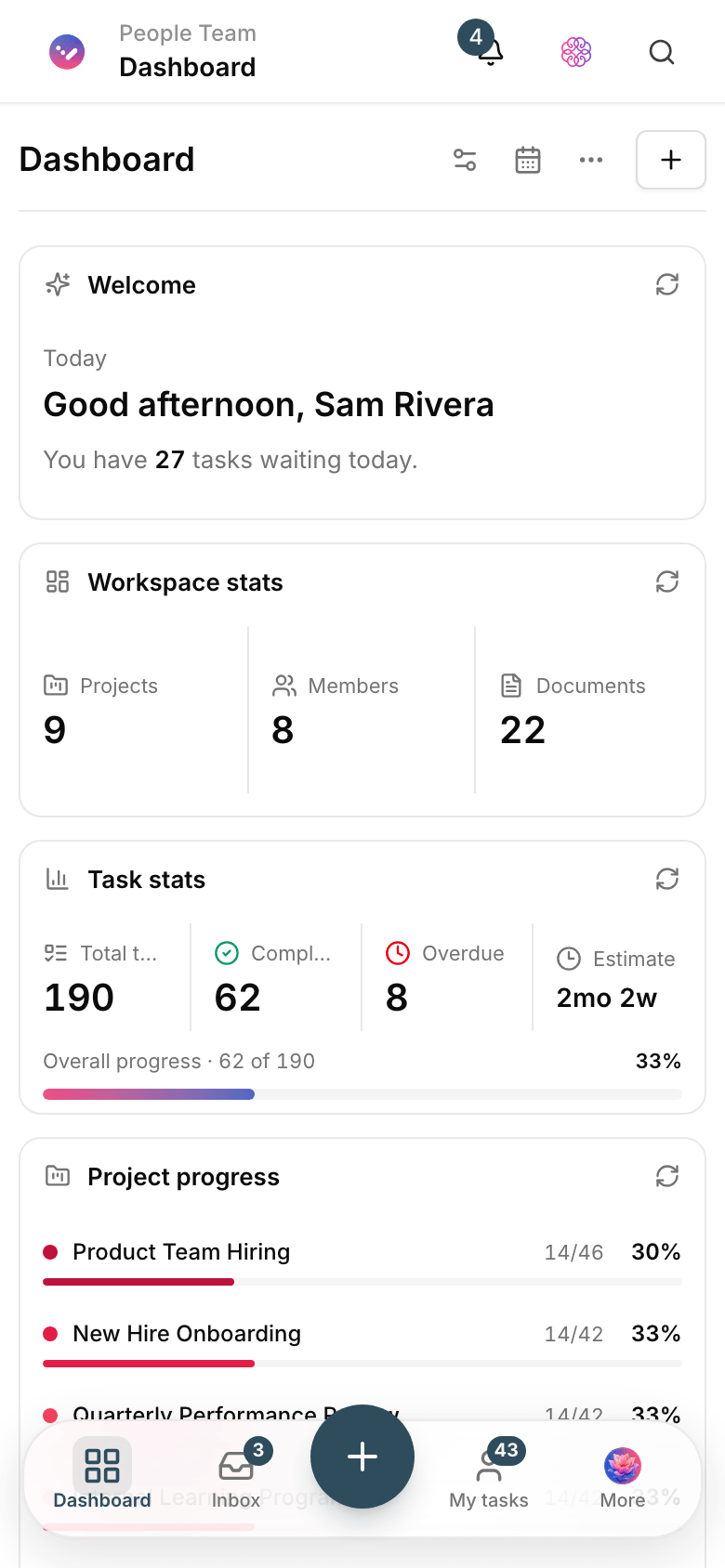
- Install and open the app.
- Sign in with your Taskie email and password, or use sign-in with an SMS code.
- If two-factor authentication is on, enter the code.
- Choose the workspace you want. If you're a member of several workspaces, you can switch between them.
Security tip: signing in on mobile creates an active session, just like in the browser. If you change phones or lose yours, end that session from your active sessions.
Mobile notifications
Important notifications, such as mentions, task assignments and approaching due dates, arrive on your phone as push notifications. You choose which events send notifications in your account's notification preferences, and those settings are shared between web and mobile.
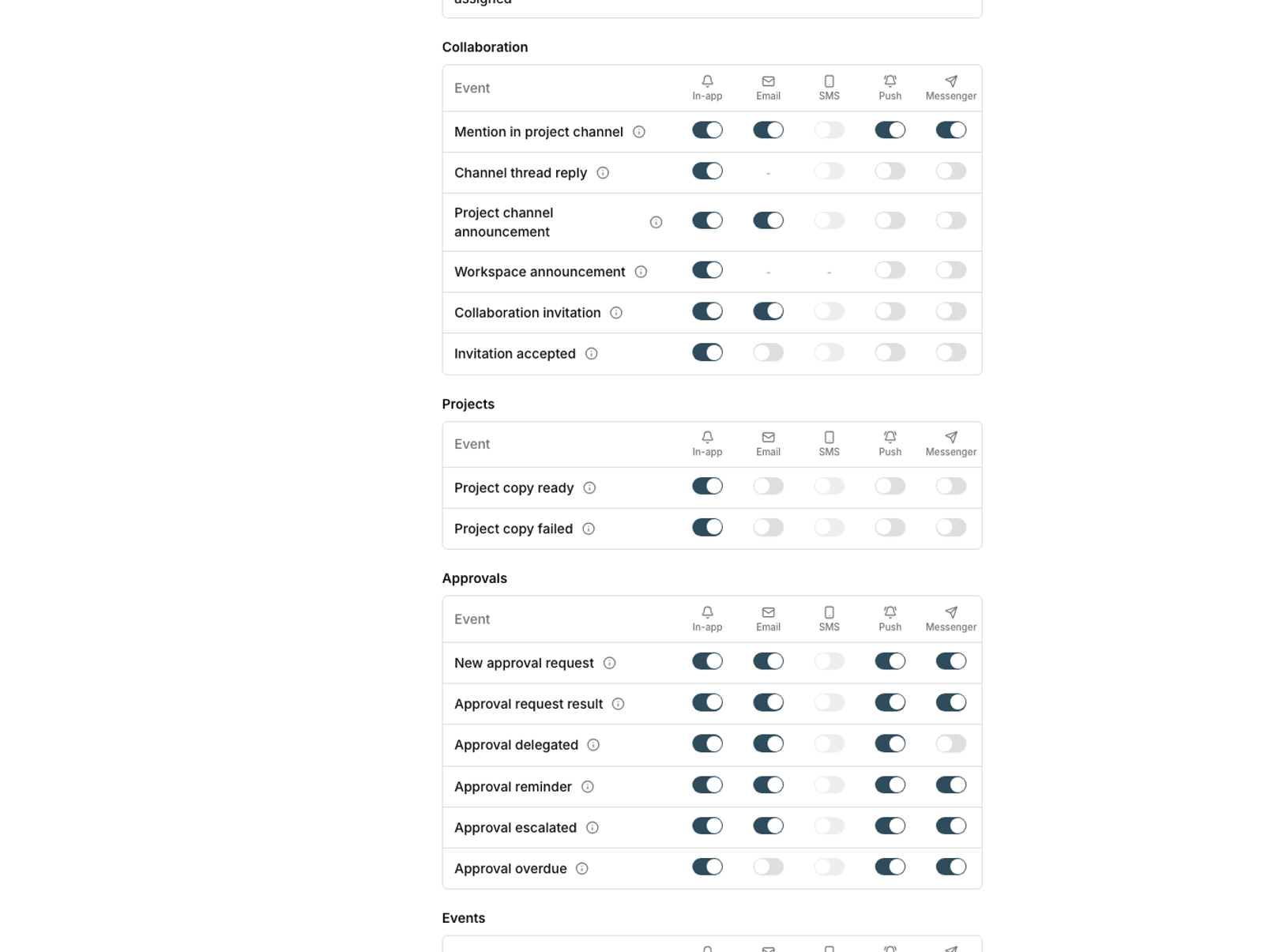
If you've set quiet hours, push notifications aren't sent during that window and messages stay in your notification inbox.
Working offline
When your internet connection drops, the app doesn't close. Data that's already loaded stays visible, and the changes you make go into a sync queue.
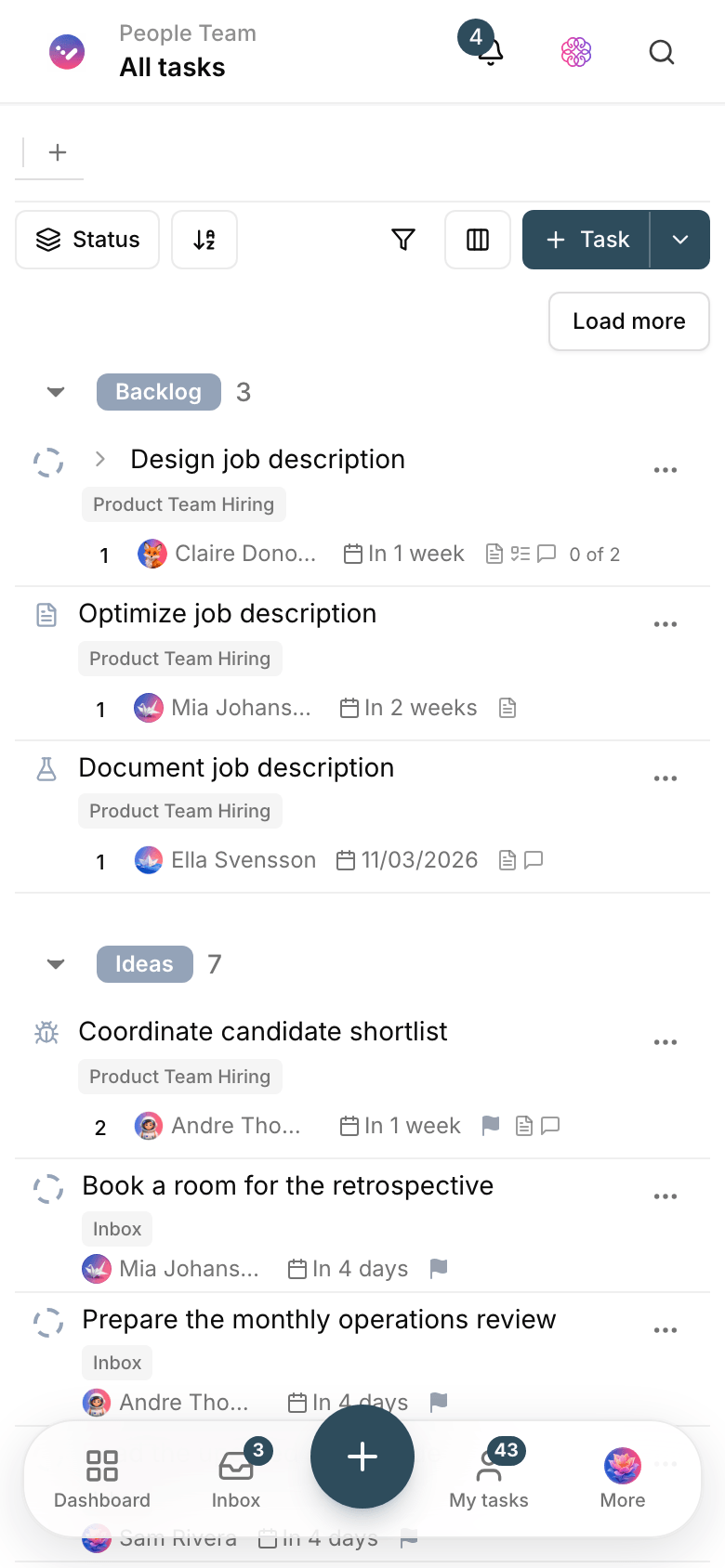
- Viewing: tasks and projects that have already loaded are available.
- Changes: your edits are saved locally and sent once you're connected again.
- Sync: when you're back online, the queue is processed in order.
- Conflicts: if someone else changed the same item in the meantime, the newer change wins.
Note: actions that need the server — such as uploading a large file, asking the AI assistant or exporting — don't work offline. Try again once you're connected.
Practical tips
- Before heading somewhere with a weak connection, open the projects you'll need once so their data loads.
- To capture an idea quickly on the go, use quick add or voice capture.
- When you're back online, refresh the list once to make sure all your changes have been sent.
Differences from the web app
The mobile app is built for quick tasks, not heavy work. Some admin areas are only complete in the web app.
- Good on mobile: reviewing work, changing status, replying to comments, quickly adding tasks and checking notifications.
- Better on the web: building automations, workspace settings, creating workflows, and heavy editing of documents and boards.
- Views: complex views such as Gantt are more limited on a small screen. Use the web app for detailed planning.
To set up notifications, see Set up notifications and reminders, and for programmatic access, see API access and tokens.