
Connect to Discord
Create an Incoming Webhook in a Discord channel so task events are posted to that channel.
The Discord connection ties your team's channel to the flow of work in Taskie: when a task is created, changes status, is completed, gets an assignee, receives a comment or passes its due date, a summary card is posted to that channel. You don't need to add any bot to your Discord server for this.
Scope of the current version: this connection is one-way. Taskie posts messages to the Discord channel but doesn't read the channel's messages. Unlike Slack, automatic task linking from Discord message text isn't available, because receiving server messages in Discord requires a persistent Gateway connection and the privileged MESSAGE CONTENT access. To work with tasks from inside Discord, use the Discord messenger bot instead of this connection.
Before you start
- In Taskie, you need to be a workspace owner or admin.
- In Discord, you need the Manage Webhooks permission on that server.
- You can connect one channel per workspace.
Create an Incoming Webhook in Discord
- In Discord, click the server name and then Server Settings.
- Go to Integrations, then Webhooks.
- Click New Webhook and choose the destination channel.
- Set the name and image you want, then click Copy Webhook URL.
Create the connection in Taskie
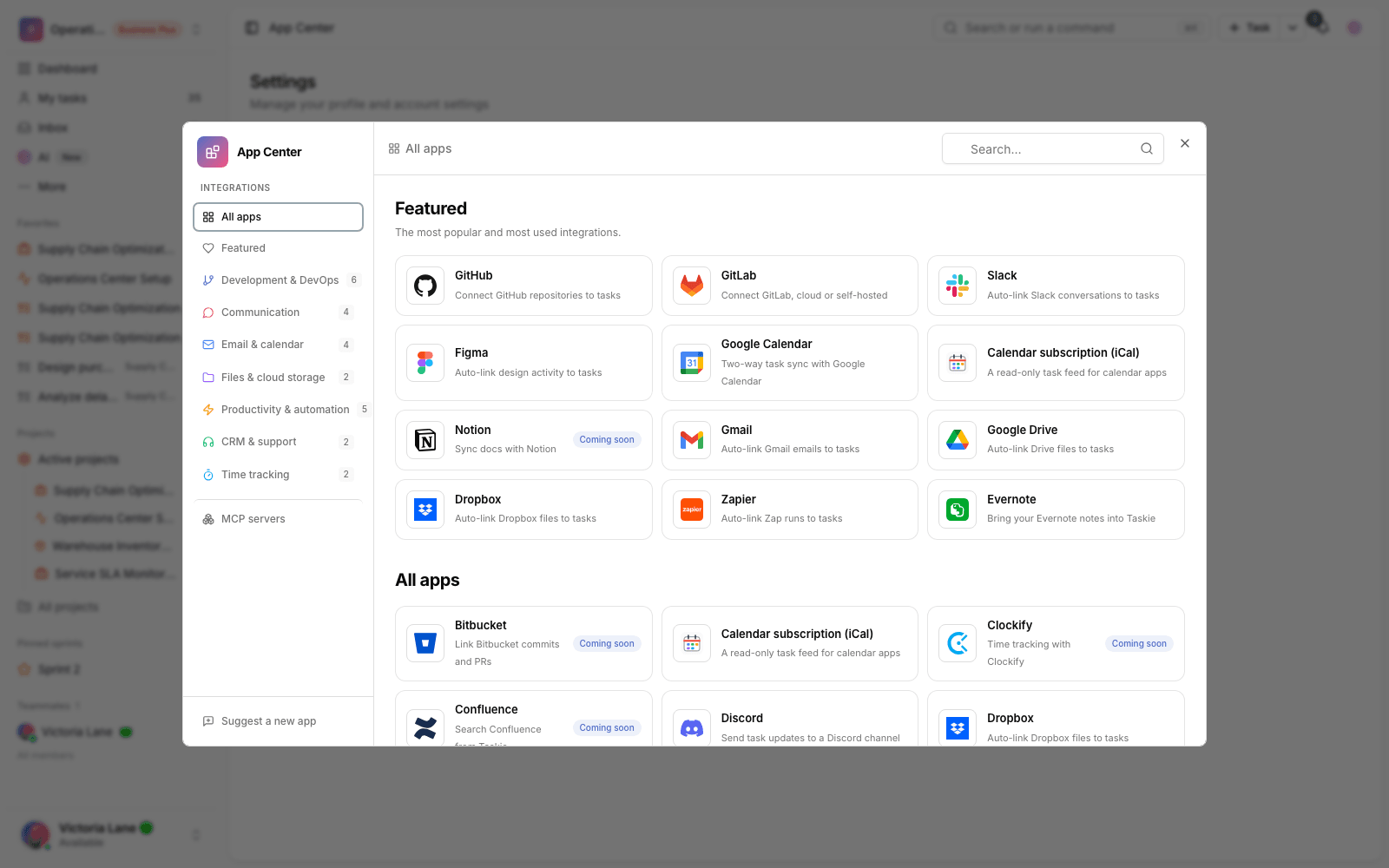
- In Taskie, open the App Center and choose Discord.
- Click Connect to open the form.
- Paste the copied URL into the Webhook URL field.
- Check the events you want posted to the channel.
- Click Connect Discord. Taskie checks the URL right away, and if it isn't valid, the connection isn't created.
Events that are posted
- Task created
- Status changed
- Task completed
- Assignee set
- Comment added
- Due date passed
If you've selected both Status changed and Task completed, finishing a task creates just one message, not two.
Security
- The webhook URL is a key: anyone who has it can post messages in that channel.
- The URL is stored encrypted and isn't shown again after you save it.
- Taskie only accepts URLs that belong to discord.com.
- Task text is neutralized before it's sent, so writing @everyone in a task title doesn't ping the whole server.
- To revoke access, delete the webhook in Discord itself. Deleting the connection in Taskie stops posting, but it doesn't remove the webhook from Discord.
Limitations
- Channel messages aren't read, and there's no automatic task linking.
- Posted cards don't have interactive buttons.
- The channel name isn't read from Discord, so add a label of your own to make it easier to recognize.
- One channel is supported per workspace. Splitting by project is coming in a later version.
- If the webhook is deleted in Discord, the connection is disabled automatically and has to be created again.
To work with tasks from inside Discord — viewing your task list, creating tasks and asking the assistant — use the Discord messenger bot. For similar connections, see Connect to Slack and Connect to Zapier.