
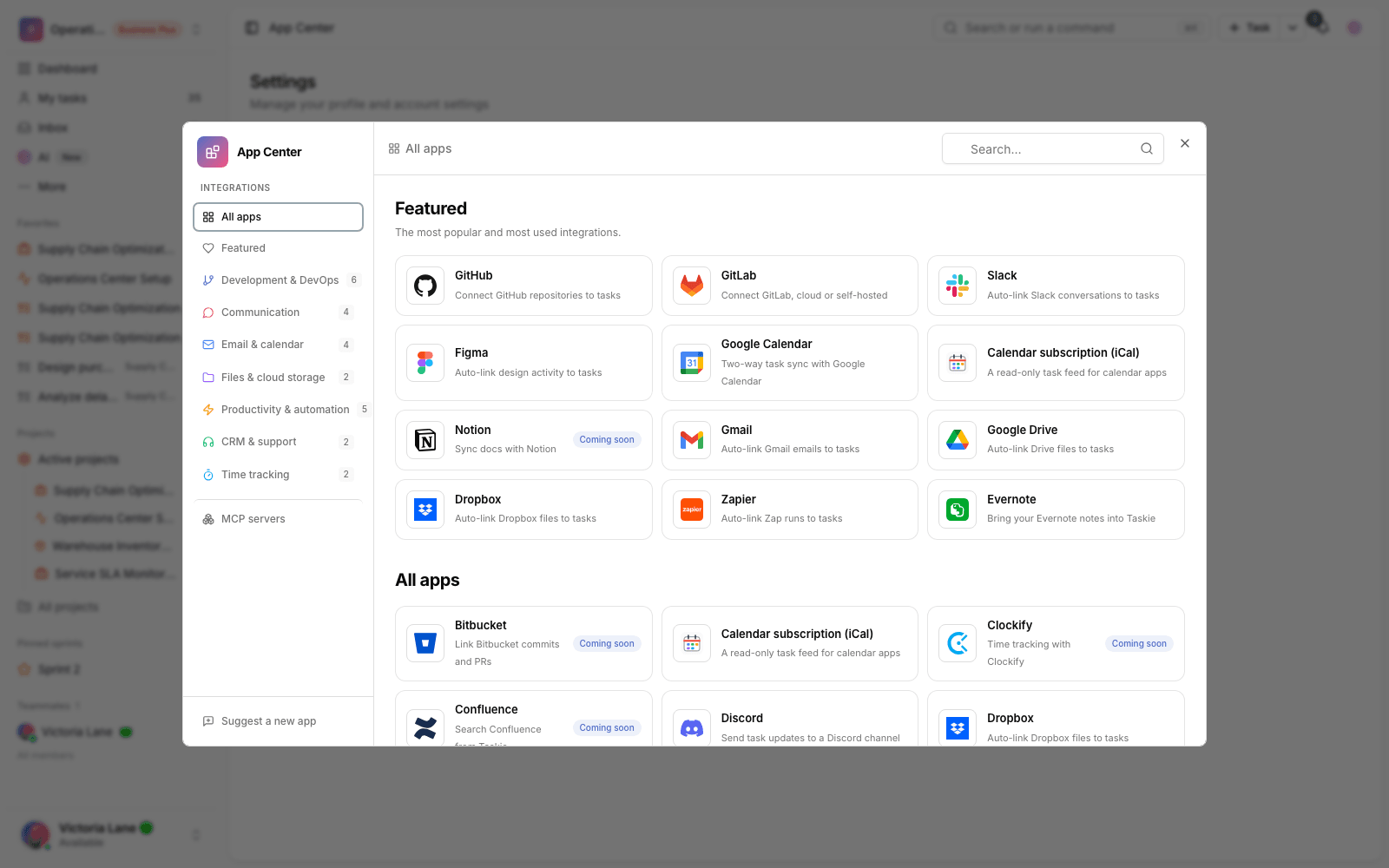
Connect to Zapier
Set up a secure webhook from Zapier to Taskie so Zap runs that include a task ID are linked to that task automatically.
The Zapier connection in Taskie gives your Zaps a secure way in. Any Zap can send a payload to Taskie with Webhooks by Zapier or a Custom Request, and if the payload includes a task ID, that Zap run is linked to the task.
Scope of the current version: this version is an incoming webhook bridge. An official Zapier app with OAuth, Taskie triggers, actions to create or edit tasks, find steps, polling/REST hook triggers and managing Zaps from inside Taskie are coming in later phases.
Before you start
- Only a workspace owner or admin can create or disconnect the workspace Zapier connection.
- In Taskie, you register a Zapier account ID and a Webhook Secret for the connection.
- In Zapier, you need to send that same ID in the X-Zapier-Account-ID header and that same secret in the X-Taskie-Zapier-Secret header or as an Authorization Bearer token.
- The secret isn't stored in the webhook delivery record and shouldn't be included in the payload.
- This connection isn't for creating tasks directly from a Zap. For now, it links Zap runs to existing tasks.
Create a workspace connection
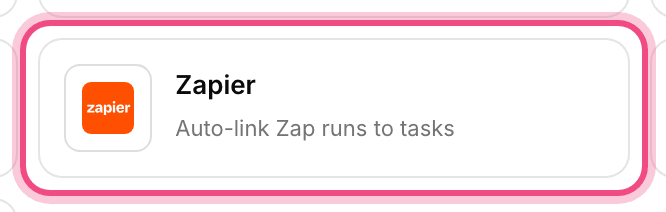
- In the Taskie App Center, open Zapier and choose the Workspace tab.
- Enter a stable Account ID, such as zapier-team-123.
- Create a strong Webhook Secret and enter it in the secret field.
- In Zapier, add a Webhooks by Zapier or Custom Request step and point it at Taskie's endpoint.
- Set the X-Zapier-Account-ID and X-Taskie-Zapier-Secret headers and, if possible, X-Zapier-Delivery and X-Zapier-Event.
Delivery ID: if your Zap sends the X-Zapier-Delivery header, Taskie uses it to avoid recording the same delivery twice. If you don't send it, Taskie uses event_id or IDs from the payload.
Automatically link Zaps to tasks
For automatic linking, send the task ID in the payload's title, description, body, message or task_reference. These forms are supported:
- TASK-12 — the ID on its own.
- #TASK-12 — with a # prefix.
- CU-TASK-12 — with a CU- prefix.
- #9fq2b1 — the task's hashed ID, only with a # or CU- prefix.
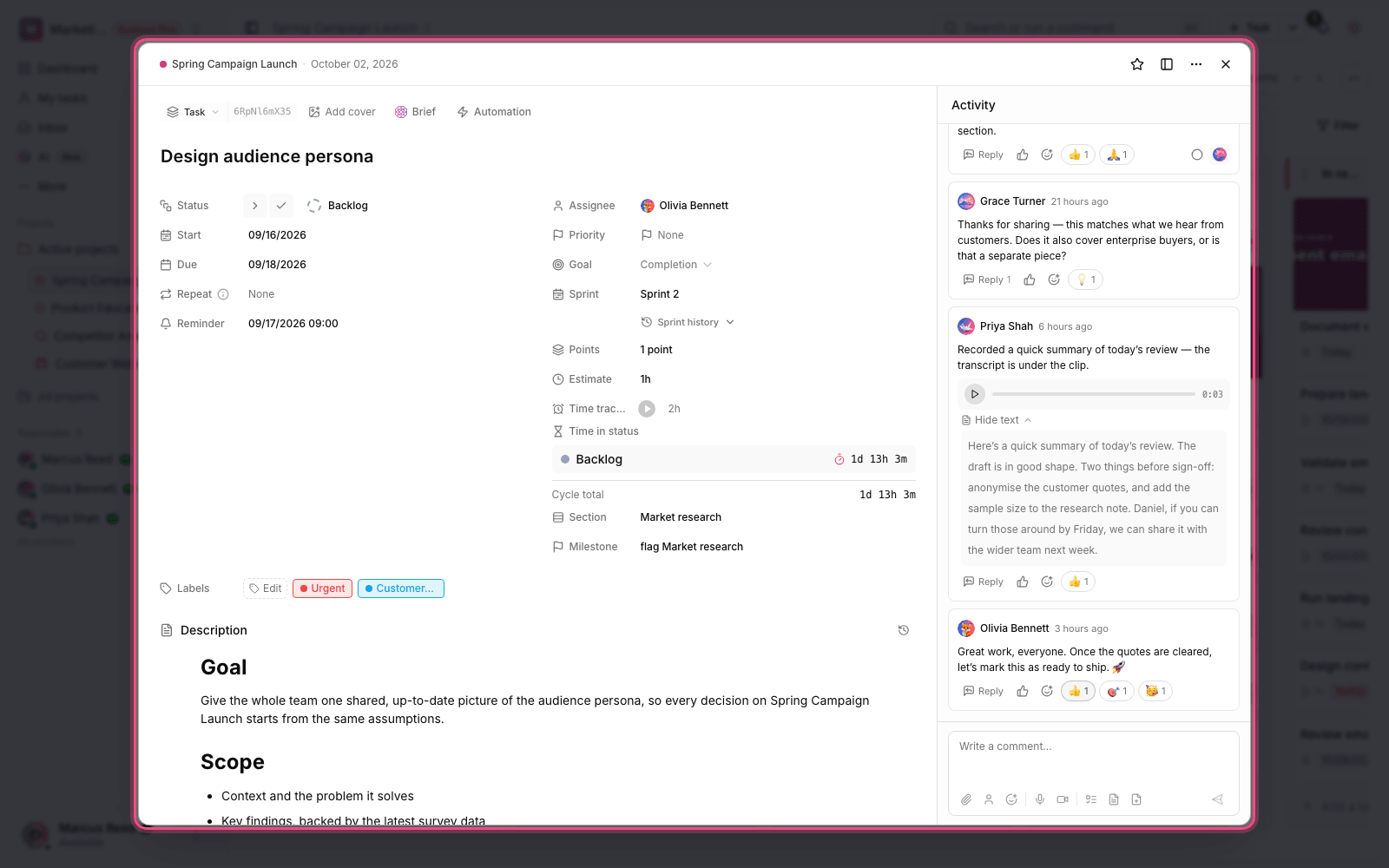
For example, a payload whose title is TASK-71 customer reply is linked to task TASK-71 and appears in the task's Linked items section.
Task status and actions
In the current version, Zapier doesn't change task status. If you send TASK-71[Done] in the payload, the Zap run is linked to the task, but the task's status doesn't change. Real actions such as creating a task, adding a comment, changing status and finding a task are still part of the upcoming official Zapier app.
Manage and disconnect
The connection status and the time of the latest event appear in the Integrations tab of your workspace settings. An owner or admin can disconnect it from Taskie. To stop requests completely, also turn off the related webhook step or Zap in Zapier.
Common mistakes
- Sending the secret inside the payload instead of a header. The secret must be sent in a secure header.
- Forgetting the X-Zapier-Account-ID header. Taskie uses this value to find the right connection.
- Expecting a Zap to create a new task. The current version only links to existing tasks.
- Not sending a task ID in the payload. Without an ID, the delivery is processed but no link is created.
- Expecting a status change from status brackets. Zapier only links; it doesn't change the status.
Next step: to connect messages to tasks, see the Slack guide. To connect files, review the Google Drive and Dropbox guides.