
Time zone and message formats
Set your time zone and how dates and times are displayed so notifications, reminders and timestamps are accurate and shown correctly.
Every notification, reminder and timestamp in Taskie depends on two things: when "now" is for you, and how you want to see dates and times. If your account's time zone is wrong, a task reminder can arrive hours early or late; and if the display format doesn't match what you're used to, reading times at a glance gets harder.
Fortunately, both are set in one place with a few clicks. This guide shows where and how to set your time zone, how to pick your calendar system and date format, the difference between the 12-hour and 24-hour clock, and how these settings affect the accuracy of your notifications and reminders.
Where are these settings?
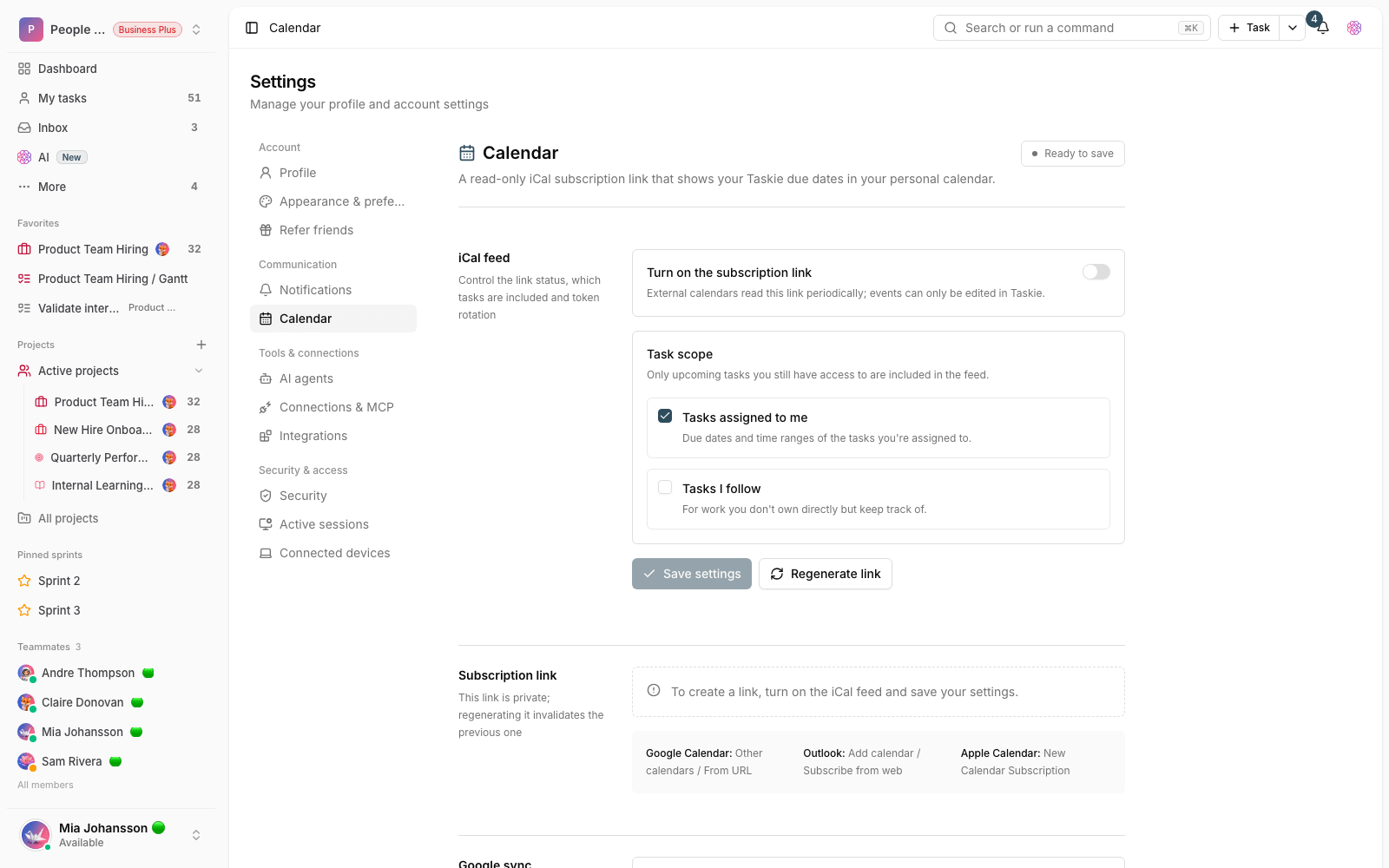
Time zone and display format are part of your account's Preferences. From your account menu, go to Settings and open Appearance & preferences. There you'll also see a short note that these values control How dates, times and reminders are shown. These settings are personal: every team member can have their own time zone and format without affecting anyone else.
Set your time zone
Your time zone decides which local time schedules are calculated in. It directly affects when reminders arrive, how push Quiet hours are calculated and how timestamps are displayed.
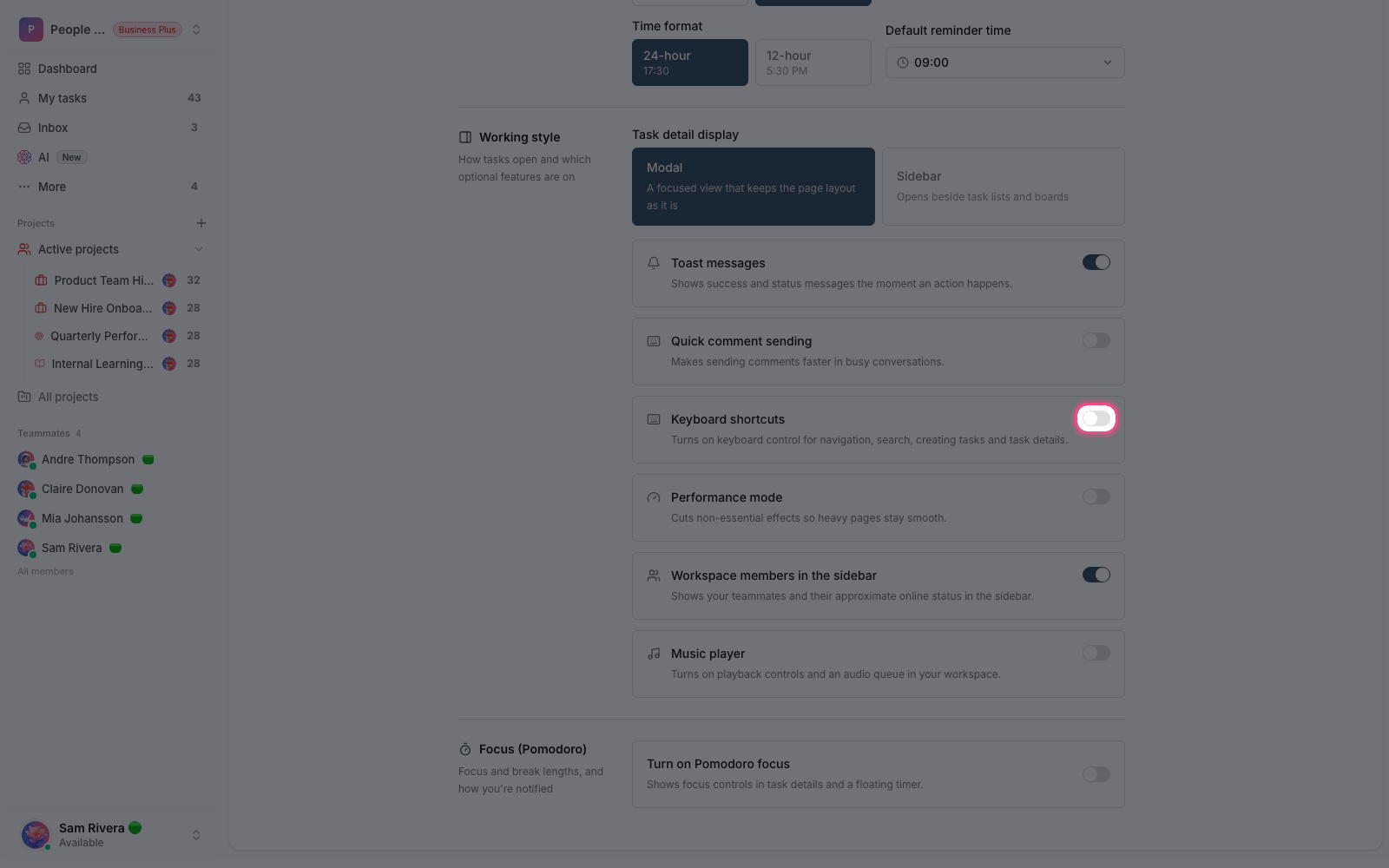
- Go to Settings, then open your preferences.
- Click the Time zone picker to open the list.
- Type a city or region name in the search box (for example, London) to find it faster.
- Pick the right time zone rather than relying on the default, even if times already look roughly right.
- Save your changes so future schedules use this time zone.
Date and time display format
Here, "message format" means the way dates and times are shown to you throughout Taskie, including in reminders and notifications. You have two main choices:
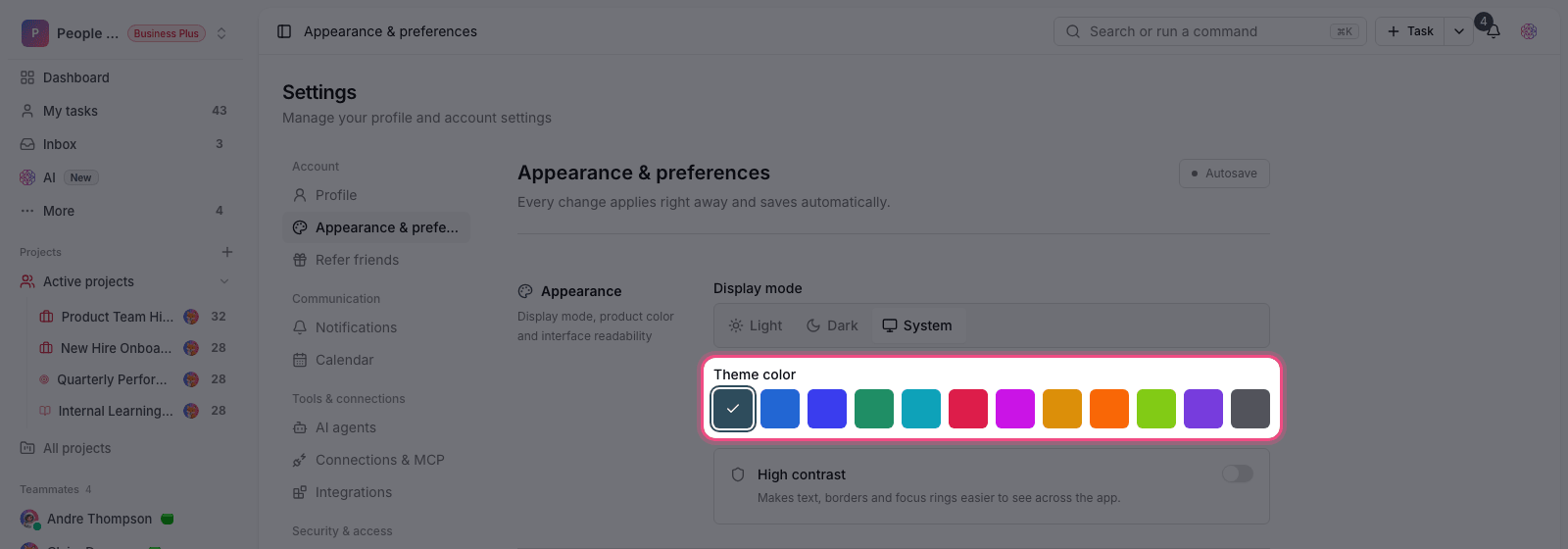
- Calendar and date format: the calendar system your team plans in and how dates are written (for example 2026/05/20).
- Time format: 24-hour (such as 17:30) or 12-hour (such as 5:30 PM).
- Default reminder time: the time the quick reminder options use by default.
These choices aren't just cosmetic. Because every timestamp, calendar header and reminder text follows this format, getting it right makes everything look consistent and trustworthy. If your team plans around a particular calendar, choosing it here makes dates feel more natural for everyone.
Why do these settings affect notification accuracy?
Imagine you set a 9 AM reminder on a task, but your account's time zone is wrong. The notification then arrives at 9 AM in that other time zone, not at 9 AM where you are. The same goes for push Quiet hours: the silent window is calculated in your time zone. That's why setting the right time zone is the most important step before you rely on reminders.
Tip: If your team members work in different cities or countries, each person should set their own time zone so times display correctly for everyone and reminders arrive on time.
Common mistakes
- Ignoring the time zone and then wondering why reminders arrive at the wrong time.
- Changing the time format and expecting schedules to shift too. The format only changes how time is displayed, not the time itself.
- Setting the default reminder time to an hour when you're usually not at work, and then missing reminders.
- Assuming one person's format setting affects everyone else. These settings are fully personal.
Next step: now that your times are accurate, choose which events and reminders reach you through which channel in Set up notifications and reminders. To get notifications right next to your team chat, you can also set up messenger bots.