
Connect to GitLab
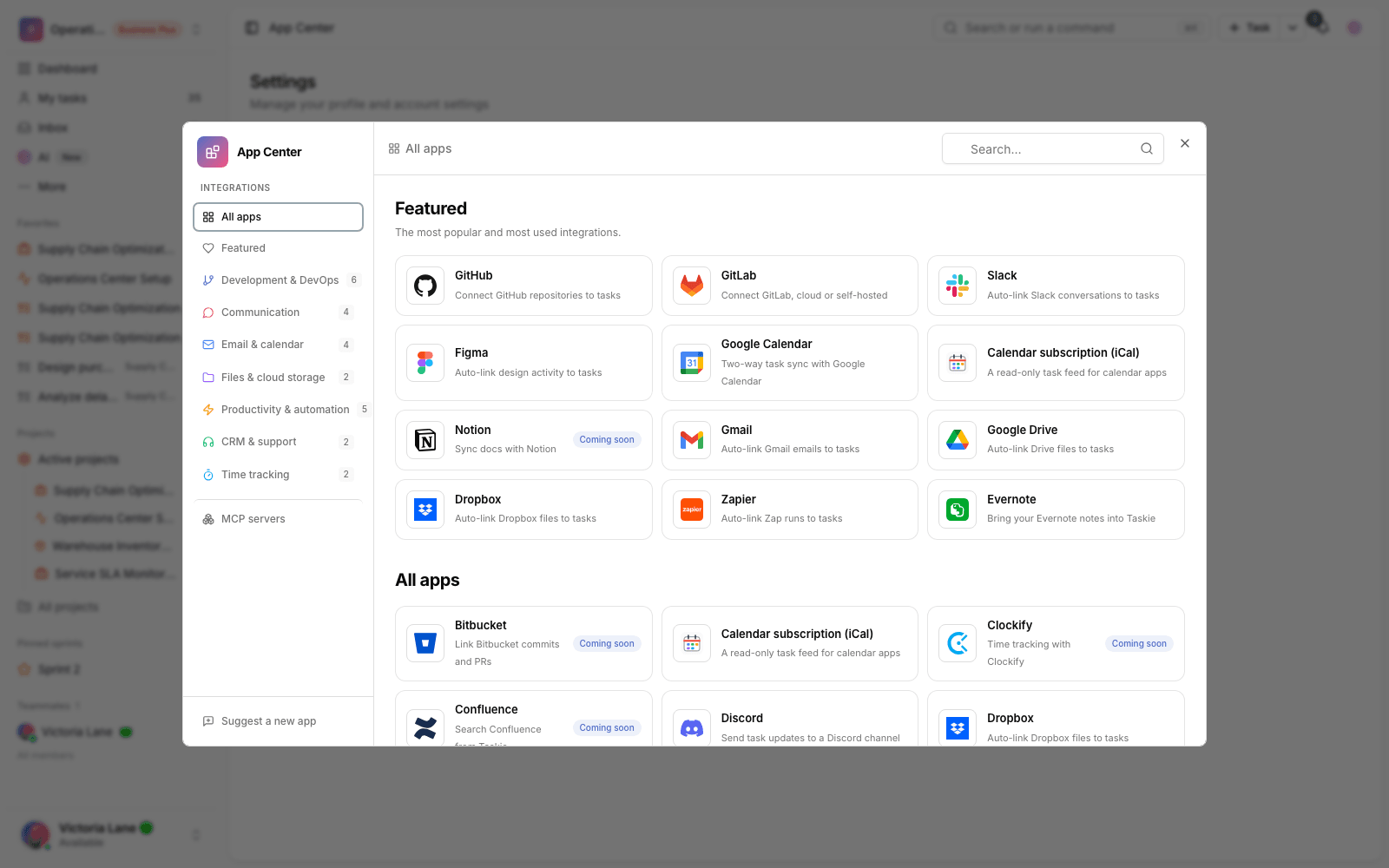
Connect GitLab projects (cloud or self-hosted) to your workspace so merge requests, commits and issues link to Taskie tasks automatically and task status stays in step with development work.
Connecting GitLab to Taskie keeps your code projects and your tasks moving together. Once a GitLab project is connected to your workspace, merge requests, branches, commits and issues that mention a task ID are linked to that task automatically, and you can move the task's status forward from that same development work. Both GitLab cloud (gitlab.com) and self-hosted instances are supported.
As with GitHub, there are two kinds of connection: a workspace connection, which a workspace admin sets up and which drives automatic linking and status updates, and a personal connection, which each member creates for their own account.
Before you start
- Only a workspace owner or admin can create a workspace connection to GitLab.
- You need a GitLab Personal Access Token that's allowed to read projects and create webhooks.
- The number of workspace integrations may be limited depending on your plan. Personal connections have no limit.
- Connecting a project doesn't give Taskie users access to your code.
Workspace connection
You set up a workspace connection from the App Center or the Integrations tab in your workspace settings. For GitLab, you provide an access token and, if you're self-hosted, your own server URL.
- In GitLab, create a Personal Access Token with the scopes needed to read projects and manage webhooks, and copy it.
- In Taskie, choose GitLab in the App Center and open the Workspace tab.
- If you use GitLab cloud, leave the server URL empty so gitlab.com is used. For a self-hosted instance, enter the full server URL.
- Paste the access token and, if you like, add a label for this connection.
- Pick the projects you want to sync and save the connection. Taskie automatically creates the required webhook for each project.
Tip: to make sure every project shows up correctly, it's best to set the token's access at the level of the projects themselves. If you don't see a project, check that the token is valid and has access to it.
Self-hosted GitLab and network access
If your GitLab server is behind a firewall or only accepts incoming traffic from specific IPs, you need to allow the Taskie service through your firewall so webhooks and API calls can connect. If the server URL isn't reachable from the public internet or points to a private IP, the connection won't work. Contact support to get the addresses you need to allow in your firewall.
Personal connection
Any member can create a personal GitLab connection from the App Center to make it simpler to tie their own work to tasks. Your personal account data isn't shared with anyone else.
Link a task to GitLab activity
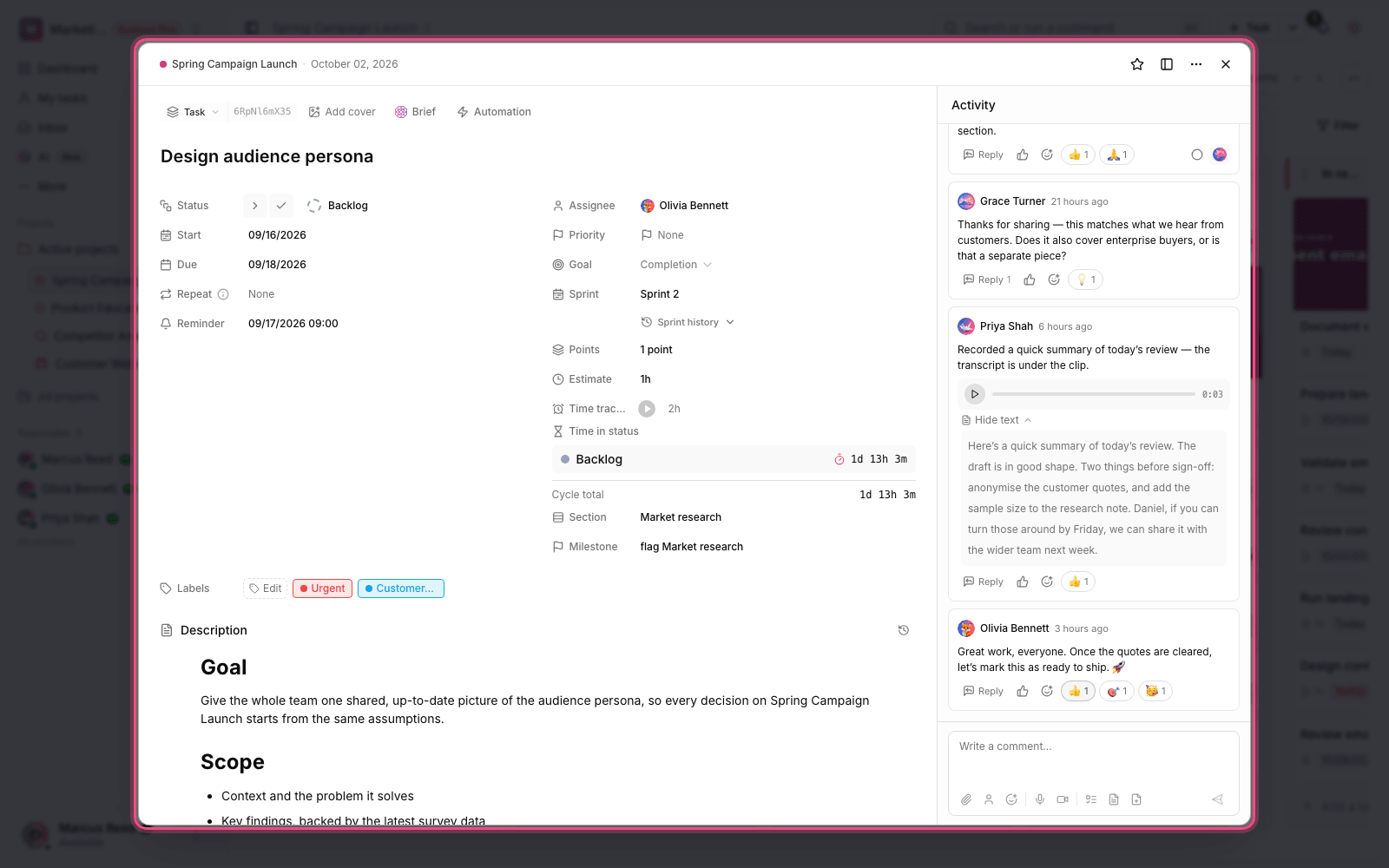
Automatic linking with the task ID
Write the task ID somewhere in your GitLab work and the task is linked to that merge request, branch, commit or issue automatically. You can write the ID in the branch name, the commit message, the merge request title or the merge request description. Three forms are accepted:
- TASK-12 — the ID on its own.
- #TASK-12 — with a # prefix.
- CU-TASK-12 — with a CU- prefix.
For example, a branch named feature/TASK-12 or a merge request titled "TASK-12 Fix login" is automatically linked to task TASK-12.
Manual linking by pasting a URL
On the task page, open the Linked items section, paste the URL of a GitLab merge request, issue or commit, and click Add. Links are listed right there and can be removed.
Automatic task status updates
- Merging a merge request: when a merge request linked to a task is merged, that task is automatically marked as done.
- Setting a specific status: if you write the ID as TASK-12[status name], the task moves to that status — for example TASK-12[Done].
Important: don't put a space between the ID and the status brackets, and make the name in the brackets exactly match one of that project's statuses. Otherwise the task is only linked and its status doesn't change. An admin can turn automatic linking and status updates on or off for each connection.
Notifications for important events
Some events, such as a failed pipeline on linked work or a newly opened issue, send notifications to the people involved in the task. You can choose how these notifications reach you in Set up notifications and reminders.
Manage and disconnect
The connection status, synced projects and the time of the latest event appear in the Integrations tab of your workspace settings. Only an owner or admin can disconnect the workspace connection. When you disconnect, the webhooks Taskie created are removed and events stop arriving, but the git links already on tasks stay in place.
Common mistakes
- Using an access token without enough scope. If project sync or webhook creation fails, check the token's access level.
- Entering the wrong self-hosted server URL, or access being blocked by a firewall. The server must be reachable from outside.
- Writing the ID with a space before the status brackets. The correct form is TASK-12[Done].
- Using a status name that doesn't exist in the project.
Next step: if you also use GitHub, see Connect to GitHub. For programmatic access and tokens, review API access and tokens.