
Connect to Dropbox
Connect your workspace's Dropbox account to Taskie so file changes arrive through a secure webhook and files with a task ID in their name or path link to that task automatically.
The Dropbox connection in Taskie is for teams that want to see changes to important files next to their tasks. Once the workspace's Dropbox account is connected, Taskie accepts signed Dropbox webhooks and links files that have a task ID in their name or path to that task.
Scope of the current version: this version focuses on receiving webhooks securely and linking files to tasks automatically. Searching Dropbox content, a file attachment picker, rich Dropbox link previews, the /dropbox command and full OAuth connection are coming in a later phase.
Before you start
- Only a workspace owner or admin can create or disconnect the workspace Dropbox connection.
- You need to register Taskie's webhook URL in your Dropbox app settings.
- The Dropbox app secret must be configured in the Taskie server settings so the X-Dropbox-Signature signature can be verified.
- To map events to the right connection, enter the Dropbox account ID in the dbid:... format in the connection form.
- The number of workspace connections follows your plan's limits. Personal Dropbox connections aren't available in the current version.
Create a workspace connection
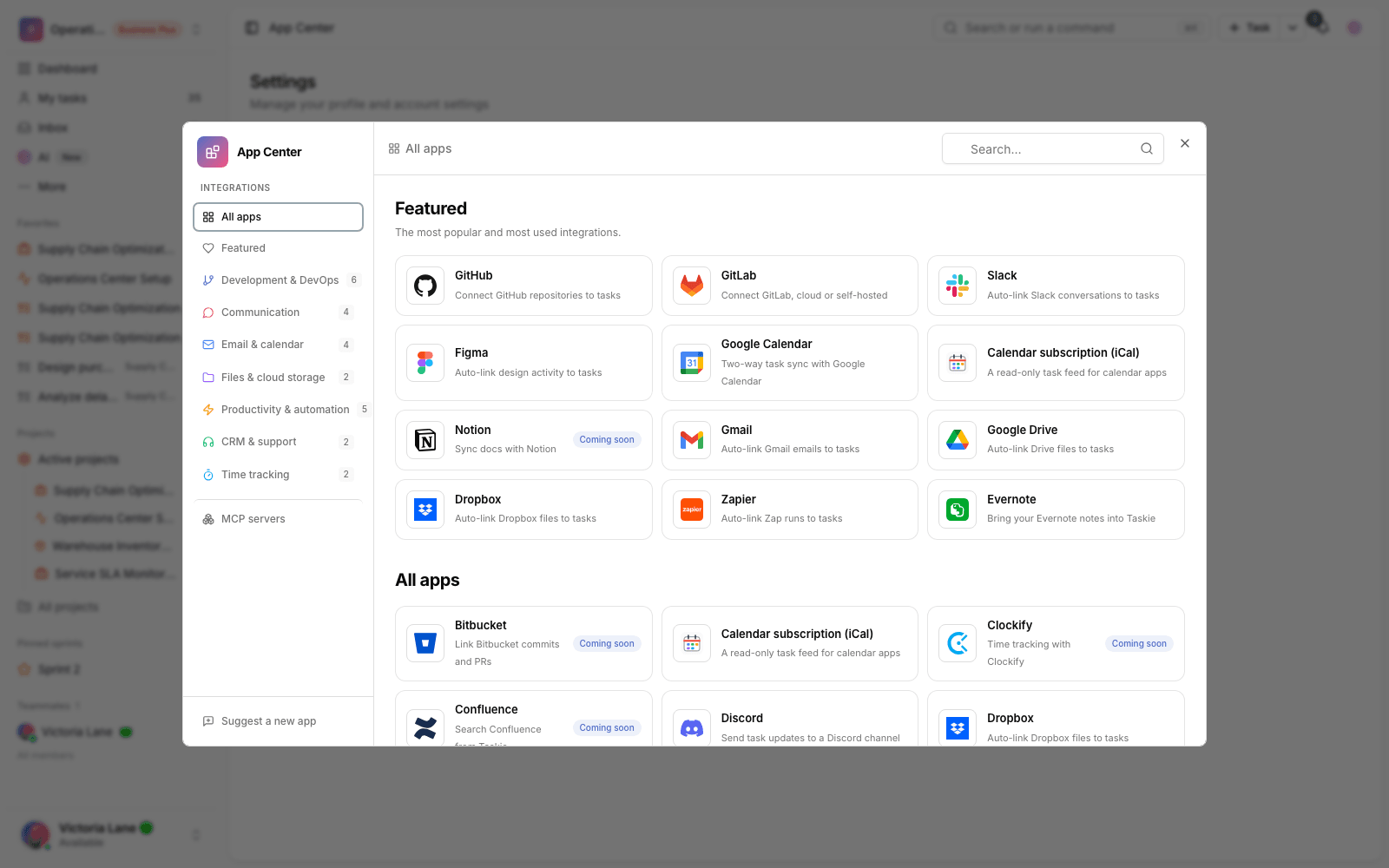
- In the App Center, open Dropbox and choose the Workspace tab.
- Enter the Dropbox account ID in the dbid:... format.
- If you need an access token for later processing, enter it in the optional token field. The token is stored encrypted.
- Write a short label for the connection and click Connect Dropbox.
- In the Dropbox app console, register Taskie's webhook URL and complete the verification request.
Webhook verification: Dropbox first sends a GET request with a challenge parameter. Taskie returns the same value as a plain-text response with the nosniff header. Later POST requests are only accepted when their HMAC signature is valid.
Automatically link files to tasks
To link a Dropbox file to a task automatically, put the task ID in the file name or folder path. The same ID patterns as GitHub and GitLab are supported:
- TASK-12 — the ID on its own.
- #TASK-12 — with a # prefix.
- CU-TASK-12 — with a CU- prefix.
- #9fq2b1 — the task's hashed ID, only with a # or CU- prefix.
For example, the file TASK-24 brief.pdf or the path /Campaign/TASK-24/assets is linked to task TASK-24, as long as that task is visible in the same workspace.
Task status and status commands
In the current version, Dropbox doesn't change task status. If you write something like TASK-24[Done] in a file name, the file is still linked to the task, but the task's status doesn't move. Automatic status changes are currently only available for GitHub and GitLab events.
Manage and disconnect
The connection status and the time of the latest event appear in the Integrations tab of your workspace settings. A workspace owner or admin can disconnect it. After you disconnect, new events aren't processed, but existing links on tasks stay in place.
Common mistakes
- Entering the wrong account ID. The value must be the account Dropbox sends in list_folder.accounts.
- Not configuring the Dropbox app secret. In that case, every POST request is rejected.
- Expecting content search or attaching files directly from Dropbox. These features aren't available in the current version yet.
- Writing the task ID in a Dropbox internal description instead of the file name or path. Automatic linking reads the text of the file event.
- Expecting a status change from status brackets. Dropbox only links; it doesn't change the status.
Next step: if you want task status to change with development work, see Connect to GitHub or Connect to GitLab. To choose how notifications reach you, review Set up notifications and reminders.