
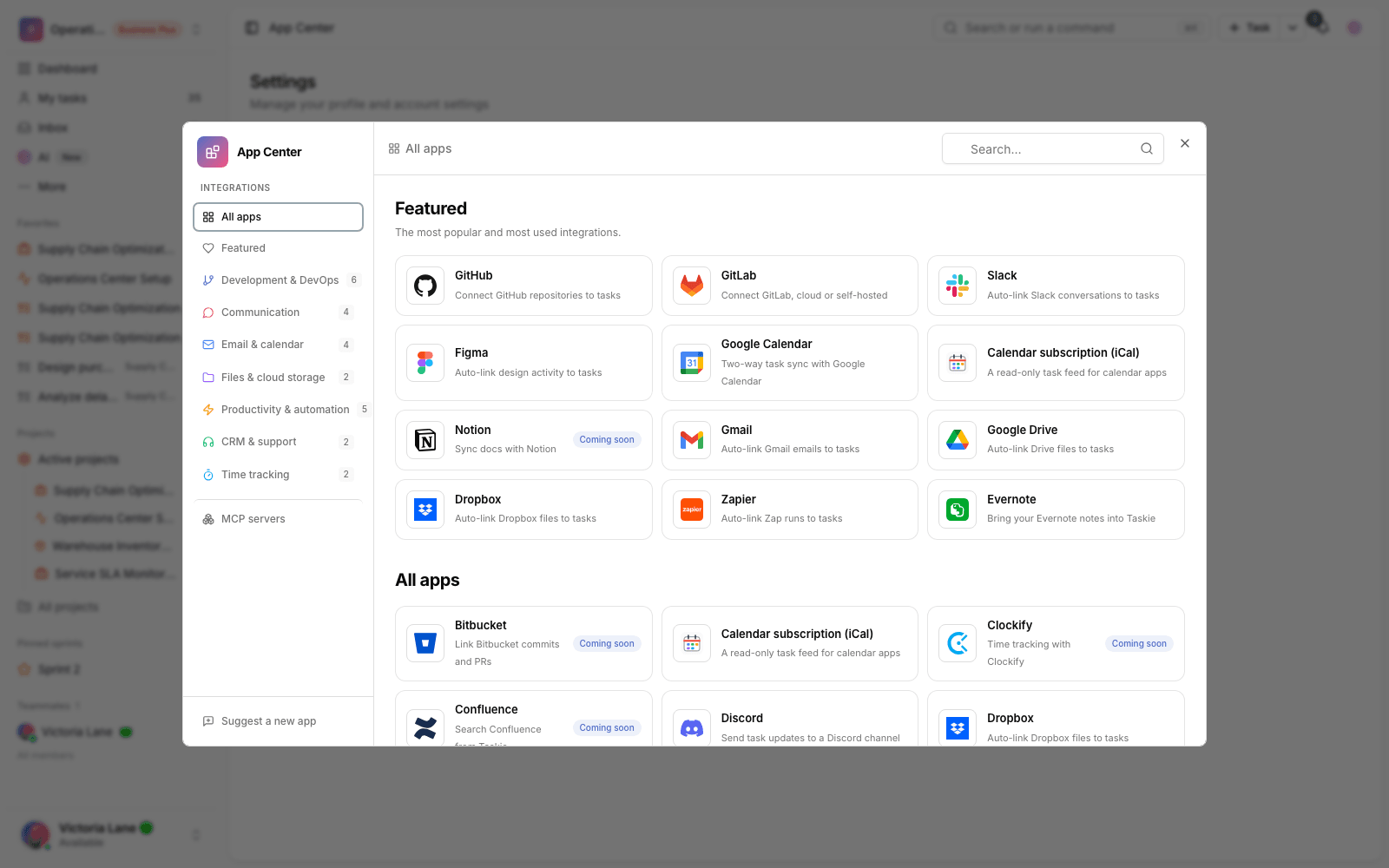
Connect to Gmail
Add Gmail to Taskie and, for webhook scenarios, link enriched Pub/Sub notifications to the related tasks.
The Gmail connection in Taskie has two paths: a personal connection in the App Center that registers the user's account, and a workspace connection that securely receives Gmail notifications from Cloud Pub/Sub. If an enriched payload includes the email's subject or body and a task ID appears in it, that email is linked to the task.
Scope of the current version: this version focuses on the App Center, receiving Pub/Sub securely and linking enriched payloads automatically. Real Connected Search over your personal inbox, full Gmail OAuth, searching the past 365 days, Brain/Agent tools for creating and searching drafts, External Search for Super Agents and fetching history/messages with the Gmail API are coming in later phases.
Before you start
- A personal Gmail connection is only shown to that user and doesn't create a workspace connection.
- Only a workspace owner or admin can create or disconnect the workspace Gmail connection.
- For the workspace webhook, a Cloud Pub/Sub push subscription must send to Taskie's endpoint.
- In Google, the Gmail API, a Cloud Pub/Sub topic and publish permission for the gmail-api-push@system.gserviceaccount.com service must be set up.
- Official Gmail notifications usually only contain emailAddress and historyId. For automatic linking, a later processing step has to add the email's subject, snippet or body to the Taskie payload.
Create a personal connection
- In the App Center, open Gmail.
- Choose the Personal tab.
- Click Connect to register the personal connection in the App Center.
- To remove it, choose Disconnect from the personal connection's menu.
Create a workspace connection for Pub/Sub
- In Google Cloud, create a topic and push subscription for Gmail notifications.
- In the Gmail API, run users.watch for the mailbox you want, with the topicName and, if needed, labelIds.
- In the Taskie App Center, open Gmail and choose the Workspace tab.
- Enter the Gmail address, Pub/Sub Secret, optional access token and a label for the connection.
- In the push subscription or reverse proxy, send the secret in the X-Taskie-Gmail-Secret header or as an Authorization Bearer token.
Pub/Sub security: Taskie compares the secret with the connection's encrypted value. The secret and Authorization headers aren't stored in the webhook delivery record.
Automatically link emails to tasks
For automatic linking, the task ID must appear in the enriched payload's subject, snippet, body or task_reference. These forms are supported:
- TASK-12 — the ID on its own.
- #TASK-12 — with a # prefix.
- CU-TASK-12 — with a CU- prefix.
- #9fq2b1 — the task's hashed ID, only with a # or CU- prefix.
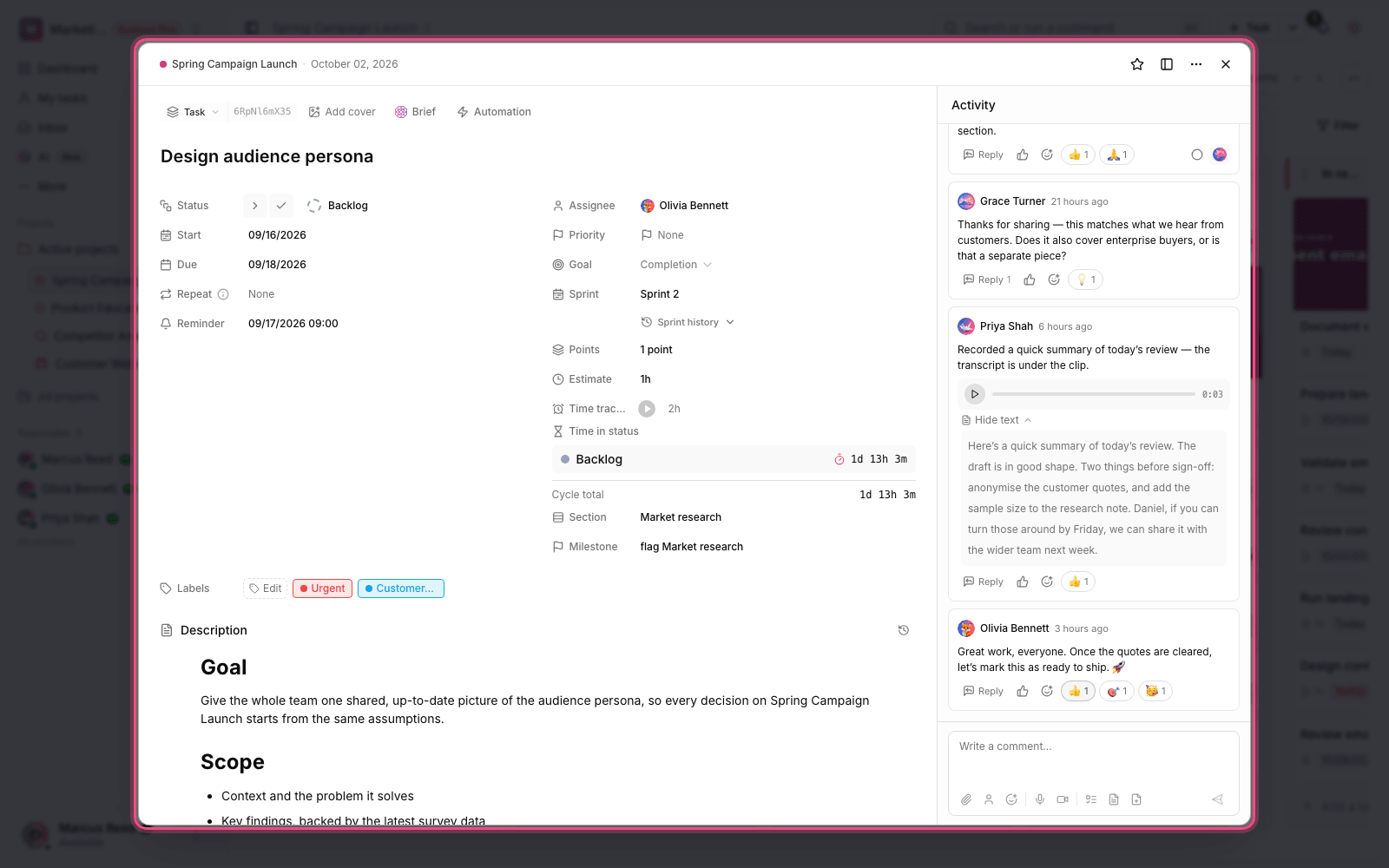
For example, an email with the subject TASK-81 client handoff is linked to task TASK-81 and appears in the task's Linked items section.
Task status and inbox search
In the current version, Gmail doesn't change task status. If an email contains TASK-81[Done], the email is linked to the task, but the status doesn't change. Direct inbox search, draft tools and External Search aren't available in this version yet.
Manage and disconnect
You disconnect a personal connection from the App Center, and a workspace connection from your workspace's integration settings. To stop Gmail notifications completely, stop the watch with the Gmail API or disable the related push subscription in Google Cloud.
Common mistakes
- Expecting inbox search after creating a personal connection. Real Gmail search isn't available in the current version yet.
- Sending Pub/Sub messages without the secret. Requests without a secret are rejected.
- Forgetting to renew users.watch. A Gmail watch must be renewed before it expires.
- Expecting full email details in the official Gmail notification. The original notification only contains emailAddress and historyId.
- Expecting a status change from status brackets. Gmail only links; it doesn't change the status.
Next step: if you want emails to come in through other automations, see the Zapier guide. For Google's calendar, review Google Calendar.