
API access and tokens
Connect AI tools to Taskie with an MCP token, and follow your task calendar with a private link.
Sometimes you want to use Taskie beyond the app itself — for example, read your tasks from inside an AI assistant or code editor, or connect your everyday calendar app to your Taskie tasks. These things work through tokens: a secret string that lets an external tool talk to Taskie on your behalf, with your access.
Taskie offers this access in a controlled way and ties every token to a specific user, workspace and expiration date. This guide covers the two main paths: creating and managing MCP tokens for AI tools, and subscribing to your task calendar with a private link.
MCP connections for AI tools
Taskie has a standard MCP endpoint that AI tools and editors such as Cursor, VS Code, Windsurf, Zed and Claude Code can use to read your tasks and projects and work with tools like task_list. The connection runs through a remote HTTP server and needs a token for authentication.
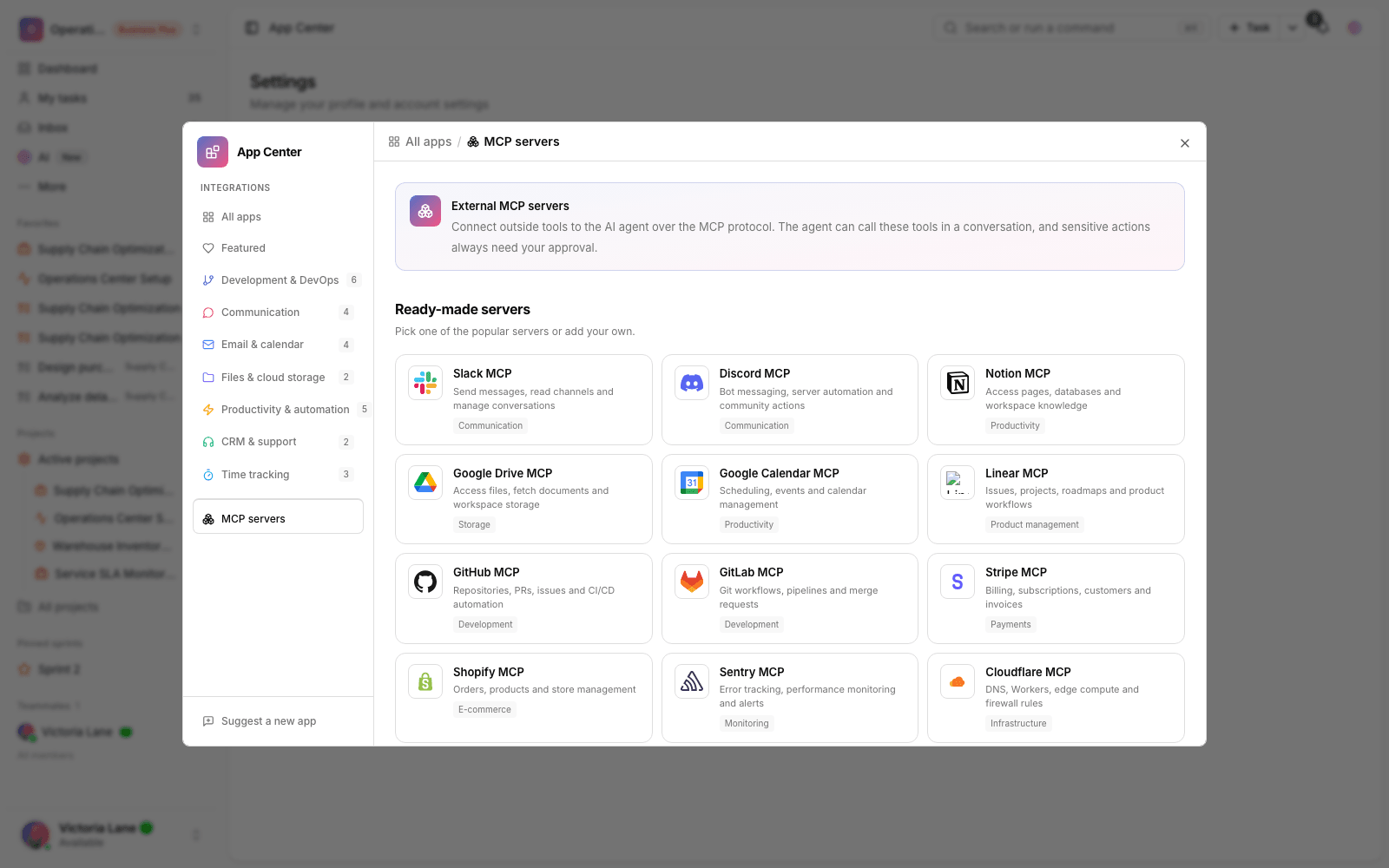
You create tokens in the Connections & MCP section of your account settings. Each connection is limited to one workspace, so it only gives access to that workspace. To create a new token:
- Go to Settings, then open Connections & MCP.
- Choose a descriptive name for the connection (for example, the name of the tool you're connecting).
- Pick the workspace you want the token to have access to.
- Set how long the token is valid: 30, 90, 180 or 365 days.
- Create the token and copy it right away — it's only shown once.
- Add the token to the destination tool's settings (usually in the Authorization header as a Bearer token).
Security warning: an MCP token is shown only once, when it's created. Keep it somewhere safe and don't share it with anyone: whoever has this token can work in that workspace with your access.
Manage and deactivate tokens
On the same page, you'll see a list of the connections you've created, along with whether each one is active, when it was last used and when it expires. If you no longer need a token, or you're worried it has leaked, you can deactivate the connection. That revokes the token and it stops working. Tokens also stop working automatically when they expire, and you'll need to create a new one to keep going.
Subscribe to your task calendar
If you want to see your tasks in your everyday calendar app, Taskie provides a private calendar subscription link (in the standard ICS format). The link includes a secret token: just add it to your calendar app and your tasks show up as events.
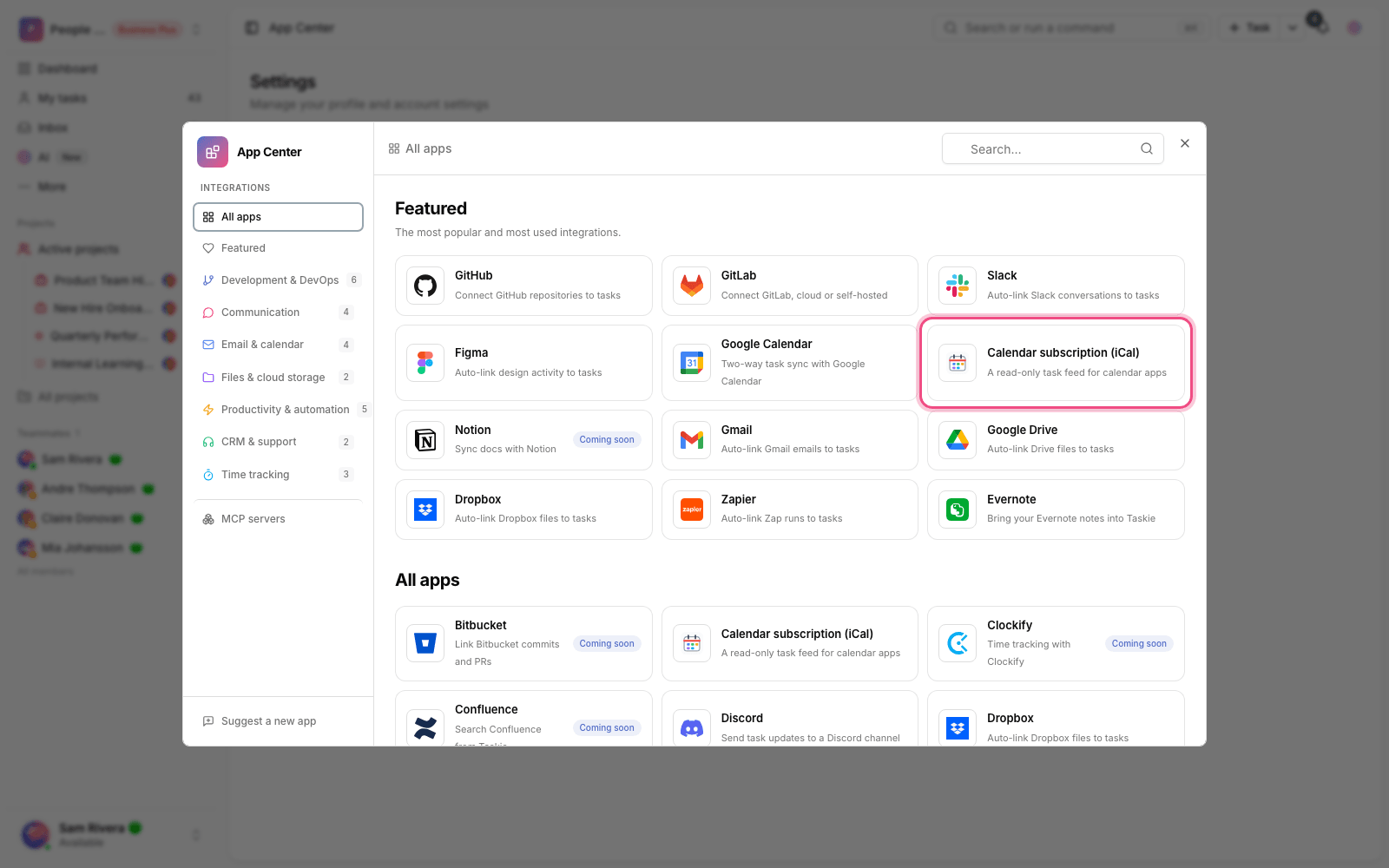
- In Settings, open the calendar section and turn on the calendar subscription.
- Choose the calendar's Task scope: tasks assigned to you, tasks you follow, or both.
- Copy the feed URL. A webcal version is also available for quick adding in some apps.
- If you're worried about the link's security, regenerate it to create a new link; the old one stops working immediately.
Calendar subscriptions depend on your plan. On the Free plan you can see this section, but to turn it on your workspace needs a qualifying plan. If you don't have access, you'll see an upgrade message instead of the option to turn it on.
Automatic user provisioning for organizations
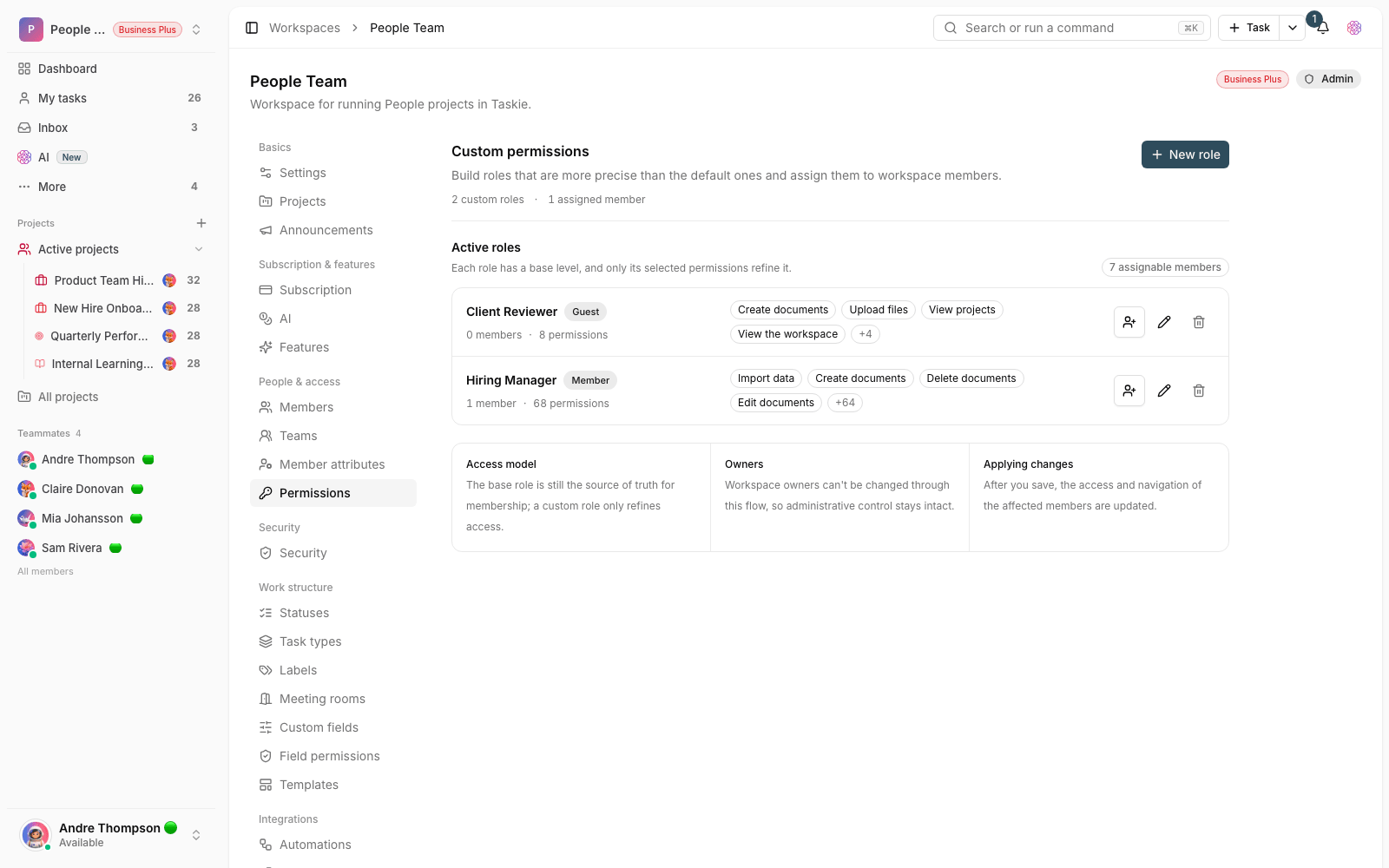
For large organizations, Taskie can also provision users and teams automatically through the SCIM standard, using a dedicated workspace-level token. This is an admin feature available on enterprise plans (Business Plus and higher) and is managed from the workspace's SCIM settings. If you have a large team and want adding and removing members to stay in sync with your organization's identity system, this is the path for you.
Common mistakes
- Closing the page before copying the MCP token. It won't be shown again, and you'll have to create a new token.
- Sharing your private calendar link with others. Anyone who has this link can see your tasks.
- Expecting one token to access another workspace. Each MCP token is limited to the workspace you picked.
- Forgetting to renew an expired token and then wondering why the tool's connection dropped.
Next step: to get notifications about this activity the right way, review Set up notifications and reminders. If you want to follow your work from your messenger, see Connect messenger bots.
For details on the public API and webhooks, see Public API and webhooks, and for mobile, see Mobile app and offline sync.