
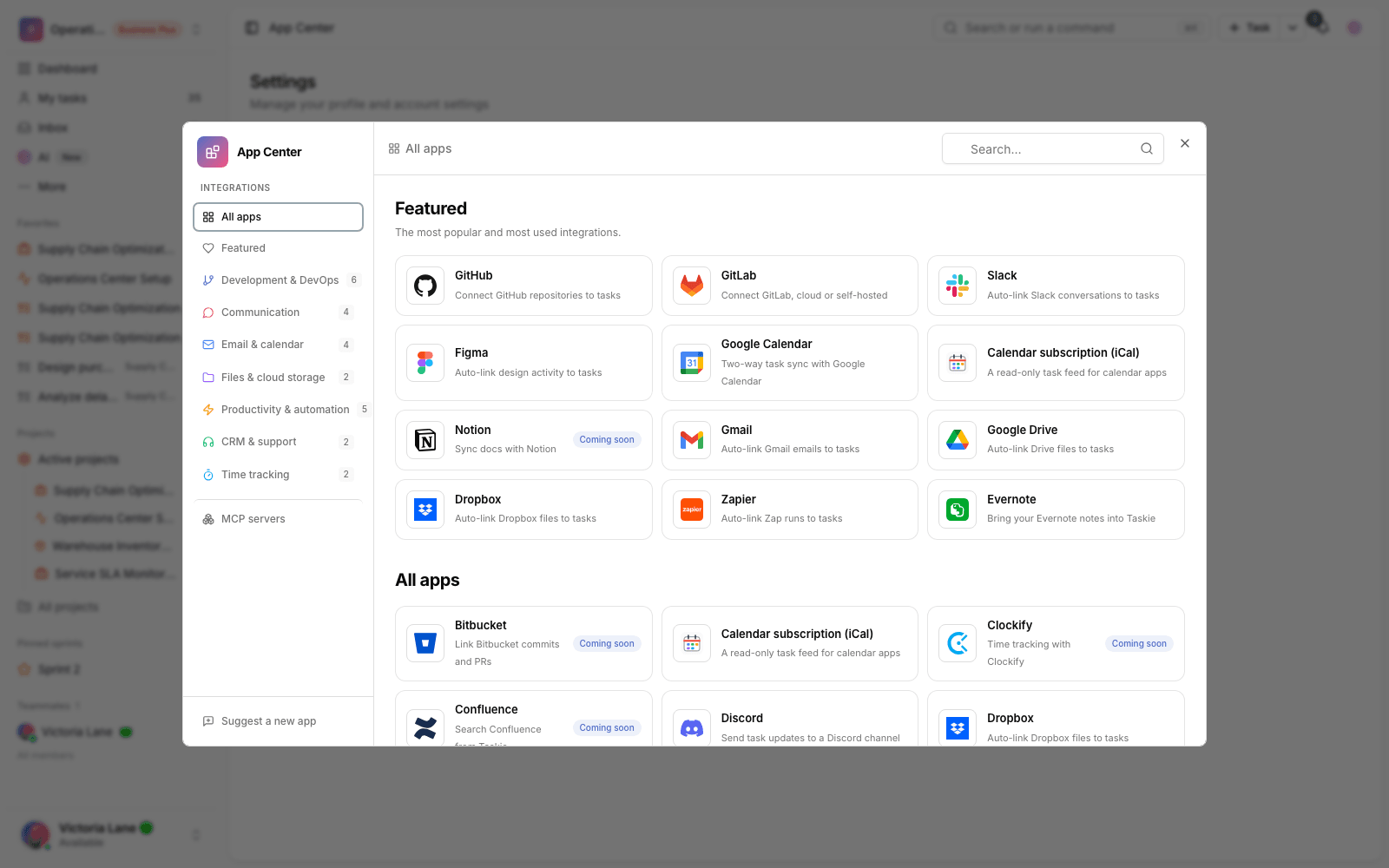
Connect to Slack
Connect your Slack workspace to Taskie so messages that mention a task ID are linked to that task automatically.
The Slack connection in Taskie ties important conversations to work you can track. Once Slack events are registered for your workspace, signed messages are received, and if a message mentions a task ID, that message is linked to the task.
Scope of the current version: this version focuses on receiving message events securely and linking messages to tasks automatically. Sending Taskie notifications to Slack channels, creating or editing tasks from inside Slack, previews of Taskie links in Slack, rich previews of Slack links inside Taskie, Connected Search, slash commands and personal OAuth connections are coming in later phases.
Before you start
- Only a workspace owner or admin can create or disconnect the workspace Slack connection.
- In Slack, you need an app with the Events API turned on, with Taskie's endpoint registered as the Request URL.
- To verify signatures, you need that Slack app's Signing Secret.
- The Slack team ID, such as T123ABC456, is stored in the Slack team ID field.
- Personal connections, interactive actions and sending messages from Taskie to Slack aren't available in the current version.
Create a workspace connection
- In your Slack app settings, turn on Event Subscriptions.
- Enter Taskie's Slack event endpoint as the Request URL, and make sure the url_verification request gets a response with a valid Signing Secret.
- Turn on the message events you need, such as message.channels, for the Slack app.
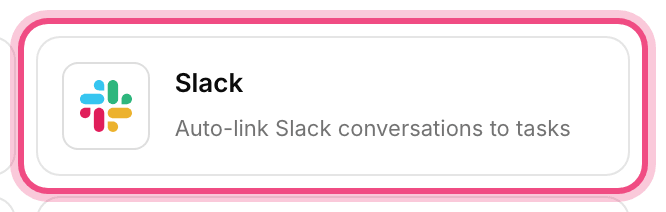
- In the Taskie App Center, open Slack and choose the Workspace tab.
- Enter the Team ID, Signing Secret, optional token and a label for the connection, then save it.
Signature security: Taskie verifies X-Slack-Signature and X-Slack-Request-Timestamp with Slack's official algorithm and rejects requests older than five minutes or with an invalid signature. The signature header and Signing Secret aren't stored in the webhook delivery payload.
Automatically link messages to tasks
For automatic linking, write the task ID in the Slack message text. These forms are supported:
- TASK-12 — the ID on its own.
- #TASK-12 — with a # prefix.
- CU-TASK-12 — with a CU- prefix.
- #9fq2b1 — the task's hashed ID, only with a # or CU- prefix.
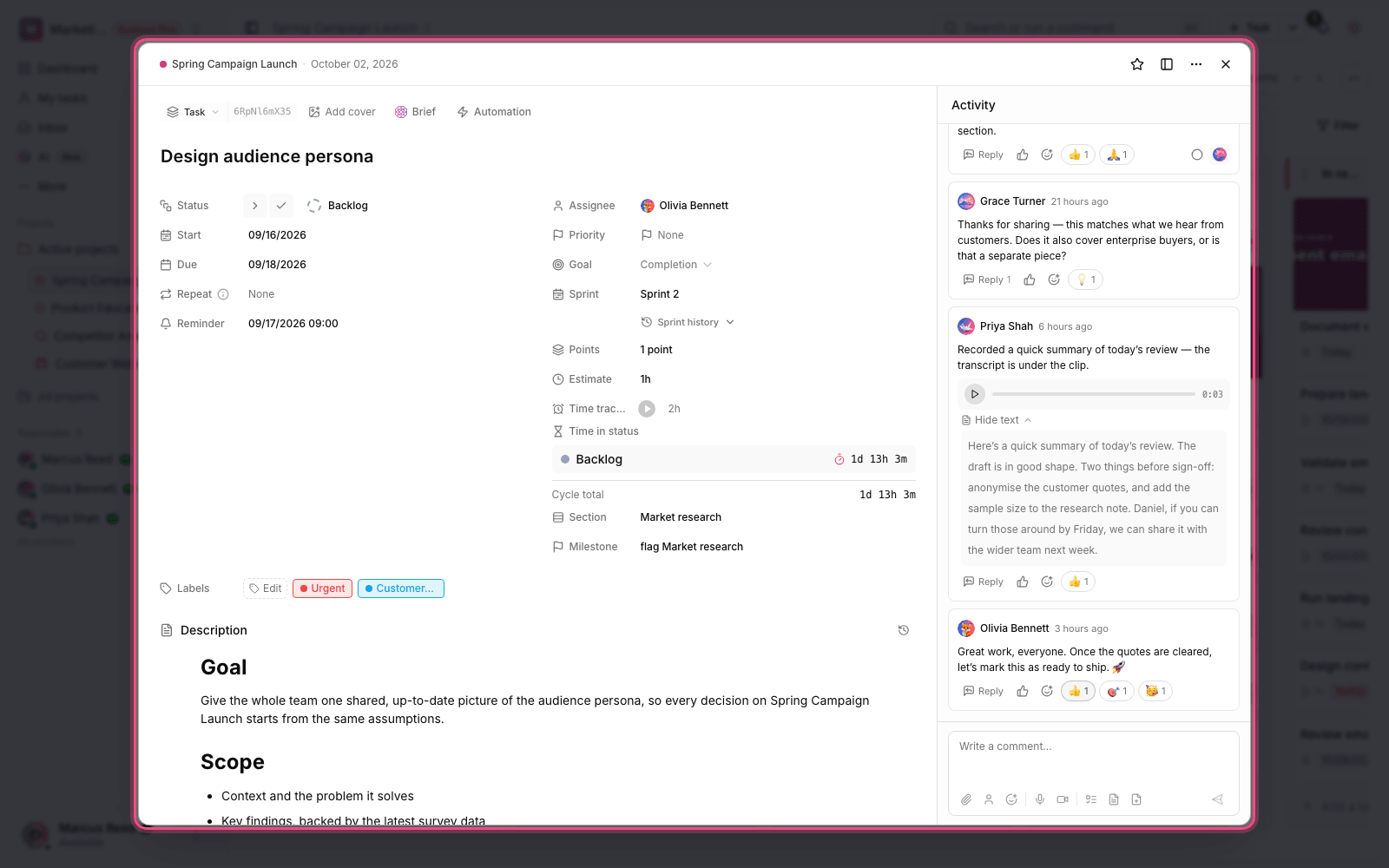
For example, the message TASK-31 please review the launch notes is linked to task TASK-31 and appears in the task's Linked items section.
Task status and status commands
In the current version, Slack doesn't change task status. If you write TASK-31[Done] in a message, the message is linked to the task, but the task's status doesn't change. Automatic status changes are currently available for GitHub and GitLab events.
Manage and disconnect
The connection status and the time of the latest event appear in the Integrations tab of your workspace settings. An owner or admin can disconnect it from Taskie. To stop events completely, also turn off or remove Event Subscriptions in the Slack app's settings.
Common mistakes
- Entering a Channel ID instead of the Team ID. The connection value must be the Slack team ID.
- Using the wrong or an old Signing Secret. Taskie then rejects the request with a 403 response.
- Forgetting to subscribe to message events in Slack. Without message events, no automatic links are created.
- Expecting to create tasks from Slack or send notifications to a channel. These features aren't available in the current version yet.
- Expecting a status change from status brackets. Slack only links; it doesn't change the status.
Next step: to connect cloud files, see Connect to Dropbox. For automatic status changes from development work, review Connect to GitHub and Connect to GitLab.