
Set up notifications and reminders
Choose which channel tells you about each event, and set reminders on tasks and comments so you hear about them right on time.
Everything that happens in Taskie — a task assigned to you, a mention in a comment, an approval deadline getting close, or a reply from support — can reach you as a notification. But not every event matters equally to everyone, so Taskie lets you decide exactly which events reach you, through which channel and when. That fine-grained control means you won't miss anything important, and you won't get buried under notifications that don't matter.
This guide shows how the notification table works, how the delivery channels differ, how to set up browser push and Quiet hours, and finally how to set reminders on tasks and comments so you're notified right on time.
How does the notification table work?
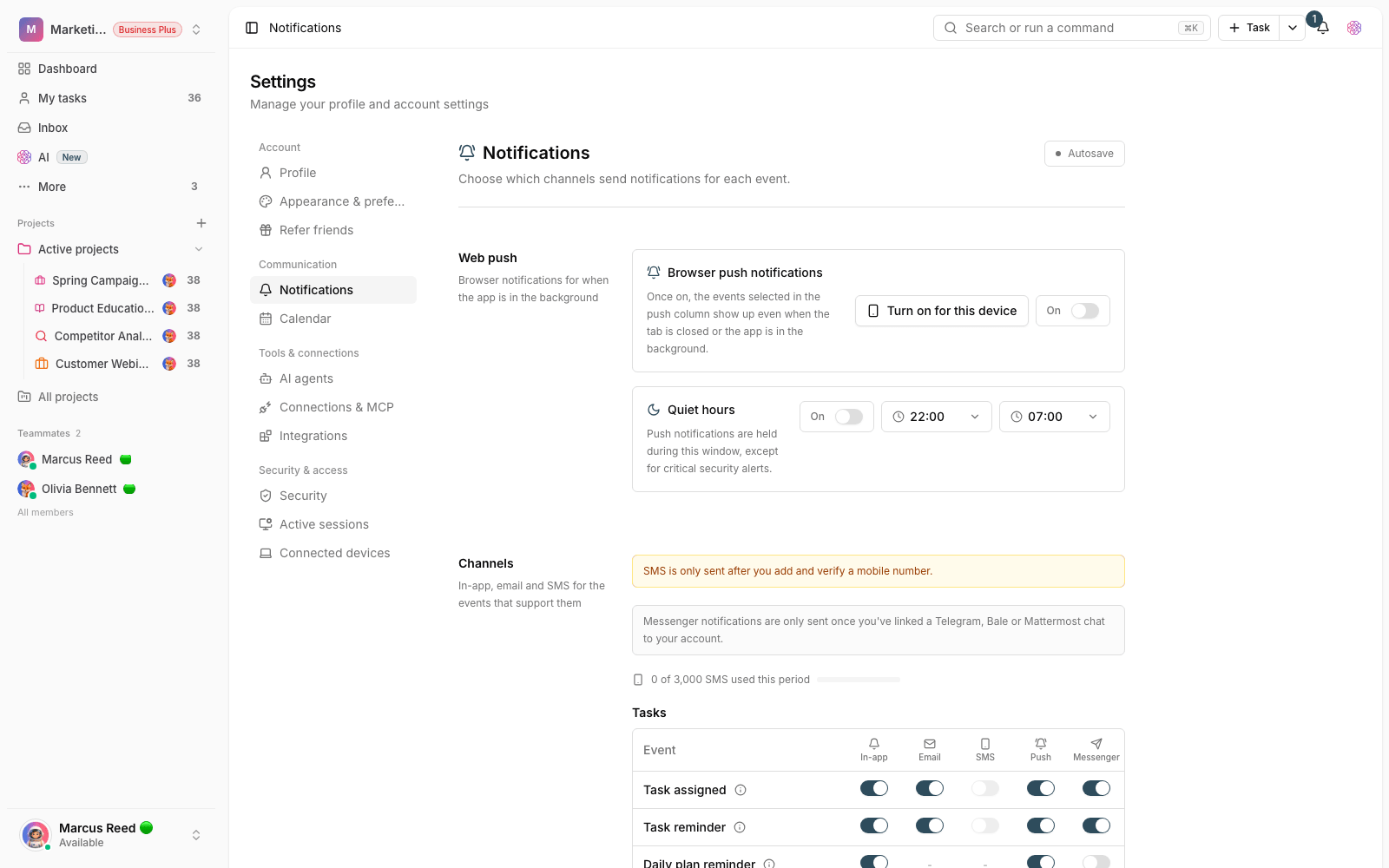
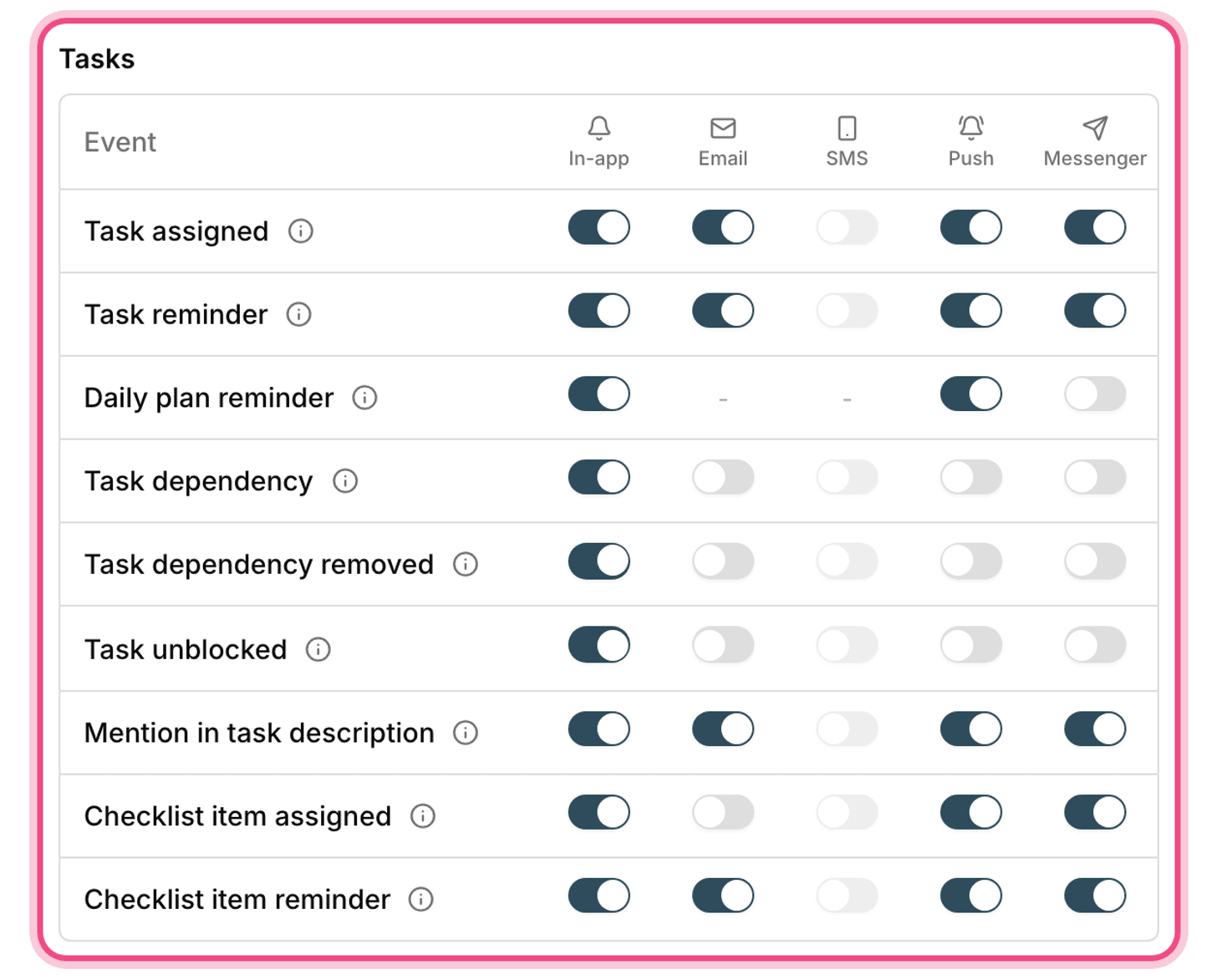
Notification settings live in the Notifications section of your account settings and appear as a table: each row is an event and each column is a delivery channel. To make events easier to find, they're grouped into categories such as Tasks, Comments and mentions, Documents, Collaboration, Approvals, Goals, Automation and agents, Security and a few others. You can turn each channel on or off separately for every event.
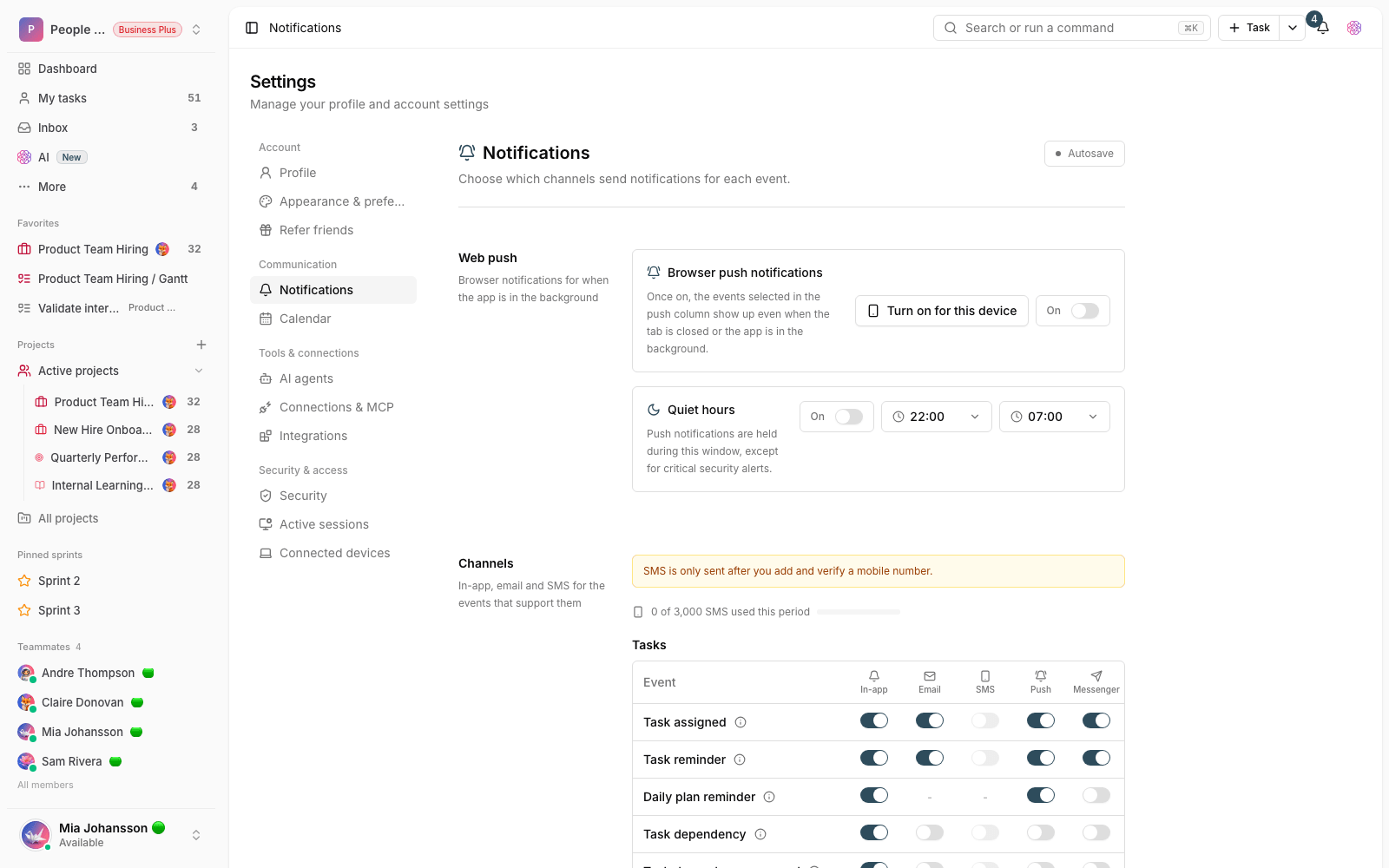
Taskie gives every event a sensible default. For example, task assignments have both In-app and Email turned on by default. So you don't have to set everything up from scratch — just change the ones you care about. The available channels are:
- In-app: the notification bell inside Taskie, which is always available.
- Email: sends the notification to your account's email address — a good fit for more important events.
- SMS: sends a short text message. This channel only works when a verified mobile number is saved on your account.
- Push: a browser notification that appears even when the Taskie tab is closed or the app is in the background.
- Messenger: sends to your Telegram, Mattermost, Slack or Discord chat. This channel only works once you've linked your account to the messenger bot.
Set notifications per event
To get only the important events, through the right channel, follow these steps:
- From your account menu, go to Settings, then open Notifications.
- In the table, find the group you want (for example Tasks or Approvals).
- For each event, check or uncheck the channels you want (In-app, Email, SMS, Push or Messenger).
- If you want SMS, first make sure you have a verified mobile number; otherwise this channel stays disabled.
- Save your changes. They apply right away.
Tip: Direct Messages from the Taskie team are always on and can't be turned off. Separately, sensitive security alerts are shown even during Quiet hours to protect your account.
Browser push and quiet hours
The Push channel works a little differently from the others because it depends on your browser and device. To use it, click Turn on for this device on each device and allow the browser to show notifications. If the current browser or host doesn't support web push, or the required keys aren't configured on the server, this option won't be available, and Taskie shows you the reason right away.
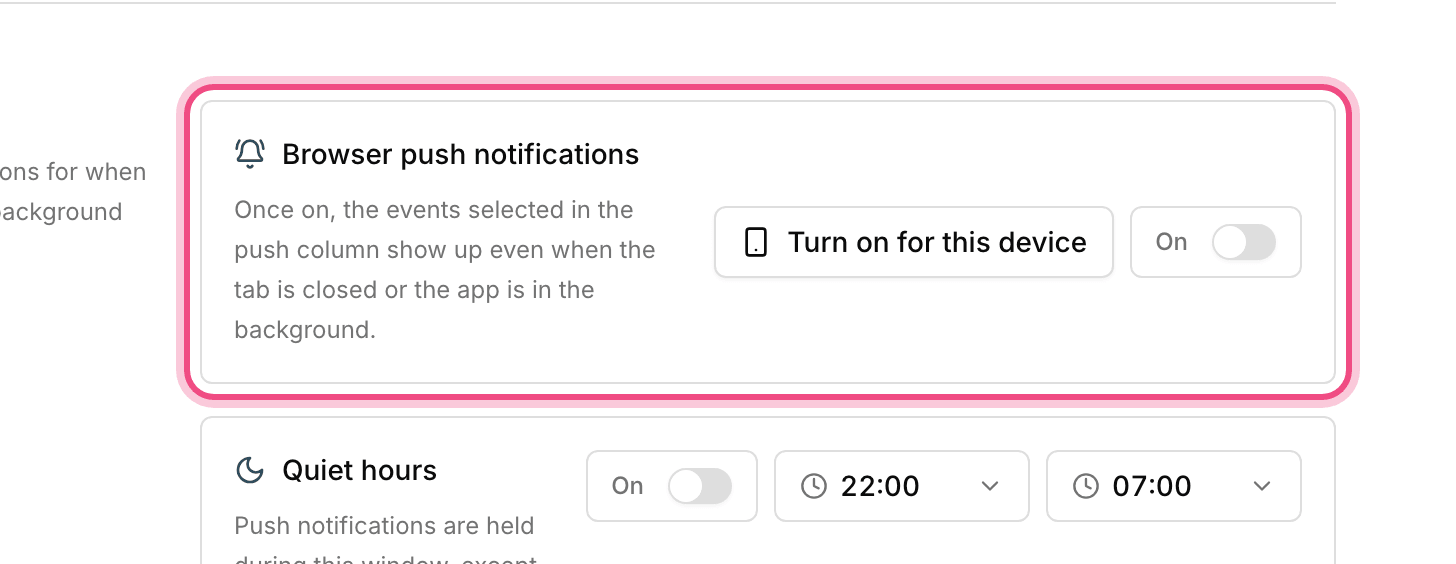
If you don't want push notifications to disturb you at night or during focus time, turn on Quiet hours and set its start and end times (the default is 22:00 to 07:00). During that window, push notifications aren't shown — except sensitive security alerts, which always come through to protect your account. The window is calculated in your account's time zone, so setting the right time zone matters.
Reminders: we'll remind you right on time
Notifications are reactive, but reminders help you get ahead. In Taskie you can set reminders on different things so you're notified at a specific time:
- Task reminder: set a reminder time on any task. There are quick options such as In 2 hours or Later, and when the time comes, the Task reminder event reaches you through the channels you chose.
- Comment reminder: set a personal reminder on a task or document comment so you don't forget to follow up on that conversation.
- Checklist item reminder: you can set a reminder time on checklist items too.
The default time the quick reminder options use can be changed on your preferences page. So if you usually review your work in the morning, you can set the default to that hour.
Common mistakes
- Expecting SMS without adding and verifying a mobile number. Without a verified number, the SMS column doesn't work.
- Assuming push is turned on automatically on every device. You need to turn on push separately in each browser and on each device.
- Complaining that push doesn't arrive at night while Quiet hours is on and you've deliberately silenced that window.
- Setting reminders without checking your account's time zone. If the time zone is wrong, the reminder arrives at the wrong time.
Next step: to make reminders and notification times accurate, be sure to set up your time zone and message formats. If you want notifications right next to your team chat, check out connecting messenger bots.