
What's new in 1.4.2
A tour of what's new in Taskie 1.4.2, from Excel import and export for tasks and a faster task list to stronger security and admin tools.
Taskie 1.4.2 moves forward on three fronts: task data integrity, stronger security and smoother frequently used paths. The standout change in this release is import and export with Excel files, which makes moving data between Taskie and your team's existing files simple.
This release shipped on May 2, 2026. If your team keeps lots of data in Excel files or needs reports on tasks, this release shortens your workflow, and it also brings several foundational improvements behind the scenes.
Import and export tasks with Excel
With XLSX import and export, you can import a project's tasks from an Excel file or export your task list to Excel. This is useful for three common jobs: moving data over from previous tools, starting a project from a list you already have in Excel, and building reports to share outside Taskie. This way, you don't have to enter or copy tasks by hand one by one.

A faster task list
To make views and lists open faster, dependency counts are now stored. Instead of recalculating each task's number of dependencies every time it's shown, that number is kept, so loading large lists is cheaper and smoother. In large projects where tasks have many dependencies, the difference is more noticeable.
Security and more reliable infrastructure
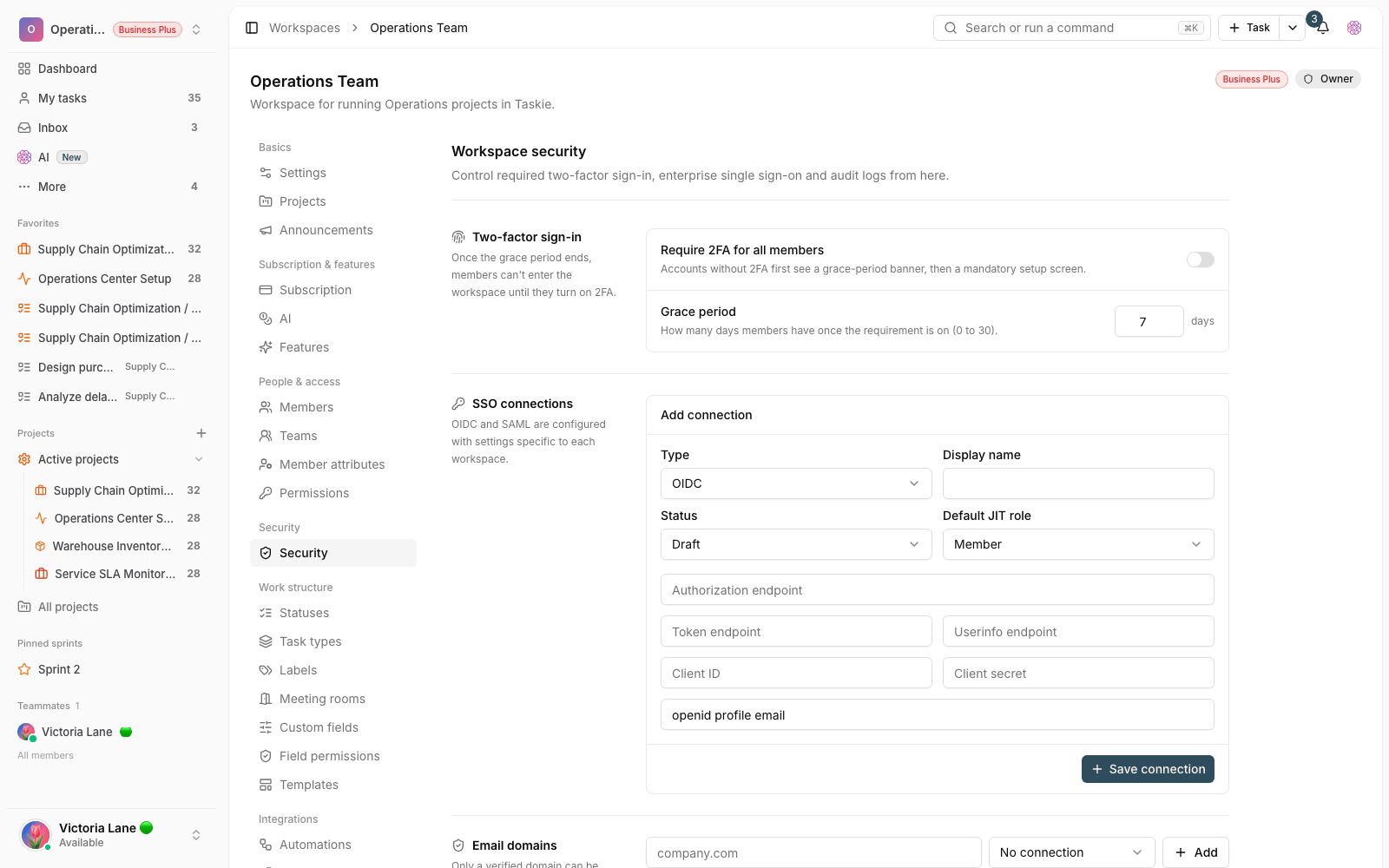
Several sensitive parts of the app were reviewed in this release. Authentication, file uploads and security dependencies have been strengthened, so user sign-in, working with files and the underlying infrastructure are more dependable. These changes mostly happen behind the scenes, but they give your team's everyday work a more reliable foundation.
Admin tools and user experience
The project calendar, label settings and several other admin tools have been reworked, so everyday settings sit in a more understandable place. The Gantt controls, personal user preferences and the dashboard widget catalog are easier to read too, so picking the right widget for monitoring a project and setting up the planning view is simpler.
How to use this release
- To move data over, prepare an Excel file of tasks and import it into the project, or export your task list to Excel for a report.
- If you have large lists, check the difference in loading speed after this release.
- Review your label settings and project calendar once, so you're familiar with the tidier layout.
- Use the easier-to-read widget catalog to build a dashboard that fits your team's key metrics.
- When importing from Excel, match the file's columns to task fields, so the data lands in the right place.
- Before a large import, import a small test file first to make sure the result is correct.
- The security improvements in this release are applied automatically and don't need any manual setup.
Excel import and export is a good fit for moving task data and building reports. Before a bulk import, check with a small sample that the columns map to the right fields.
To see what came next, review What's new in 1.4.3 and What's new in 1.4.4 to follow the stability and feature improvements in the nearby releases.