
What's new in 2.3.0
Version 2.3.0 brings the App Center for connecting services like Gmail, Google Drive, Slack and Figma to Taskie, makes the AI assistant more capable and easier to control, redesigns the command palette and My day, adds draft autosave, and improves the mobile experience and file security.
Taskie 2.3.0 was released on July 7, 2026. This release focuses on "connection and capability": instead of being an island, Taskie now connects to the services you use every day through the App Center, the AI assistant does more with greater control and confidence, and everyday tools like the command palette, My day and draft autosave are smoother.
On this page, we walk through the most important changes in 2.3.0 topic by topic, and for each one explain what it does for you in practice and where you can use it. You don't need to read it all at once. Just start with the section closest to your work.
App Center: connect to popular services
The biggest change in this release is the App Center, one shared place where you connect external services to Taskie and manage your active connections. Connecting a service takes just a few clicks, and permissions are clear and easy to revoke. These services were added in this release:
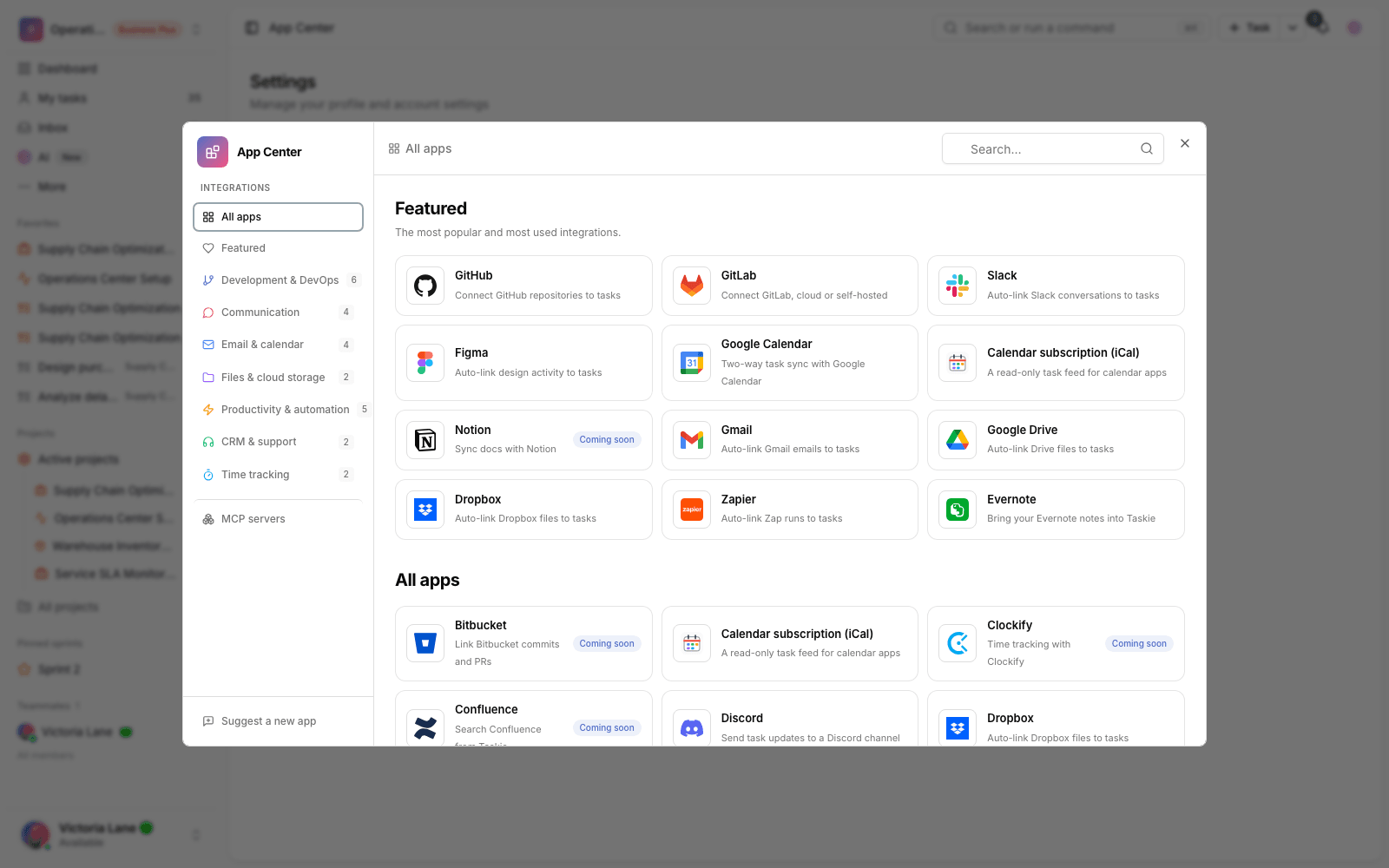
- Gmail: turn important emails into tasks and keep the link between emails and tasks.
- Google Calendar: keep tasks and events with due dates in sync with Google Calendar.
- Google Drive and Dropbox: attach files stored in the cloud to tasks and projects without uploading them again.
- Figma: keep designs and Figma files available right next to the related task.
- Slack: get notified about important Taskie events in your team's Slack channels.
- Zapier: connect Taskie to thousands of other services and automate repetitive work.
- iCal: see task due dates in any calendar that supports the iCal standard.
The connection to development tools (Git) is also smarter: you can now reference a task ID in a commit message, and even change that task's status with simple commands, so development work and task tracking always stay in sync.
Securely connect the assistant to external tools
Beyond the ready-made services, you can now connect the AI assistant to compatible external tools and servers, so the assistant can call on them when needed. This connection is designed with security in mind:
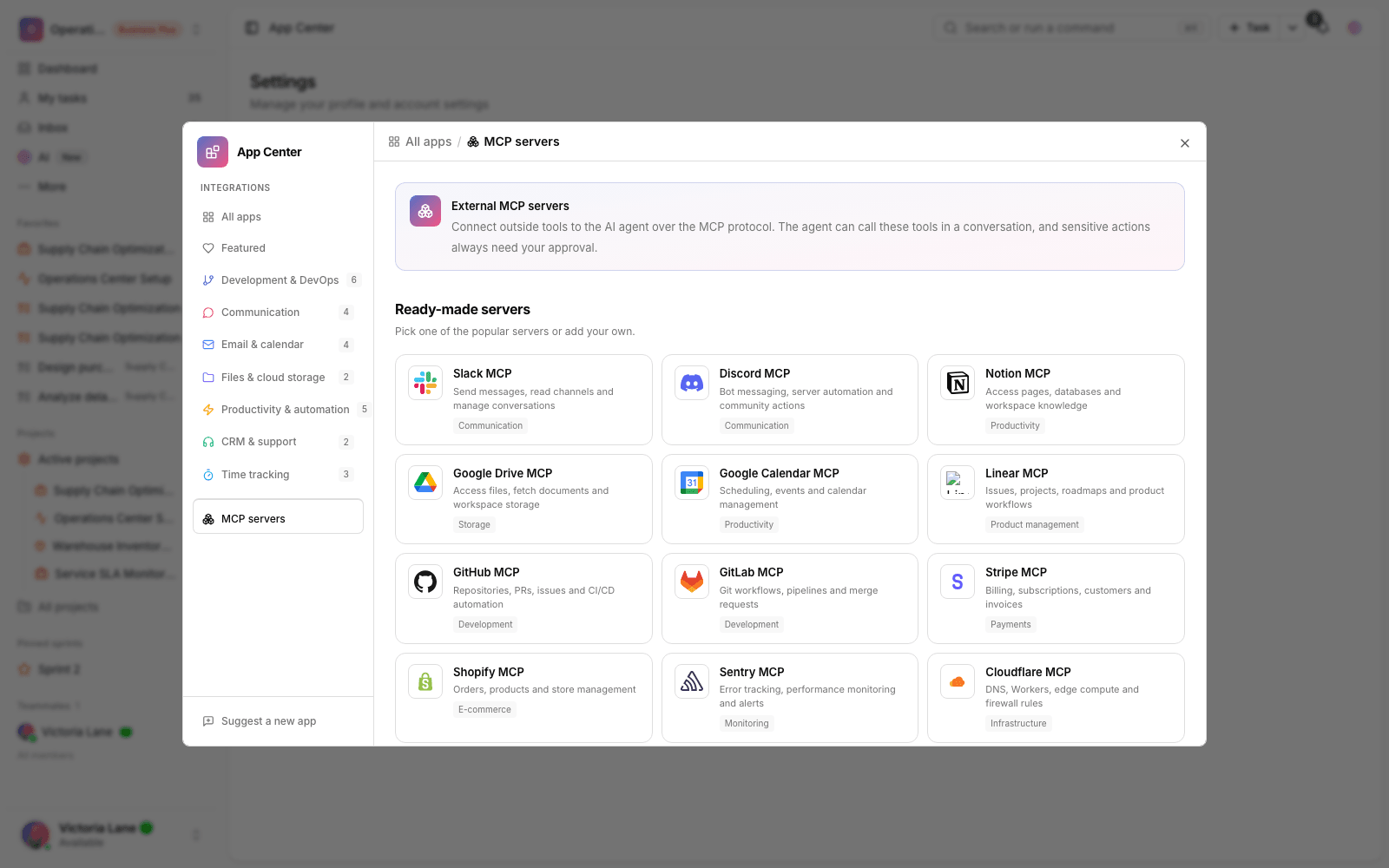
- Connect from the App Center: pick external servers from a ready-made list and connect them easily with secure sign-in (OAuth).
- Least-privilege access: each connection gets access to exactly what it needs, and nothing more.
- Limits and oversight: usage limits prevent overuse, and workspace admins can monitor connections.
AI assistant: from conversation to getting things done
The AI assistant takes a big step forward in this release and can now move most work forward right from the conversation:
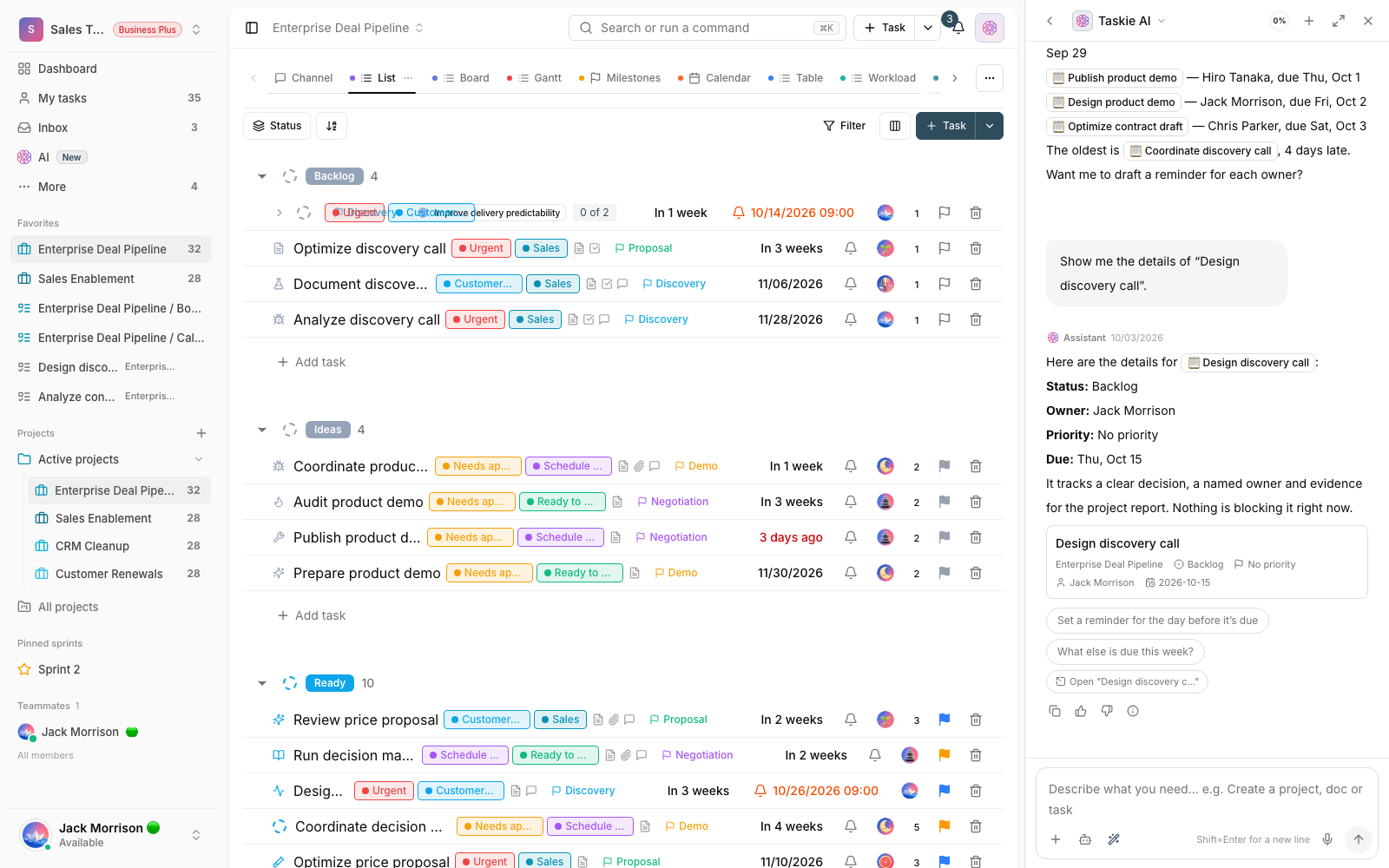
- Turn messages and notes into tasks: turn a chat message or meeting note into a task with one action, so nothing slips through the cracks.
- Create subtasks: the assistant can break a large task into clear subtasks.
- Task cards in the conversation: tasks show up as readable cards inside the conversation, with quick actions (like changing the status or assignee) right on the card.
- "/" commands and @ and # mentions: in the message box, type "/" for commands, @ for members and # for tasks.
- Per-project memory: the assistant remembers key details about each project, so you don't have to explain them again in later conversations.
- Meeting note preview: see the suggested meeting summary before anything is created.
- Smart suggestions: the assistant suggests the right "next action" at the right time, so work doesn't stall.
More control and confidence over the assistant's actions
The more capable the assistant gets, the more your control over its actions matters. This release adds several layers of safety:
- Approval for sensitive actions: before risky or bulk actions, the assistant asks for your confirmation.
- Preview bulk changes: when several changes are about to be applied together, you see the full list in one place before you confirm.
- Undo changes: the assistant's changes are backed up, so you can roll them back if needed.
Redesigned command palette
The command palette has been redesigned into a single entry point for everything. From one box, you can search your whole workspace (tasks, projects, documents and more) and, in command mode, run actions directly, all without taking your hands off the keyboard.
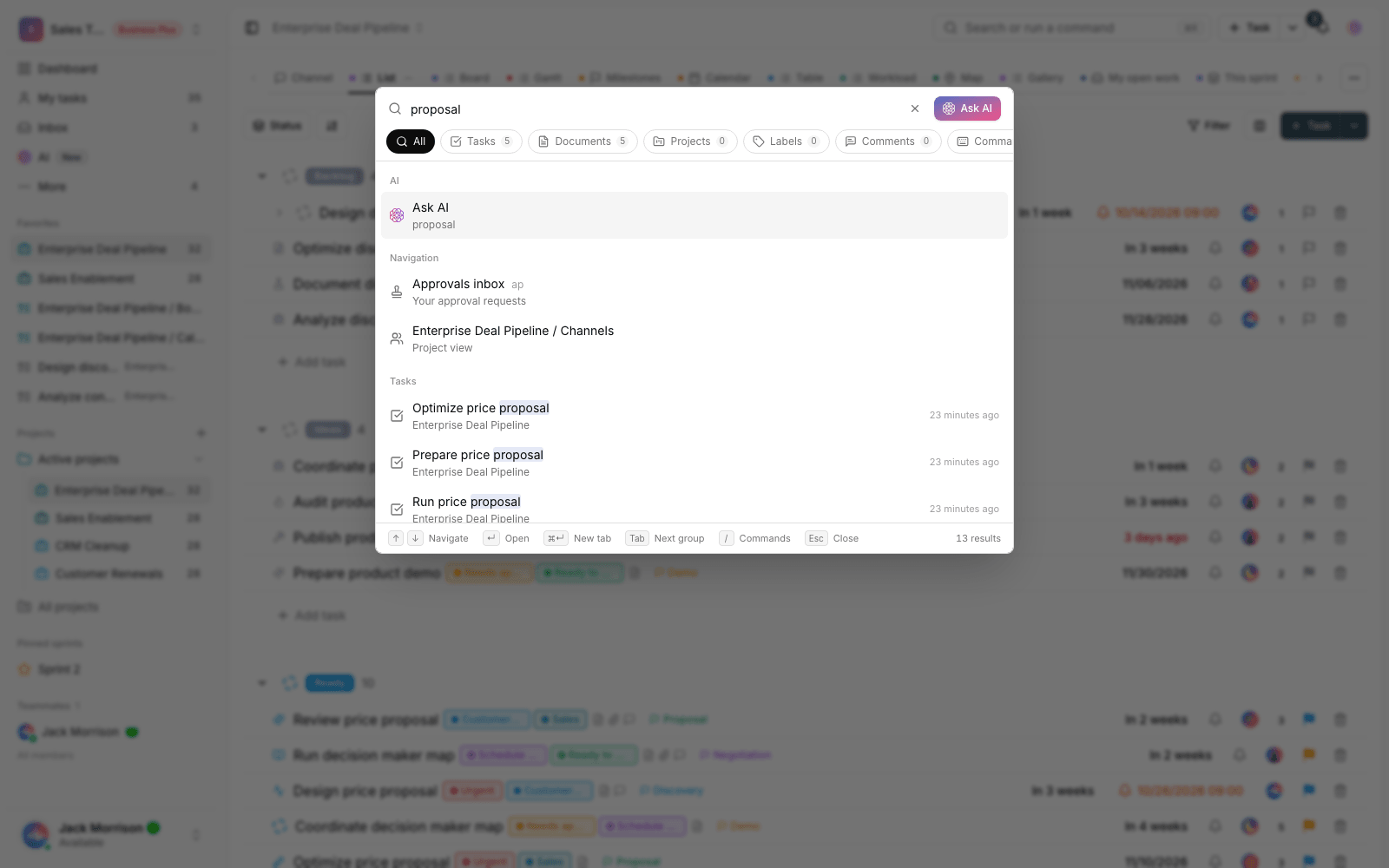
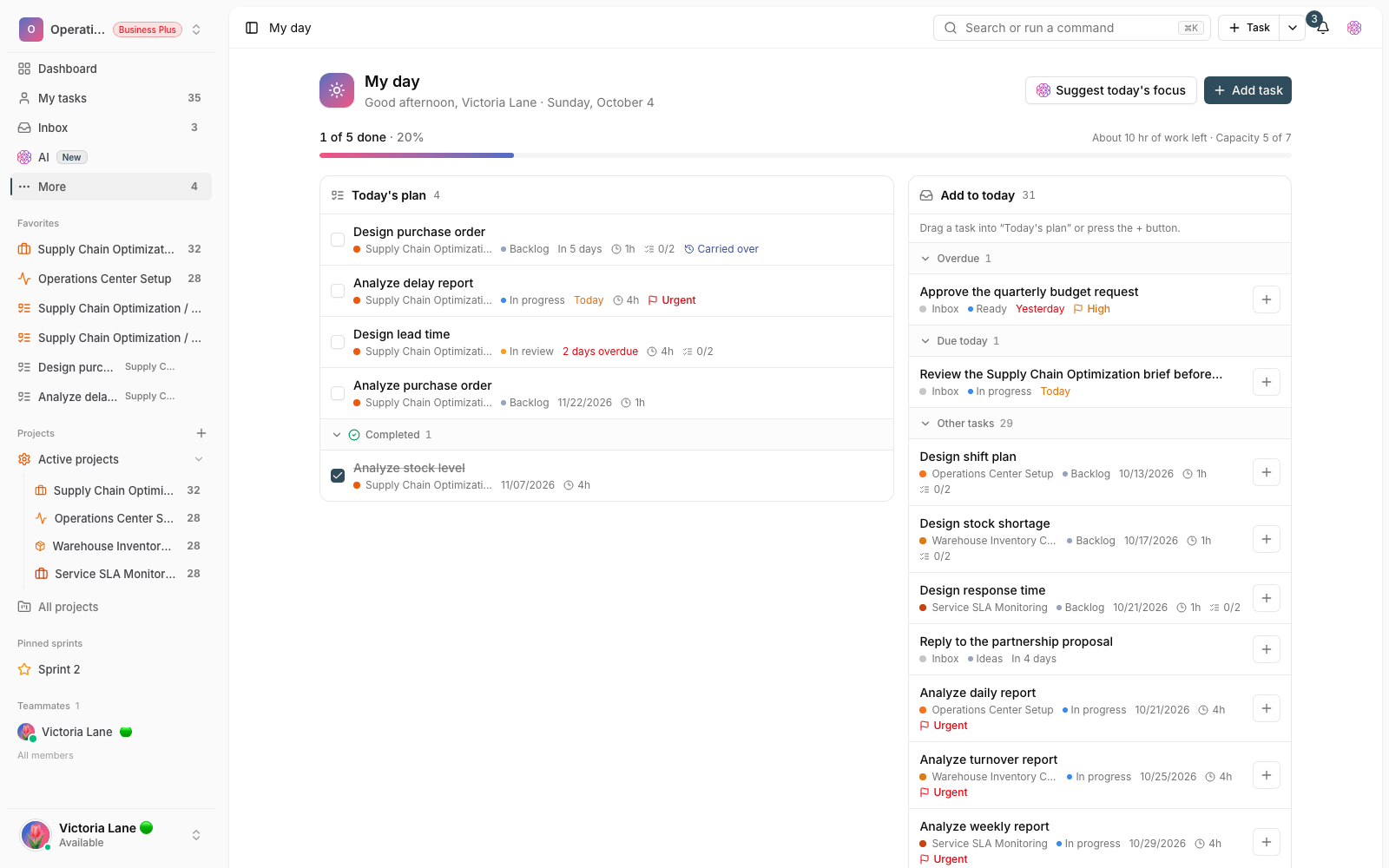
My day and daily focus
My day has improved and now includes a daily focus picker: each day, you pick the tasks you want to focus on today, so your daily list stays short, clear and manageable, and your energy goes to what matters most.
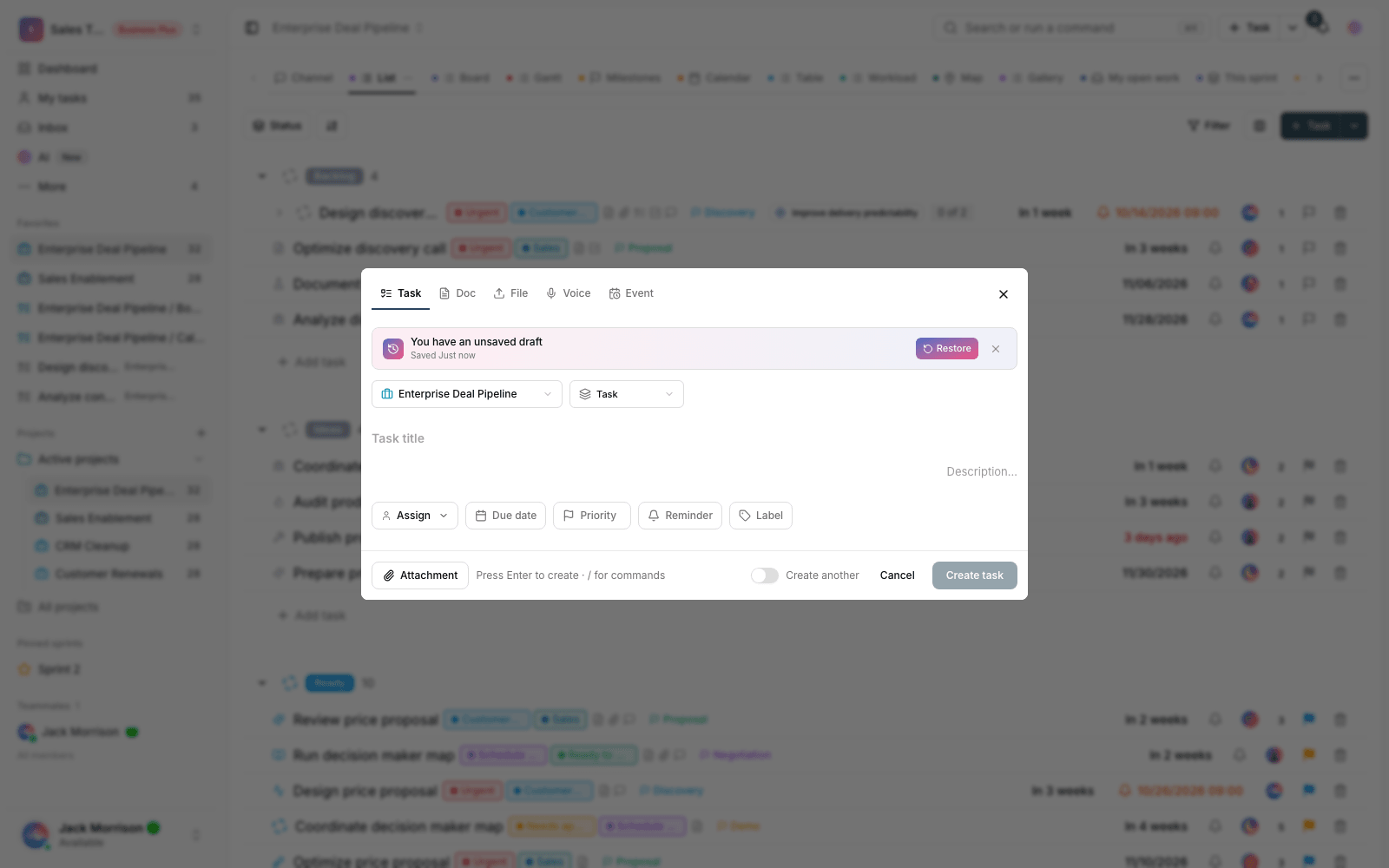
Draft autosave
No more worrying about losing unfinished writing. When you create a task or write a comment, your text is automatically saved as a draft. If the page closes or your connection drops, you can restore the draft and pick up where you left off.
Status workflows by task type
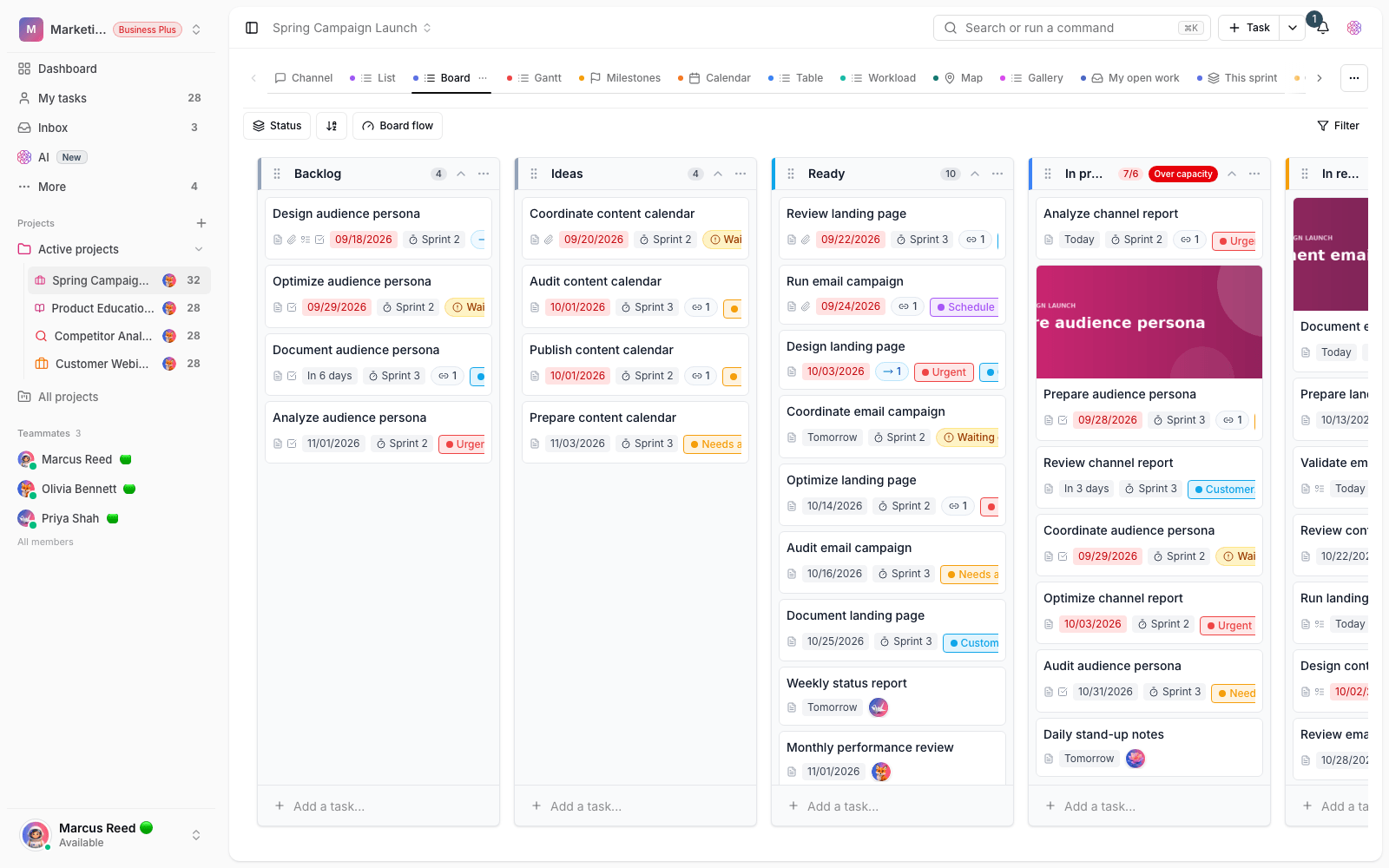
Each task type can now have its own statuses and path to completion. For example, a "Bug" can follow a different path than an "Idea" or a "Request", so statuses match your team's real process and reports become more accurate.
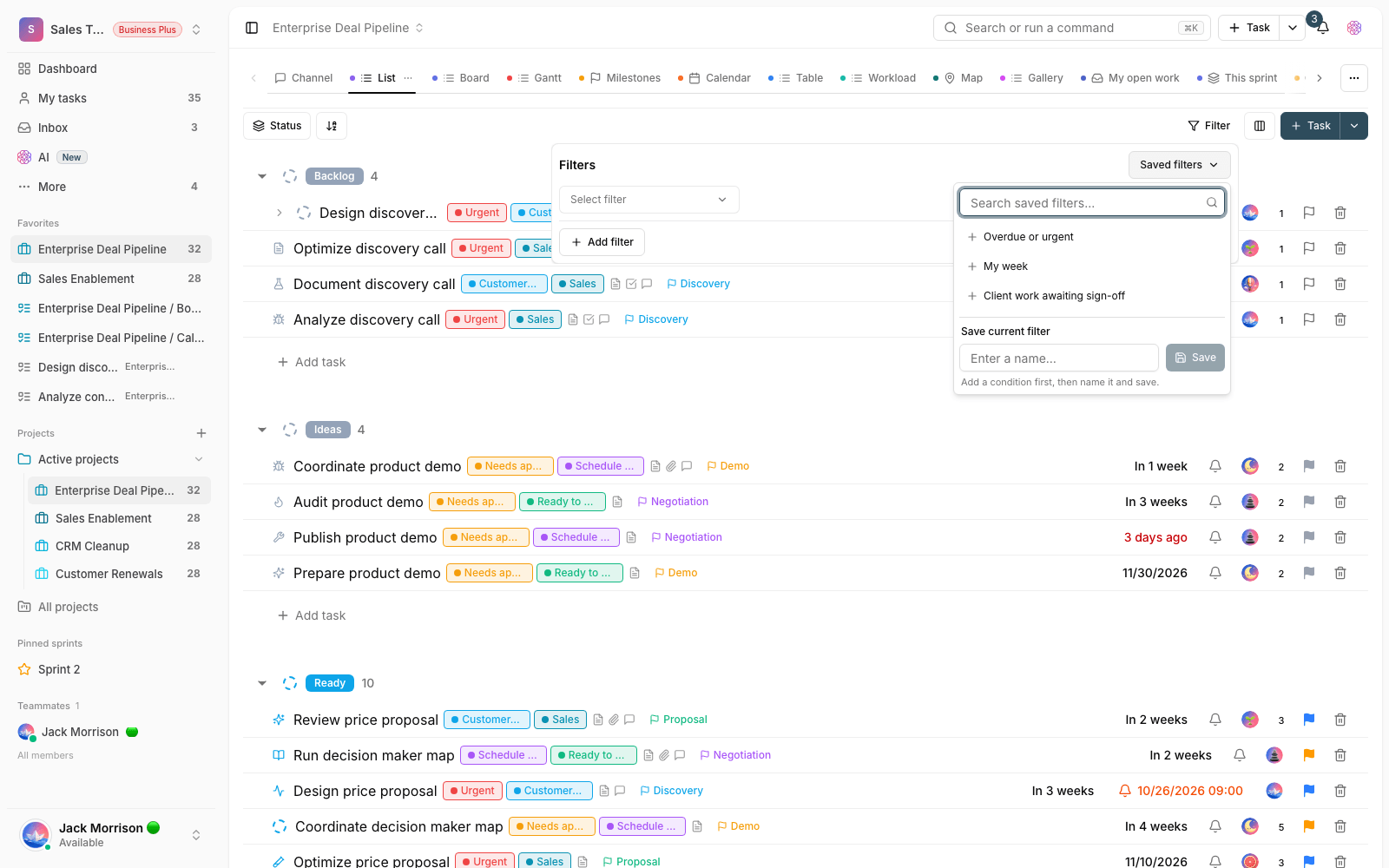
Simpler saved filters
Managing saved filters is smoother: you can now delete filters you no longer need, and saving a filter is clearer, so your list of go-to filters always stays tidy.
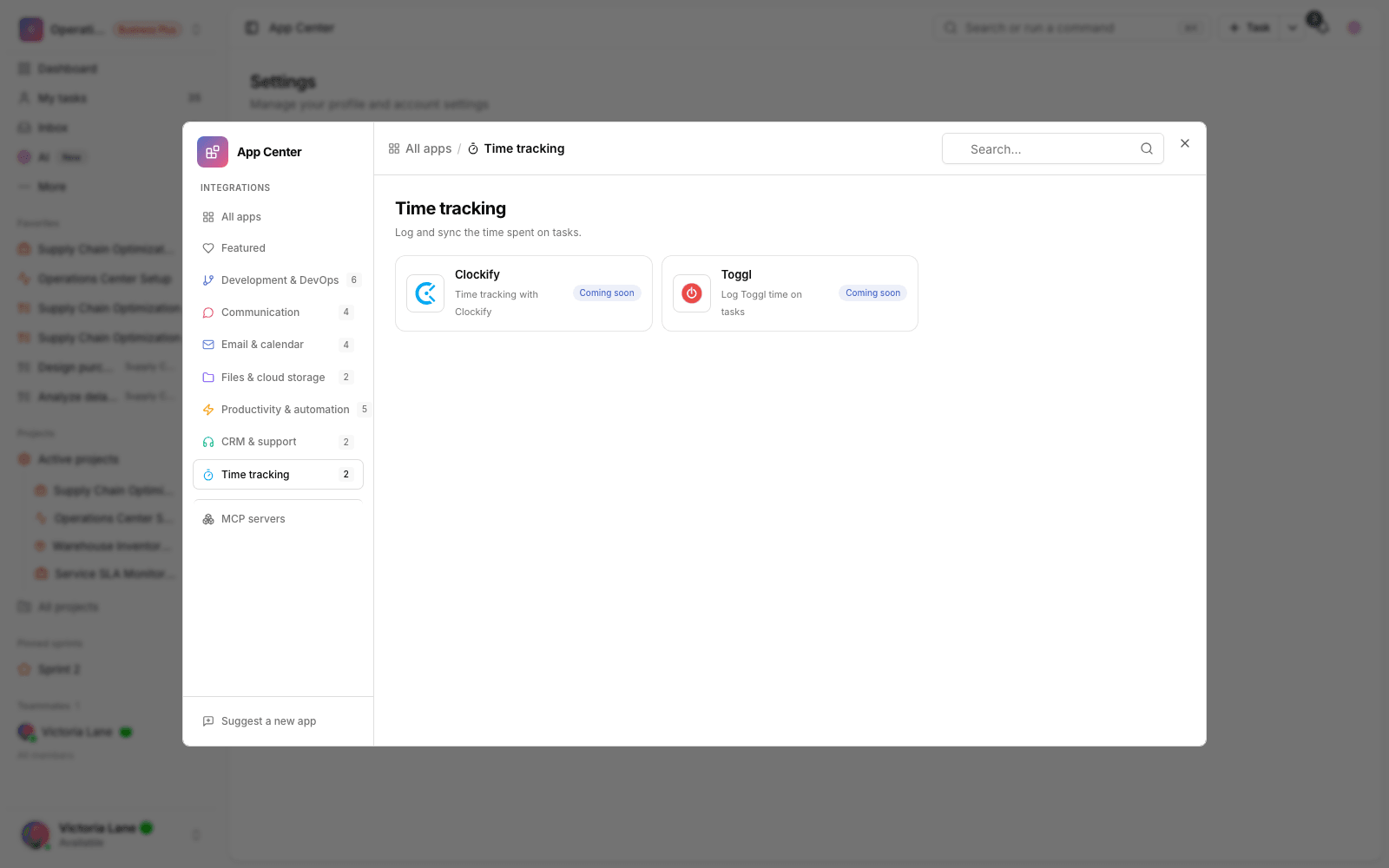
Time tracking with a task timer
A time-tracking integration has been added so you can log the time spent on each task directly. Until you connect the timer, the time tracking section stays hidden to keep the task page uncluttered. Once connected, you can log and review time.
Improve text with AI
The Improve text with AI tool has been added. With one click, you can make your text smoother, better organized and more professional, so writing task descriptions, comments or documents is faster and easier.
A smoother mobile experience
Using Taskie on mobile has been redesigned and tidied up in this release, so touch and navigation feel more natural:
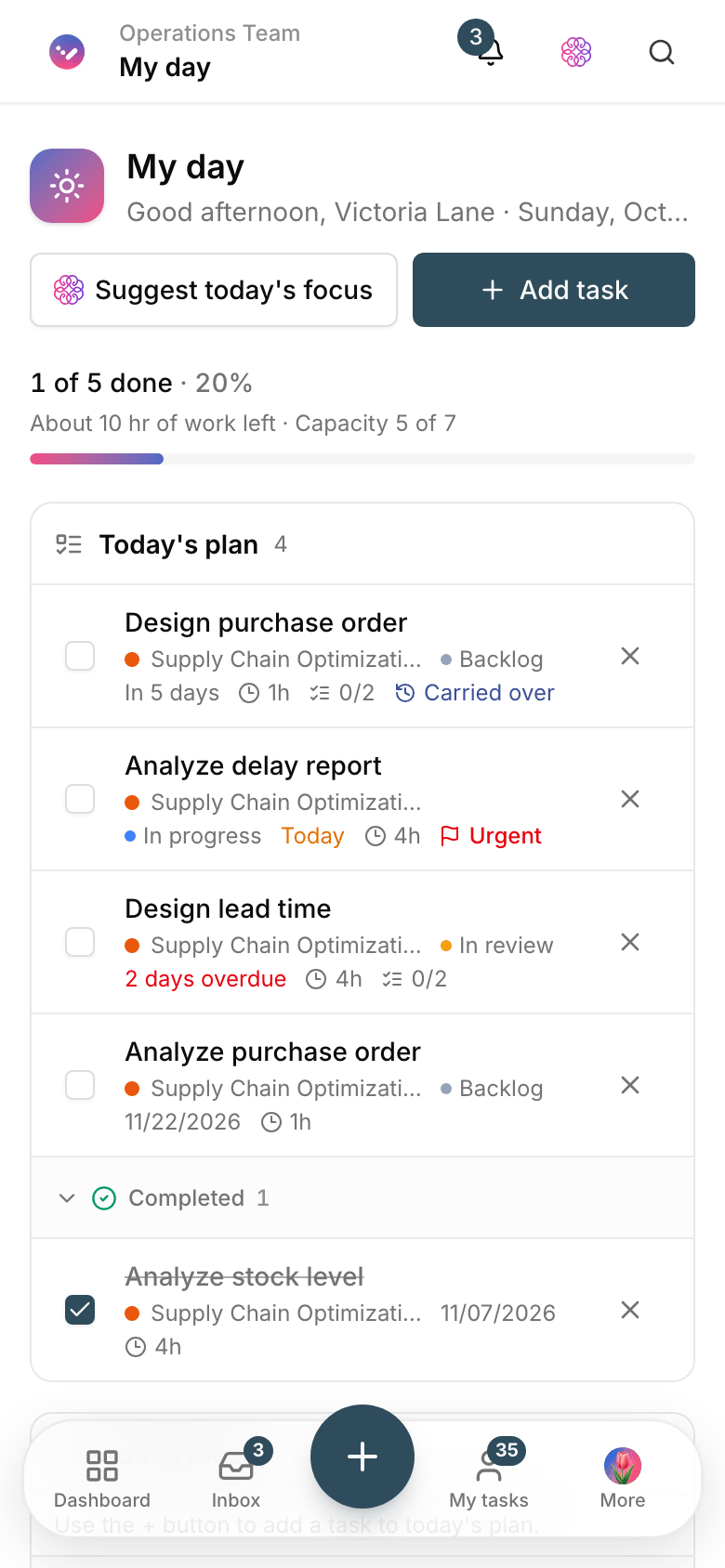
- Floating bottom navigation: reaching the main sections and your profile is easier.
- Better bottom sheets: bottom sheets open, close and scroll more smoothly, and tasks get moved by accident less often.
- Kanban board and quick add: scrolling the Kanban board and auto-focusing the quick-add box on mobile have improved.
- Details and settings: the task details page, switching between settings tabs and showing custom fields in list view are cleaner on mobile.
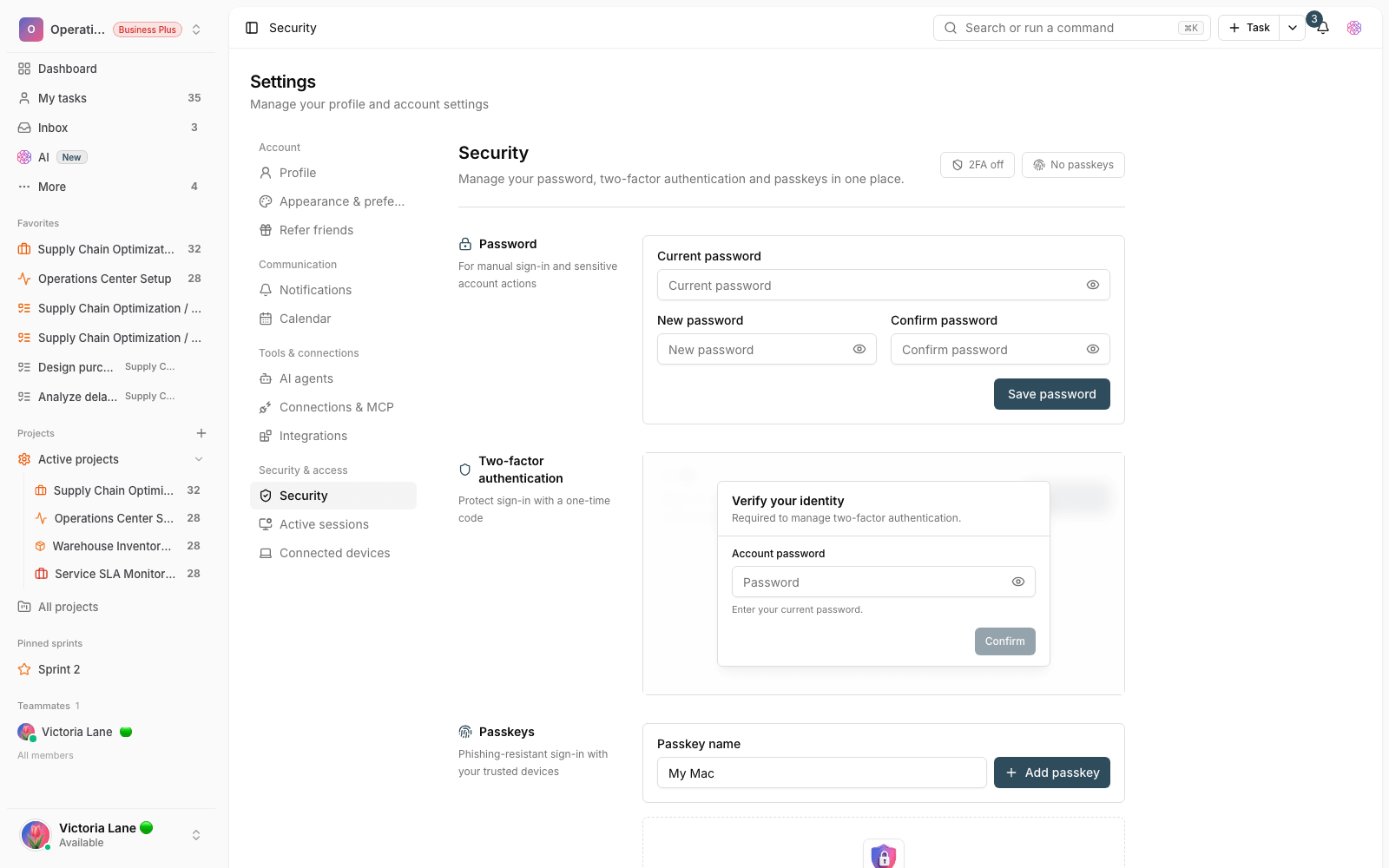
More security and safety
Behind the scenes, several important security improvements keep your data and files safer:
- Malware scanning for files: uploaded files are scanned, and suspicious ones are quarantined.
- Safer assistant actions: sensitive information is scrubbed before it's stored in the assistant's memory, and content from external tools is handled more carefully.
- Stricter session and request handling: protection against repeated requests and tamper-proof logging of important activity have improved.
Bug fixes and small improvements
- PDF export for tasks, documents and bulk exports has improved, and the font display issue in PDF files has been fixed.
- In shared projects, tasks assigned to you now show up in My tasks.
- My day is smoother and more stable.
- The display of approved items on invoices has been corrected.
- The task timer section stays hidden until a time-tracking integration is connected, to keep the page uncluttered.
How to get the most out of it
To make 2.3.0 really work for you, we suggest taking a few simple steps right now:
- Visit the App Center and connect one of the services you use every day (like Google Calendar or Slack) to Taskie.
- Turn a message or note into a task with the AI assistant to see how the workflow changes.
- Open the command palette and search for a task or document, or run a command directly.
- In My day, pick a few of today's tasks to focus on.
- If task time matters to you, connect a time-tracking integration so time gets logged.
A note about plans: some features (especially certain AI assistant capabilities and some integrations) depend on your workspace plan. If you don't see an option described here, check your plan and access level, or check with your workspace admin.
To review the changes that came before this release, take a look at What's new in 2.2.0 and see how the smarter assistant, avatars and safer sign-in got us here.