
What's new in 2.4.1
Version 2.4.1 unifies image editing across Taskie, turns audio files into searchable text, adds more precise task relationships and a task graph view, and lets you show custom fields based on task type and level.
Taskie 2.4.1 was released on July 24, 2026. This release focuses on making everyday content easier to work with and making task structure more precise. You now have one shared image editor across different areas, audio clips are turned into searchable text, you can record relationships between tasks with more precise meanings, and custom fields only appear where they're actually useful.
Below, we go through each change with its practical use, how to use it and the key points to know. Some options depend on your workspace plan, AI credits or permission level; so if you don't see an option, check your plan and permissions first or talk to your workspace admin.
A unified image editor
Until now, the tools for cropping or editing images were different in each area. In 2.4.1, one shared editor is available in the supported areas, so you can prepare images for tasks, comments, files, documents, project channels, forms, profiles and other uploadable images with the same experience. The editor is available both for an image you've selected before uploading and for many saved images.
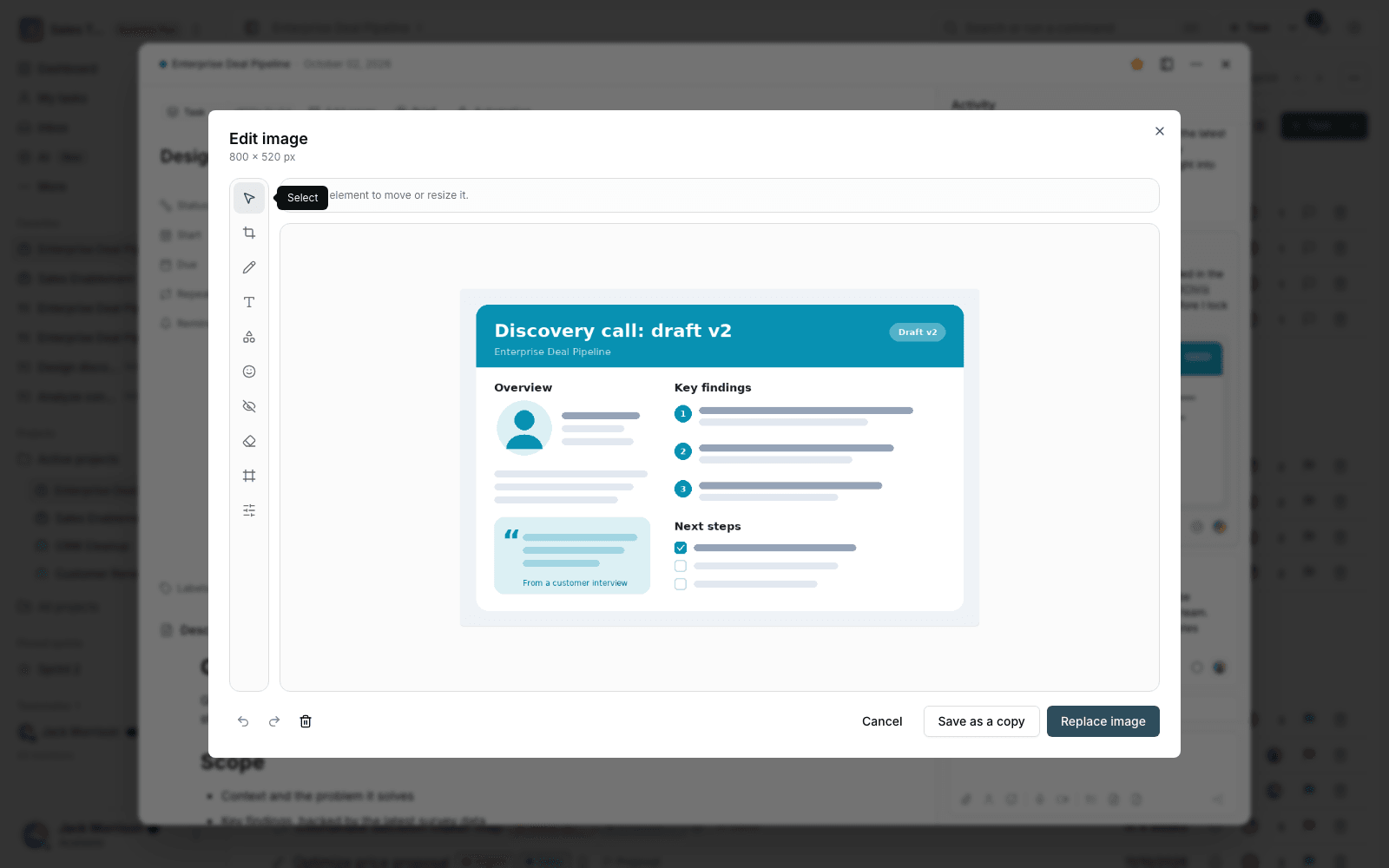
Available tools
- Crop, rotate and flip: choose the right frame, fix the image's orientation or flip it horizontally and vertically.
- Pen, text and shapes: mark up the image, write notes and use lines, arrows, rectangles or ellipses to highlight key points.
- Stickers and numbered badges: mark important areas with visual markers or step numbers.
- Redaction: hide sensitive areas with a cover or blur so the image is ready to share.
- Frames and filters: give images a consistent look with ready-made frames, light and color adjustments or simple filters.
- Undo and redo: step back through recent changes or reapply them so you can edit with more confidence.
How to edit and save
- Select an image to upload, or open the menu of a saved image.
- Click Edit image and choose the tool you need from the editing toolbar.
- When you're done, choose Save for a new image. For saved images, when the options are shown, you can replace the current image or keep the result as a new copy.
- Review the result before replacing; replacing changes the previous file, while saving as a copy keeps the original.
Security tip: The edited result is saved as a final, flattened image, so redacted sensitive information in the output file can't be uncovered or reversed. Even so, always check the final image before sharing it.
Automatic transcription of audio clips
An audio clip is no longer just a file to play. After you upload an audio file to a task or comment, Taskie converts it to text in the background. When the transcript is ready, a Show text option appears below the player, and you can review its content without listening to the whole file.
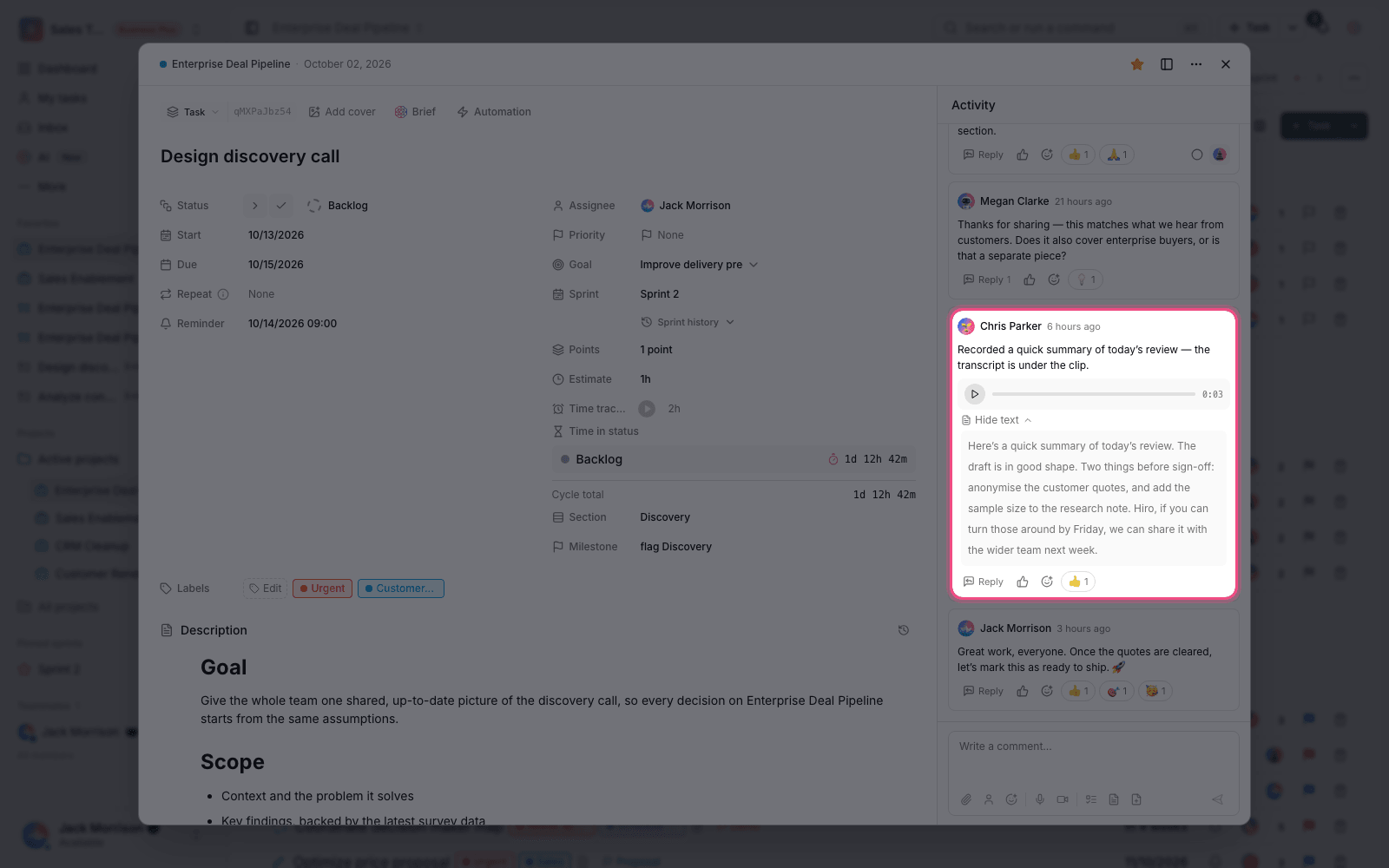
The words in the transcript are also added to Taskie search. For example, if a member mentioned a customer's name or the subject of a problem in a voice message, searching for that phrase can find the related task or comment. This also improves accessibility for people who can't play audio.
- Transcription happens in the background after upload, so sending the file or comment doesn't wait for the text to be ready.
- While it's processing, a Transcribing… status is shown, and once it's ready you can expand or collapse the text.
- If the audio can't be processed, the audio file itself stays intact and playable.
- Transcription depends on the service being enabled and on the workspace's AI credits. Running out of credits doesn't stop the file from uploading.
Smoother voice recording and attachments in document comments
The voice recorder has been redesigned and now shows the microphone's real input level as a waveform. For a short clip, hold the record button and release it when you're done. If you want to talk without holding the button, slide your finger or pointer up while recording to switch to hands-free mode; then finish the recording with the stop button. The keyboard path is still available for accessible use.
Comments on document pages now support attachments. You can send a file or audio clip with a document comment, and even when you don't have any separate text, you can post the attachment on its own as a comment. Access to these files follows the access to the document and the comment.
More precise relationships between tasks
Sometimes two tasks are related, but one doesn't actually block the other. Version 2.4.1 adds four clear relationships for these situations so important information doesn't get lost in comments:
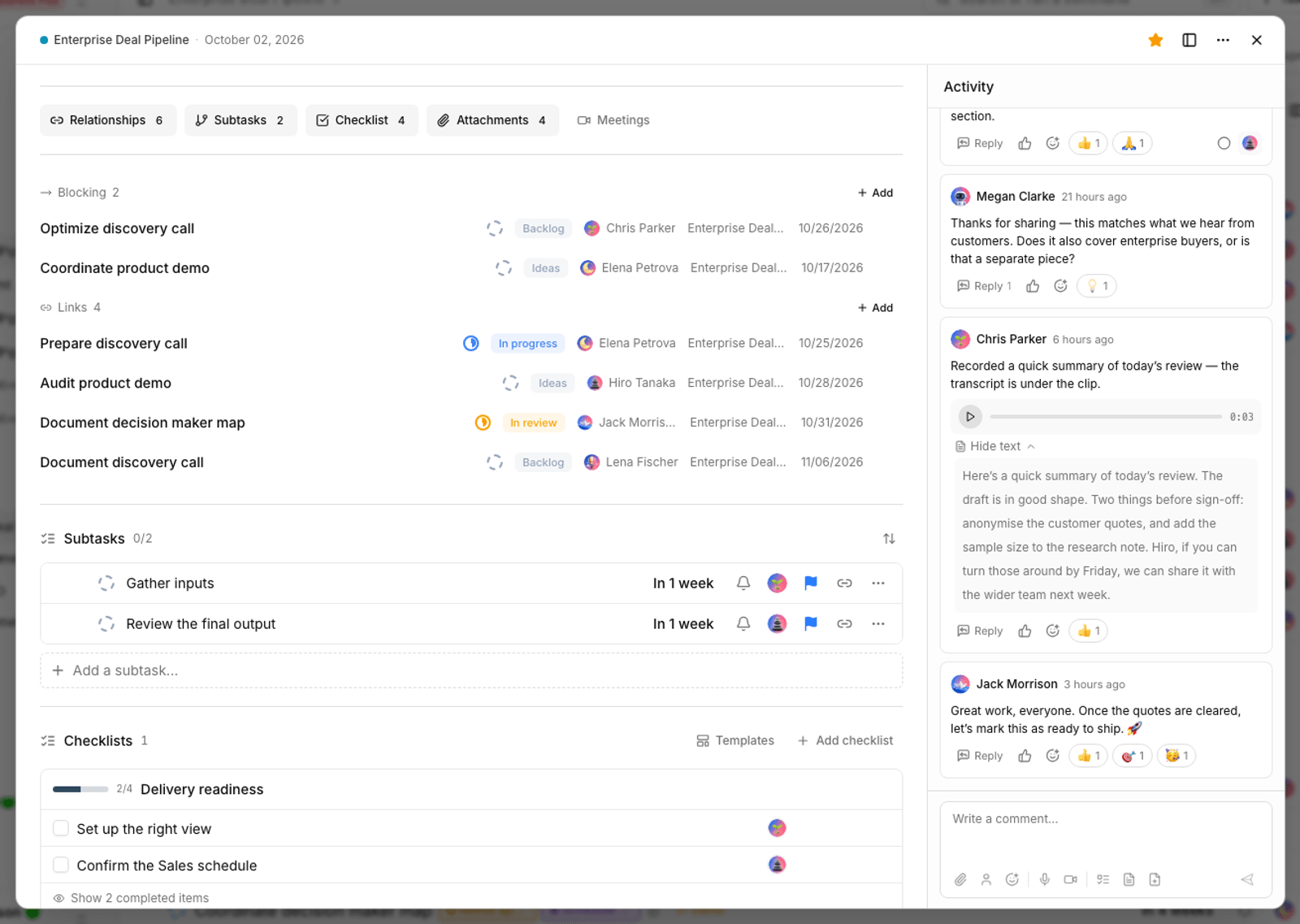
- Relates to: the two tasks share a topic or outcome, without any required order.
- Duplicates: the current task repeats the subject of another task. If you have permission, you can close it as a duplicate.
- Caused by: one task was created as a result of another event, problem or task.
- Clones: the task was created from another task, and its origin needs to stay clear.
To add a relationship, open the task details, go to the dependencies and relationships section, choose the relationship type and then find the target task. These relationships are informational, and unlike the Waiting on or Blocks dependencies, they don't prevent changes to the task's status or schedule.
Task relationship graph view
When several relationships are recorded around a task, going through lists doesn't always show the full picture. On the Pro plan and above, the Graph view button opens the task's relationship network visually. The line style and arrow direction show how each task relates to another, and you can focus on a particular task to look at the details.
This view is useful for reviewing duplicate bugs, finding the cause of a problem, identifying cloned copies and going through a set of related work. The relationships themselves are available to permitted users; the graph view is a Pro plan and above feature.
Custom fields that fit task type and level
In a project with several task types, not every field suits every piece of work. For example, "Bug severity" only makes sense for the bug type, and "Total budget" may only be needed on parent tasks. Now, when you create or edit a custom field, you have two independent restrictions:
- Task type: choose one or more types so the field only appears on those types. If no type is selected, the field is available for all types.
- Task level: enable the field for all tasks, only parent tasks or only subtasks.
The two restrictions apply together; if you set both a type and a level, a task has to meet both conditions. The task list and task details only show the relevant fields, and setting values through other paths, such as automation, follows the same rule.
Existing data is kept: If a task's type or level changes and a field no longer applies to it, the previous value isn't deleted automatically. It stays in the task details as read-only, in the other fields section, so your information isn't lost.
Tips for setting up fields
- Open the project's custom field list and edit a field that's only needed for some of the work.
- In the display scope area, choose the right level.
- In the task types area, check the relevant types, or leave them all unchecked to cover every type.
- Open a parent task and a subtask of different types and check the result before applying it widely.
Bug fixes and other improvements
- A more stable dashboard: a widget added after the dashboard has opened is now saved in the right place and can still be moved and resized.
- Correct view permissions: members whose access is limited to specific views can no longer create new views or add, remove, reorder or duplicate project views.
- My tasks without errors: a task whose project has been deleted no longer causes an error on the My tasks page or its counters.
- More polished sharing: the preview images for Taskie's public pages have been redesigned so links look clearer and more consistent on social networks.
- Better-looking emails: the icon in outgoing emails has been fixed to better match Taskie's visual identity.
Where to start
- Open a test image before uploading and try the crop, text and arrow tools.
- Send a short audio clip on a task, and once it's ready, open its text and search for a word from it.
- Add the right relationship between two related tasks and, if your plan allows it, open the graph view.
- Limit one of the project's custom fields to one task type or to parent tasks only.
- If you have a project dashboard, add a new widget and adjust its position by dragging or resizing it.
To review the previous release, read What's new in 2.4.0 and learn about public developer access, the redesigned whiteboard, custom dashboards and its other changes.