
What's new in 2.2.0
Version 2.2.0 redesigns the AI assistant, gives assistants and your profile avatars, makes quick add smarter with shortcuts, and keeps your account safer with more accurate suspicious sign-in detection.
Taskie 2.2.0 was released on July 2, 2026. If 2.1.0 was about "confidence and focus", this release focuses on "intelligence and consistency": a redesigned, better-organized AI assistant, a fresh look for assistants and your profile, faster task creation, more consistent navigation and safer sign-in to your account.
On this page, we walk through the most important changes in 2.2.0 topic by topic, and for each one explain what it does for you in practice and where you can use it. You don't need to read it all at once. Just start with the section closest to your work.
AI assistant: smarter and more reliable
Taskie's AI assistant has been redesigned in this release so its help is more accurate, more predictable and safer. The most important change is a clear split between two working modes, so you always know whether the assistant is only going to answer or is going to take action:
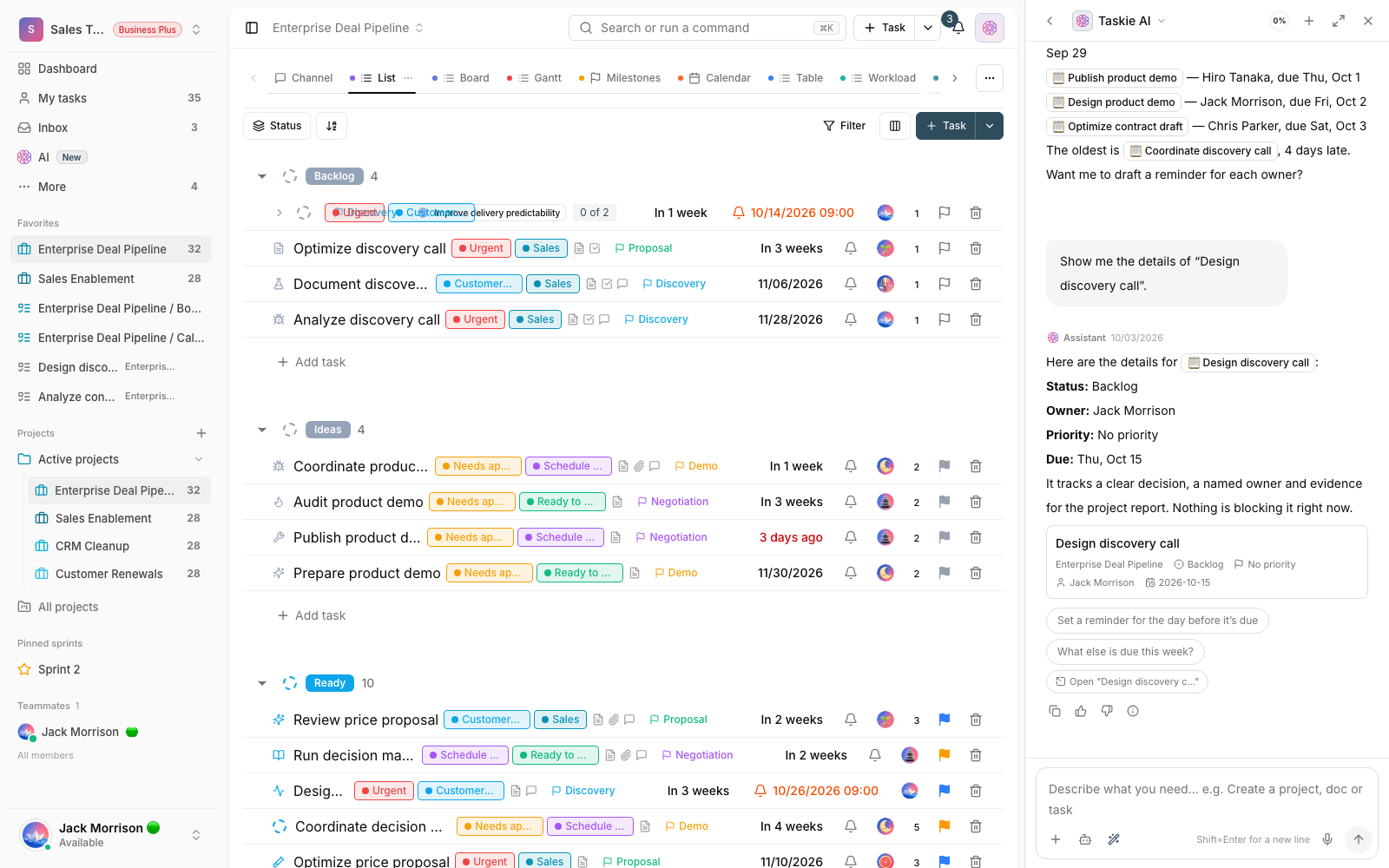
- Ask mode: the assistant only answers and gives guidance, and changes nothing in your workspace. Use it when you're just looking for information or advice.
- Plan mode: the assistant first reviews the situation and shows you a proposed plan. Then, when you press Run this plan, it carries out the plan step by step. This way, you know exactly what's going to happen before anything changes.
- Conversation memory: the assistant remembers key details from the conversation, like the project or topic you're working on, and doesn't ask for them again.
- Multiple-choice questions: whenever a decision is needed, the assistant shows a question with a few ready-made options, so you can answer with one click.
- Capabilities that match your access: the assistant only does what your permissions and your workspace plan allow, so its help always stays within your allowed scope.
The chat experience is smoother too: you can queue your next message while the assistant is still replying, retry if an error occurs, and use helpful empty states to get started faster.
A fresh look for assistants and your profile
Recognizing assistants and members is easier in this release, and the app looks more consistent. Avatars replace repeated emojis, so every assistant and every member has a distinct face:
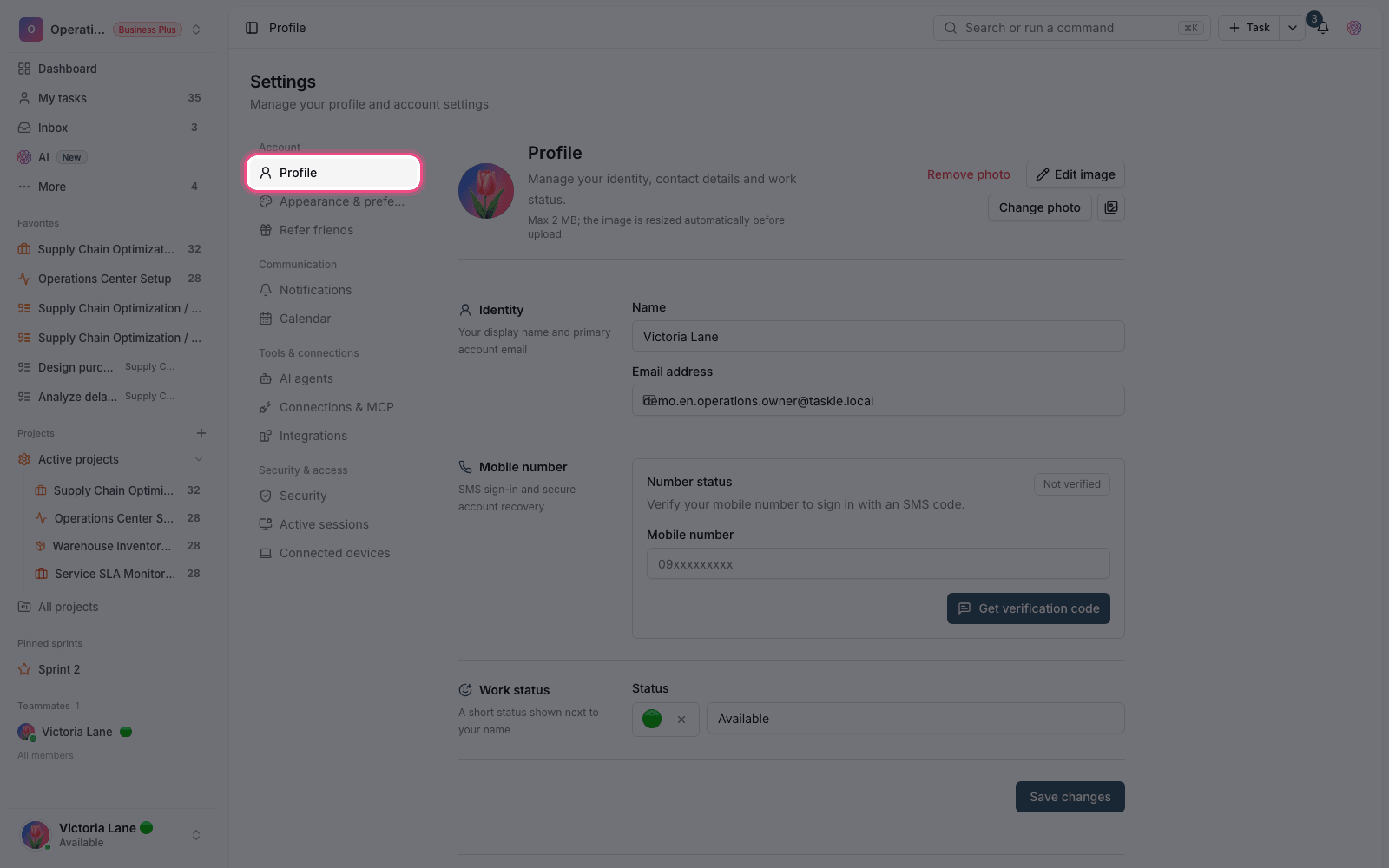
- Assistant avatars across the app: instead of emojis, assistants show their own avatar in conversations, history, schedules and lists.
- Assistant avatar gallery: when you create or edit an assistant, you can pick one of the ready-made avatars from the gallery, with no need to upload an image.
- Ready-made profile avatars: in your own profile settings, you can also pick a ready-made avatar from the shared library instead of uploading a photo.
Faster, smarter quick add
The quick add task box now has shortcuts that set task details while you type the title, without taking your hands off the keyboard. Just type one of these characters while writing the title:
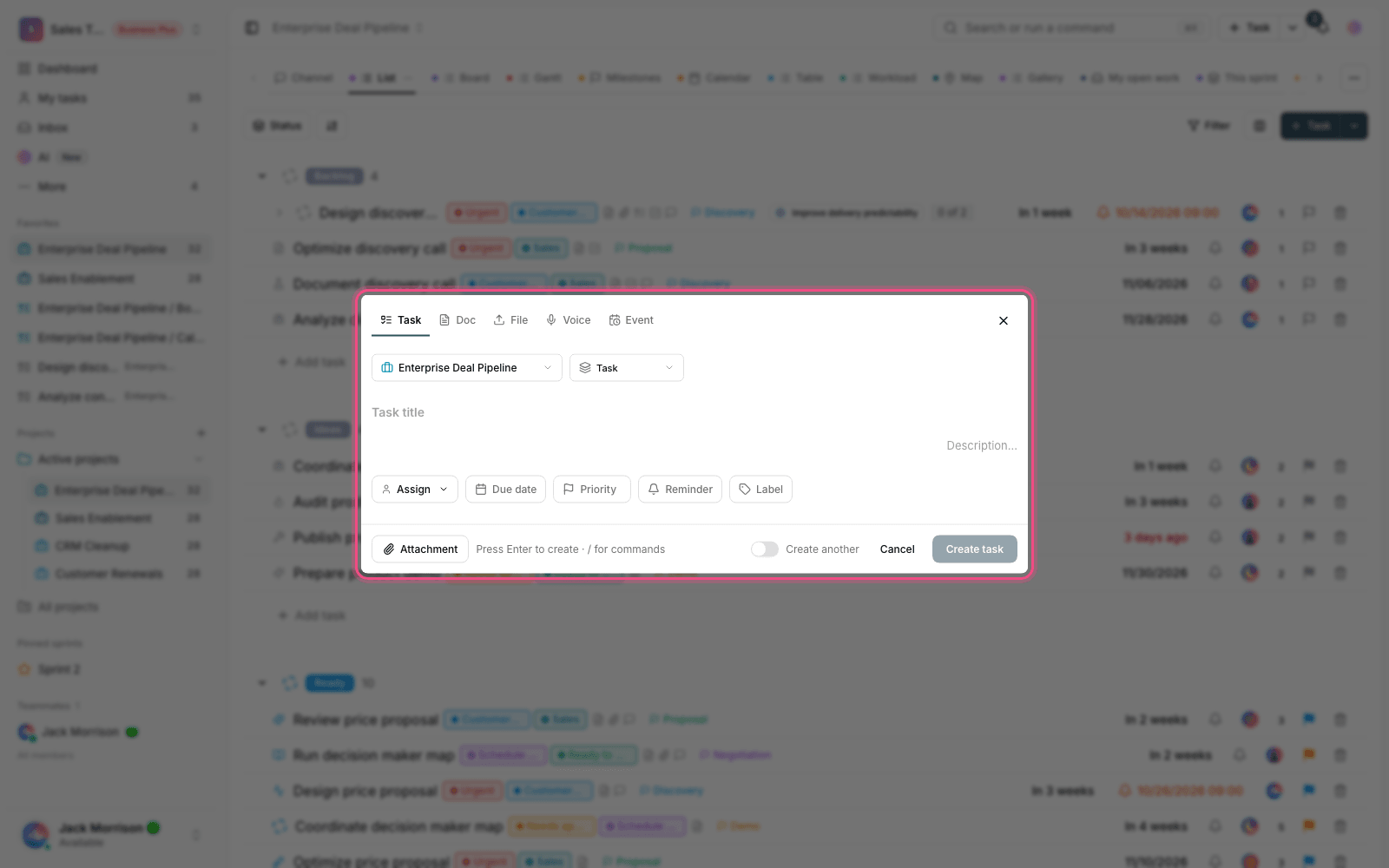
- @ to set the assignee: typing @ opens the member list so you can pick the task's assignee.
- # for labels and references: typing # lets you add a workspace label or a reference to another task.
- / for the command menu: typing / opens a menu of commands, including assign to me, set a due date (for example, today), add a reminder, set the priority, pick a label, choose the task type, move to a project or the Inbox, and attach a file.
The same @ and # shortcuts work in the task editor too. For example, you can use @ to set the assignee in a task draft. The attachments tab also explains that files are added to the workspace or project, not directly to the task itself.
Documents and more consistent navigation
Finding and browsing content is easier in this release. The document center now has a full tree of folders and pages in the sidebar, so you can see your document structure in one place and move between documents quickly.
The sidebar has also been made consistent across sections: the document center, project documents, project resources (forms, mind maps and whiteboards) and file management. All of these now share the same look, expand-and-collapse behavior and interactions, so working with them feels more familiar and simpler.
Safer sign-in to your account
Suspicious sign-in detection is more accurate in this release, which both raises your account security and makes it less likely that a normal sign-in is flagged by mistake. For example, a browser or operating system update is no longer treated as a "new device", and signing in at a slightly different time of day isn't considered suspicious on its own.
If a sign-in really does look suspicious, a one-time code is sent to your email before you can sign in, and you need to enter it to continue. If you use two-factor authentication, a passkey or single sign-on (SSO), you skip this step and don't receive an extra code.
More flexible subscriptions and payments
Subscription management is fairer and more flexible in this release:
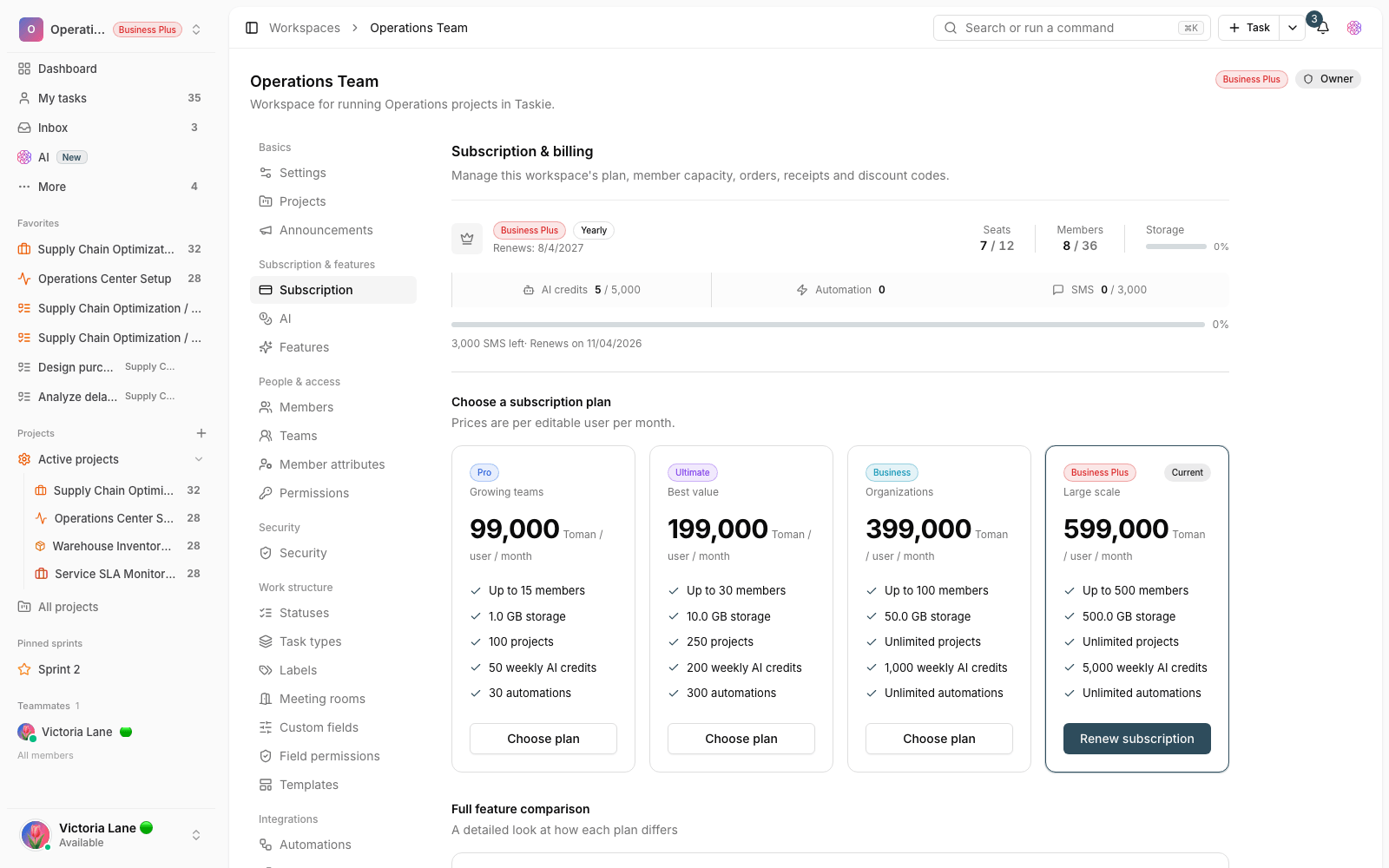
- Plan change credit: when you change your plan or member count, the unused value of your current plan is calculated from the remaining days and deducted from the new amount, and this credit is shown on your invoice.
- Renew by buying again: you can buy your current plan again to extend your subscription period by the same length.
- No-cost changes: if your credit covers the full amount, the plan change is applied automatically with no payment needed.
- Automatic expiry: paid plans that run out are automatically switched to the Free plan each night, so your subscription status is always clear.
More professional emails and notifications
Taskie's emails have been redesigned to be cleaner, more professional and easier to read, with the brand logo and colors, a tidy layout and dark mode support. We also fixed an issue that sometimes showed raw code instead of readable text in comment and message emails. That text now displays in a readable form (for example, mentions appear as @name).
In-app toast notifications are consistent now too: they all share the same look and always appear in the bottom-left corner of the screen, so they have a fixed, predictable place.
Bug fixes and small improvements
- The reminder date picker no longer closes when you pick a different day, so you can choose the date and time in one step.
- After you delete a project view, you're now taken back to the right page.
How to get the most out of it
To make 2.2.0 really work for you, we suggest taking a few simple steps right now:
- Chat with the AI assistant once in Ask mode, then hand it a real task in Plan mode to see the difference between the two.
- Pick an avatar from the gallery for your assistants and your profile, so lists and conversations are easier to read.
- Create a new task with quick add and set its assignee, label and due date right away with @, # and /.
- If you have an active subscription, check the calculated credit on your invoice before changing your plan.
- If you don't use two-factor authentication yet, turn it on for extra security, so you won't need an email code on suspicious sign-ins.
A note about plans: some advanced features (especially certain AI assistant capabilities) depend on your workspace plan. If you don't see an option described here, check your plan and access level, or check with your workspace admin.
To review the changes that came before this release, take a look at What's new in 2.1.0 and see how approval workflows, focus tools and team collaboration got us here.