
What's new in 2.6.0
Version 2.6.0 brings Taskie AI to channels and a dedicated chat page, adds an AI form builder and repeatable sections, and expands the document editor, document labels, Evernote import, messaging bots and the referral program.
Version 2.6.0 focuses above all on Taskie AI: chat now has its own page, project channels can reply to members' messages, and the assistant recognizes projects, people and dates far more accurately. Alongside that, forms can be built and refined with AI, the document editor gets tools for moving and collapsing blocks, documents can be labeled, Evernote notes can be imported into Taskie, messaging bots get button menus, and the referral program launches.
Note: Some features depend on your workspace plan or admin settings. If you don't see an option, ask your workspace admin to check the related permission and plan.
AI chat: a dedicated page and AI channels
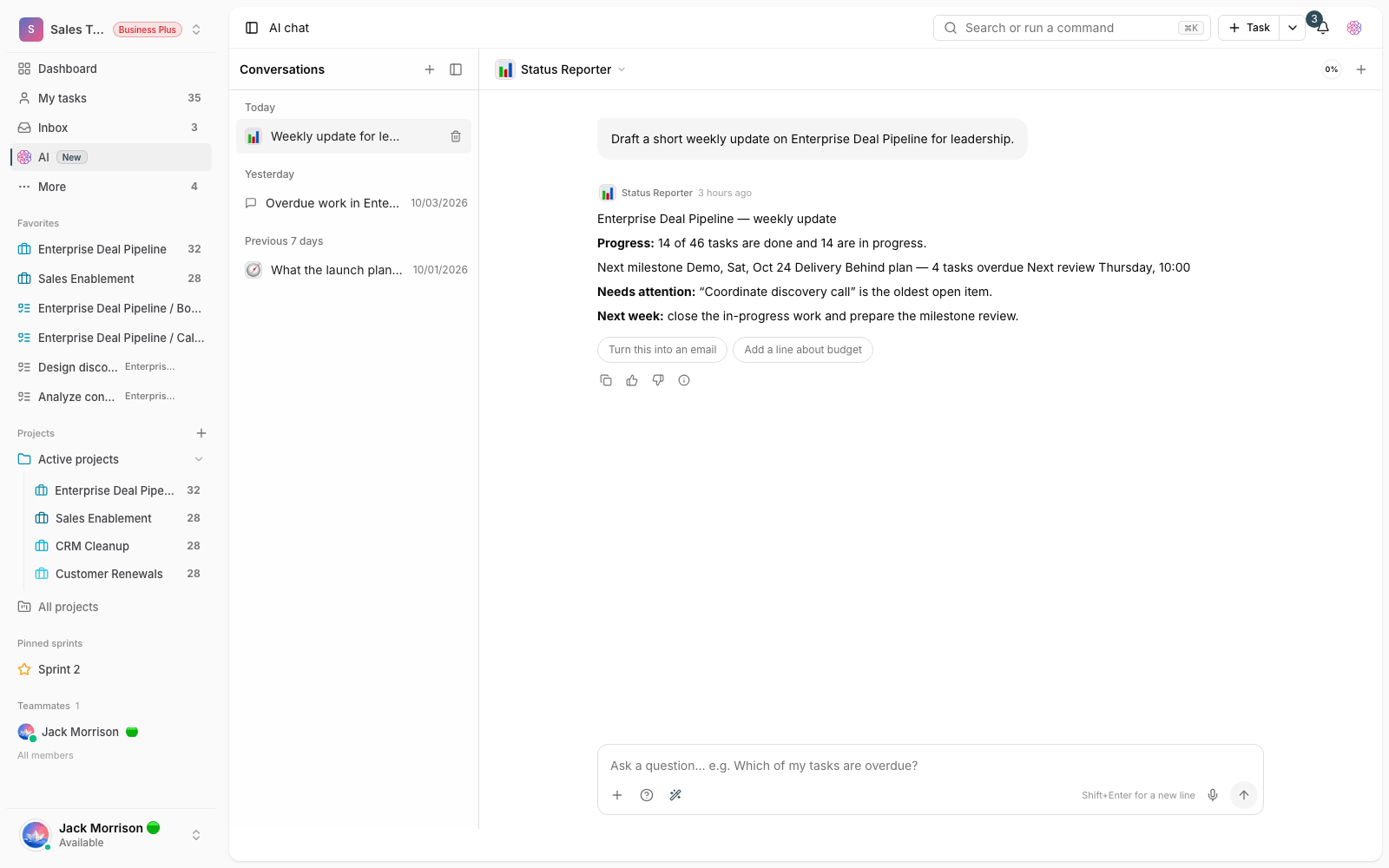
- Chat page: for long conversations, open the full-page AI view. The conversation you had in the side panel continues, and a reply that's still being written isn't interrupted.
- AI channels: you can turn any project channel into an AI channel so members' messages get replies; the reply is posted in the same stream or thread the message was in.
- Built-in assistant or custom agent: you don't need to build an agent to turn on an AI channel; if you don't pick one, the built-in assistant replies.
- You stay in control: messages that start with "//" are ignored, each channel has an hourly cap, and AI channels are marked with a colored badge in the channel list.
- Publish scheduled results: the output of scheduled agent runs can be published to a channel as well as to your personal conversation.
The full guide is in AI channels and the AI chat page.
More accurate project, people and date recognition
- Page context: the assistant knows which project, task or document you're in, so "this project" and "this task" are understood without extra explanation.
- Names: spelling variants, zero-width spaces and even transliterated spellings of names no longer stop a project or colleague from being found, and when something is ambiguous, you're shown options to choose from.
- No repeated questions: once a project has been identified, it's remembered until the end of the conversation.
- Calendar-aware dates: dates you mention are read using your calendar preference and saved on the correct day; non-Latin digits are accepted too.
- AI badge: comments and changes the assistant makes on your behalf show a special badge in the history.
Details are in Page context, names and dates in AI.
New things the AI can do
- Recurring tasks: set up recurrence, pause it, resume it or remove it.
- Time reports: get the total hours logged for a project, task or members over a period.
- Custom fields: see and change field values, and get lists filtered by them.
- Support tickets: file a ticket without leaving the chat; the text is shown to you for approval before it's sent.
Actions that can't be undone, such as deleting future occurrences of a recurring task or sending a ticket, always ask for confirmation first.
Practical examples are in Recurring tasks, time reports, custom fields and tickets with AI.
More stable and more secure replies
- A service outage no longer shows up as a wrong answer; the error is stated clearly, and the error text isn't saved as a reply.
- For a few simple, read-only requests such as "today's tasks", the reply is built directly from Taskie's data so work can continue even during an outage.
- Text that comes from outside, such as a task description, comment, channel message or file, can't change the assistant's behavior.
- When you confirm an action, permissions and the project scope are checked again so the action only runs within that scope.
Forms: AI building and repeatable sections
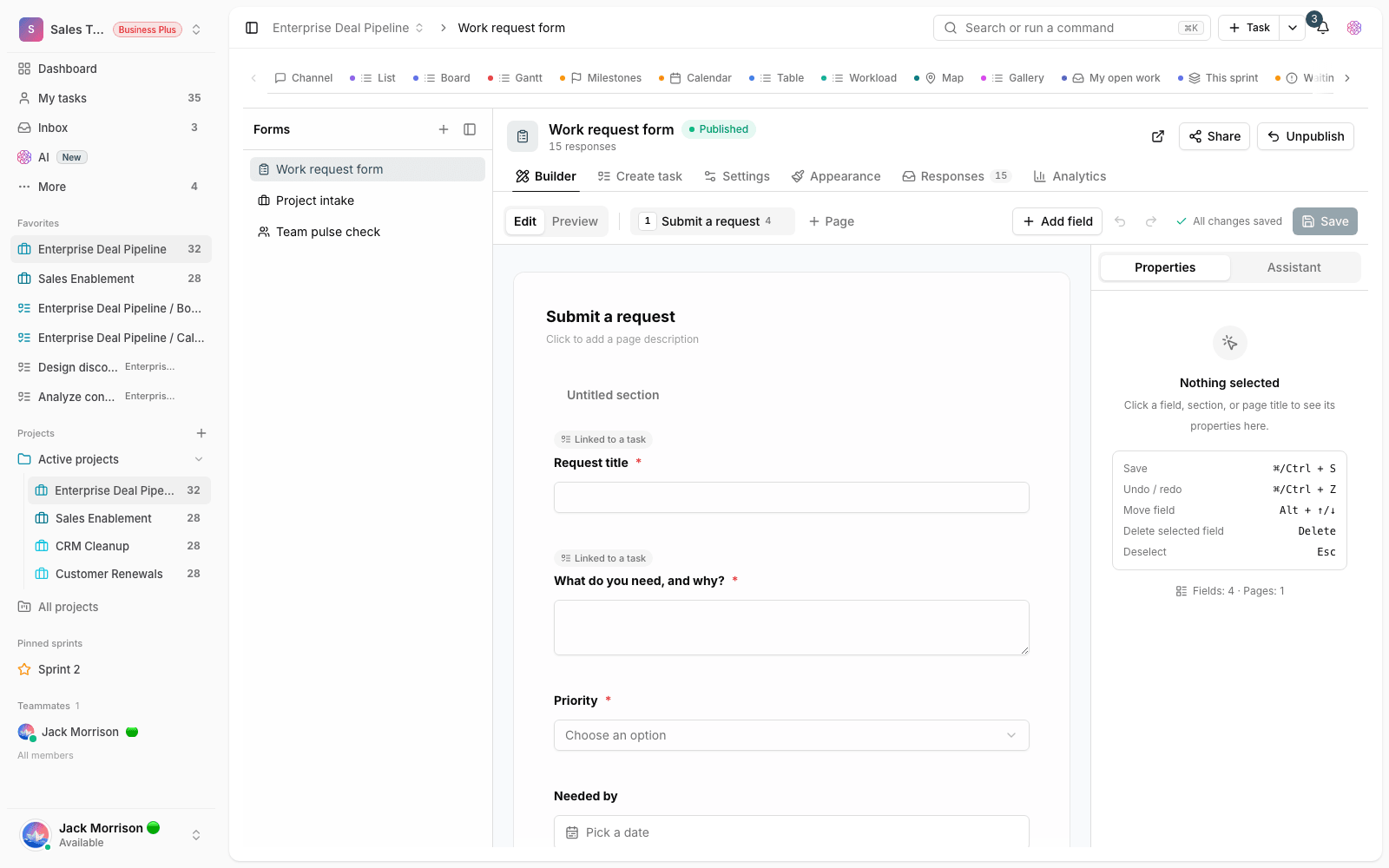
- Build from a description: describe the form's purpose in a few sentences and a draft form is built with the right questions and question types.
- Refine by chatting: ask the AI to add a question, complete the options or change the order; responses already submitted aren't lost.
- Voice answers: for long text questions, respondents can speak and edit the transcribed text before submitting.
- Response summary: across dozens of responses, see the recurring themes and the items worth following up.
- Sections: group questions into titled sections with one- to three-column layouts and display conditions.
- Repeatable sections: make a group of questions repeatable to collect several entries, such as several people or several line items.
The AI never saves anything directly to your form; the suggestion opens in the form builder, and your form doesn't change until you save it yourself.
For details, read Build and refine forms with AI and Form sections and repeatable sections.
Document editor and labels
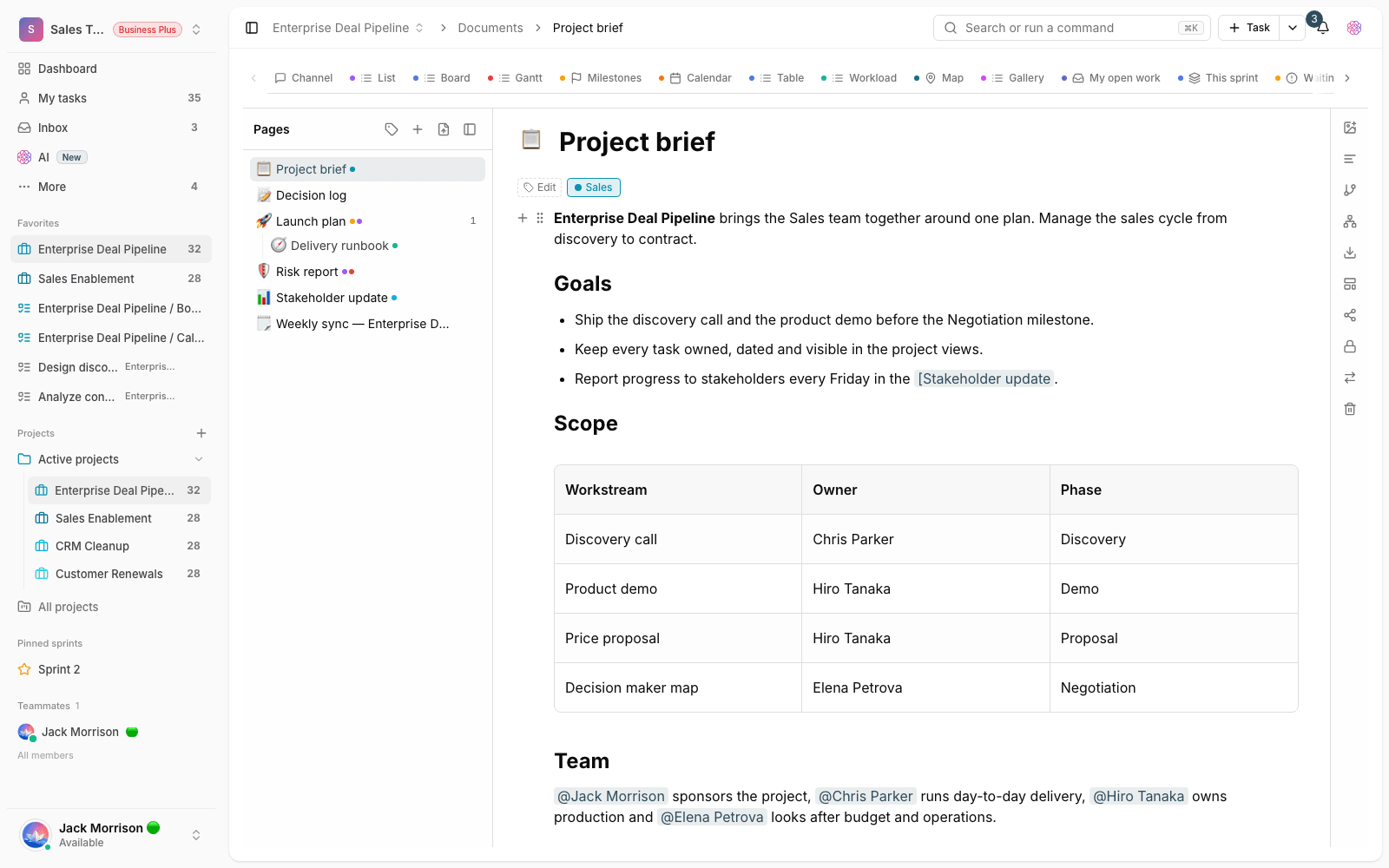
- Block tools: each block has an add button and a drag handle next to it, and from its menu you can change the block type, add color, duplicate or delete it, and copy a direct link to that section.
- Collapsible headings: collapse the content under any heading to make long documents easier to scan; the collapsed state is saved.
- A new "/" menu: the block list is shown as a compact grid, and arrow-key navigation follows right-to-left text correctly.
- Labels for documents: the same workspace labels now work on documents too; the document tree has a label filter, and each label's page has two tabs, Tasks and Documents.
- A cleaner page: the backlinks and comments sections are no longer shown empty in documents that have nothing to show.
The guides for these two areas are Block tools, collapsible headings and the "/" menu and Label documents.
Import Evernote notes
If your team's notes have piled up in Evernote, import the ENEX export file and each note becomes a task, along with its text, inline images, attachments, tags and original dates. You can create a new project for each notebook or send the notes to your own Inbox. Large files are supported too, and the import runs in the background.
The full steps are in Import Evernote notes.
Messaging bots
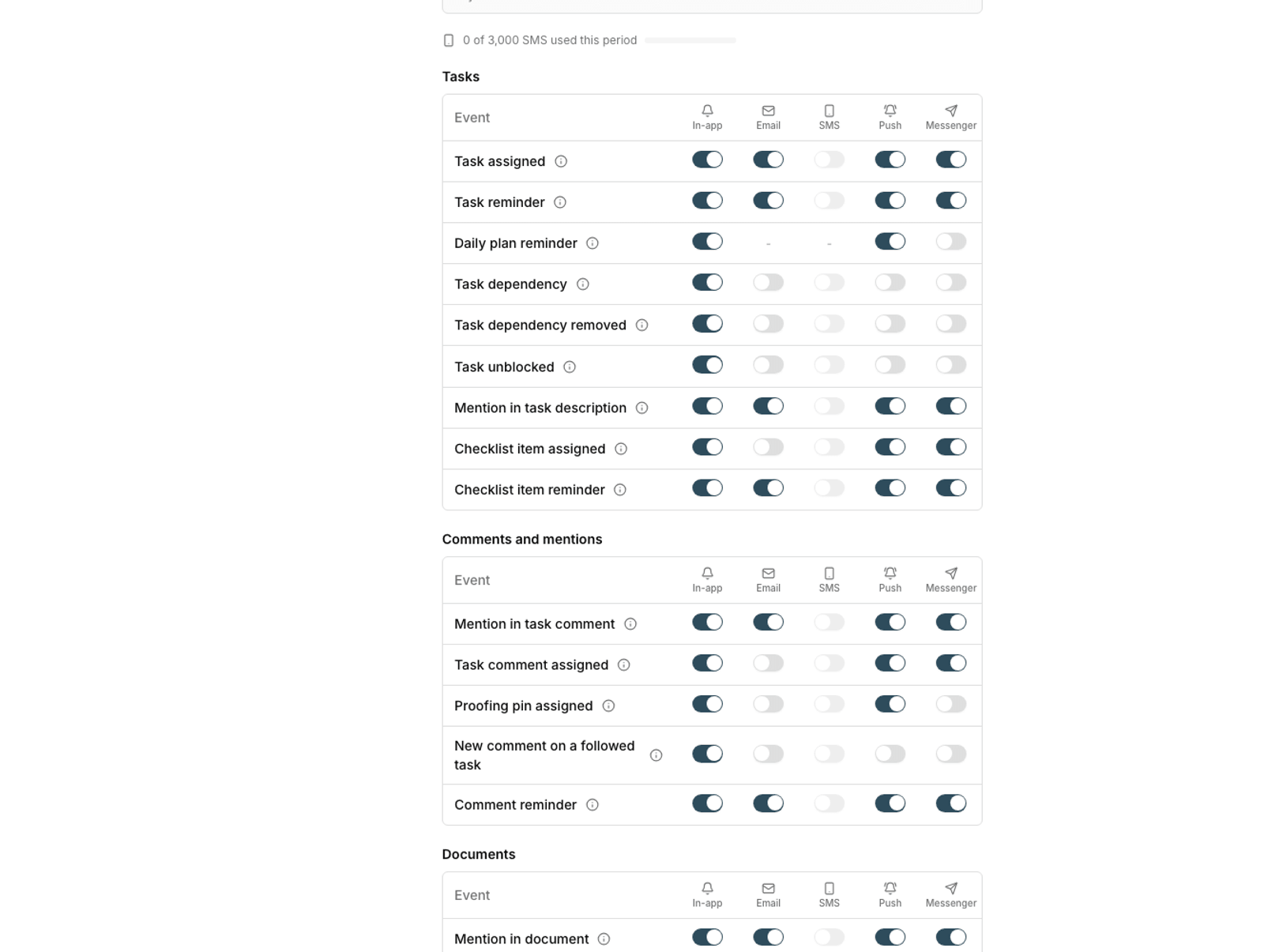
- A button menu below the message box replaces memorizing commands, and it works in every supported messenger.
- Creating a task, logging time, starting a timer, adding a comment, creating a project and searching all run as step-by-step flows and can be canceled with /cancel.
- The /menu, /cancel and /project commands have been added.
- Bot messages are formatted correctly in every supported messenger, and time is logged in the task's own workspace.
- On networks without direct access, an admin can set up and test the bot connection through a proxy.
To go through the buttons and flows, see Bot button menus and step-by-step flows.
Referral program
Every user has a personal referral link. When someone signs up through that link, both of you get 7 days of access to Business Plus features, and if the invited person buys a package within their first 30 days, the same package is credited to the person who invited them. Rewards are capped at four invites per calendar month, and rewards never shorten or replace your current subscription. The reward notification now also shows the correct text and details.
The terms and how to track your rewards are in Referral program.
Everyday improvements
- Kanban board: you can drag section columns just like status columns, and issues with dragging cards between columns, horizontal scrolling with a trackpad and the last card being hidden have been fixed.
- Support tickets: attached images are shown as thumbnails and open on the same page; downloading attachments works for both sides of the conversation.
- All tasks page: you create tasks from the toolbar, and adding a new view creates and opens it right away without opening the settings window.
- Pinned task bar: it no longer covers the page content or the assistant's message box.
- Image attachments: files the server can't generate a preview for are saved without a thumbnail instead of failing.
- AI across the site: the new AI mark replaces the old icon in every related area, and the AI pages, the home page and the pricing page have been redesigned.
Where to start
- Open the AI chat page and ask a question about today's work.
- Turn a low-traffic project channel into an AI channel and send a test message to see the result.
- In a task, ask the assistant to change the due date to a specific calendar date and check the result.
- Build a short form from a description and make one of its sections repeatable.
- In a long document, collapse the headings and move a block with its handle.
- Label a few reference documents and open that label's page.
- If you have Evernote notes, import a small notebook first and review the result.
- In the messaging bot, send /menu and try creating a task step by step.
- Copy your referral link from the referral page and send it to your colleagues.
For a list of every change in this release, see the version 2.6.0 changelog page. The details of each area are also in the articles linked on this page.