
What's new in 2.5.0
Version 2.5.0 redesigns the planning views, brings all tasks together at the workspace level, and expands forms, documents, workflows, agents, MCP and messaging bots.
Version 2.5.0 focuses on planning and managing multiple projects. Gantt, calendar, sprints and gallery have been redesigned from the ground up; the All tasks page shows work from different projects side by side; and the shared work structure lets you define fields, statuses, task types and workflows once for the whole workspace. Forms, documents, the Taskie agent, the MCP connection, messaging bots and support tickets have also become more complete in this release.
Note: Some advanced features depend on your plan or workspace settings. If you don't see an option, ask your workspace admin to check the related permission and feature.
Redesigned views
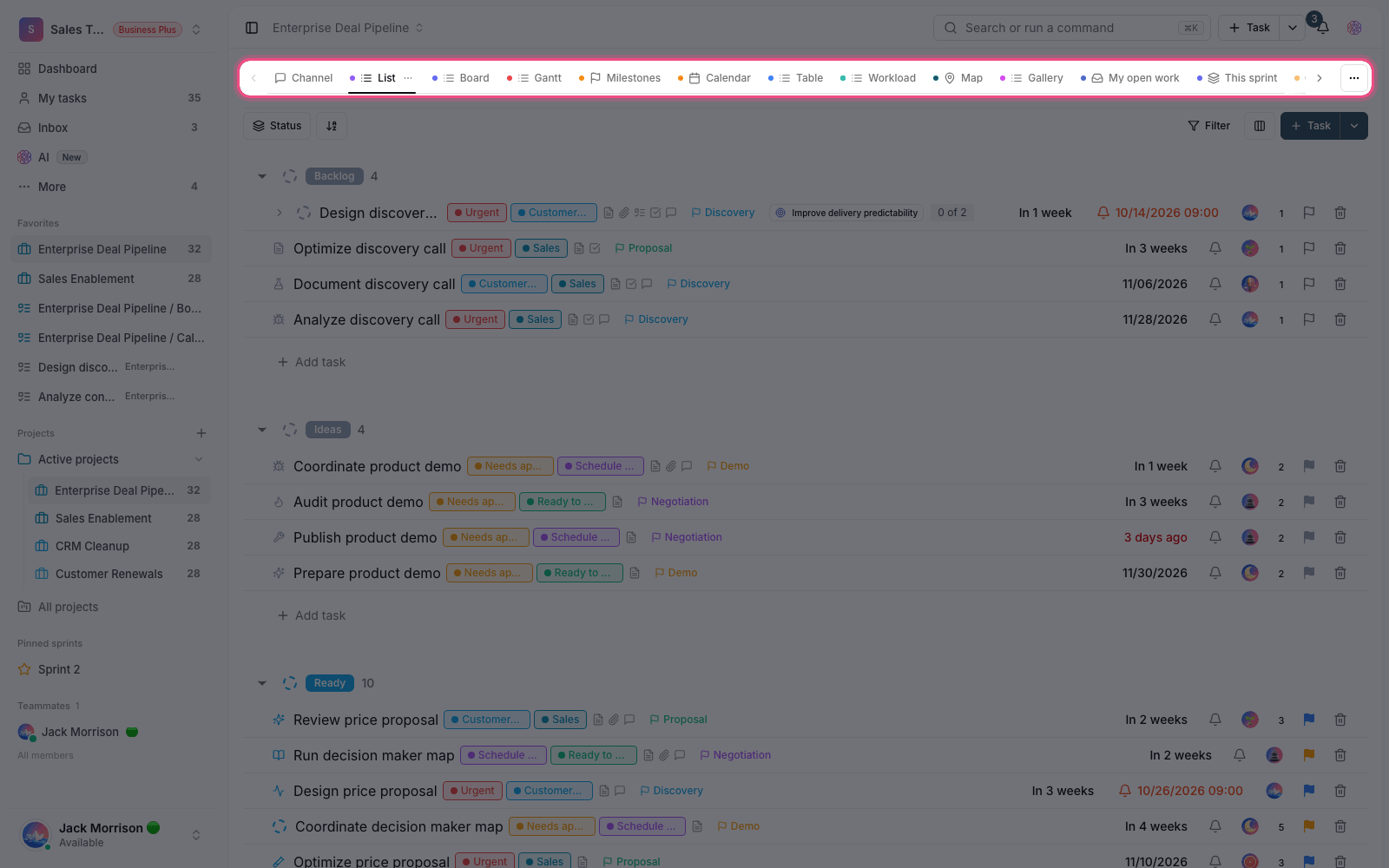
- Gantt: change the time scale from daily to yearly, move task bars with the mouse or keyboard, and each view's display settings are saved for next time.
- Dependencies and schedule control: all four dependency types (finish-to-start, start-to-start, finish-to-finish and start-to-finish) are supported, with lead or lag. Milestones, the critical path and the baseline are also shown on the timeline.
- Calendar: five modes are available: day, week, month, year and agenda. Create a task by selecting a day or a range, and change its date or duration by dragging.
- Calendar layers: turn milestones, logged time and non-working days on or off as needed. The calendar only loads the range you're looking at, so the page stays light.
- Sprints: the backlog and the selected sprint sit side by side in a two-pane workspace. Drag work into the sprint, check overall capacity and each member's capacity, and see the progress charts in the same place.
- Gallery: tasks are shown as image cards. Choose the card size, the cover image and the fields shown on the card to suit the type of project.
For step-by-step guides, read Gantt view, Gantt baselines, Calendar view and Sprint planning.
The All tasks page
The new All tasks page is for when you want to manage work across several projects without jumping between them. Statuses with the same meaning in different projects are merged so the board and list stay readable, but every task still belongs to its own project and members' permissions don't change.
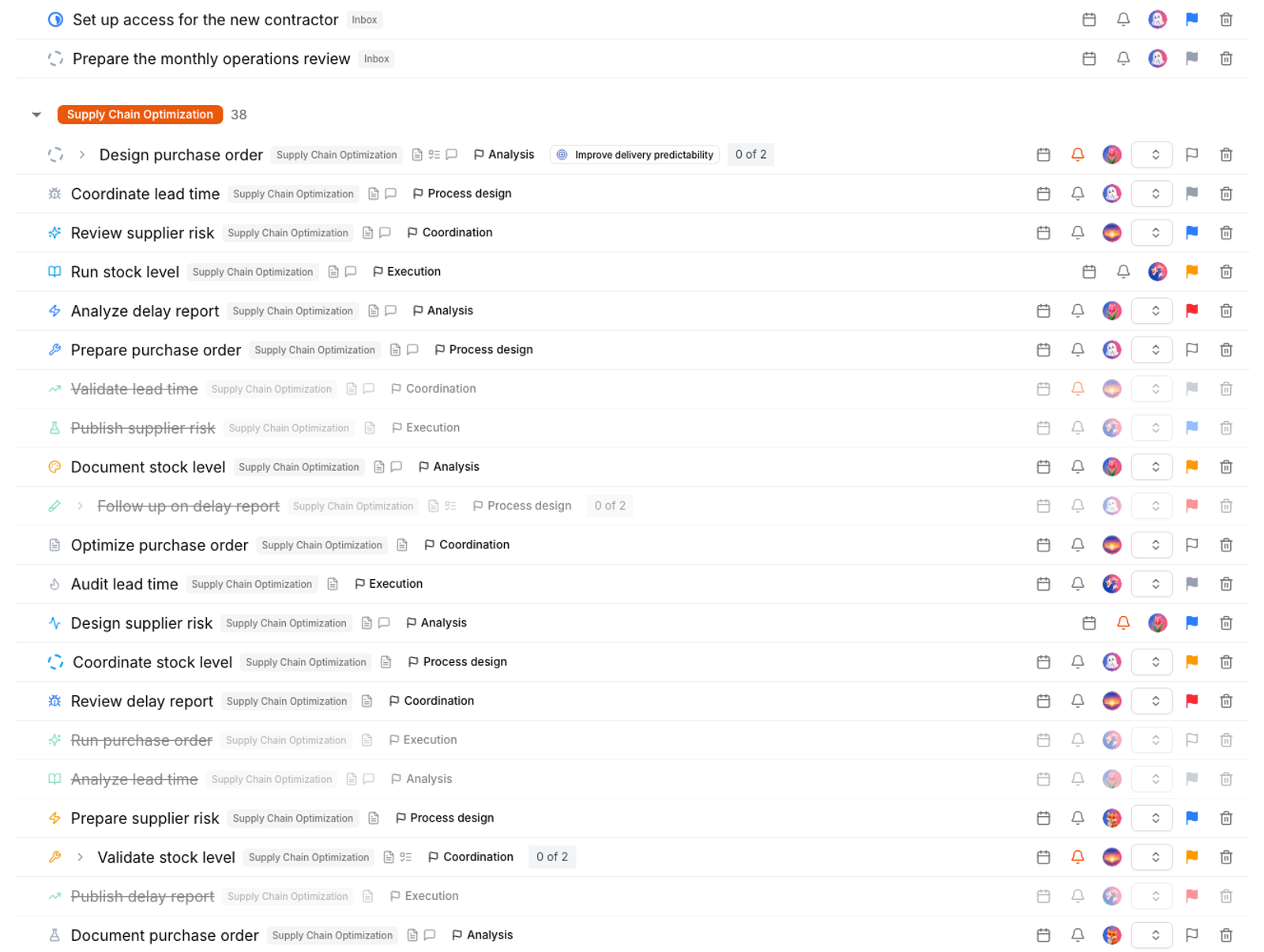
- Create board, list, table, calendar and gallery views at the workspace level and keep the filters you need on them.
- When you create a task, choose the target project so the correct statuses, task types and fields for that project are shown.
- Put documents, files, whiteboard and mind map tabs next to your tasks so the workspace's scattered resources are all in one place.
- Each user can keep their own personal view settings without changing the layout for other members.
Details on creating views and choosing the target project are in The All tasks page.
Task sections
Sections are custom headings inside a project. For example, you can group tasks by stage, team, deliverable or time period. Sections appear in list, table, board and gallery views, and subtasks stay in the same section as their parent task.
- Create a new section above or below an existing one, and change the order of sections from that section's menu.
- Choose a separate sort order for each section and see its completion percentage in the section header.
- Duplicate a section with its tasks or move it to another project; task statuses are matched to the target project during the move.
- Use the Section filter and the move-to-section automation to keep things organized automatically.
For practical examples, see Sections in task views.
Workspace-level work structure
If several projects follow the same way of working, you no longer need to build the same settings in each project separately. Define custom fields, statuses, task types and workflows at the workspace level, and the selected projects inherit them. Project-level settings still stay separate, and an admin can decide which rules can be changed.
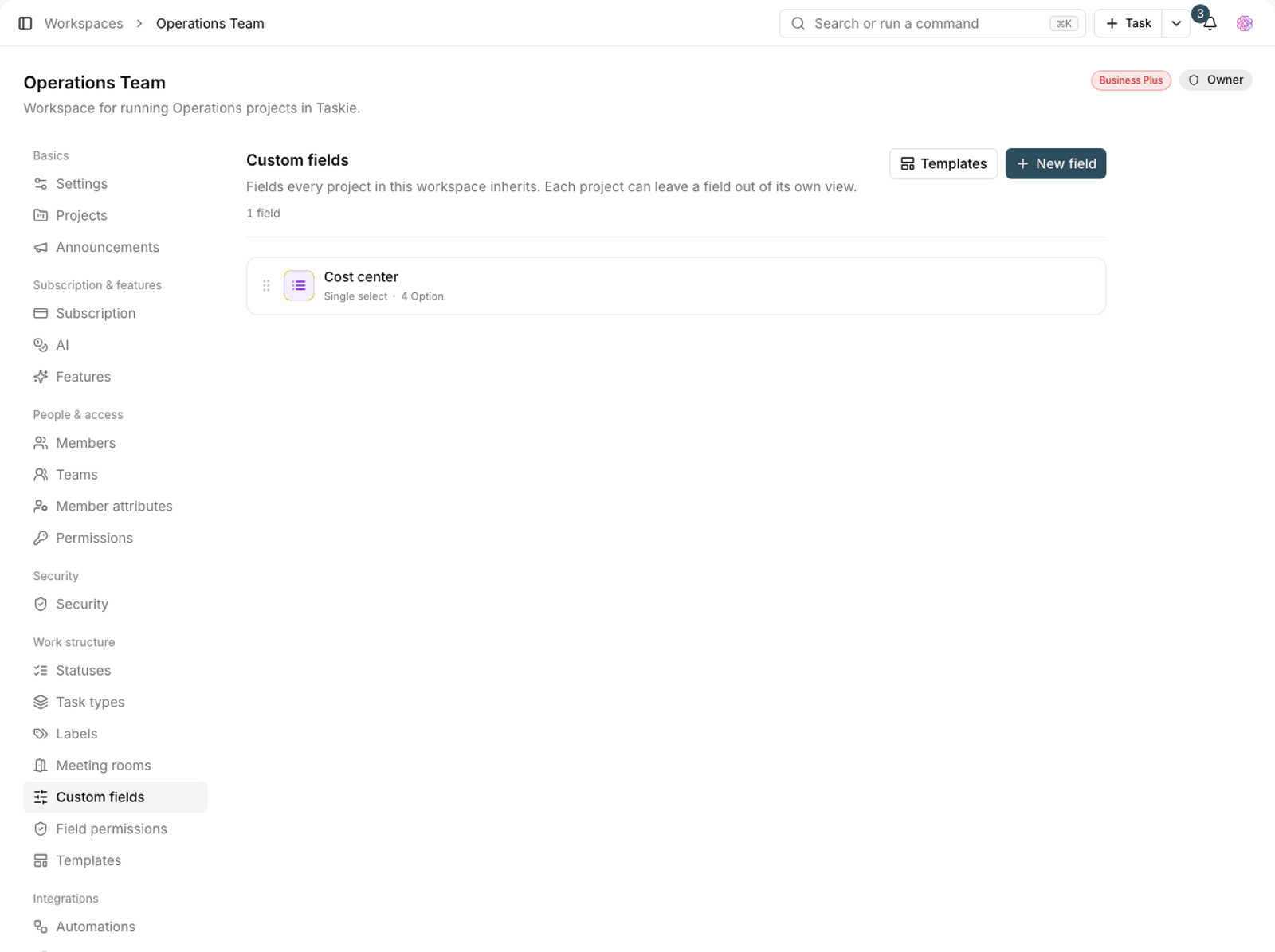
- Shared fields: set a field's order and scope once and see the same definition across projects.
- Statuses and task types: use the workspace's standard names and structures in related projects.
- Shared workflow: status transition rules are mapped to each project's corresponding statuses.
- Locked rules: the workspace admin can prevent projects from overriding some restrictions.
Before applying a wide-reaching change, pick a test project and check the result. The full guide is in Workspace-level work structure.
Status workflows from ready-made templates
The workflow library now has 36 ready-made templates for general processes, software development, content, operations and support. A template is only a starting point: adjust the statuses, transitions and conditions to fit your team, and the version you're editing stays a draft until you publish it.
- Open the workflow builder from project or workspace settings.
- Pick a template close to your team's real process, or start from scratch.
- Review the statuses, allowed transitions and conditions such as assignee, due date, checklist or attachment.
- Save the draft and publish it after reviewing it with your team.
To design simple, easy-to-follow flows, see The status workflow builder.
Agents and MCP
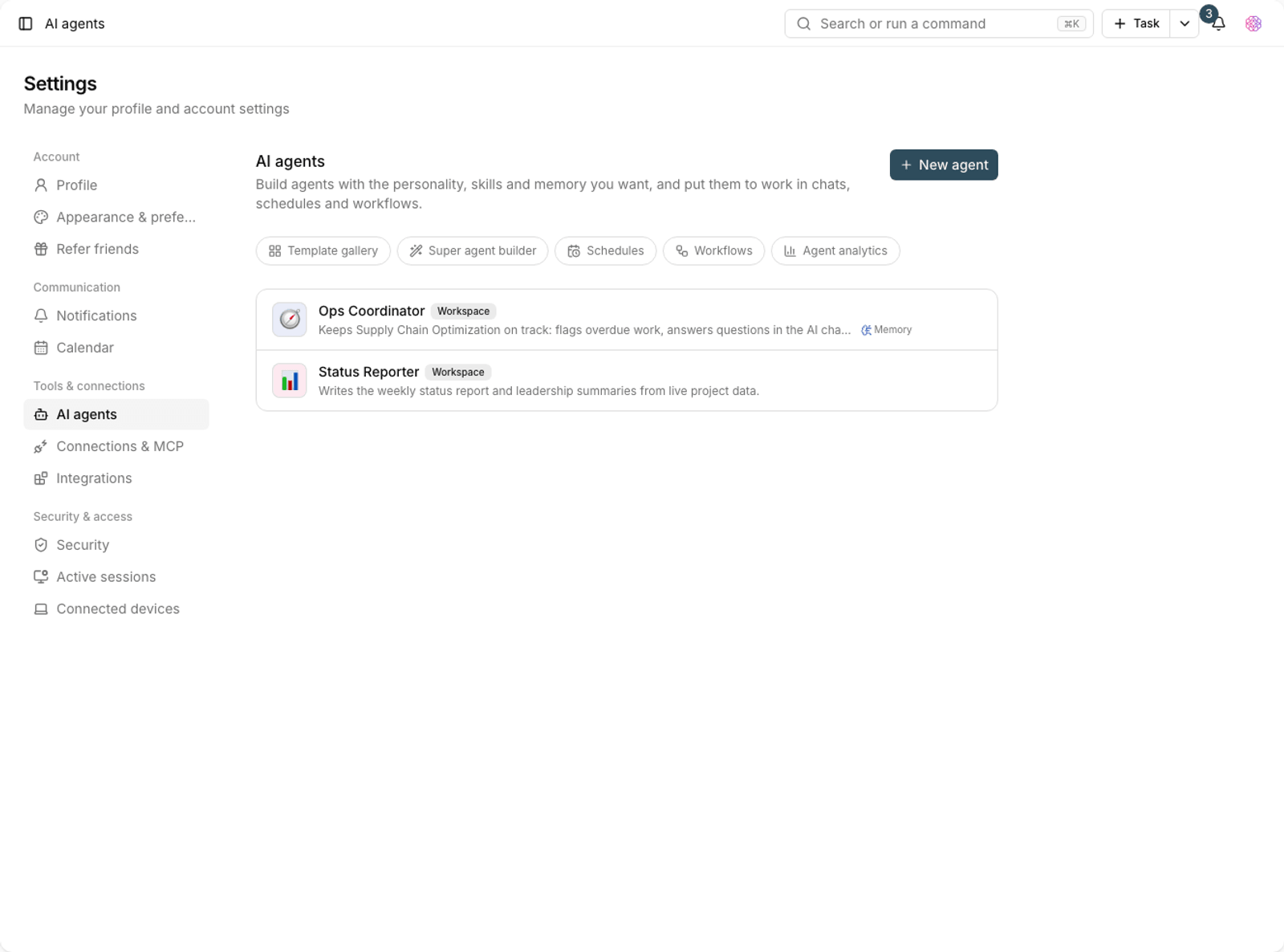
- The agent and product help: before answering product questions, the Taskie agent searches the published help articles and suggests the right article.
- Log time with the agent: you can ask the agent to log your own time on a task, start or stop a timer and read your personal time report.
- Browser sign-in for MCP: external clients connect to Taskie with OAuth 2.1, and with the recommended method you don't need to create and copy a token by hand.
- Shared projects: an MCP connection can see allowed shared projects, and admins can still limit the project scope of each connection.
- More tools, resources and prompts: reading and editing tasks, documents, sprints, goals and logged time is more complete, and ready-made prompts for the daily plan, stand-up and sprint review are available.
To choose the right agent mode and manage external connections, read The Taskie agent guide and Connect an external client with MCP.
Form builder and response management
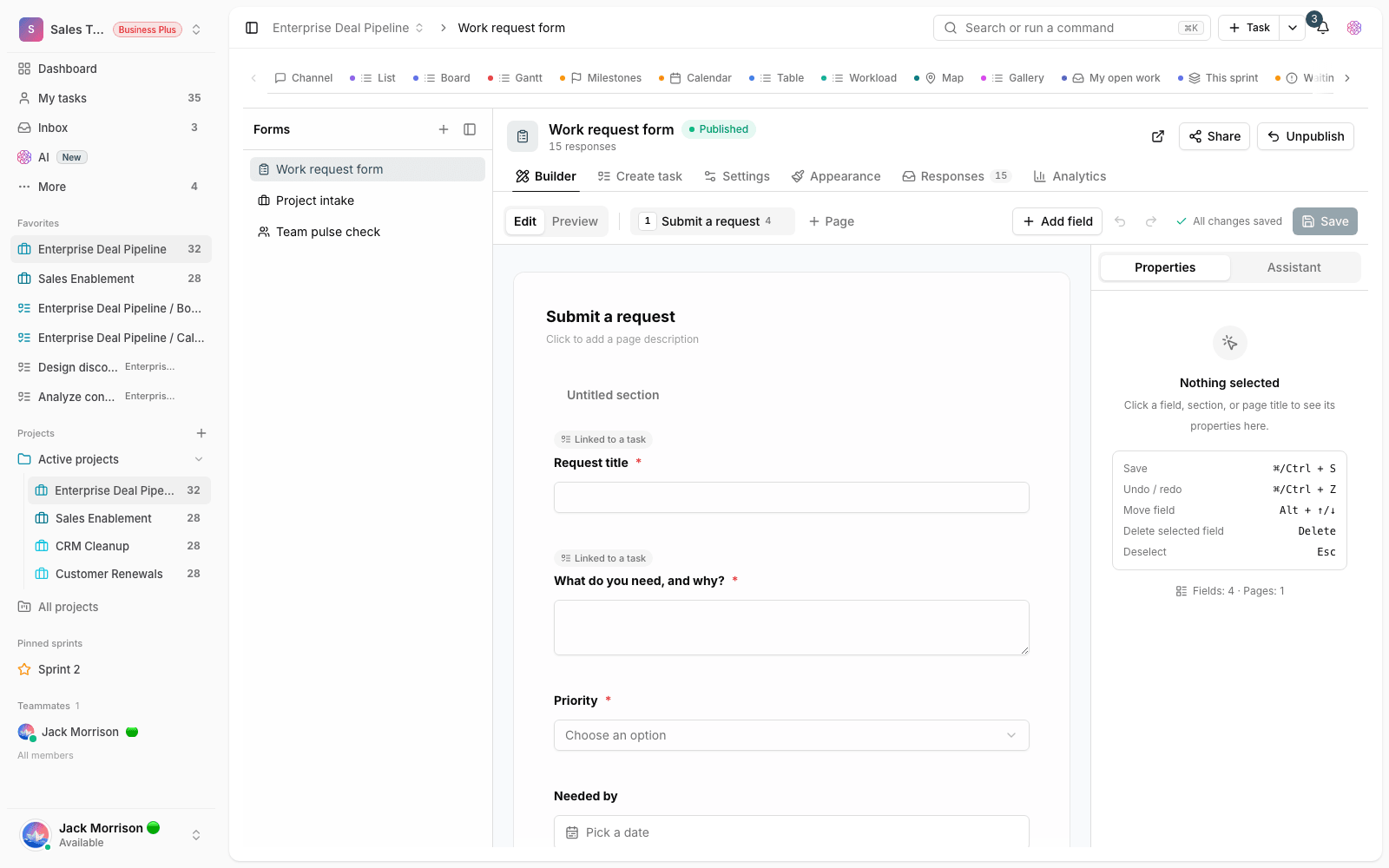
The new form builder has three panes: the field list, the layout canvas and the settings for the selected field. The preview and the public form share the same look, so what you see while designing matches the final page.
- Section, hidden, time, address and rating fields have been added, with score, NPS and linear scale modes.
- The responses tab has become a review inbox; set a status, reviewer and internal note for each response, then convert it to a task.
- You can set up an automatic reply to the submitter and notifications for selected people.
- Share a form with a link, a QR code, an embed code and UTM parameters. Forms with a CAPTCHA can't be embedded, for security.
- Responses are paginated so busy forms still show the full count and list.
To build forms and work with responses, see Create a public form, Form field types and Convert responses to tasks.
Importing, editing and exporting documents
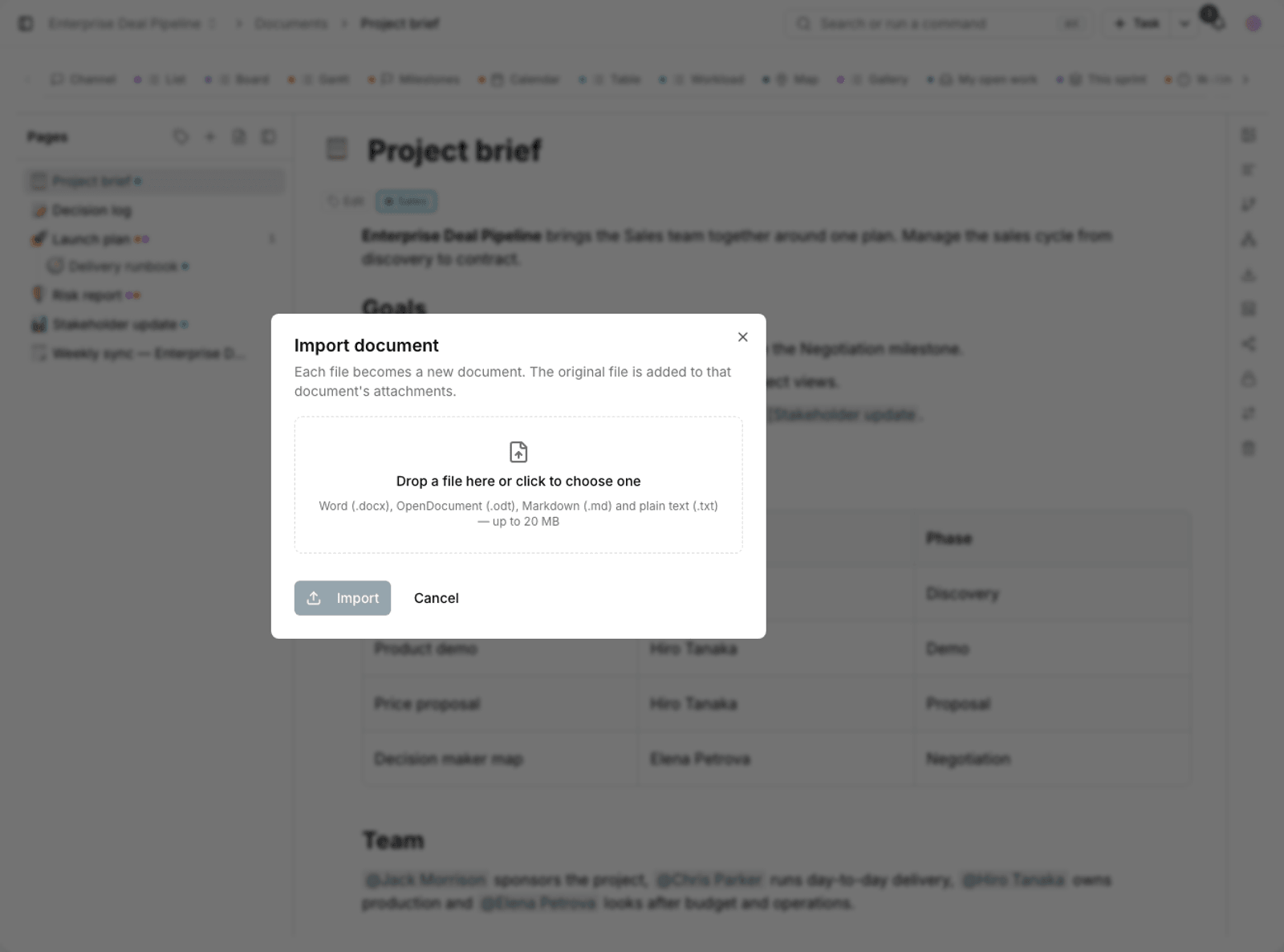
- File import: DOCX, ODT, Markdown and plain text files are converted into real document content, and the original file is kept alongside the page.
- Structure preserved: headings, multi-level lists, tables, links, inline formatting and supported images are carried over as far as possible.
- More export formats: in addition to the earlier formats, Word, OpenDocument and plain text exports are available.
- Richer editing: configurable tables, toggle blocks, callouts and more display styles are saved better in documents and look cleaner in exports.
- Image editing: crop, rotate, annotate and redact sensitive information wherever image uploads are supported.
Import and export carry over the content's structure; the exact look of the source file may not be preserved. After importing, review the tables, images and lists once.
The steps and format limits are explained in Import and export documents.
Messaging bots
The Telegram and Mattermost bots now have controlled access to more of Taskie. You can see today's work, overdue tasks, sprints, goals, approvals and timers; or change the assignee, priority, labels, comments, subtasks, dates and status with commands and buttons. Sensitive changes still need confirmation, and reversible actions have an undo button.
- Turn a voice message into a task or a text comment, and attach an image or file to the current task.
- Bot notifications can be chosen per event, and they're sent in the background.
- On servers without direct access, an admin can set up and test a secure proxy connection for the bot.
To link your account and learn the commands, read the messaging bots guide.
Support and everyday improvements
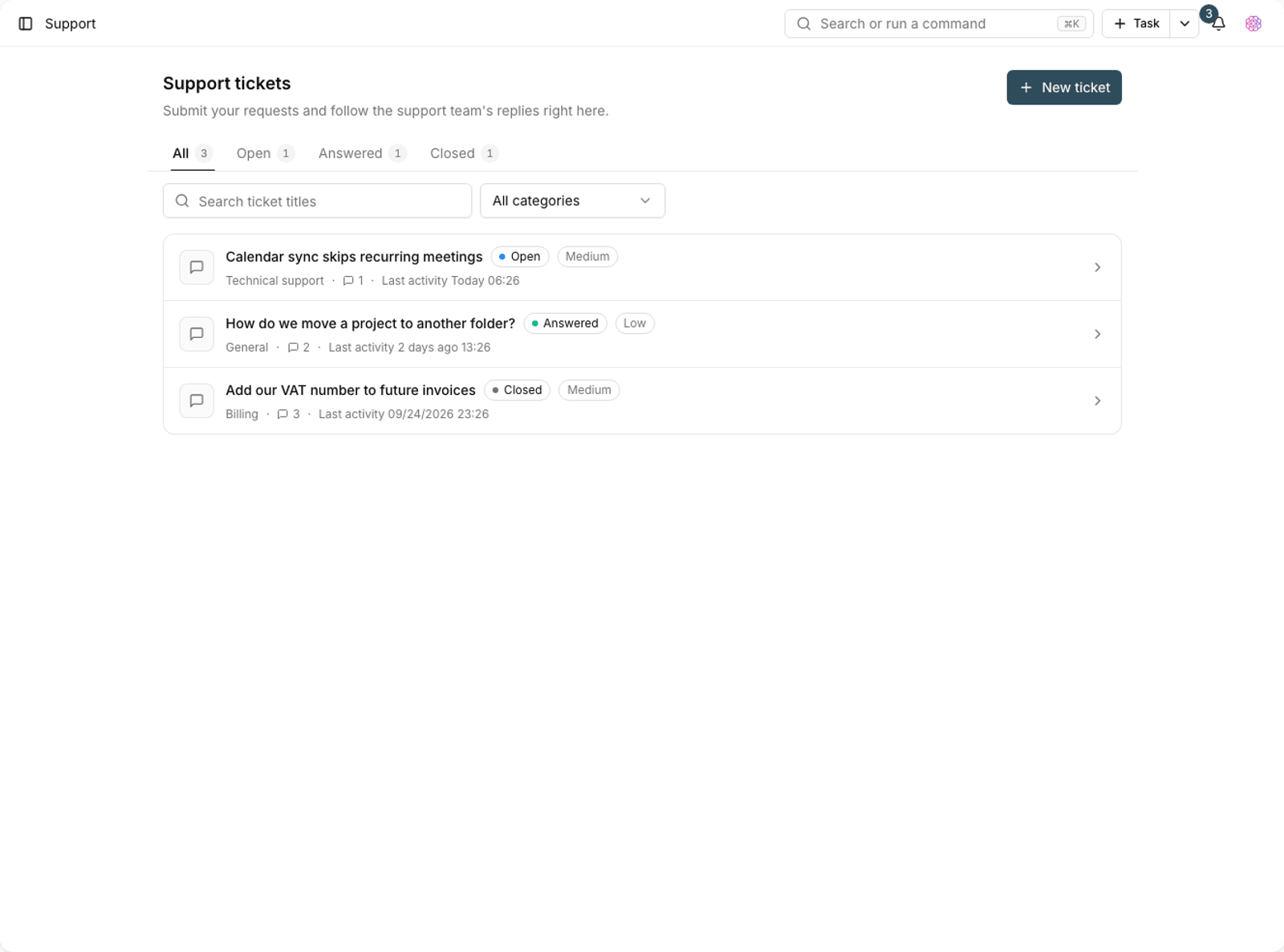
- Support tickets: the page for filing and tracking tickets has been redesigned, and new replies reach both the user and the support team with more accurate notifications.
- Audio transcripts: the transcript prepared for audio attachments is now shown next to the player, so it's easy to review and search.
- Covers and images: the ready-made task covers, empty-state images and project view icons have been replaced with a fresh, consistent style.
- Shortcuts and notifications: the Option key on macOS is recognized correctly, and the open-notifications command opens the Inbox notifications tab directly.
- Performance and stability: the Gantt chart only renders the rows and columns it needs, the calendar prepares adjacent ranges intelligently, and dragging kanban cards on Windows is more stable.
- Sprint points display: each task's points are shown as a simple, readable value in list rows.
If you need help, see File and track a support ticket.
Where to start
- Open a project and, in the Gantt view, try the time scale and the option to show the critical path.
- Switch the calendar to week or month mode and drag across a range to create a new task.
- Create a few sections in list view and place tasks under them by stage or deliverable.
- Open the All tasks page and create a workspace view with the filters you want.
- If you have several similar projects, start by defining one shared field or workflow on a test project.
- Build a short form in the new form builder and test reviewing a response and converting it to a task.
- Import a sample Word or Markdown file into a document and review the result before using it widely.
- Ask the agent to find a help article or to start your personal timer on a task you're allowed to work on.
For a quick look at all public changes, see the version 2.5.0 changelog page. For more detail, the articles linked in each section of this guide are available too.